Этот перевод был сделан машиной и пока не проверен человеком. Говорите на этом языке? Просмотрите его.
Введение
У моего Kindle 4 возникла проблема с материнской платой, и он не включался даже после замены аккумулятора. К счастью, я нашел другой Kindle 4 с поврежденным экраном, чтобы извлечь из него исправную материнскую плату и установить её.
Хотя снятие поврежденного экрана с Kindle 4 — задача довольно сложная, замена материнской платы оказалась гораздо проще. Каждая деталь устройства посажена на клей, но он чувствителен к нагреву, поэтому не доставит больших хлопот.
Выберете то, что вам нужно
-
-
-
Выполните действия из руководства по замене экрана до 4-го шага включительно
-
Откройте заднюю крышку
-
Снимите переднюю крышку
-
Отсоедините аккумулятор
 Спросите у FixBot
-
-
-
Отсоедините все шлейфы от платы
-
Необходимо отстегнуть 4 разъема:
-
Правые кнопки
-
Левые кнопки
-
Экран
-
Аккумулятор
-
-
-
Открутите плату с задней стороны
-
3 винта Torx с этой стороны
-
-
-
Открутите пластиковый корпус с передней стороны
-
2 винта
-
-
-
-
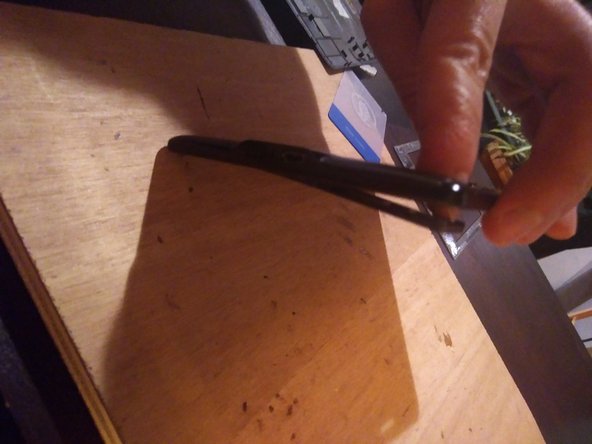
Нагрейте пластиковую деталь, чтобы ослабить клей
-
Переверните устройство и вытолкните деталь наружу через корпус
-
-
-
Открутите плату с лицевой стороны
-
Это еще один комплект из 2 винтов!
-
-
-
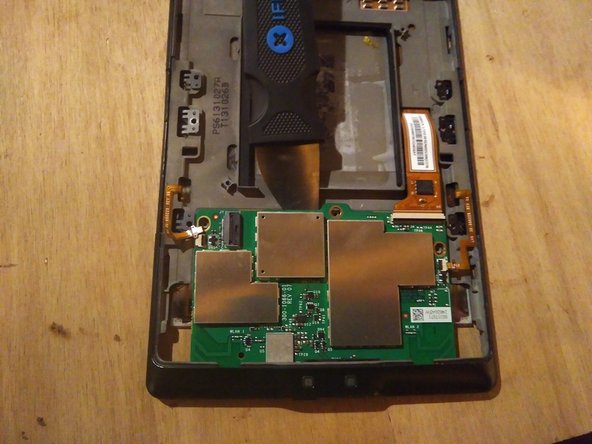
На плате больше нет винтов, но она все еще приклеена к корпусу
-
Используйте дополнительный нагрев, чтобы ослабить клей
-
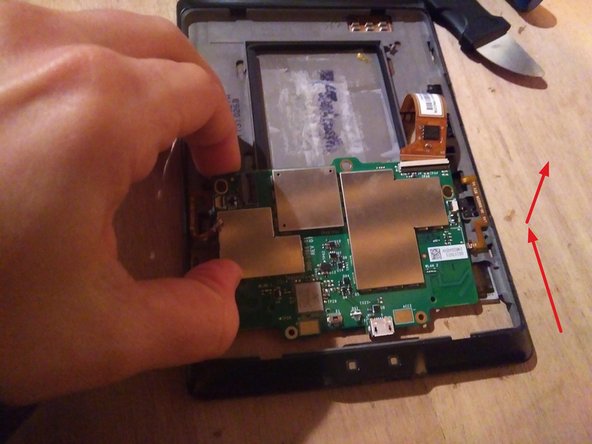
Подденьте плату, чтобы отклеить ее
-
Затем извлеките плату, вытянув ее
-
-
-
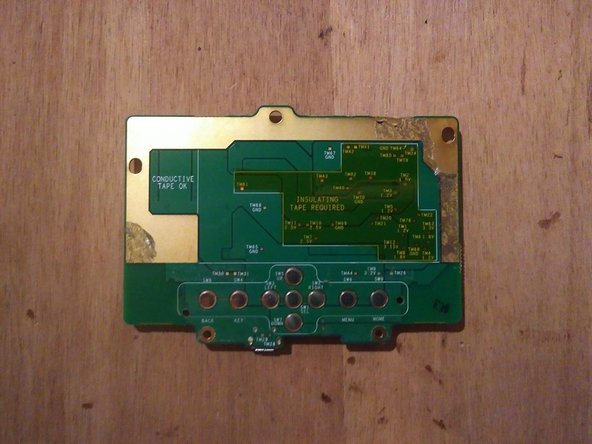
Вот как она выглядит со снятыми экранами ЭМС
-
Не пытайтесь снимать экраны на вашей новой плате: они припаяны напрямую, и вы рискуете повредить всю печатную плату.
-
-
-
Если у вас есть другое устройство, из которого вы извлекаете новую материнскую плату, повторите шаги с 1 по 7
-
Установите новую материнскую плату
-
Перед тем как собрать устройство обратно, протестируйте его
-
Подключите все разъемы, аккумулятор подключайте в последнюю очередь
-
При подключении аккумулятора светодиод должен мигнуть зеленым
-
Попробуйте включить устройство
-
-
-
Снова отсоедините аккумулятор
-
Прикрутите плату обратно
-
Подсоедините аккумулятор
-
Установите на место пластиковую деталь, удерживающую кнопки, переднюю крышку и заднюю крышку
-
-









По всей видимости, Amazon прекратила поддержку этой модели: при входе в сервис требуется двухфакторная аутентификация, которая, судя по всему, не реализована в прошивке Kindle.
Тем не менее, вы по-прежнему можете использовать свой Kindle 4 через USB: устройство распознается как накопитель, и вы можете загружать электронные книги в формате PDF или MOBI прямо в память.
Воспользуйтесь программой с открытым исходным кодом Calibre для конвертации файлов в формат, поддерживаемый старыми моделями Kindle.
Отменить: Я не выполнил это руководство.
2 человек успешно провели ремонт по этому руководству.

