Введение
This is a guide on how to replace or change the RAM in a Lenovo ThinkPad X100e.
Be sure you are replacing the current RAM with other compatible ram before continuing. There are options for upgrades. According to Lenovo forums the ram needs to have the following characteristics to be replaced in this machine:
2GB; PC2-5300 DDR2 SDRAM
4GB: DDR2-800 PC2-6400 CL6-6-618 SO-DIMMs
Be sure to check the following link if unsure: https://forums.lenovo.com/t5/ThinkPad-X-...
For safety reasons, be sure the laptop if powered OFF and unplugged before beginning the replacement.
Выберете то, что вам нужно
-
-
-
Use the Phillips #0 screwdriver to remove the seven screws that are holding the bottom cover in place.
-
Remove the back cover from the frame.
 Спросите у FixBot
-
-
-
-
The RAM will be located at the bottom right corner of the laptop.
-
-
-
Pull the two mounting clips on either side of the RAM stick away from the RAM stick.
-
The RAM should lift up 30 degrees. Slide it out gently as to not damage the pins.
-
-


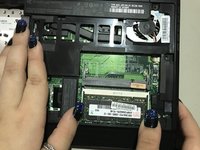
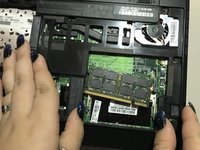
Replace the RAM by sliding the new stick back into the empty slot until it clicks into place.

Команда

University of North Texas, Team S2-G2, Thomas Spring 2018 Участник University of North Texas, Team S2-G2, Thomas Spring 2018
UNT-THOMAS-S18S2G2
3 членов
Автор 3 руководств
