Этот перевод был сделан машиной и пока не проверен человеком. Говорите на этом языке? Просмотрите его.
Введение
Как заменить клавиатуру в Lenovo ThinkPad Yoga 2013 года. Это руководство поможет вам успешно заменить клавиатуру.
Выберете то, что вам нужно
-
-
-
Переверните ноутбук нижней стороной к себе.
-
Выкрутите десять винтов с помощью отвертки Phillips #1.
-
С помощью пластиковой лопатки подденьте и снимите нижнюю крышку ноутбука.
 Спросите у FixBot
-
-
-
Открутите два винта, крепящих аккумулятор, с помощью отвертки Phillips #1.
-
Отсоедините разъем аккумулятора от материнской платы.
-
Извлеките аккумулятор из ноутбука.
-
-
-
-
-
Отсоедините разъемы. Сожмите разъем пальцами и потяните его, чтобы извлечь.
-
-
-
-
-
-
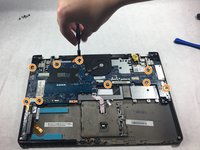
Выкрутите два винта из фиксатора портов с помощью крестовой отвертки Phillips #1.
-
Выкрутите девять винтов из материнской платы с помощью крестовой отвертки Phillips #1.
-
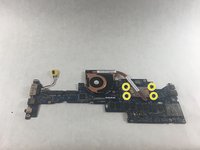
Выкрутите четыре винта из вентилятора под материнской платой с помощью крестовой отвертки Phillips #1.
-
Снимите вентилятор с материнской платы.
-
-
-
-
-
Открутите двенадцать винтов, удерживающих среднюю рамку, с помощью отвертки Phillips #1.
-
-
-
Используйте лопатку (spudger), чтобы поддеть и открыть панель клавиатуры.
-
Продолжайте поддевать, пока панель не станет достаточно свободной, чтобы её можно было снять.
-
-


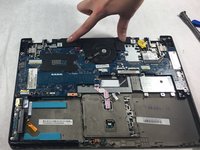
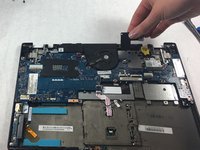
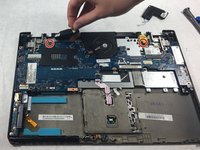


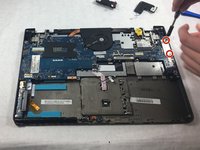


Для обратной сборки устройства выполните эти действия в обратном порядке.
Отменить: Я не выполнил это руководство.
2 человек успешно провели ремонт по этому руководству.

Команда

UMass Dartmouth, Team 4-4, Gulbrandsen Fall 2021 Участник UMass Dartmouth, Team 4-4, Gulbrandsen Fall 2021
UMASSD-GULBRANDSEN-F21S4G4
3 членов
Автор 72 руководств
