Перейти к основному содержанию
Присоединяйся к сообществу ремонтников - Создай аккаунт

Lenovo Thinkpad T450s RAM Replacement

Выберете то, что вам нужно

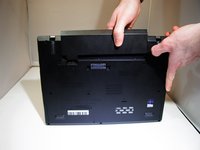
    1. Lenovo Thinkpad T450s RAM Replacement, Battery: шаг 1, изображение 1 из 2 Lenovo Thinkpad T450s RAM Replacement, Battery: шаг 1, изображение 2 из 2
      • Turn off device before starting

      • Flip the laptop upside down so you have access to the battery.

      Спросите у FixBot

      Добавить комментарий

    2. Lenovo Thinkpad T450s RAM Replacement: шаг 2, изображение 1 из 1
      • Slide lock button 1 to the unlock position and gently slide away from your body.

      Спросите у FixBot

      Добавить комментарий

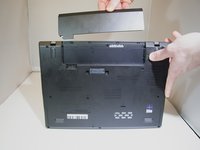
    3. Lenovo Thinkpad T450s RAM Replacement: шаг 3, изображение 1 из 2 Lenovo Thinkpad T450s RAM Replacement: шаг 3, изображение 2 из 2
      • Slide lock button 2 to the unlock position and continue gently sliding until the battery is removed.

      Спросите у FixBot

      Добавить комментарий

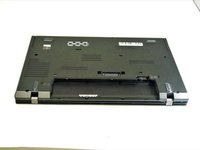
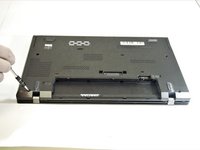
    1. Lenovo Thinkpad T450s RAM Replacement, Lenovo Thinkpad T450s Bottom Panel Removal: шаг 4, изображение 1 из 3 Lenovo Thinkpad T450s RAM Replacement, Lenovo Thinkpad T450s Bottom Panel Removal: шаг 4, изображение 2 из 3 Lenovo Thinkpad T450s RAM Replacement, Lenovo Thinkpad T450s Bottom Panel Removal: шаг 4, изображение 3 из 3
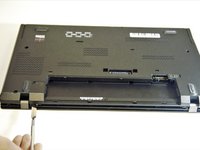
      • Flip the device over and lay it down with the underside facing upwards.

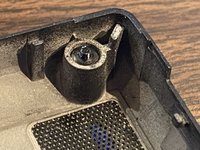
      • Unscrew all 8 screws. While they should not come out completely, in some cases, the plastic retaining washers may come off of one or more of the screws, allowing them to come out completely. - should this happen, look for a loose, tiny black plastic washer once the case is open. It's possible, in some cases, to reattach the retaining washer.

      Спросите у FixBot
      Добавить комментарий

    2. Lenovo Thinkpad T450s RAM Replacement: шаг 5, изображение 1 из 2 Lenovo Thinkpad T450s RAM Replacement: шаг 5, изображение 2 из 2
      • Pry the bottom from the computer until it pops out.

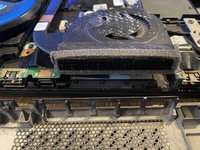
      • In some cases, the vented side of the case may cling to the heat sink; appears to be adhesive. Take care when separating.

      Спросите у FixBot
      Добавить комментарий

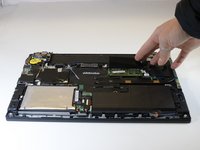
    1. Lenovo Thinkpad T450s RAM Replacement, RAM: шаг 6, изображение 1 из 3 Lenovo Thinkpad T450s RAM Replacement, RAM: шаг 6, изображение 2 из 3 Lenovo Thinkpad T450s RAM Replacement, RAM: шаг 6, изображение 3 из 3
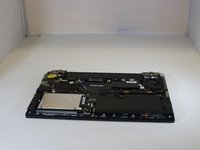
      • Pull one side of the prong that is holding the RAM in place

      Спросите у FixBot

      Добавить комментарий

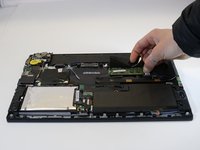
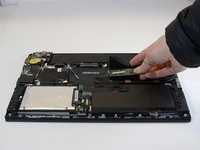
    2. Lenovo Thinkpad T450s RAM Replacement: шаг 7, изображение 1 из 1
      • Pull the other side prong until the RAM pops up.

      Спросите у FixBot

      Добавить комментарий

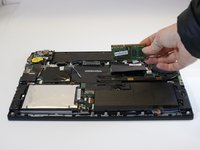
    3. Lenovo Thinkpad T450s RAM Replacement: шаг 8, изображение 1 из 2 Lenovo Thinkpad T450s RAM Replacement: шаг 8, изображение 2 из 2
      • Pull the RAM out of the device

      Спросите у FixBot

      Добавить комментарий

Заключение

To reassemble your device, follow these instructions in reverse order.

Отменить: Я не выполнил это руководство.

Еще один человек закончил это руководство.

Hayden Hausman

Участник с: 01/17/19

637 Репутация

Автор 6 руководств

Команда

Eastern Washington University, Team S2-G3, Munoz Winter 2019 Участник Eastern Washington University, Team S2-G3, Munoz Winter 2019

EWU-MUNOZ-W19S2G3

5 членов

Автор 54 руководств

1 Комментарий к руководству

My t450s comes with an internal battery. The comment on this guide records the process for disabling the internal battery temporarily.

I also used this guide from Lenovo as I found removing the back plate rather difficult.

ray beats - Ответить Поделиться

Добавить комментарий

Статистика просмотров:

За последние 24 часов: 3

За последние 7 дней: 14

За последние 30 дней: 54

За всё время: 5,810