Введение
This guide details the steps involved in replacing the switches for both your left and right mouse buttons with new ones. This might be necessary if your current switches are damaged or if you prefer a quieter option.
---------------------------------------------------------------------------------------
I took over this guide from Reddit to preserve it.
FULL CREDIT GOES TO u/Spook_485
Выберете то, что вам нужно
-
-
-
First off, remove the magnetic cover and remove the 3 stock skates. You can reuse them if you pull them off carefully. Logitech skates consist of the actual Teflon skates and a second layer of foamy adhesive. Make sure you pull off both still attached to each other.
 Спросите у FixBot
-
-
-
Start at the back and just clip the whole cover open. Don't be afraid to use a little force. Either use a clipping tool, or just use 3 fingers and your fingernails to grab into the gap and pull it off.
-
-
-
Detach both flat cables and the battery connector.
-
-
-
-
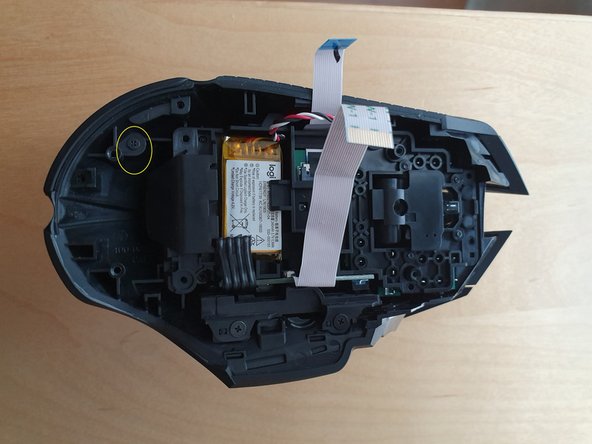
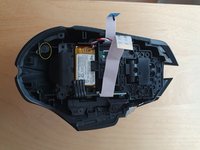
Next remove this screw (it's hidden deep, you will need a thin screwdriver to reach it)
-
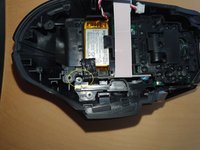
And this one, This will allow you to remove the top LED cover.
-
-
-
Remove the LED cover and remove this screw to remove the LED cup.
-
-
-
Remove these 4 screws which attach the 2 main buttons to the rest of the module. The right mouse button will fall out, while the left one will stay in place, just put the right one aside for now, you can leave the left one hanging loose. After removing these 4 screws, just pull out the whole internal module.
-
-
-
Remove these 2 screws and remove the 2 top button pieces.
-
-
-
Pull out this plastic bolt which holds the scroll wheel module in place. I suggest you use something sharp to push at the bolt from the one end and pull it with your fingernails from the other side at the same time. It will require some force. After it's out, you can simply lift the whole scroll wheel module off the PCB.
-
-
-
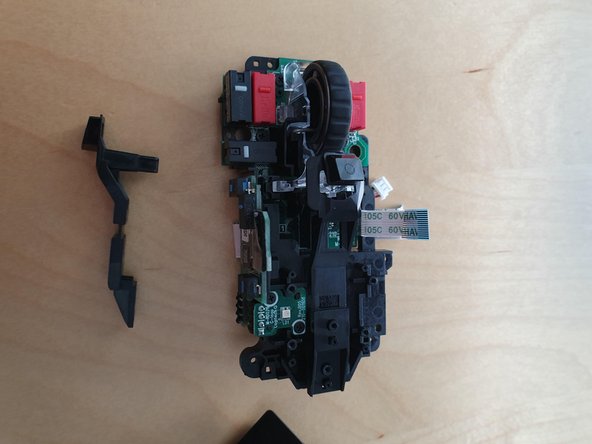
Remove these 2 screws and remove the scroll wheel holder.
-
-
-
Solder off the Omrons and replace them with switches of your choice.
-
-




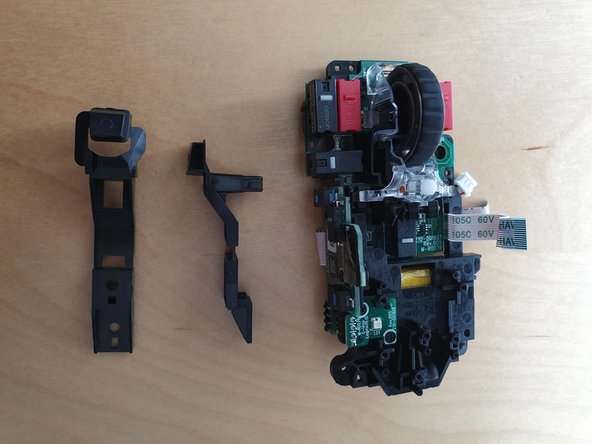
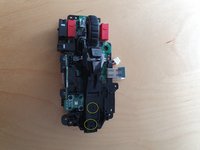
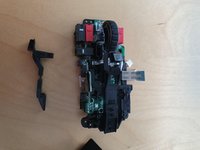
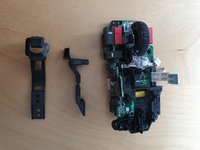


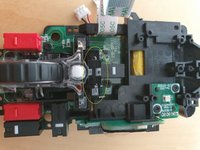
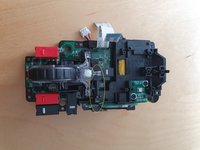
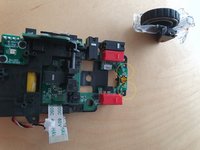


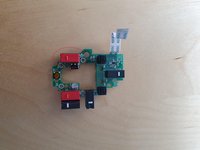
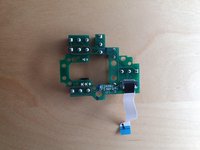
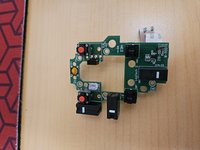

To reassemble your device, follow these instructions in reverse order.
Отменить: Я не выполнил это руководство.
11 человек успешно провели ремонт по этому руководству.

6 Комментарии к руководству
Thanks for the guide, i used some isopropanol to clean the switches instead of chaning them as i had a problem with the right one and now it works flawless.
Thank you for the guide! I had to replace both my left mouse button and right mouse button switches because of heavy use. I unfortunately de-soldered a bit too hard on my right button switch and had to replace some trace connections but the mouse is working great now! Much appreciated!
Thanks so much for the guide; my middle mouse button was no longer giving tactile feedback when I pressed the center wheel. I ended up removing the tactile dome (just the dome and tape) and using one from my old 2011 Ford F-150 key fob works like new.
i was able to fix mine by taking it out and flexing it back the right way with a little force, seems to pop back good as new for now
thanks for the guide!
