Перейти к основному содержанию
Присоединяйся к сообществу ремонтников - Создай аккаунт

Logitech M215 Lens Replacement

Выберете то, что вам нужно

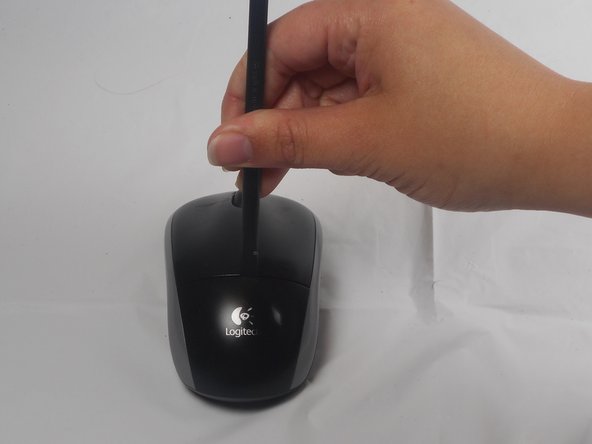
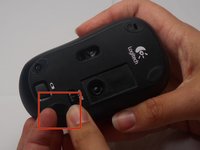
  1. Logitech M215 Lens Replacement, Remove the battery cover: шаг 1, изображение 1 из 3 Logitech M215 Lens Replacement, Remove the battery cover: шаг 1, изображение 2 из 3 Logitech M215 Lens Replacement, Remove the battery cover: шаг 1, изображение 3 из 3
    • The battery compartment cover is located on the top of the mouse. The seam running horizontally across the mouse is the top of the cover.

    • There is a button to pop off the cover. It is located on the bottom of the mouse. you may need to press hard on this button to pop the cover.

    • If the button does not work, you will need to pry off the cover. You can use your fingernails or a prying tool in order to do this, as seen in the third image.

    Спросите у FixBot

    Добавить комментарий

  2. Logitech M215 Lens Replacement, Remove old battery: шаг 2, изображение 1 из 1
    • Remember to insert the new battery in the same orientation as the old one. The positive (plus) end should be facing away from the buttons.

    Спросите у FixBot

    Добавить комментарий

  3. Logitech M215 Lens Replacement, Top Cover: шаг 3, изображение 1 из 2 Logitech M215 Lens Replacement, Top Cover: шаг 3, изображение 2 из 2
    • The pads on the underside of the mouse hide the screws. Remove these first. You may need to use your fingernails or a prying tool.

    • There will be two 0.5mm phillips head screws. Both will be underneath the bottom two pads.

    Спросите у FixBot

    Добавить комментарий

  4. Logitech M215 Lens Replacement: шаг 4, изображение 1 из 1
    • Pry the top cover off. You may need to use a pry tool to help.

    Спросите у FixBot

    Добавить комментарий

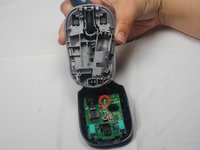
  5. Logitech M215 Lens Replacement, Motherboard: шаг 5, изображение 1 из 2 Logitech M215 Lens Replacement, Motherboard: шаг 5, изображение 2 из 2
    • Unscrew the 0.25mm phillips head screw to release the circuit board.

    Спросите у FixBot

    Добавить комментарий

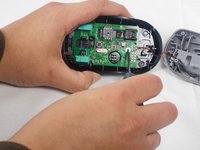
  6. Logitech M215 Lens Replacement, Lens: шаг 6, изображение 1 из 2 Logitech M215 Lens Replacement, Lens: шаг 6, изображение 2 из 2
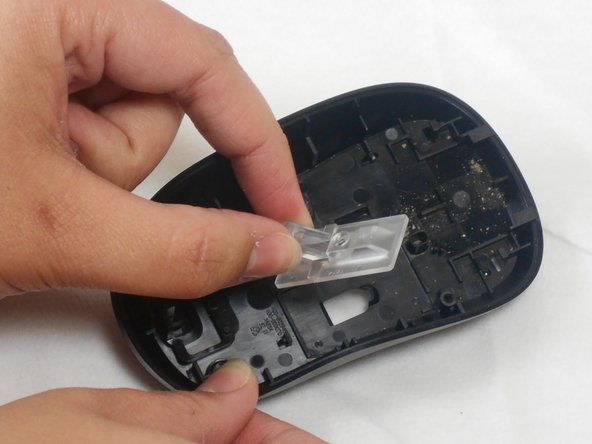
    • The laser amplifier is not connected to the rest of the mouse and can simply be removed at this point.

    Спросите у FixBot

    Добавить комментарий

Заключение

To reassemble your device, follow these instructions in reverse order.

Отменить: Я не выполнил это руководство.

Hannah Pate

Участник с: 01/30/15

1 742 Репутация

Автор 7 руководств

Команда

USF Tampa, Team 1-1, Watkins Winter 2015 Участник USF Tampa, Team 1-1, Watkins Winter 2015

USFT-WATKINS-W15S1G1

4 членов

Автор 28 руководств

1 Комментарий к руководству

Where i can buy mouse lenses for mk225

Cybermetz X - Ответить Поделиться

Добавить комментарий

Статистика просмотров:

За последние 24 часов: 0

За последние 7 дней: 10

За последние 30 дней: 64

За всё время: 2,662