Этот перевод был сделан машиной и пока не проверен человеком. Говорите на этом языке? Просмотрите его.

Руководство по разборке Logitech MX Keys

Последнее обновление 15 авг 2026 г.
Просмотров: 85 тыс.
Просмотр статистики:
- За последние 24 часа:
- 66
- За последние 7 дней:
- 395
- За последние 30 дней:
- 1 666
- За все время:
- 85 436
Комментарии: 28
9 комментариев к шагам, 19 комментариев к инструкции.
Перейти к комментариям инструкцииЗавершено: 21 22
21 пользователей отметили эту инстркукцию как "завершенное". Вы будете следующим?
22 пользователей отметили эту инструкцию как "завершенное". В том числе и Вы — отличная работа!
Избранные: 5 6
5 эта инструкция понравилась многим пользователям (и они подписались на нее). Вы будете следующим?
6 эта инструкция понравилось многим пользователям (и они подписались на нее), в том числе и Вам!
Буллеты!
Лучшая координация с разметкой и цветом/типом буллитов поможет сделать этот гайд более понятным!
Руководство, предоставленное сообществом
Это руководство было создано членом нашего сообщества. Сотрудники iFixit не имеют к нему отношения.
Введение
Перейти к шагу 1 ↓- Снимите резиновые ножки на обратной стороне:
Три верхние ножки потребуются на этом этапе, но так как нижние три всё равно придется снимать позже, лучше снять все шесть сразу. - Открутите три винта под верхними резиновыми ножками:
В моем случае они были закрыты клеем/адгезивом. - Используйте набор инструментов iFixit / медиаторы, чтобы вскрыть корпус
- Извлеките аккумулятор:
Отсоедините и извлеките его. Он слегка приклеен с обратной стороны. - Открутите маленький черный винт на печатной плате, который фиксирует антенный кабель
- Открутите печатную плату:
Там три довольно крупных винта с серебристой головкой. - Снимите печатную плату
- Отсоедините шлейф данных:
Поднимите клейкую ленту, затем белую часть / разъем, чтобы высвободить кабель. - Выкрутите все серебристые и черные винты
- Задняя панель:
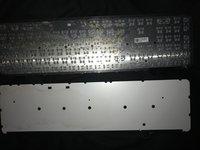
Начните с верхнего левого угла и очень медленно приподнимайте/тяните, пока не снимете её полностью. Она довольно прочная, но клей очень сильный, поэтому не торопитесь на этом этапе. - Открутите все маленькие черные винты и снимите металлическое основание
Я загрузил фотографии, пожалуйста, посмотрите их, если потребуется.
Надеюсь, это поможет. Спасибо всем, кто помогал:
Выберете то, что Вам нужно
Инструменты

-
-
-
Снимите резиновые ножки с нижней части корпуса.
-
Открутите три винта под верхними резиновыми ножками.
-
Обратите внимание, что самый левый винт смещен вправо, а не находится по центру.
-
Используйте пластиковый медиатор, чтобы снять крышку.
 Спросите у FixBot
-
-
-
Извлеките аккумулятор. Обратите внимание, что он слегка приклеен с нижней стороны.
-
Открутите два (чуть более крупных, серебристых) винта Phillips, фиксирующих печатную плату.
-
Открутите последний маленький черный винт печатной платы в верхнем правом углу.
-
Удалите оранжевую ленту, фиксирующую последовательный кабель (отложите её в сторону, вам нужно будет наклеить её обратно при сборке).
-
Снимите маленькую перемычку со скрученными красным и черным проводами, отходящими от неё.
-
Снимите печатную плату.
-
-
-


Для сборки устройства выполните эти действия в обратном порядке.
Отменить: Я не выполнил это руководство.
21 человек успешно провели ремонт по этому руководству.

19 Комментарии к руководству
Do you know how I can turn the keyboard backlight so it stays on, even if if t runs down the battery faster.
I really need that back light. I am willing to risk breaking my keyboard for the reward of having the light. If I am really lucky changing the circuit to add a manual switch for that dang back light :)
I have basic skills and I am still learning...
Thank to all the Content Makers and Fix-It guide makers...!
perhaps I could find the correct voltage for the light and prob with a test light to find the circuit for the back light with out damaging something important, like the old days_?
Put a cover over the right top LED (green when turned on) - this is also the "window" for the ambient light sensor. By making it "dark", the backlight will be fully on when your hands are close to the keyboard.
Hello,
Excellent tutorial!
Could you show me where the 2 red and black wires are connected (data cable I think)?
Mine got cut by accident.
hey, please look at Step 3 and you will see the red and black cables you are looking for
Hello, the front and back plate are made from plastic or metal ? thank you
