Перейти к основному содержанию
Присоединяйся к сообществу ремонтников - Создай аккаунт
MacBook Air 13" Early 2014 Display Assembly Replacement

Выберете то, что вам нужно

  1. MacBook Air 13" Early 2014 Display Assembly Replacement, Lower Case: шаг 1, изображение 1 из 1
    Инструмент, используемый на этом этапе:
    P5 Pentalobe Screwdriver Retina MacBook Pro and Air
    $5.99
    • Before proceeding, power down your MacBook. Close the display and lay it on a soft surface, top-side down.

    • Use a P5 Pentalobe driver to remove ten screws securing the lower case, of the following lengths:

    • Two 9 mm screws

    • Eight 2.6 mm screws

    Спросите у FixBot

    Добавить комментарий

  2. MacBook Air 13" Early 2014 Display Assembly Replacement: шаг 2, изображение 1 из 1
    • Wedge your fingers between the display and the lower case and pull upward to pop the lower case off the Air.

    • Remove the lower case and set it aside.

    Спросите у FixBot

    Добавить комментарий

  3. MacBook Air 13" Early 2014 Display Assembly Replacement, Battery Connector: шаг 3, изображение 1 из 2 MacBook Air 13" Early 2014 Display Assembly Replacement, Battery Connector: шаг 3, изображение 2 из 2
    • To ensure that everything is de-energized and won't turn on while you're working, it is recommended that you disconnect the battery.

    • Grab the clear plastic pull tab attached to the battery connector and pull it parallel to the board toward the front edge of the Air.

    • Do not lift upward on the connector as you disconnect it or you risk damage to the connector socket.

    Спросите у FixBot

    Добавить комментарий

  4. MacBook Air 13" Early 2014 Display Assembly Replacement, I/O Board Cable: шаг 4, изображение 1 из 1
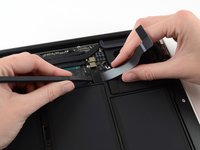
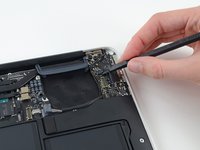
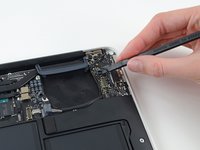
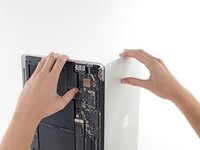
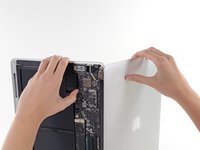
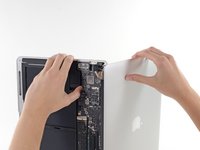
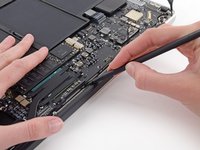
    • Use the flat end of a spudger to pry the I/O board cable connector up out of its socket on the I/O board.

    Спросите у FixBot

    Добавить комментарий

  5. MacBook Air 13" Early 2014 Display Assembly Replacement: шаг 5, изображение 1 из 1
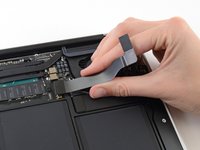
    • Carefully peel the I/O board cable from the adhesive securing it to the top of the fan.

    • During reassembly, make sure this cable is in the correct orientation. It will fit if reversed, but the laptop will not boot.

    Спросите у FixBot

    Добавить комментарий

  6. MacBook Air 13" Early 2014 Display Assembly Replacement: шаг 6, изображение 1 из 2 MacBook Air 13" Early 2014 Display Assembly Replacement: шаг 6, изображение 2 из 2
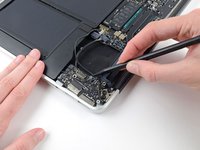
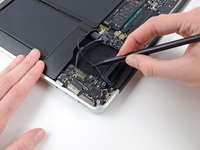
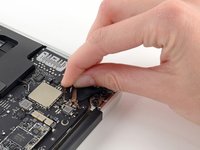
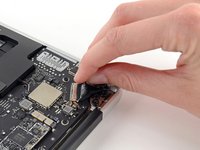
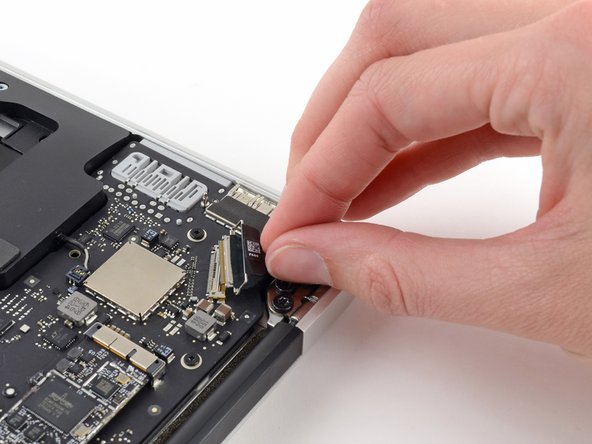
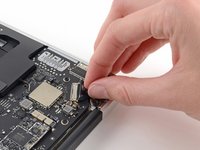
    • The following connector has an especially deep socket. Use care when disconnecting it.

    • While gently pulling the I/O board cable upward near its connection to the logic board, use the flat end of a spudger to pry up on alternating sides of the connector to help "walk" it out of its socket.

    • Remove the I/O board cable.

    Спросите у FixBot

    Добавить комментарий

  7. MacBook Air 13" Early 2014 Display Assembly Replacement, Fan: шаг 7, изображение 1 из 1
    • Use the tip of a spudger to carefully flip up the retaining flap on the fan cable ZIF socket.

    • Be sure you are prying up on the hinged retaining flap, not the socket itself.

    Спросите у FixBot

    Добавить комментарий

  8. MacBook Air 13" Early 2014 Display Assembly Replacement: шаг 8, изображение 1 из 1
    • Peel the rubber gasket off the adhesive on the top of the fan.

    Спросите у FixBot

    Добавить комментарий

  9. MacBook Air 13" Early 2014 Display Assembly Replacement: шаг 9, изображение 1 из 1
    • Remove the following three screws securing the fan to the upper case:

    • One 3.6 mm T5 Torx screw

    • One 2.7 mm T5 Torx screw

    • One 3.6 mm T5 Torx screw with a short head

    Спросите у FixBot

    Добавить комментарий

  10. MacBook Air 13" Early 2014 Display Assembly Replacement: шаг 10, изображение 1 из 2 MacBook Air 13" Early 2014 Display Assembly Replacement: шаг 10, изображение 2 из 2
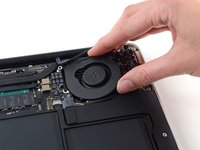
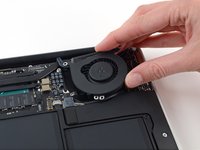
    • Lift the fan from the I/O board side and pull it free from the upper case.

    • Removing the fan will also disconnect the fan ribbon cable. Be careful not to snag it.

    Спросите у FixBot

    Добавить комментарий

  11. MacBook Air 13" Early 2014 Display Assembly Replacement, I/O Board: шаг 11, изображение 1 из 1
    • Disconnect the I/O board by pulling its power cable away from its socket on the logic board.

    • Pull the cable parallel to the face of the logic board toward the right edge of the Air.

    Спросите у FixBot

    Добавить комментарий

  12. MacBook Air 13" Early 2014 Display Assembly Replacement: шаг 12, изображение 1 из 2 MacBook Air 13" Early 2014 Display Assembly Replacement: шаг 12, изображение 2 из 2
    • Use the flat end of a spudger to pry the left speaker cable connector up and out of its socket on the I/O board.

    • Pry up from beneath the wires.

    Спросите у FixBot

    Добавить комментарий

  13. MacBook Air 13" Early 2014 Display Assembly Replacement: шаг 13, изображение 1 из 2 MacBook Air 13" Early 2014 Display Assembly Replacement: шаг 13, изображение 2 из 2
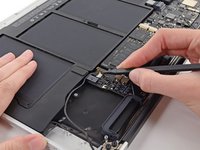
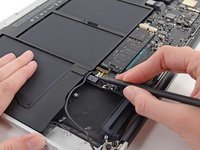
    • Use the tip of a spudger to carefully flip up the retaining flap on the microphone ribbon cable ZIF socket.

    • Make sure you are flipping up the retaining flap, not the socket itself.

    Спросите у FixBot

    Добавить комментарий

  14. MacBook Air 13" Early 2014 Display Assembly Replacement: шаг 14, изображение 1 из 1
    • Remove the single 3.6 mm T5 Torx screw securing the I/O board to the upper case.

    Спросите у FixBot

    Добавить комментарий

  15. MacBook Air 13" Early 2014 Display Assembly Replacement: шаг 15, изображение 1 из 2 MacBook Air 13" Early 2014 Display Assembly Replacement: шаг 15, изображение 2 из 2
    • Gently de-route the camera cable from its notch on the I/O board and push it out of the way with the tip of a spudger.

    Спросите у FixBot

    Добавить комментарий

  16. MacBook Air 13" Early 2014 Display Assembly Replacement: шаг 16, изображение 1 из 1
    • Lift the I/O board from the logic board side and pull it free from the upper case.

    • Removing the I/O board will also disconnect the microphone ribbon cable. Be careful not to snag it.

    Спросите у FixBot

    Добавить комментарий

  17. MacBook Air 13" Early 2014 Display Assembly Replacement, Display Assembly: шаг 17, изображение 1 из 2 MacBook Air 13" Early 2014 Display Assembly Replacement, Display Assembly: шаг 17, изображение 2 из 2
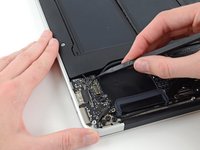
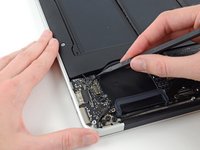
    • Use the flat end of a spudger to pry each of the antenna connectors up from their sockets on the AirPort/Bluetooth card.

    Спросите у FixBot

    Добавить комментарий

  18. MacBook Air 13" Early 2014 Display Assembly Replacement: шаг 18, изображение 1 из 2 MacBook Air 13" Early 2014 Display Assembly Replacement: шаг 18, изображение 2 из 2
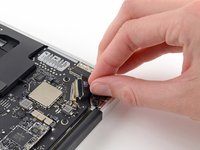
    • Disconnect the camera cable connector with the tip of a spudger.

    • Push first on one side of the connector, then on the other side to carefully "walk" it out of its socket.

    • Pull the camera cable parallel to the face of the I/O board toward the front edge of the Air to disconnect it from its socket.

    • Do not lift upward on this cable as you disconnect it, as its socket may break off the logic board.

    Спросите у FixBot

    Добавить комментарий

  19. MacBook Air 13" Early 2014 Display Assembly Replacement: шаг 19, изображение 1 из 2 MacBook Air 13" Early 2014 Display Assembly Replacement: шаг 19, изображение 2 из 2
    • Pull the plastic tab on the display data cable connector to unlock it.

    Спросите у FixBot

    Добавить комментарий

  20. MacBook Air 13" Early 2014 Display Assembly Replacement: шаг 20, изображение 1 из 2 MacBook Air 13" Early 2014 Display Assembly Replacement: шаг 20, изображение 2 из 2
    • Pull the display data cable connector straight out of its socket.

    • Make sure to pull the connector parallel to the logic board, do not lift straight up from its socket.

    Спросите у FixBot

    Добавить комментарий

  21. MacBook Air 13" Early 2014 Display Assembly Replacement: шаг 21, изображение 1 из 2 MacBook Air 13" Early 2014 Display Assembly Replacement: шаг 21, изображение 2 из 2
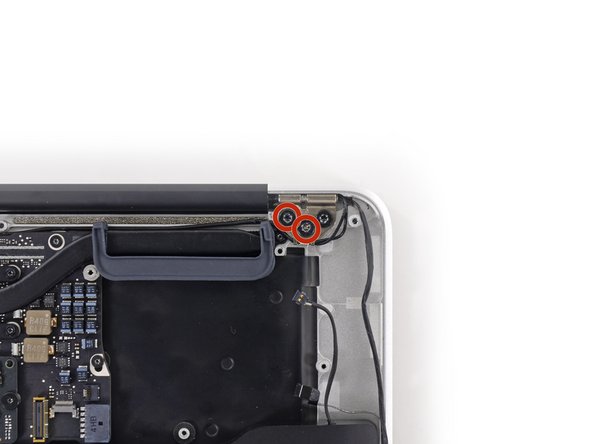
    • Remove the inner four (two on each side) 4.9 mm T8 Torx screws securing the right and left display hinges to the upper case.

    • Leaving the outer screws in place for now will aid in disassembly.

    Спросите у FixBot

    Добавить комментарий

  22. MacBook Air 13" Early 2014 Display Assembly Replacement: шаг 22, изображение 1 из 1
    • Gently de-route the antenna cables out of the channel cut into the upper case.

    Спросите у FixBot

    Добавить комментарий

  23. MacBook Air 13" Early 2014 Display Assembly Replacement: шаг 23, изображение 1 из 1
    • Open the display so that it is perpendicular to the upper case and place it on a table as shown.

    Спросите у FixBot

    Добавить комментарий

  24. MacBook Air 13" Early 2014 Display Assembly Replacement: шаг 24, изображение 1 из 1
    • While holding the Air steady, remove the remaining 4.9 mm T8 Torx screw from the left display bracket.

    Спросите у FixBot

    Добавить комментарий

  25. MacBook Air 13" Early 2014 Display Assembly Replacement: шаг 25, изображение 1 из 1
    • Turn the computer onto its opposite edge so the right display screw is now easily accesible.

    • Before removing the last display screw, be sure to hold the display and upper case steady with your other hand. Failure to do so may allow the components to fall onto the table, causing potentially expensive damage.

    • Remove the last 4.9 mm T8 Torx screw securing the display to the upper case.

    Спросите у FixBot

    Добавить комментарий

  26. MacBook Air 13" Early 2014 Display Assembly Replacement: шаг 26, изображение 1 из 3 MacBook Air 13" Early 2014 Display Assembly Replacement: шаг 26, изображение 2 из 3 MacBook Air 13" Early 2014 Display Assembly Replacement: шаг 26, изображение 3 из 3
    • Open the Air slightly to allow room for the hinges to slide out of their notches.

    • Push the upper case slightly toward the display assembly, then push it back from the hinges.

    • Once the two display hinges have cleared the upper case, remove the display and set it aside.

    Спросите у FixBot

    Добавить комментарий

  27. MacBook Air 13" Early 2014 Display Assembly Replacement: шаг 27, изображение 1 из 2 MacBook Air 13" Early 2014 Display Assembly Replacement: шаг 27, изображение 2 из 2
    • During reassembly, use the flat end of a spudger to tuck the Wi-Fi/Bluetooth antenna back into its channel.

    Спросите у FixBot

    Добавить комментарий

Заключение

To reassemble your device, follow these instructions in reverse order.

Отменить: Я не выполнил это руководство.

41 человек успешно провели ремонт по этому руководству.

Jeff Suovanen

Участник с: 08/06/13

453 056 Репутация

Автор 259 руководств

Команда

iFixit Участник iFixit

Staff

122 членов

Автор 26 511 руководств

2 Комментарии к руководству

Beware some of the connectors are tiny. I got it apart but broke the left speaker connection trying to get it off. Putting it back together I couldn’t get the microphone connector back together. I could live without those, but then I couldn’t connect the fan ribbon connector–I don’t know if I broke it taking it out but no go. Your mileage might vary but I killed my Mac.

Jonathon Powell - Ответить Поделиться
***La recomendación más importante en todos los procesos es tener paciencia y el mayor cuidado con todos los conectores en las desconexiones y reemsamblajes. Hay que tomarse todo el tiempo que requiera la operación.

E. Parra - Ответить Поделиться

Добавить комментарий

Статистика просмотров:

За последние 24 часов: 2

За последние 7 дней: 19

За последние 30 дней: 112

За всё время: 56,566