Перейти к основному содержанию
Присоединяйся к сообществу ремонтников - Создай аккаунт

MacBook Air 13" Late 2010 Fan Replacement

Выберете то, что вам нужно

Видеообзор

    1. MacBook Air 13" Late 2010 Fan Replacement, Lower Case: шаг 1, изображение 1 из 1
      Инструмент, используемый на этом этапе:
      P5 Pentalobe Screwdriver Retina MacBook Pro and Air
      $5.99
      • Before proceeding, power off the device, close the lid and lay it on a soft surface top-side down.

      • Remove the following ten screws:

      • Two 9 mm 5-point Pentalobe screws

      • Eight 2.6 mm 5-point Pentalobe screws

      • The special screwdriver needed to remove the eight 5-point Pentalobe screws can be found here.

      Спросите у FixBot

      Добавить комментарий

    2. MacBook Air 13" Late 2010 Fan Replacement: шаг 2, изображение 1 из 1
      • Wedge your fingers between the display and the lower case and pull upward to pop the lower case off the Air.

      • Remove the lower case and set it aside.

      Спросите у FixBot

      Добавить комментарий

    1. MacBook Air 13" Late 2010 Fan Replacement, Battery: шаг 3, изображение 1 из 1
      • For precautionary purposes, we advise that you disconnect the battery connector from the logic board to avoid any electrical discharge. This step is optional and is not required.

      • Grab the clear plastic pull tab attached to the battery connector and pull it toward the front edge of the Air to disconnect the battery from the logic board.

      • Do not lift upward on the connector as you disconnect it.

      Спросите у FixBot

      Добавить комментарий

    1. MacBook Air 13" Late 2010 Fan Replacement, I/O Board Cable: шаг 4, изображение 1 из 1
      • Use the flat end of a spudger to pry the I/O board cable connector upward out of its socket on the I/O board.

      Спросите у FixBot

      Добавить комментарий

    2. MacBook Air 13" Late 2010 Fan Replacement: шаг 5, изображение 1 из 2 MacBook Air 13" Late 2010 Fan Replacement: шаг 5, изображение 2 из 2
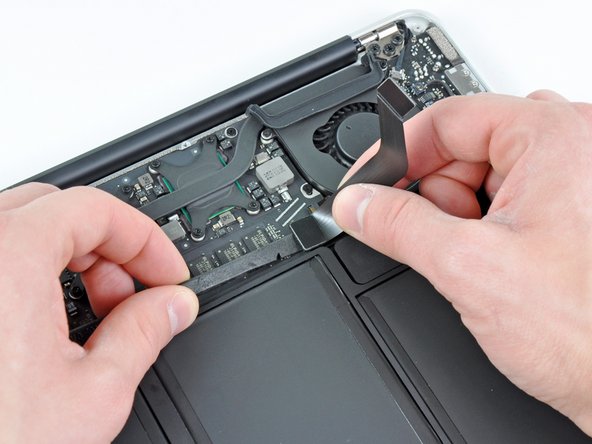
      • The following connector has an especially deep socket. Use care when disconnecting it.

      • Carefully peel the I/O board cable from the top of the fan.

      • While gently pulling the I/O board cable upward near its connection to the logic board, use the tip of a spudger to pry upward on alternating sides of the connector to help "walk" it out of its socket.

      • Remove the I/O board cable.

      Спросите у FixBot

      Добавить комментарий

    1. MacBook Air 13" Late 2010 Fan Replacement, Fan: шаг 6, изображение 1 из 1
      • Use the tip of a spudger to carefully flip up the retaining flap on the fan cable ZIF socket.

      • Be sure you are prying up on the hinged retaining flap, not the socket itself.

      Спросите у FixBot

      Добавить комментарий

    2. MacBook Air 13" Late 2010 Fan Replacement: шаг 7, изображение 1 из 1
      • Peel the rubber gasket off the adhesive on the top of the fan.

      Спросите у FixBot

      Добавить комментарий

    3. MacBook Air 13" Late 2010 Fan Replacement: шаг 8, изображение 1 из 1
      • Remove the following three screws securing the fan to the upper case:

      • One 3.6 mm T5 Torx screw

      • One 2.7 mm T5 Torx screw

      • One 3.6 mm T5 Torx screw with a short head

      Спросите у FixBot

      Добавить комментарий

    4. MacBook Air 13" Late 2010 Fan Replacement: шаг 9, изображение 1 из 1
      • Lift the fan out of the upper case and carefully pull the fan ribbon cable out of its socket as you remove it from the Air.

      Спросите у FixBot

      Добавить комментарий

Заключение

To reassemble your device, follow these instructions in reverse order.

Отменить: Я не выполнил это руководство.

20 человек успешно провели ремонт по этому руководству.

4 Комментарии к руководству

Plugging the fan back in is a huge pain in the ass, do you have a tip for that?

Robert Westman - Ответить Поделиться

I screwed up and my fan cable ZIF socket lifted out. I destroyed it trying to solder it back on. Can I buy a replacement?

Janine Maddock - Ответить Поделиться

This is actually an interesting question. I was looking into this issue and watched most of your video and the fan did not spin up and everything was quiet and perfect. If I watch a youtube video, it spins up like crazy. Any suggestions?

Jerry Garcia - Ответить Поделиться

I broke the latch on the ZIF connector. Brittle plastic. :-( What can I do to get the new fan to receive power?

Charles Carpenter - Ответить Поделиться

Добавить комментарий

Статистика просмотров:

За последние 24 часов: 2

За последние 7 дней: 16

За последние 30 дней: 68

За всё время: 23,098