Введение
If the speaker is not playing at its optimal level or the audio output seems to be malfunctioning , the speakers most likely need to be changed. Use this guide to replace the speakers in your Microsoft Surface 2 . Make sure to use a standard nylon spudger and not a metal one.
Выберете то, что вам нужно
-
-
-
Begin by using a heat gun or the iOpener (This will take longer.) to melt the adhesive all around the outer edge of the screen.
-
Insert the opening picks just under the screen and black edging. Be sure to place them evenly on each side.
-
Using the gap created by the picks, slowly pry the screen from the body of the Microsoft Surface 2 with a plastic opening tool. Pry as uniformly as possible.
 Спросите у FixBot
-
-
-
Use a plastic spudger to pry the retaining clip away from the display cable.
-
Carefully pull the ribbon cable from its socket on the motherboard.
-
-
-
-
-
-
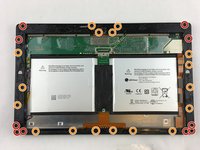
Remove ten 3.45 mm T3 screws from the corners of the black plastic bezel.
-
Remove the remaining seventeen 4.4 mm T5 screws from the perimeter of the bezel.
-
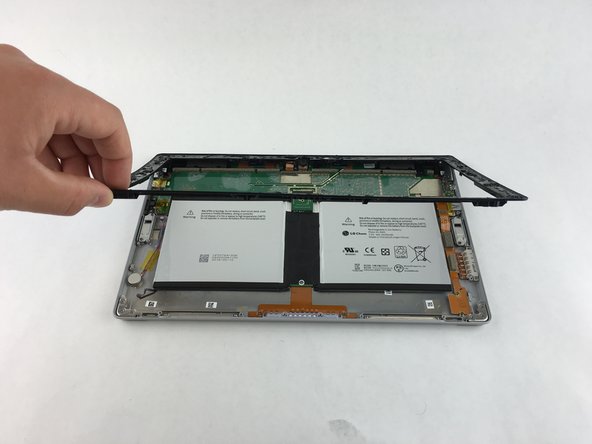
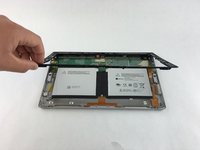
Once all screws have been removed, lift and remove the bezel from the rest of the device.
-
-
-
Using a T3 screwdriver, unscrew and remove the 3.5mm screws holding down the silver plates located at the corners of the device.
-
-
Инструмент, используемый на этом этапе:Tweezers$4.99
-
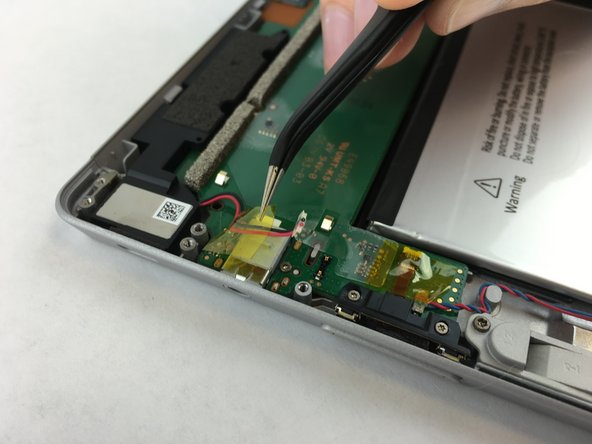
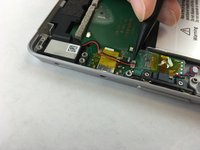
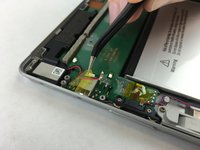
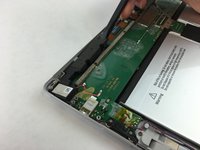
Using tweezers, remove the cable connecting the speaker to the motherboard.
-
Peel up the tiny strip of yellow tape securing the cable to the motherboard.
-
-
-
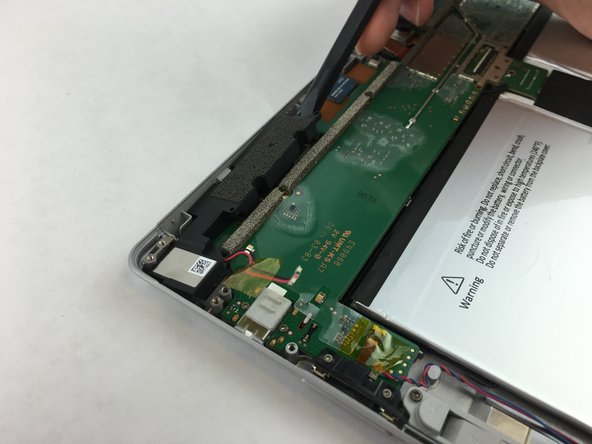
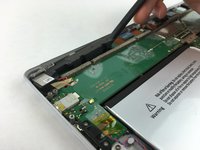
Lifting from the inmost end of the speaker, use a spudger to carefully pry the speaker from the motherboard.
-
-






To reassemble your device, follow these instructions in reverse order.
Отменить: Я не выполнил это руководство.
Еще один человек закончил это руководство.

Команда

USF Tampa, Team 3-1, Wollert Spring 2016 Участник USF Tampa, Team 3-1, Wollert Spring 2016
USFT-WOLLERT-S16S3G1
4 членов
Автор 18 руководств
