Перейти к основному содержанию
Присоединяйся к сообществу ремонтников - Создай аккаунт

Motion Computing LE1600 Bluetooth Module Replacement

Выберете то, что вам нужно

  1. Motion Computing LE1600 Bluetooth Module Replacement, Battery: шаг 1, изображение 1 из 1
    • Turn the device so the screen is facing down.

    Спросите у FixBot

    Добавить комментарий

  2. Motion Computing LE1600 Bluetooth Module Replacement: шаг 2, изображение 1 из 2 Motion Computing LE1600 Bluetooth Module Replacement: шаг 2, изображение 2 из 2
    • Slide the battery lock switch next to the power slider to the unlocked position.

    Спросите у FixBot

    Добавить комментарий

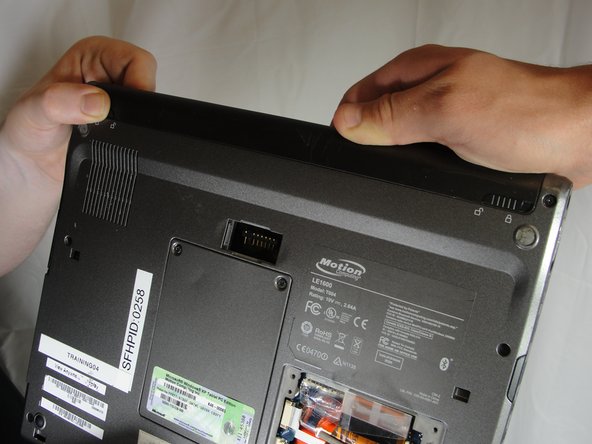
  3. Motion Computing LE1600 Bluetooth Module Replacement: шаг 3, изображение 1 из 3 Motion Computing LE1600 Bluetooth Module Replacement: шаг 3, изображение 2 из 3 Motion Computing LE1600 Bluetooth Module Replacement: шаг 3, изображение 3 из 3
    • Slide and hold the switch by the fan vent to the unlocked position. Firmly grasp the battery and pull away from tablet.

    • When replacing the battery, place the end near the fan vent in first. Make sure to keep the other switch in the unlocked position while pushing the battery into place.

    Спросите у FixBot

    Добавить комментарий

  4. Motion Computing LE1600 Bluetooth Module Replacement, Bluetooth Module: шаг 4, изображение 1 из 1
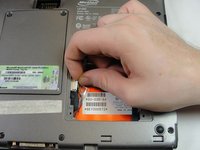
    • Unscrew hard drive panel using a Phillips head #1 screwdriver.

    • (Our device was not given to us with a hard drive or a hard drive panel)

    Спросите у FixBot
    Добавить комментарий

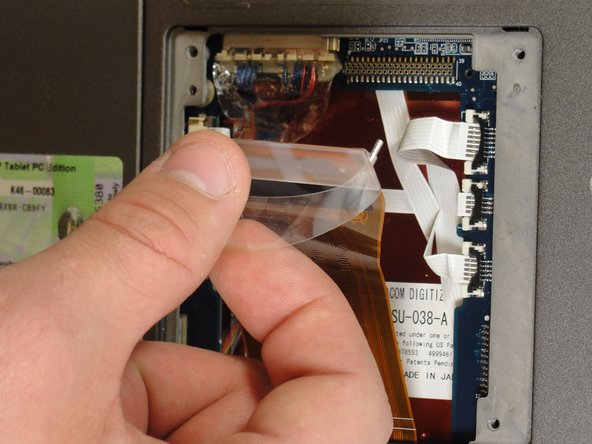
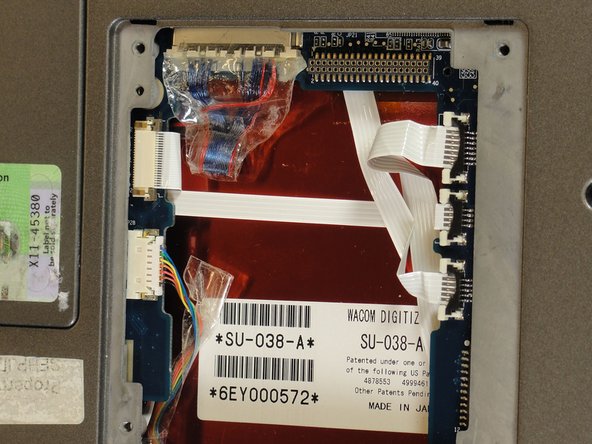
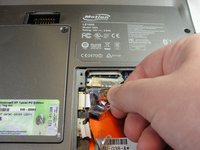
  5. Motion Computing LE1600 Bluetooth Module Replacement: шаг 5, изображение 1 из 3 Motion Computing LE1600 Bluetooth Module Replacement: шаг 5, изображение 2 из 3 Motion Computing LE1600 Bluetooth Module Replacement: шаг 5, изображение 3 из 3
    • Pull clear plastic tab to detach hard drive from tablet.

    Спросите у FixBot
    Добавить комментарий

  6. Motion Computing LE1600 Bluetooth Module Replacement: шаг 6, изображение 1 из 2 Motion Computing LE1600 Bluetooth Module Replacement: шаг 6, изображение 2 из 2
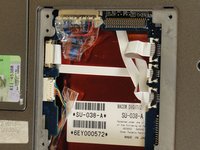
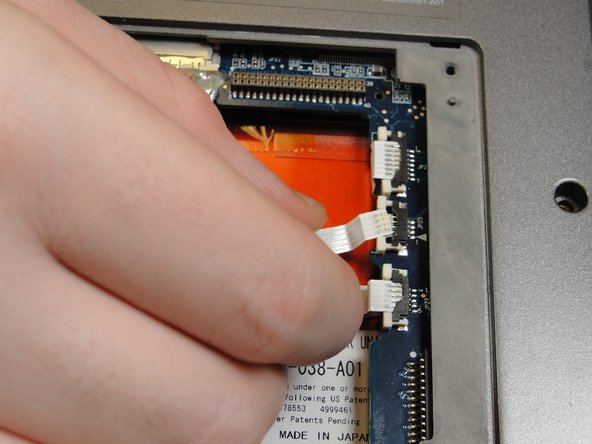
    • To disconnect the three white ribbon cables on the side closest to the hard drive connector, pull the white plastic tabs.

    Спросите у FixBot

    Добавить комментарий

  7. Motion Computing LE1600 Bluetooth Module Replacement: шаг 7, изображение 1 из 1
    • Pull the brown tabs to disconnect the white ribbon cable on the other side.

    Спросите у FixBot

    Добавить комментарий

  8. Motion Computing LE1600 Bluetooth Module Replacement: шаг 8, изображение 1 из 2 Motion Computing LE1600 Bluetooth Module Replacement: шаг 8, изображение 2 из 2
    • Caution: do not pull on the wires, instead pull from the plastic connectors.

    • To disconnect the remaining ribbon cables, pull the plastic connectors away from their connections.

    Спросите у FixBot

    Добавить комментарий

  9. Motion Computing LE1600 Bluetooth Module Replacement: шаг 9, изображение 1 из 1
    • With a Phillips #1 screwdriver, Unscrew the nine 10mm screws holding the case together.

    Спросите у FixBot
    Добавить комментарий

  10. Motion Computing LE1600 Bluetooth Module Replacement: шаг 10, изображение 1 из 1
    • Using a spudger, press in the five tabs on the side where the battery was.

    • This should separate the two halves of the device. Carefully set the side with the display off to the side.

    Спросите у FixBot

    Добавить комментарий

  11. Motion Computing LE1600 Bluetooth Module Replacement: шаг 11, изображение 1 из 3 Motion Computing LE1600 Bluetooth Module Replacement: шаг 11, изображение 2 из 3 Motion Computing LE1600 Bluetooth Module Replacement: шаг 11, изображение 3 из 3
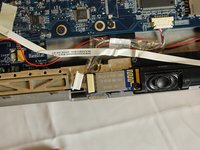
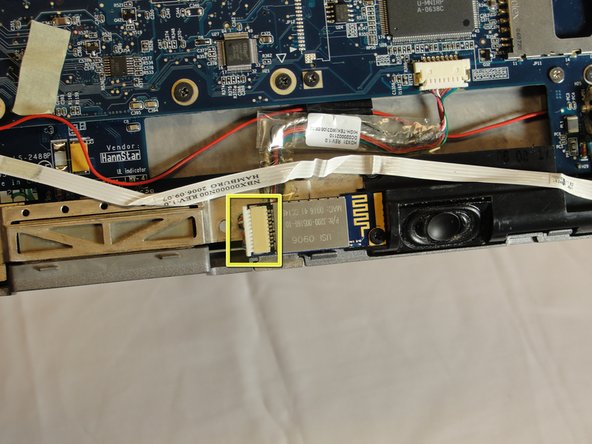
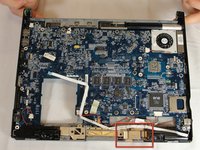
    • Locate the Bluetooth board.

    • Disconnect the ribbon cable by pulling on the plastic connector.

    Спросите у FixBot
    Добавить комментарий

  12. Motion Computing LE1600 Bluetooth Module Replacement: шаг 12, изображение 1 из 2 Motion Computing LE1600 Bluetooth Module Replacement: шаг 12, изображение 2 из 2
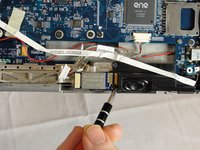
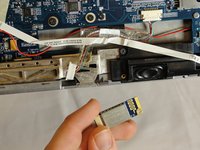
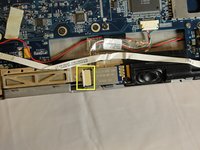
    • Unscrew the 4mm screw holding the board onto the tablet.

    • Lift the board out of the tablet and carefully set it aside.

    Спросите у FixBot
    Добавить комментарий

Заключение

To reassemble your device, follow these instructions in reverse order.

Отменить: Я не выполнил это руководство.

Еще один человек закончил это руководство.

David Troy

Участник с: 04/04/12

44 Репутация

Автор 3 руководств

Команда

Cal Poly, Team 15-14, Forte Spring 2012 Участник Cal Poly, Team 15-14, Forte Spring 2012

CPSU-FORTE-S12S15G14

5 членов

Автор 5 руководств

1 Комментарий к руководству

thanks for the help

Lawrence V Lang - Ответить Поделиться

Добавить комментарий

Статистика просмотров:

За последние 24 часов: 1

За последние 7 дней: 16

За последние 30 дней: 53

За всё время: 2,787