Перейти к основному содержанию
Присоединяйся к сообществу ремонтников - Создай аккаунт
Motorola Droid 4 MicroSD/SIM Card Reader Replacement

Выберете то, что вам нужно

    1. Motorola Droid 4 MicroSD/SIM Card Reader Replacement, Removing Rear Panel: шаг 1, изображение 1 из 3 Motorola Droid 4 MicroSD/SIM Card Reader Replacement, Removing Rear Panel: шаг 1, изображение 2 из 3 Motorola Droid 4 MicroSD/SIM Card Reader Replacement, Removing Rear Panel: шаг 1, изображение 3 из 3
      • Insert the rear cover removal tool, or a paper clip, in the hole near the back camera lens.

      • Slide the cover down to remove.

      Спросите у FixBot

      Добавить комментарий

    1. Motorola Droid 4 MicroSD/SIM Card Reader Replacement, Battery: шаг 2, изображение 1 из 1
      • Remove the sticker on the rear compartment to reveal the battery.

      • Hold the battery with your thumb while removing the sticker or you might end up ripping the battery out of the phone, damaging the flex cable.

      Спросите у FixBot

      Добавить комментарий

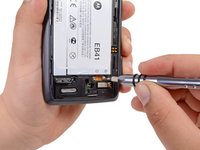
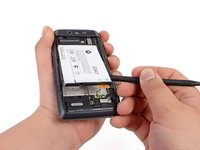
    2. Motorola Droid 4 MicroSD/SIM Card Reader Replacement: шаг 3, изображение 1 из 2 Motorola Droid 4 MicroSD/SIM Card Reader Replacement: шаг 3, изображение 2 из 2
      Инструмент, используемый на этом этапе:
      T5 Torx Screwdriver
      $5.49
      • Use the T5 Torx Screwdriver to remove both 2.5 mm screws from the battery cable.

      • Use the Spudger to unstick the battery.

      • It's difficult to remove the battery without a pry tool like the spudger because of the strong adhesive. If you try removing it with just your fingers, the battery may bend.

      Спросите у FixBot

      Добавить комментарий

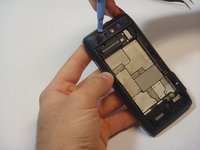
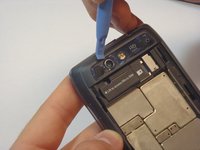
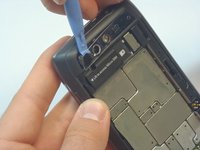
    1. Motorola Droid 4 MicroSD/SIM Card Reader Replacement, Camera Cover Removal: шаг 4, изображение 1 из 3 Motorola Droid 4 MicroSD/SIM Card Reader Replacement, Camera Cover Removal: шаг 4, изображение 2 из 3 Motorola Droid 4 MicroSD/SIM Card Reader Replacement, Camera Cover Removal: шаг 4, изображение 3 из 3
      • Using the blue plastic opening tool, pry off the thin plastic camera cover.

      • The plastic cover is fragile, so proceed carefully.

      Спросите у FixBot

      Добавить комментарий

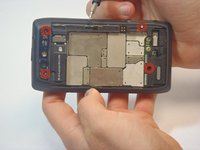
    2. Motorola Droid 4 MicroSD/SIM Card Reader Replacement, Remove Screws: шаг 5, изображение 1 из 2 Motorola Droid 4 MicroSD/SIM Card Reader Replacement, Remove Screws: шаг 5, изображение 2 из 2
      • Remove the four screws, indicated by the red circles, with the screwdriver and T5 Torx bit.

      • The screws are philips 2.5mm. One screw is a different color (silver) from the others (black).

      Спросите у FixBot

      Добавить комментарий

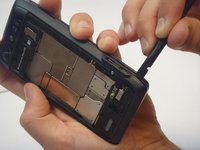
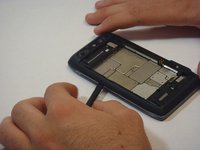
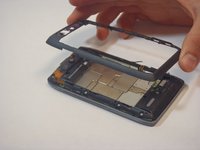
    3. Motorola Droid 4 MicroSD/SIM Card Reader Replacement, Remove Bezel: шаг 6, изображение 1 из 3 Motorola Droid 4 MicroSD/SIM Card Reader Replacement, Remove Bezel: шаг 6, изображение 2 из 3 Motorola Droid 4 MicroSD/SIM Card Reader Replacement, Remove Bezel: шаг 6, изображение 3 из 3
      • Insert the spudger between the rear bezel and the main housing.

      • The bezel is fragile, so proceed carefully.

      • Slide the spudger around all sides of the phone to separate the bezel from the housing.

      • Pry the bezel free.

      • Be careful of the adhesive that holds the bezel to the main housing. Prying too hard may damage your phone.

      Спросите у FixBot

      Добавить комментарий

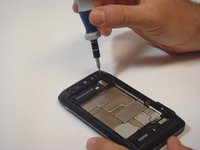
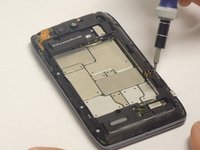
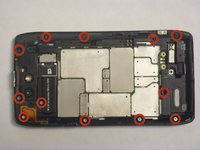
    1. Motorola Droid 4 MicroSD/SIM Card Reader Replacement, Removing screws: шаг 7, изображение 1 из 2 Motorola Droid 4 MicroSD/SIM Card Reader Replacement, Removing screws: шаг 7, изображение 2 из 2
      • Remove the 12 screws holding the housing in place using a T5 Torx screwdriver.

      • Follow the red circles, indicated in the picture, to locate the screws.

      • The 12 screws are (silver) philips 2.5mm

      Спросите у FixBot

      Добавить комментарий

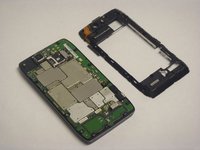
    2. Motorola Droid 4 MicroSD/SIM Card Reader Replacement, Separation of the Housing from the Motherboard: шаг 8, изображение 1 из 3 Motorola Droid 4 MicroSD/SIM Card Reader Replacement, Separation of the Housing from the Motherboard: шаг 8, изображение 2 из 3 Motorola Droid 4 MicroSD/SIM Card Reader Replacement, Separation of the Housing from the Motherboard: шаг 8, изображение 3 из 3
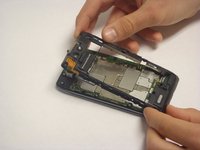
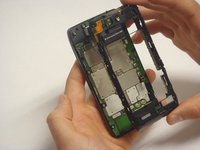
      • Separate the housing from the motherboard.

      • Be careful while separating the housing. The power and volume buttons are easily separated from the housing and can be damaged.

      Спросите у FixBot

      Добавить комментарий

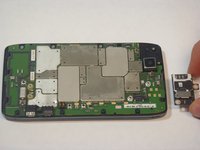
    1. Motorola Droid 4 MicroSD/SIM Card Reader Replacement, MicroSD/SIM Card Reader: шаг 9, изображение 1 из 3 Motorola Droid 4 MicroSD/SIM Card Reader Replacement, MicroSD/SIM Card Reader: шаг 9, изображение 2 из 3 Motorola Droid 4 MicroSD/SIM Card Reader Replacement, MicroSD/SIM Card Reader: шаг 9, изображение 3 из 3
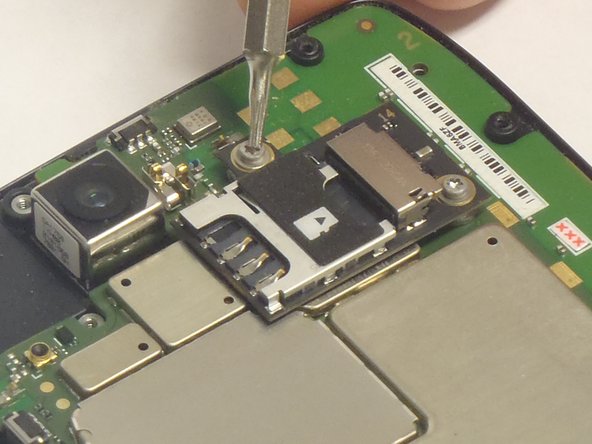
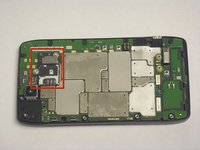
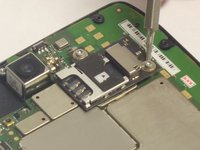
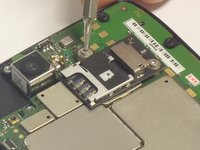
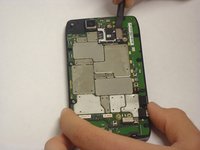
      • Once the Motherboard Housing is removed the complete Micro SD/SIM card reader is exposed, as indicated by the picture.

      • Remove the two screws that attach the reader to the Motherboard. The locations of the screws are indicated in the picture.

      Спросите у FixBot

      Добавить комментарий

    2. Motorola Droid 4 MicroSD/SIM Card Reader Replacement, Separate the reader from the motherboard: шаг 10, изображение 1 из 3 Motorola Droid 4 MicroSD/SIM Card Reader Replacement, Separate the reader from the motherboard: шаг 10, изображение 2 из 3 Motorola Droid 4 MicroSD/SIM Card Reader Replacement, Separate the reader from the motherboard: шаг 10, изображение 3 из 3
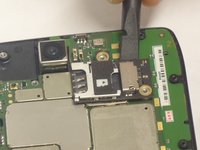
      • Using the spudger, pry off the Reader.

      • Be careful while removing the Reader. The connection to the motherboard is composed of small pins.

      Спросите у FixBot

      Добавить комментарий

Заключение

To reassemble your device, follow these instructions in reverse order.

Отменить: Я не выполнил это руководство.

Еще один человек закончил это руководство.

Javier

Участник с: 09/29/14

533 Репутация

Автор 4 руководств

Команда

USF Tampa, Team 5-1, Mcgee Fall 2014 Участник USF Tampa, Team 5-1, Mcgee Fall 2014

USFT-MCGEE-F14S5G1

5 членов

Автор 20 руководств

0 Комментарии к руководству

Добавить комментарий

Статистика просмотров:

За последние 24 часов: 0

За последние 7 дней: 2

За последние 30 дней: 31

За всё время: 2,071