Перейти к основному содержанию
Присоединяйся к сообществу ремонтников - Создай аккаунт

Motorola Droid Pro Camera Replacement

Выберете то, что вам нужно

  1. Motorola Droid Pro Camera Replacement, Battery: шаг 1, изображение 1 из 1
    • Remove the back cover using the thumb tab located on the bottom of the phone.

    Спросите у FixBot

    Добавить комментарий

  2. Motorola Droid Pro Camera Replacement: шаг 2, изображение 1 из 2 Motorola Droid Pro Camera Replacement: шаг 2, изображение 2 из 2
    • Remove the battery using the thumb tab.

    Спросите у FixBot

    Добавить комментарий

  3. Motorola Droid Pro Camera Replacement, SD Card/SIM Card PCB Board: шаг 3, изображение 1 из 2 Motorola Droid Pro Camera Replacement, SD Card/SIM Card PCB Board: шаг 3, изображение 2 из 2
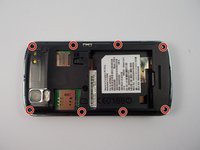
    • Using a T4 Torx driver, remove the eight 4 mm back panel screws.

    Спросите у FixBot

    Добавить комментарий

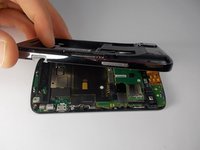
  4. Motorola Droid Pro Camera Replacement: шаг 4, изображение 1 из 3 Motorola Droid Pro Camera Replacement: шаг 4, изображение 2 из 3 Motorola Droid Pro Camera Replacement: шаг 4, изображение 3 из 3
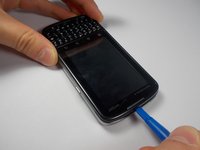
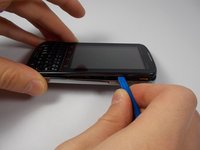
    • Use a plastic opening tool to open the phone along the sides between the front panel and the chrome trim.

    • It is held together by small clips that lock in. You may have to use extra force to unlock them.

    • Go around on all sides of the phone, unlocking the clips. Then pull the back panel off.

    Спросите у FixBot

    Добавить комментарий

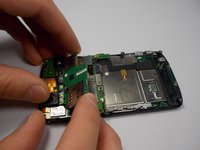
  5. Motorola Droid Pro Camera Replacement: шаг 5, изображение 1 из 2 Motorola Droid Pro Camera Replacement: шаг 5, изображение 2 из 2
    • Gently lift the SD & SIM card board (PCB) as shown.

    • There is a ribbon cable attached underneath. Gently pull the PCB board away from the phone and it will detach easily.

    Спросите у FixBot

    Добавить комментарий

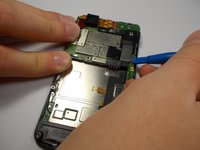
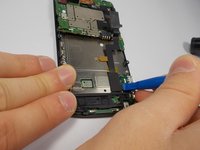
  6. Motorola Droid Pro Camera Replacement, Motherboard: шаг 6, изображение 1 из 2 Motorola Droid Pro Camera Replacement, Motherboard: шаг 6, изображение 2 из 2
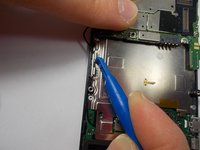
    • Use your plastic opening tool to disconnect the motherboard/keyboard ribbon cable.

    • There are small tabs on the side of the connectors to wedge your tool under.

    Спросите у FixBot

    Добавить комментарий

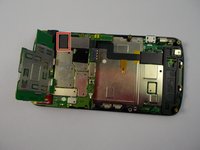
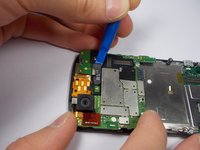
  7. Motorola Droid Pro Camera Replacement: шаг 7, изображение 1 из 2 Motorola Droid Pro Camera Replacement: шаг 7, изображение 2 из 2
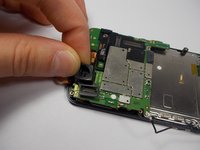
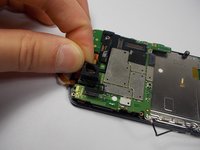
    • Use your plastic opening tool to disconnect the two ribbon cables at the top of the phone.

    Спросите у FixBot

    Добавить комментарий

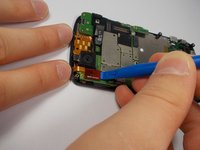
  8. Motorola Droid Pro Camera Replacement: шаг 8, изображение 1 из 2 Motorola Droid Pro Camera Replacement: шаг 8, изображение 2 из 2
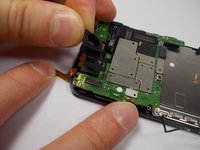
    • Disconnect the 2nd keyboard connector from the motherboard and remove it from its side holders.

    • This cable is fragile so be careful when disconnecting and moving it around.

    Спросите у FixBot

    Добавить комментарий

  9. Motorola Droid Pro Camera Replacement: шаг 9, изображение 1 из 1
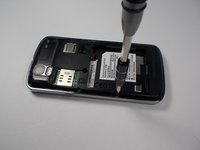
    • Use a T5 Torx Screwdriver to unscrew the 2mm screw.

    Спросите у FixBot

    Добавить комментарий

  10. Motorola Droid Pro Camera Replacement: шаг 10, изображение 1 из 3 Motorola Droid Pro Camera Replacement: шаг 10, изображение 2 из 3 Motorola Droid Pro Camera Replacement: шаг 10, изображение 3 из 3
    • Remove the camera's rubber seal by pulling it off. It is not connected to anything.

    Спросите у FixBot

    Добавить комментарий

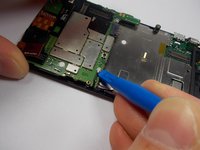
  11. Motorola Droid Pro Camera Replacement: шаг 11, изображение 1 из 2 Motorola Droid Pro Camera Replacement: шаг 11, изображение 2 из 2
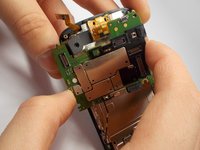
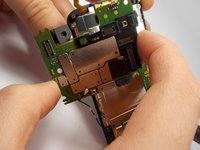
    • To remove the motherboard, pull it to the side. The camera that is connected to the motherboard does not pull straight up and out from its holder.

    Спросите у FixBot

    Добавить комментарий

  12. Motorola Droid Pro Camera Replacement, Camera: шаг 12, изображение 1 из 3 Motorola Droid Pro Camera Replacement, Camera: шаг 12, изображение 2 из 3 Motorola Droid Pro Camera Replacement, Camera: шаг 12, изображение 3 из 3
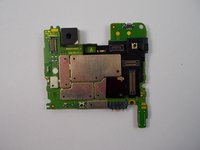
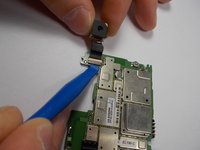
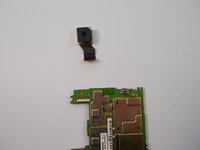
    • The camera is located on the back side of PCB board.

    • Flip the board over and you will see that the camera is connected by a ribbon cable.

    • Unlock the cable by using a plastic remover tool then pull the camera out.

    • Insert the new camera and re lock the ribbon cable.

    • Do not use excessive force and make sure the cameras ribbon cable gets properly re seated.

    Спросите у FixBot

    Добавить комментарий

Заключение

To reassemble your device, follow these instructions in reverse order.

Отменить: Я не выполнил это руководство.

2 человек успешно провели ремонт по этому руководству.

Richard Bellizzi

Участник с: 10/28/15

352 Репутация

Автор 2 руководств

Команда

UMass Dartmouth, Team 1-6, Miles Fall 2015 Участник UMass Dartmouth, Team 1-6, Miles Fall 2015

UMASSD-MILES-F15S1G6

3 членов

Автор 12 руководств

0 Комментарии к руководству

Добавить комментарий

Статистика просмотров:

За последние 24 часов: 2

За последние 7 дней: 6

За последние 30 дней: 25

За всё время: 398