Перейти к основному содержанию
Присоединяйся к сообществу ремонтников - Создай аккаунт

Motorola Droid RAZR HD Power Button Replacement

Выберете то, что вам нужно

  1. Motorola Droid RAZR HD Power Button Replacement, Front Panel Assembly: шаг 1, изображение 1 из 1
    • Power off the device before disassembly to avoid damage or harm from electrical surges.

    • Remove the two 4.5mm screws in the bottom left and right corners of the device using a T4 Torx Screwdriver.

    Спросите у FixBot
  2. Motorola Droid RAZR HD Power Button Replacement: шаг 2, изображение 1 из 1
    • Holding the device in your hand, push the screen towards the top of the phone until it disconnects from the base of the phone.

    Спросите у FixBot
  3. Motorola Droid RAZR HD Power Button Replacement: шаг 3, изображение 1 из 1
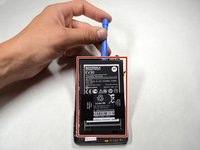
    • Use a plastic opening tool to lift the screen from the phone.

    • Do not try to completely detach the screen; cables are still connected to the device and can be damaged.

    Спросите у FixBot
  4. Motorola Droid RAZR HD Power Button Replacement: шаг 4, изображение 1 из 2 Motorola Droid RAZR HD Power Button Replacement: шаг 4, изображение 2 из 2
    Инструмент, используемый на этом этапе:
    Tweezers
    $4.99
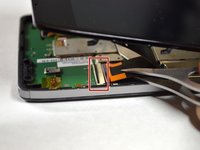
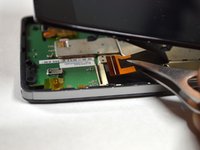
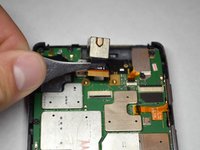
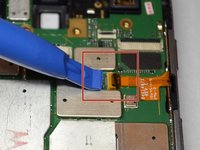
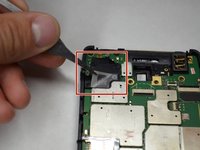
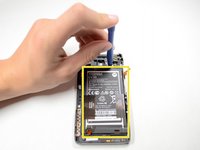
    • Use tweezers to remove the yellow tape covering the lcd/digitizer cable connector.

    • Carefully lift up the black locking tab to release the lcd/digitizer cable.

    • The cable connector is located on the bottom right section of the phone.

    Спросите у FixBot
  5. Motorola Droid RAZR HD Power Button Replacement: шаг 5, изображение 1 из 1
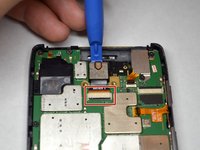
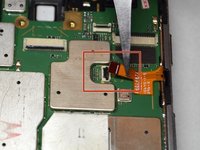
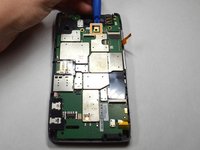
    • Lift up the screen further to reveal another cable at the top of the device connecting the motherboard to the screen.

    • This connector is located on the top right section of the phone.

    • Use tweezers to lift the black bar on top of the ZIF connector.

    • Pull the ribbon cable out of the connector with tweezers.

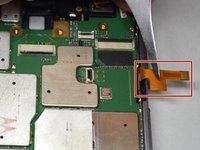
    • Now that there are no cables connecting the screen to the motherboard, remove the screen.

    Спросите у FixBot
  6. Motorola Droid RAZR HD Power Button Replacement, Rear Facing Camera: шаг 6, изображение 1 из 2 Motorola Droid RAZR HD Power Button Replacement, Rear Facing Camera: шаг 6, изображение 2 из 2
    Инструмент, используемый на этом этапе:
    Tweezers
    $4.99
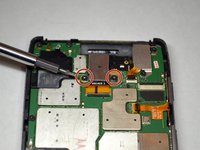
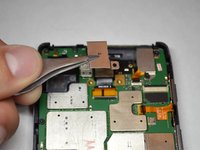
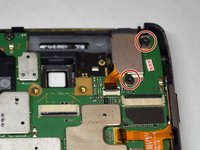
    • Remove the two 3.5mm Torx T4 screws securing the rear facing camera.

    • Using tweezers, remove the metal shield protecting the rear facing camera.

    Спросите у FixBot
  7. Motorola Droid RAZR HD Power Button Replacement: шаг 7, изображение 1 из 2 Motorola Droid RAZR HD Power Button Replacement: шаг 7, изображение 2 из 2
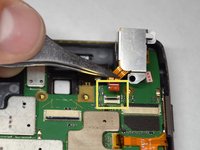
    • Use a plastic opening tool to lift up the rear camera.

    • Use tweezers to lift and unlock the black bar on top of the rear camera's ZIF connector.

    • Pull the camera out of the connector.

    • You will need to unplug the rear camera from its connector on the motherboard.

    Спросите у FixBot
  8. Motorola Droid RAZR HD Power Button Replacement, Motherboard: шаг 8, изображение 1 из 2 Motorola Droid RAZR HD Power Button Replacement, Motherboard: шаг 8, изображение 2 из 2
    Инструмент, используемый на этом этапе:
    Tweezers
    $4.99
    • Remove the two 3.5mm Torx T4 screws securing the headphone jack cable/cover.

    • Using tweezers, disconnect the headphone jack cable/cover and remove it. The headphone jack will stay where it is.

    • The metal shield is attached to the headphone jack.

    Спросите у FixBot
  9. Motorola Droid RAZR HD Power Button Replacement: шаг 9, изображение 1 из 3 Motorola Droid RAZR HD Power Button Replacement: шаг 9, изображение 2 из 3 Motorola Droid RAZR HD Power Button Replacement: шаг 9, изображение 3 из 3
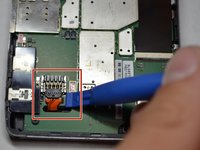
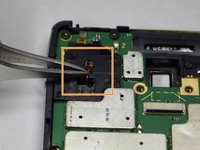
    • Using a plastic opening tool or tweezers, disconnect the power button connector.

    • Carefully peel back the adhesive cable with the tweezers so it is not in the way of the motherboard.

    Спросите у FixBot
  10. Motorola Droid RAZR HD Power Button Replacement: шаг 10, изображение 1 из 2 Motorola Droid RAZR HD Power Button Replacement: шаг 10, изображение 2 из 2
    • Disconnect the battery from the motherboard by lifting up with the plastic opening tool near the base of the cable.

    • Bend the battery cable straight up and out of the way of the motherboard.

    Спросите у FixBot
  11. Motorola Droid RAZR HD Power Button Replacement: шаг 11, изображение 1 из 2 Motorola Droid RAZR HD Power Button Replacement: шаг 11, изображение 2 из 2
    • Using tweezers, peel back the adhesive covering the speaker connector.

    • Using tweezers, disconnect the speaker connector by lifting underneath the base of the connector.

    Спросите у FixBot
  12. Motorola Droid RAZR HD Power Button Replacement: шаг 12, изображение 1 из 1
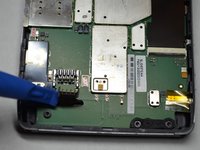
    • Locate the sim card/micro sd tray on the side of the device.

    • Push a small rod, such as a paper clip or sim card tool, into the opening to eject and remove the tray.

    Спросите у FixBot
  13. Motorola Droid RAZR HD Power Button Replacement: шаг 13, изображение 1 из 2 Motorola Droid RAZR HD Power Button Replacement: шаг 13, изображение 2 из 2
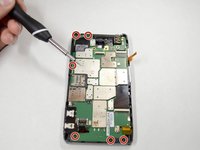
    • Remove the six 3.5mm Torx T4 screws securing the motherboard to the device frame.

    • Carefully pry up the motherboard from the frame using a plastic opening tool.

    • Watch for obstructions such as loose cables.

    Спросите у FixBot
  14. Motorola Droid RAZR HD Power Button Replacement, Battery: шаг 14, изображение 1 из 2 Motorola Droid RAZR HD Power Button Replacement, Battery: шаг 14, изображение 2 из 2
    • Use a plastic opening tool to lift up the battery from the frame of the device.

    • Remove the battery.

    Спросите у FixBot
  15. Motorola Droid RAZR HD Power Button Replacement, Power Button: шаг 15, изображение 1 из 1
    • Remove the three 3.5mm Torx T3 screws holding the power/volume button cable to the side of the frame.

    Спросите у FixBot
  16. Motorola Droid RAZR HD Power Button Replacement: шаг 16, изображение 1 из 2 Motorola Droid RAZR HD Power Button Replacement: шаг 16, изображение 2 из 2
    Инструмент, используемый на этом этапе:
    Tweezers
    $4.99
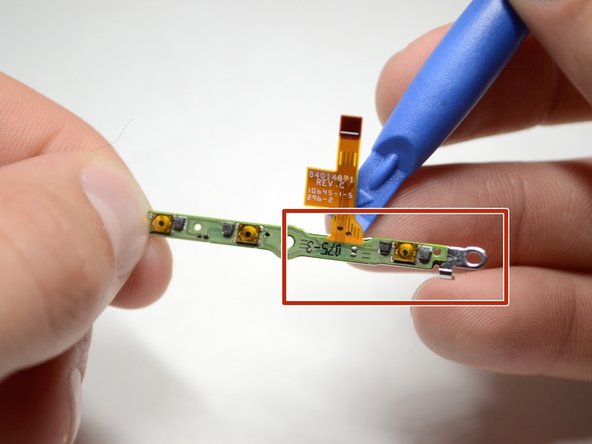
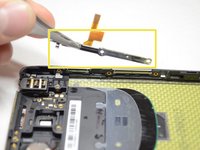
    • Using tweezers, remove the power/volume button flex cable.

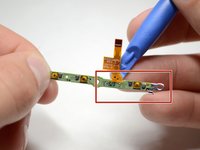
    • Remove the flex cable from the metal bracket using a plastic opening tool.

    Спросите у FixBot
Заключение

To reassemble your device, follow these instructions in reverse order.

5 человек успешно провели ремонт по этому руководству.

Blake Nielsen

Участник с: 04/14/15

536 Репутация

Автор 3 руководств

Команда

Cal Poly, Team 4-4, Maness Spring 2015 Участник Cal Poly, Team 4-4, Maness Spring 2015

CPSU-MANESS-S15S4G4

5 членов

Автор 12 руководств

0 Комментарии к руководству

Добавить комментарий

Статистика просмотров:

За последние 24 часов: 0

За последние 7 дней: 4

За последние 30 дней: 57

За всё время: 2,437