Перейти к основному содержанию
Присоединяйся к сообществу ремонтников - Создай аккаунт

Nextbook NX008HD8G Screen Replacement

Выберете то, что вам нужно

  1. Nextbook NX008HD8G Screen Replacement, Back Panel: шаг 1, изображение 1 из 2 Nextbook NX008HD8G Screen Replacement, Back Panel: шаг 1, изображение 2 из 2
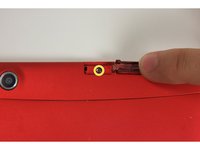
    • Using your finger, open the plastic tab to the right of the rear-facing camera.

    • Wedge your fingernail in between the back panel and the plastic tab and pull the plastic tab towards your body.

    Спросите у FixBot

    Добавить комментарий

  2. Nextbook NX008HD8G Screen Replacement: шаг 2, изображение 1 из 3 Nextbook NX008HD8G Screen Replacement: шаг 2, изображение 2 из 3 Nextbook NX008HD8G Screen Replacement: шаг 2, изображение 3 из 3
    • Using your finger, remove the SD card by pressing down on top of it (toward the bottom of the device) until you hear a clicking sound.

    • Once the card pops out, use your finger to pull the card completely out of the SD card slot.

    Спросите у FixBot

    Добавить комментарий

  3. Nextbook NX008HD8G Screen Replacement: шаг 3, изображение 1 из 3 Nextbook NX008HD8G Screen Replacement: шаг 3, изображение 2 из 3 Nextbook NX008HD8G Screen Replacement: шаг 3, изображение 3 из 3
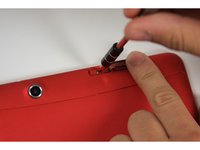
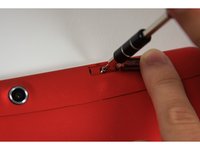
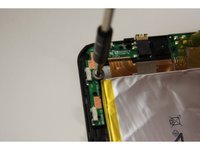
    • Remove the 5 mm screw using the Phillips PH00 bit in the iFixit metal Screwdriver.

    Спросите у FixBot

    Добавить комментарий

  4. Nextbook NX008HD8G Screen Replacement: шаг 4, изображение 1 из 3 Nextbook NX008HD8G Screen Replacement: шаг 4, изображение 2 из 3 Nextbook NX008HD8G Screen Replacement: шаг 4, изображение 3 из 3
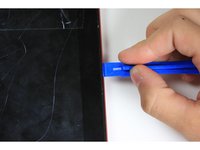
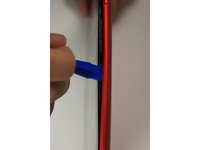
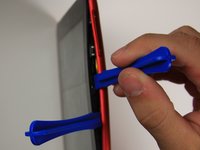
    • Use the plastic opening tool to separate the back panel by carefully sliding the narrow end of the tool between the front glass and back panel.

    • Use a second plastic opening tool to help pry the front glass from the back panel.

    • You will hear some cracking sounds when separating the front glass from the back panel. That is okay! That is the back panel latches releasing the front glass.

    Спросите у FixBot

    Добавить комментарий

  5. Nextbook NX008HD8G Screen Replacement: шаг 5, изображение 1 из 2 Nextbook NX008HD8G Screen Replacement: шаг 5, изображение 2 из 2
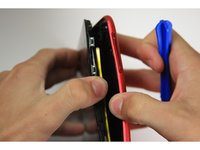
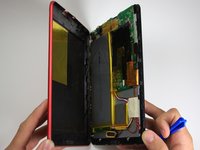
    • Use your hands to completely separate the rest of the front glass from the back panel.

    • Do not to pull the device apart with too much force. If you do, you may break or bend the back panel.

    Спросите у FixBot

    Добавить комментарий

  6. Nextbook NX008HD8G Screen Replacement, Screen: шаг 6, изображение 1 из 3 Nextbook NX008HD8G Screen Replacement, Screen: шаг 6, изображение 2 из 3 Nextbook NX008HD8G Screen Replacement, Screen: шаг 6, изображение 3 из 3
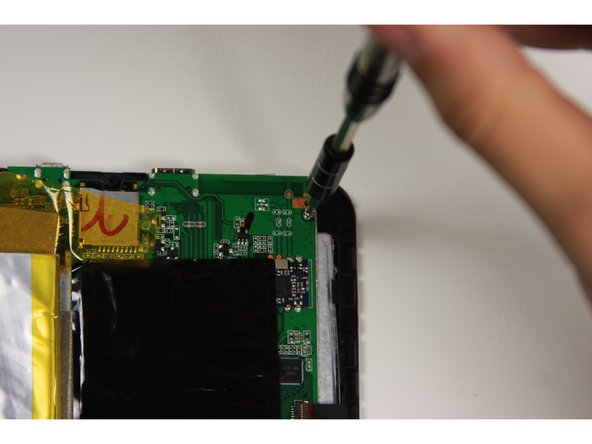
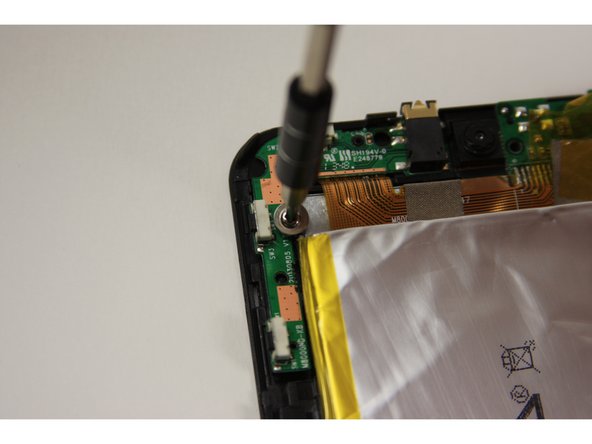
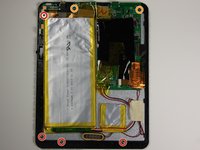
    • Using the Phillips #0 bit with the iFixit screwdriver, remove the four 5 mm screws with the washers around them connecting the digitizer to the screen.

    • Using the Phillips #0 bit with the iFixit screwdriver, remove the two 5 mm screws connecting the motherboard to the back of the digitizer.

    Спросите у FixBot

    Добавить комментарий

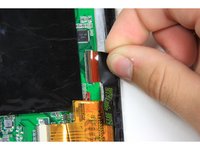
  7. Nextbook NX008HD8G Screen Replacement: шаг 7, изображение 1 из 3 Nextbook NX008HD8G Screen Replacement: шаг 7, изображение 2 из 3 Nextbook NX008HD8G Screen Replacement: шаг 7, изображение 3 из 3
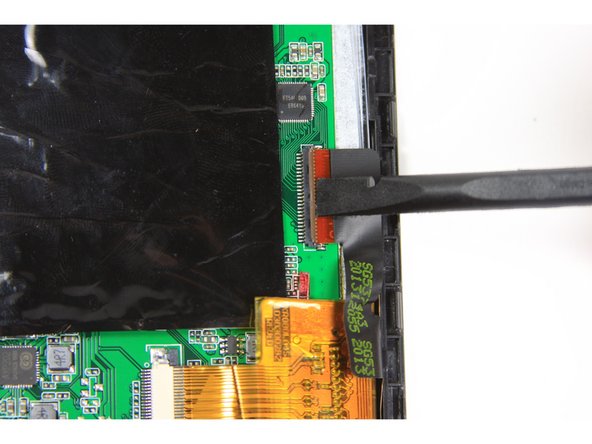
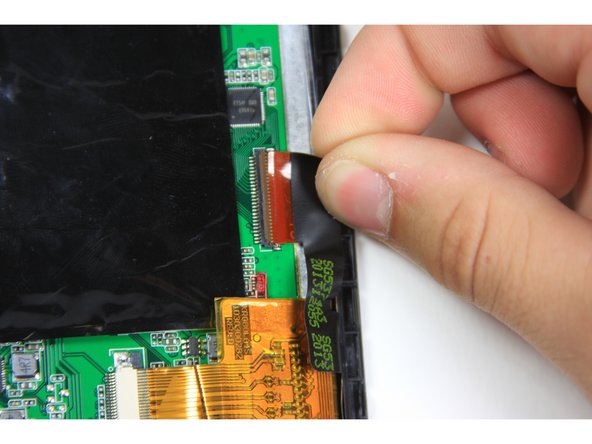
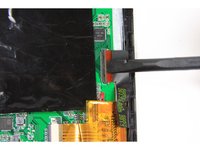
    • Using the flat end of the plastic spudger, open the black ribbon connector door on the right side of the motherboard.

    • Pull the ribbon out of the ribbon connector using your finger.

    Спросите у FixBot

    Добавить комментарий

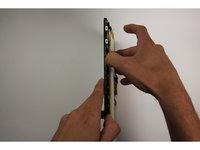
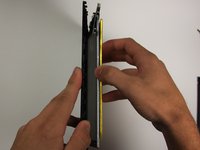
  8. Nextbook NX008HD8G Screen Replacement: шаг 8, изображение 1 из 3 Nextbook NX008HD8G Screen Replacement: шаг 8, изображение 2 из 3 Nextbook NX008HD8G Screen Replacement: шаг 8, изображение 3 из 3
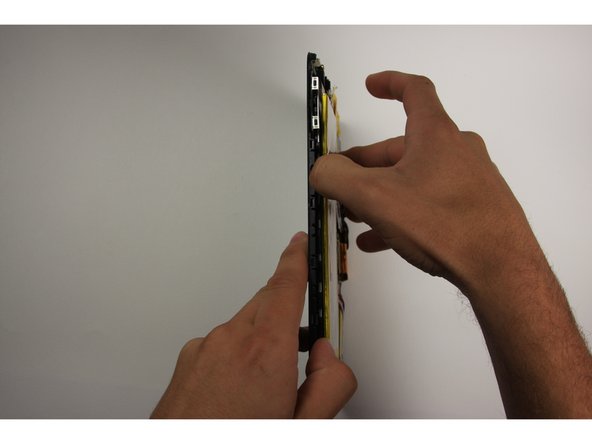
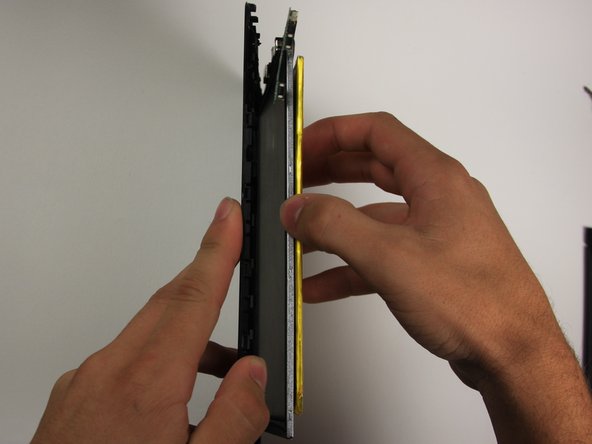
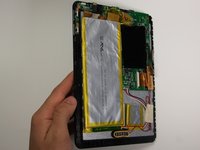
    • To separate the digitizer from the screen, tilt the device on its right side and use your other hand to pull the battery to the right.

    • If you tilt the device too far the digitizer may fall out.

    • The upper left corner of the motherboard may be harder to disconnect from the screen.

    Спросите у FixBot

    Добавить комментарий

Заключение

To reassemble your device, follow these instructions in reverse order.

Отменить: Я не выполнил это руководство.

8 человек успешно провели ремонт по этому руководству.

Austin Mack

Участник с: 09/22/15

534 Репутация

1 руководство автора

Команда

Baylor, Team 10-15, Williams Fall 2015 Участник Baylor, Team 10-15, Williams Fall 2015

BU-WILLIAMS-F15S10G15

3 членов

Автор 8 руководств

3 Комментарии к руководству

No parts? Except the replacement screen. No link to buy the replacement screen. What are you doing putting the same broken screen back on?

Benny Uranga - Ответить Поделиться
How do you get the digitizer off of small front frame???

Deb Padgett - Ответить Поделиться

I’m wondering the same. Anyone?

Jason - Ответить Поделиться

Добавить комментарий

Статистика просмотров:

За последние 24 часов: 3

За последние 7 дней: 17

За последние 30 дней: 50

За всё время: 3,977