Перейти к основному содержанию
Присоединяйся к сообществу ремонтников - Создай аккаунт

Nintendo WaveBird Wireless Controller Channel Wheel Replacement

Выберете то, что вам нужно

  1. Nintendo WaveBird Wireless Controller Channel Wheel Replacement, Batteries: шаг 1, изображение 1 из 2 Nintendo WaveBird Wireless Controller Channel Wheel Replacement, Batteries: шаг 1, изображение 2 из 2
    • Pull down on the battery cover release lever and pull back to remove the cover.

    Спросите у FixBot
  2. Nintendo WaveBird Wireless Controller Channel Wheel Replacement: шаг 2, изображение 1 из 1
    • Remove both batteries from the device.

    Спросите у FixBot
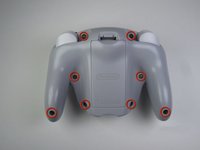
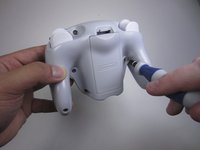
  3. Nintendo WaveBird Wireless Controller Channel Wheel Replacement, Front Panel: шаг 3, изображение 1 из 2 Nintendo WaveBird Wireless Controller Channel Wheel Replacement, Front Panel: шаг 3, изображение 2 из 2
    • Remove the eight 9 mm screws from the back panel using the Tri-point Y1 screwdriver.

    • During reassembly, firmly hold the panels of the controller together while replacing the screws so the panels do not separate.

    Спросите у FixBot
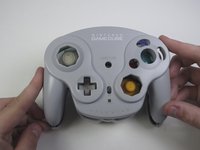
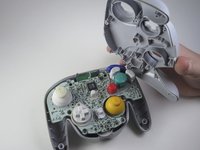
  4. Nintendo WaveBird Wireless Controller Channel Wheel Replacement: шаг 4, изображение 1 из 2 Nintendo WaveBird Wireless Controller Channel Wheel Replacement: шаг 4, изображение 2 из 2
    • Carefully turn over the controller and place it on a flat surface.

    • Slowly separate the top panel from the bottom panel.

    • The buttons are loose and may fall off the motherboard.

    • Once separated, set aside the top panel.

    • During reassembly, make sure the front panel lines up with the buttons so they slide back into place.

    Спросите у FixBot
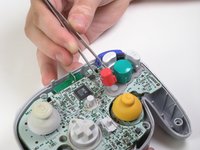
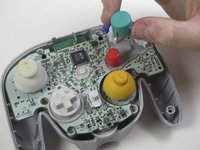
  5. Nintendo WaveBird Wireless Controller Channel Wheel Replacement, Buttons: шаг 5, изображение 1 из 3 Nintendo WaveBird Wireless Controller Channel Wheel Replacement, Buttons: шаг 5, изображение 2 из 3 Nintendo WaveBird Wireless Controller Channel Wheel Replacement, Buttons: шаг 5, изображение 3 из 3
    Инструмент, используемый на этом этапе:
    Tweezers
    $4.99
    • Use tweezers to remove the buttons.

    • It may be easier to remove the A button off of the pad by lifting it with your fingers.

    • During reassembly, make sure all buttons are in their respective sockets so they match up with the front panel.

    Спросите у FixBot
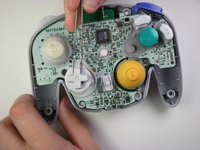
  6. Nintendo WaveBird Wireless Controller Channel Wheel Replacement, Motherboard: шаг 6, изображение 1 из 1
    Инструмент, используемый на этом этапе:
    Tweezers
    $4.99
    • Using tweezers remove the three grey button pads from the motherboard.

    Спросите у FixBot
  7. Nintendo WaveBird Wireless Controller Channel Wheel Replacement: шаг 7, изображение 1 из 1
    • With your fingers gently grip the motherboard on both sides and lift it away from the back panel.

    • To put the motherboard back into place, align the two metal clips under the motherboard with the slots in the back panel. The motherboard should fall into place.

    Спросите у FixBot
  8. Nintendo WaveBird Wireless Controller Channel Wheel Replacement, Channel Wheel: шаг 8, изображение 1 из 1
    • Turn the motherboard over so the channel wheel is facing up.

    Спросите у FixBot
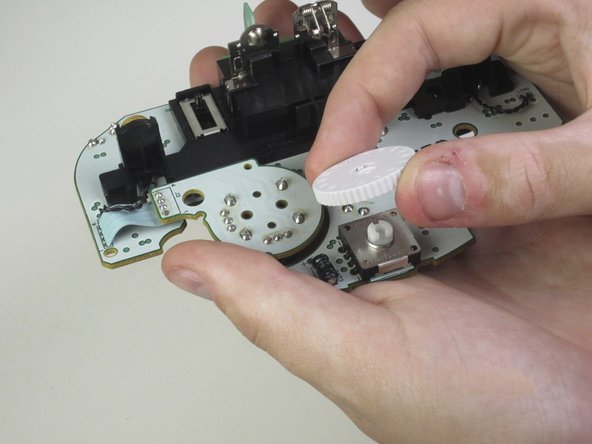
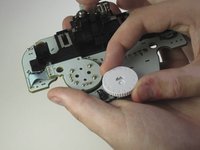
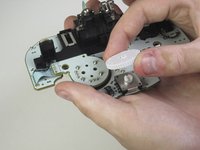
  9. Nintendo WaveBird Wireless Controller Channel Wheel Replacement: шаг 9, изображение 1 из 2 Nintendo WaveBird Wireless Controller Channel Wheel Replacement: шаг 9, изображение 2 из 2
    • Pinch the wheel and pull it away from the motherboard.

    Спросите у FixBot
Заключение

To reassemble your device, follow these instructions in reverse order.

Еще один человек закончил это руководство.

Travis Taylor

Участник с: 04/12/13

539 Репутация

Автор 5 руководств

Команда

Cal Poly, Team 10-40, Amido Spring 2013 Участник Cal Poly, Team 10-40, Amido Spring 2013

CPSU-AMIDO-S13S10G40

4 членов

Автор 37 руководств

0 Комментарии к руководству

Добавить комментарий

Статистика просмотров:

За последние 24 часов: 1

За последние 7 дней: 11

За последние 30 дней: 74

За всё время: 2,678