Перейти к основному содержанию
Присоединяйся к сообществу ремонтников - Создай аккаунт

Nvidia Shield Tablet Front and Rear Camera Replacement

Выберете то, что вам нужно

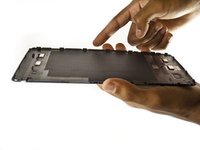
  1. Nvidia Shield Tablet Front and Rear Camera Replacement, Rear Case: шаг 1, изображение 1 из 2 Nvidia Shield Tablet Front and Rear Camera Replacement, Rear Case: шаг 1, изображение 2 из 2
    • First, remove the stylus from your tablet.

    Спросите у FixBot
    Добавить комментарий

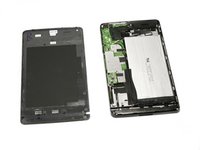
  2. Nvidia Shield Tablet Front and Rear Camera Replacement: шаг 2, изображение 1 из 3 Nvidia Shield Tablet Front and Rear Camera Replacement: шаг 2, изображение 2 из 3 Nvidia Shield Tablet Front and Rear Camera Replacement: шаг 2, изображение 3 из 3
    Инструмент, используемый на этом этапе:
    Anti-Static Wrist Strap
    $7.95
    • Set the tablet so the buttons, microSD, and stylus port are facing you.

    • Open the microSD slot.

    • Using the flat end of the spudger tool, carefully pry open the case starting from the microSD slot, slowly sliding the spudger along the inside edge of the case.

    • You may want to put on your anti-static wrist strap at this point as the motherboard will be vulnerable to physical touch and electrostatic shock after the casing is removed.

    Спросите у FixBot
    Добавить комментарий

  3. Nvidia Shield Tablet Front and Rear Camera Replacement: шаг 3, изображение 1 из 2 Nvidia Shield Tablet Front and Rear Camera Replacement: шаг 3, изображение 2 из 2
    • As you remove your case, be aware of small clips along the edges.

    • Finally, set the old casing aside.

    Спросите у FixBot

    Добавить комментарий

  4. Nvidia Shield Tablet Front and Rear Camera Replacement, Speaker: шаг 4, изображение 1 из 1
    • Orient your tablet so that the top of the tablet is furthest away from you.

    • Locate the top speaker, a black semi-rectangular piece on the top right side of the tablet.

    Спросите у FixBot

    Добавить комментарий

  5. Nvidia Shield Tablet Front and Rear Camera Replacement: шаг 5, изображение 1 из 1
    • Remove the two 3.0 mm Phillips #00 screws securing the speaker.

    Спросите у FixBot

    Добавить комментарий

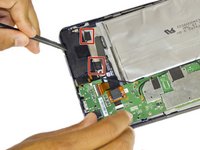
  6. Nvidia Shield Tablet Front and Rear Camera Replacement: шаг 6, изображение 1 из 3 Nvidia Shield Tablet Front and Rear Camera Replacement: шаг 6, изображение 2 из 3 Nvidia Shield Tablet Front and Rear Camera Replacement: шаг 6, изображение 3 из 3
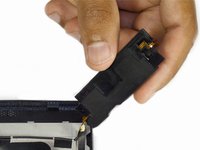
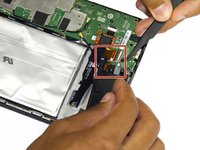
    • Gently pry the speaker up with the flat end of a spudger.

    • Use a plastic opening tool to peel up the tape covering the speaker wire.

    Спросите у FixBot
    Добавить комментарий

  7. Nvidia Shield Tablet Front and Rear Camera Replacement: шаг 7, изображение 1 из 2 Nvidia Shield Tablet Front and Rear Camera Replacement: шаг 7, изображение 2 из 2
    Инструмент, используемый на этом этапе:
    Anti-Static Wrist Strap
    $7.95
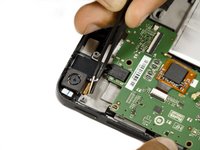
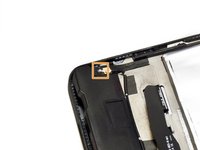
    • Next, with a gentle but firm grip, pull the audio input ribbon with the precision tweezers.

    • Finally, unplug the power source from your speaker using the precision tweezers.

    • Make sure you are using your anti-static wrist strap.

    Спросите у FixBot
    Добавить комментарий

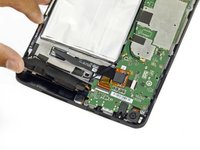
  8. Nvidia Shield Tablet Front and Rear Camera Replacement, Front and Rear Camera: шаг 8, изображение 1 из 3 Nvidia Shield Tablet Front and Rear Camera Replacement, Front and Rear Camera: шаг 8, изображение 2 из 3 Nvidia Shield Tablet Front and Rear Camera Replacement, Front and Rear Camera: шаг 8, изображение 3 из 3
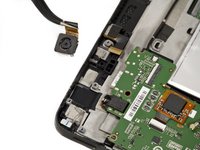
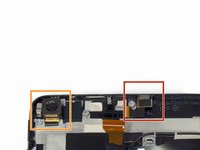
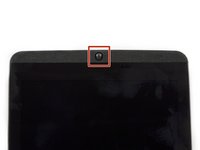
    • Having removed the speaker, locate the front-facing camera resting just underneath the speaker.

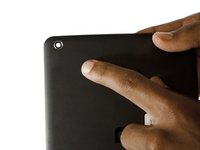
    • The rear-facing camera is on the left side of the tablet and it aligns with the camera hole on the back casing of your tablet.

    Спросите у FixBot
    Добавить комментарий

  9. Nvidia Shield Tablet Front and Rear Camera Replacement: шаг 9, изображение 1 из 3 Nvidia Shield Tablet Front and Rear Camera Replacement: шаг 9, изображение 2 из 3 Nvidia Shield Tablet Front and Rear Camera Replacement: шаг 9, изображение 3 из 3
    Инструмент, используемый на этом этапе:
    Tweezers
    $4.99
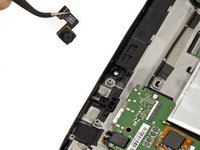
    • Gently unplug each camera using the precision tweezers.

    Спросите у FixBot

    Добавить комментарий

Заключение

To reassemble your device, follow these instructions in reverse order.

Отменить: Я не выполнил это руководство.

Еще один человек закончил это руководство.

Molly Bauer

Участник с: 08/27/15

1 478 Репутация

Автор 6 руководств

Команда

USF Tampa, Team 2-2, Blackwell Fall 2015 Участник USF Tampa, Team 2-2, Blackwell Fall 2015

USFT-BLACKWELL-F15S2G2

3 членов

Автор 11 руководств

0 Комментарии к руководству

Добавить комментарий

Статистика просмотров:

За последние 24 часов: 0

За последние 7 дней: 14

За последние 30 дней: 68

За всё время: 2,485