Перейти к основному содержанию
Присоединяйся к сообществу ремонтников - Создай аккаунт

Replacing Creative Zen X-Fi Battery

Выберете то, что вам нужно

  1. Replacing Creative Zen X-Fi Battery, Detaching Front Case: шаг 1, изображение 1 из 3 Replacing Creative Zen X-Fi Battery, Detaching Front Case: шаг 1, изображение 2 из 3 Replacing Creative Zen X-Fi Battery, Detaching Front Case: шаг 1, изображение 3 из 3
    • Using a spudger, wedge the tip between the front and back case to pry them apart.

    • Be careful to not apply excessive force since there are six fasteners on the screen's side that holds the cases firmly together.

    Спросите у FixBot

    Добавить комментарий

  2. Replacing Creative Zen X-Fi Battery, Rubber Button Cover: шаг 2, изображение 1 из 1
    • The black rubber button pad can be removed by simply picking it up.

    Спросите у FixBot

    Добавить комментарий

  3. Replacing Creative Zen X-Fi Battery, Button Input Chip Part 1: шаг 3, изображение 1 из 1
    • Flip the LCD screen off the midsection plate to gain access to the space around the input button chip.

    Спросите у FixBot

    Добавить комментарий

  4. Replacing Creative Zen X-Fi Battery, Button Input Chip: шаг 4, изображение 1 из 1
    • Using a spudger, pry off the button input chip from the mid-section of the device. To gain best leverage, start at the bottom right corner and level your way up the side of the chip.

    • Be aware that the button input chip is glued to the mid-section, so some extra force may be required.

    Спросите у FixBot

    Добавить комментарий

  5. Replacing Creative Zen X-Fi Battery, Access Midsection Plate: шаг 5, изображение 1 из 1
    • Lift open the LCD screen and button input chip to access the entire midsection plate.

    Спросите у FixBot

    Добавить комментарий

  6. Replacing Creative Zen X-Fi Battery, Unscrew below Button Chip: шаг 6, изображение 1 из 1
    • Use a Phillips Head screwdriver to unscrew the three 3/16 inch screws that were underneath the button input chip.

    Спросите у FixBot

    Добавить комментарий

  7. Replacing Creative Zen X-Fi Battery, Unscrew below LCD Screen: шаг 7, изображение 1 из 1
    • Use a Phillips Head screwdriver to unscrew the three 3/16 inch screws that were underneath the LCD screen.

    Спросите у FixBot

    Добавить комментарий

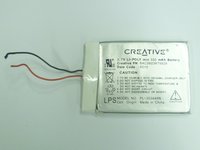
  8. Replacing Creative Zen X-Fi Battery, Separating the Battery: шаг 8, изображение 1 из 1
    • Use a spudger to pry the battery from the midsection plate.

    • There is adhesive glue underneath the battery, so additional force might be required to separate the battery.

    Спросите у FixBot

    Добавить комментарий

  9. Replacing Creative Zen X-Fi Battery, Disconnecting Power Supply: шаг 9, изображение 1 из 2 Replacing Creative Zen X-Fi Battery, Disconnecting Power Supply: шаг 9, изображение 2 из 2
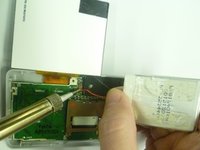
    • Locate the soldering joint connecting the battery wires to the power supply, marked by the letters "PS" on the motherboard.

    • Hold the battery wires in place so that access to the soldering joints is not blocked.

    • When using a soldering iron, keep your hands and fingers as far as possible from the iron's tip to avoid burning your skin.

    • Using a soldering iron, melt the solder connecting the red wire to the motherboard. Do the same action to the black wire.

    Спросите у FixBot

    Добавить комментарий

Заключение

To reassemble your device, follow these instructions in reverse order.

Отменить: Я не выполнил это руководство.

5 человек успешно провели ремонт по этому руководству.

Westley Courchene

Участник с: 01/13/15

3 410 Репутация

Автор 14 руководств

2 Комментарии к руководству

very clear pictures!

John - Ответить Поделиться

разбирать нужно со стороны противоположной гнезда наушников!!! поломал так же как и на фото все защелки со стороны кнопок(

Cooper21 - Ответить Поделиться

Добавить комментарий

Статистика просмотров:

За последние 24 часов: 4

За последние 7 дней: 21

За последние 30 дней: 106

За всё время: 8,671