Перейти к основному содержанию
Присоединяйся к сообществу ремонтников - Создай аккаунт

Samsung Galaxy Note 10.1 2014 Screen Replacement

Выберете то, что вам нужно

  1. Samsung Galaxy Note 10.1 2014 Screen Replacement, Case: шаг 1, изображение 1 из 2 Samsung Galaxy Note 10.1 2014 Screen Replacement, Case: шаг 1, изображение 2 из 2
    Инструмент, используемый на этом этапе:
    Spudger
    $2.99
    • Using the nylon spudger or plastic opening tool along the edges of the screen, separate the back case off of the device.

    • If possible, consider using the black nylon spudger for a gentler separation.

    Спросите у FixBot
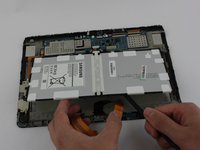
  2. Samsung Galaxy Note 10.1 2014 Screen Replacement, Battery: шаг 2, изображение 1 из 1
    • Place your finger on the thin black bar at the end of the ribbon tape and flip each one up.

    • Gently pull the ribbon tape on the battery away from the bar. Repeat this process for the second ribbon tape.

    Спросите у FixBot
  3. Samsung Galaxy Note 10.1 2014 Screen Replacement: шаг 3, изображение 1 из 1
    Инструмент, используемый на этом этапе:
    Phillips #000 Screwdriver
    $5.49
    Спросите у FixBot
  4. Samsung Galaxy Note 10.1 2014 Screen Replacement: шаг 4, изображение 1 из 2 Samsung Galaxy Note 10.1 2014 Screen Replacement: шаг 4, изображение 2 из 2
    Инструмент, используемый на этом этапе:
    Spudger
    $2.99
    • Lift up the battery from the bottom and situate the black nylon spudger underneath the battery.

    • Use the black nylon spudger to disconnect the multi-colored wires from the rest of the device.

    Спросите у FixBot
  5. Samsung Galaxy Note 10.1 2014 Screen Replacement, Loudspeaker Modules: шаг 5, изображение 1 из 2 Samsung Galaxy Note 10.1 2014 Screen Replacement, Loudspeaker Modules: шаг 5, изображение 2 из 2
    • Remove the three 3mm screws on the top right side of the device with the Phillips PH000 screw head.

    • Remove the one 3mm screw on the top left side of the device with the same method.

    Спросите у FixBot
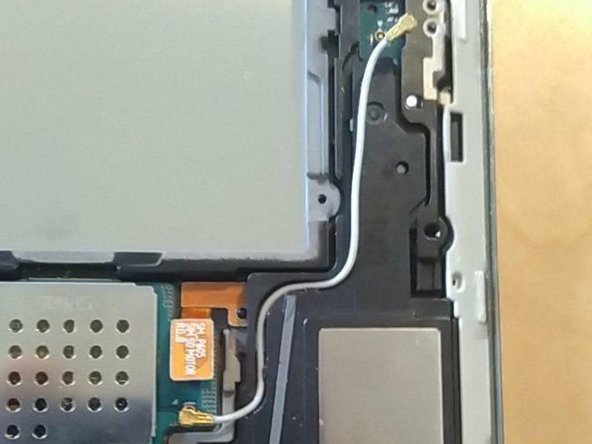
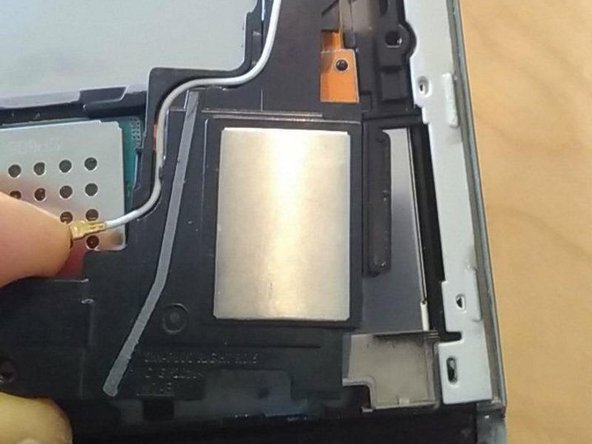
  6. Samsung Galaxy Note 10.1 2014 Screen Replacement, loudspeaker  - remove right speaker: шаг 6, изображение 1 из 3 Samsung Galaxy Note 10.1 2014 Screen Replacement, loudspeaker  - remove right speaker: шаг 6, изображение 2 из 3 Samsung Galaxy Note 10.1 2014 Screen Replacement, loudspeaker  - remove right speaker: шаг 6, изображение 3 из 3
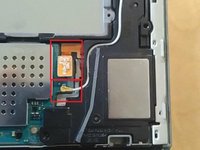
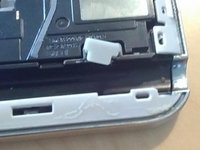
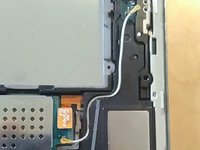
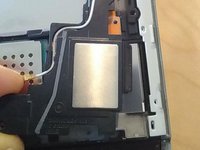
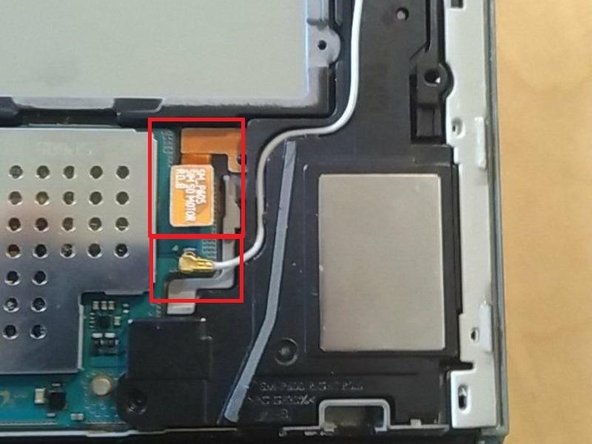
    • Remove the gray rubber piece.

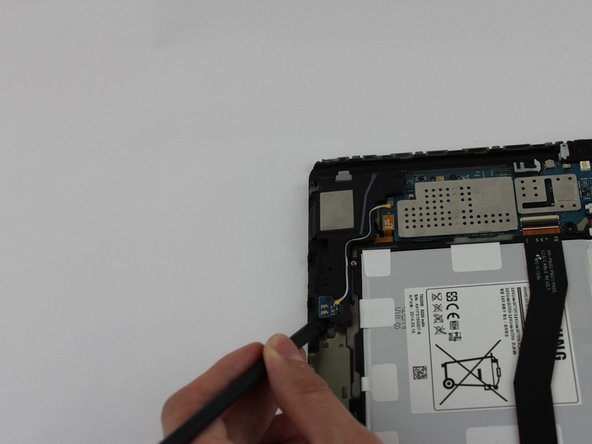
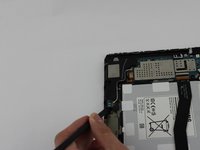
    • Use a spudger or fingernail to disconnect the blue antenna cable from the motherboard.

    • Remove the right speaker unit.

    Спросите у FixBot
  7. Samsung Galaxy Note 10.1 2014 Screen Replacement: шаг 7, изображение 1 из 3 Samsung Galaxy Note 10.1 2014 Screen Replacement: шаг 7, изображение 2 из 3 Samsung Galaxy Note 10.1 2014 Screen Replacement: шаг 7, изображение 3 из 3
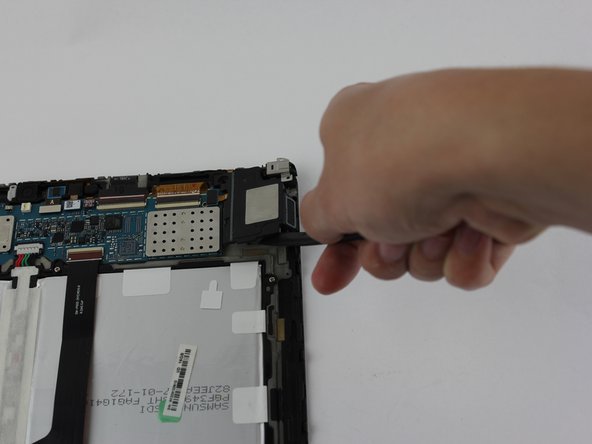
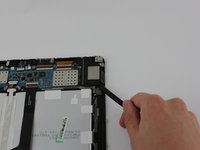
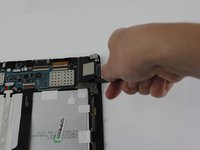
    • Remove the loudspeaker modules located on the parts where the screws were removed by using the black nylon spudger.

    • They are the black pieces at the top left and right corners of the device that have metal squares on them in the middle.

    Спросите у FixBot
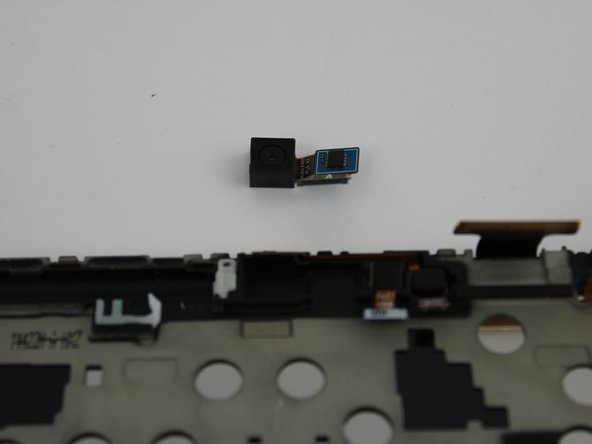
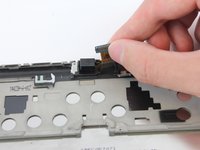
  8. Samsung Galaxy Note 10.1 2014 Screen Replacement, Rear Camera: шаг 8, изображение 1 из 2 Samsung Galaxy Note 10.1 2014 Screen Replacement, Rear Camera: шаг 8, изображение 2 из 2
    • Disconnect the camera piece from the motherboard.

    • The camera piece is shaped like an "L".

    Спросите у FixBot
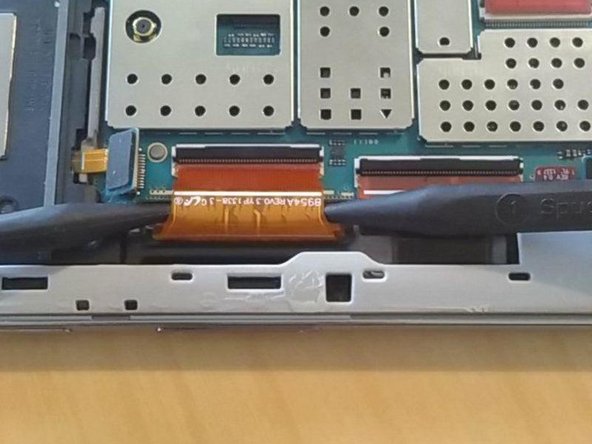
  9. Samsung Galaxy Note 10.1 2014 Screen Replacement, Motherboard: шаг 9, изображение 1 из 3 Samsung Galaxy Note 10.1 2014 Screen Replacement, Motherboard: шаг 9, изображение 2 из 3 Samsung Galaxy Note 10.1 2014 Screen Replacement, Motherboard: шаг 9, изображение 3 из 3
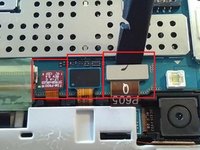
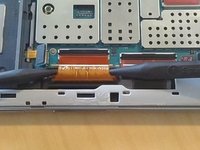
    • Disconnect all cables on the motherboard.

    • See our connector guide for help safely disconnecting various types of connectors.

    Спросите у FixBot
  10. Samsung Galaxy Note 10.1 2014 Screen Replacement: шаг 10, изображение 1 из 3 Samsung Galaxy Note 10.1 2014 Screen Replacement: шаг 10, изображение 2 из 3 Samsung Galaxy Note 10.1 2014 Screen Replacement: шаг 10, изображение 3 из 3
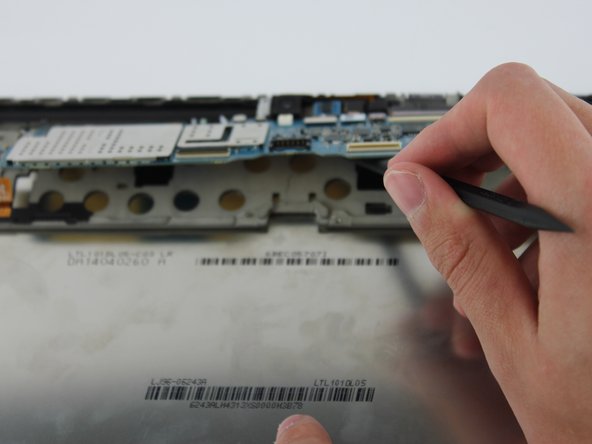
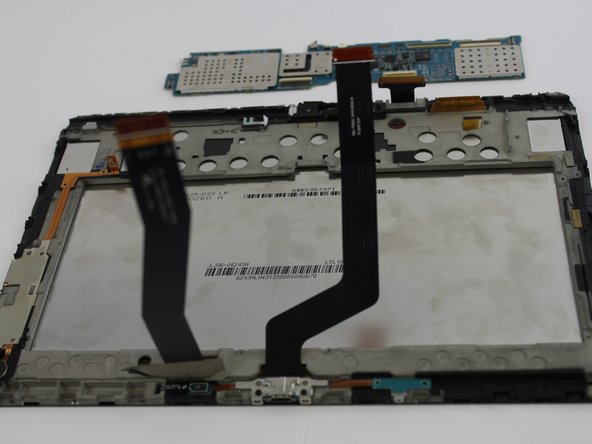
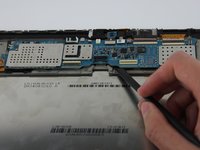
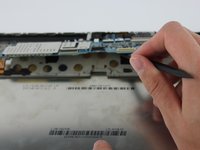
    • Use the black nylon spudger to gently lift the motherboard away from the frame.

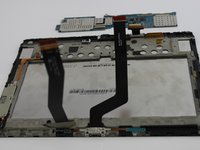
    • Remove the motherboard.

    Спросите у FixBot
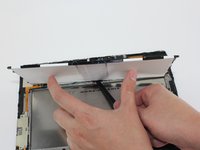
  11. Samsung Galaxy Note 10.1 2014 Screen Replacement, sreen - remove middle frame: шаг 11, изображение 1 из 1
    • remove middle frame by pulling it off

    Спросите у FixBot
    • follow as shown on TechGuru.gr

    • Screen burst, be aware of glass splinters. May you cover the screen with tissue

    Спросите у FixBot
  12. Samsung Galaxy Note 10.1 2014 Screen Replacement, screen - seperate buttons from screen: шаг 13, изображение 1 из 1
    • buttons are glued to frame, gently lift up screen

    • pull of cable, connecting the buttons, gently

    Спросите у FixBot
  13. Samsung Galaxy Note 10.1 2014 Screen Replacement, screen - clean: шаг 14, изображение 1 из 1
    • rub of the glue with the fingers

    • remove residues with makeup remover or similar

    Спросите у FixBot
Заключение

To reassemble your device, follow these instructions in reverse order.

9 человек успешно провели ремонт по этому руководству.

Stefn Mueller

Участник с: 12/23/15

403 Репутация

1 руководство автора

4 Комментарии к руководству

is the digitizer glued to the lcd screen?

Amiel D Hechanova - Ответить Поделиться

it is see referenced YouTube video

https://tinyurl.com/yccgecgh

Stefn Mueller - Ответить Поделиться

The e battery and screen cable clasps that hold tge cables in….. Where do i get them repaired

Paul Brook - Ответить Поделиться

Hi can somebody help me

Paul Brook - Ответить Поделиться

Добавить комментарий

Статистика просмотров:

За последние 24 часов: 0

За последние 7 дней: 11

За последние 30 дней: 123

За всё время: 11,755