Перейти к основному содержанию
Присоединяйся к сообществу ремонтников - Создай аккаунт

Sanyo VPC-T850 Lens Replacement

Выберете то, что вам нужно

  1. Sanyo VPC-T850 Lens Replacement, Battery: шаг 1, изображение 1 из 1
    • Make sure the camera is powered off by pressing and holding the small, square button embedded in the top rim of the camera.

    Спросите у FixBot

    Добавить комментарий

  2. Sanyo VPC-T850 Lens Replacement: шаг 2, изображение 1 из 1
    • Locate the hatch found on the bottom of the camera.

    • Open the hatch by gripping the small notch and sliding it outwards.

    Спросите у FixBot

    Добавить комментарий

  3. Sanyo VPC-T850 Lens Replacement: шаг 3, изображение 1 из 1
    • Push the small, plastic arm out of the way to free the battery.

    • The battery is spring loaded and will pop out slightly when the arm is moved.

    Спросите у FixBot

    Добавить комментарий

  4. Sanyo VPC-T850 Lens Replacement: шаг 4, изображение 1 из 1
    • Pull the battery out of the camera and close the hatch.

    • To reinsert, there is a triangle on the battery indicating which direction to slide it in.

    Спросите у FixBot

    Добавить комментарий

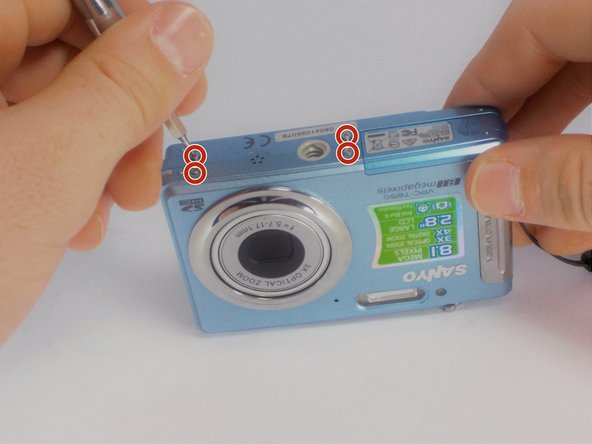
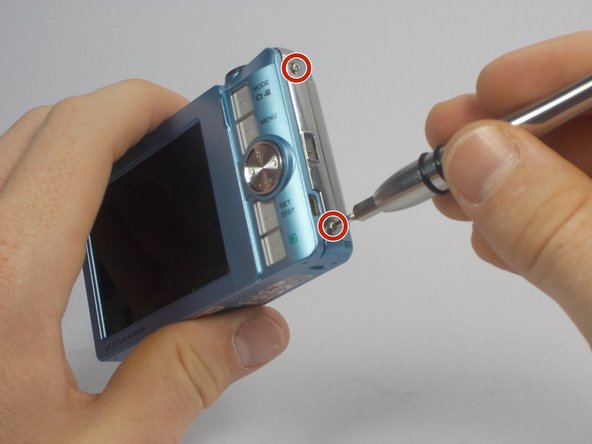
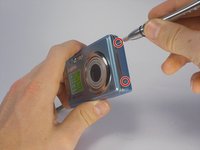
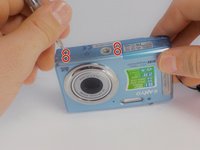
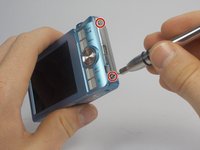
  5. Sanyo VPC-T850 Lens Replacement, Outer Casing: шаг 5, изображение 1 из 3 Sanyo VPC-T850 Lens Replacement, Outer Casing: шаг 5, изображение 2 из 3 Sanyo VPC-T850 Lens Replacement, Outer Casing: шаг 5, изображение 3 из 3
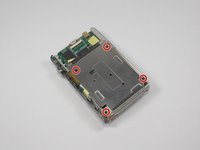
    • Using your Phillips #000 Screwdriver, remove the eight screws located around the sides and bottom of the camera.

    • Be sure to keep track of the side each screw comes from, as they come in different lengths.

    Спросите у FixBot

    Добавить комментарий

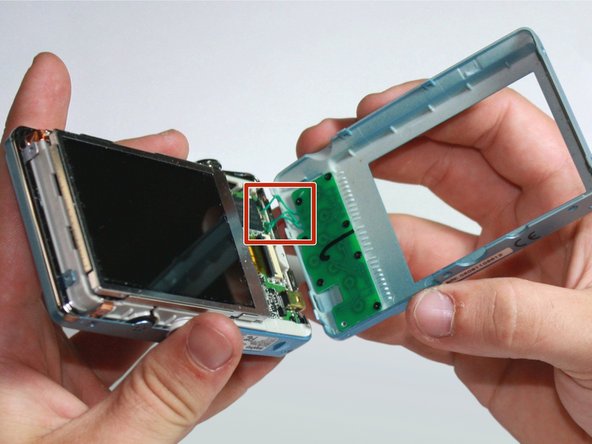
  6. Sanyo VPC-T850 Lens Replacement: шаг 6, изображение 1 из 2 Sanyo VPC-T850 Lens Replacement: шаг 6, изображение 2 из 2
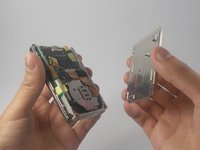
    • Orient the camera so the display is facing up.

    • Gently pull off the rear panel surrounding the display.

    • There are still three green wires connecting the panel to the rest of the camera.

    • Use your prying tool if you have difficulties removing the panel by hand.

    Спросите у FixBot

    Добавить комментарий

  7. Sanyo VPC-T850 Lens Replacement: шаг 7, изображение 1 из 1
    • Remove the eight black screws connecting the keypad circuit board to the rear panel.

    Спросите у FixBot

    Добавить комментарий

  8. Sanyo VPC-T850 Lens Replacement: шаг 8, изображение 1 из 2 Sanyo VPC-T850 Lens Replacement: шаг 8, изображение 2 из 2
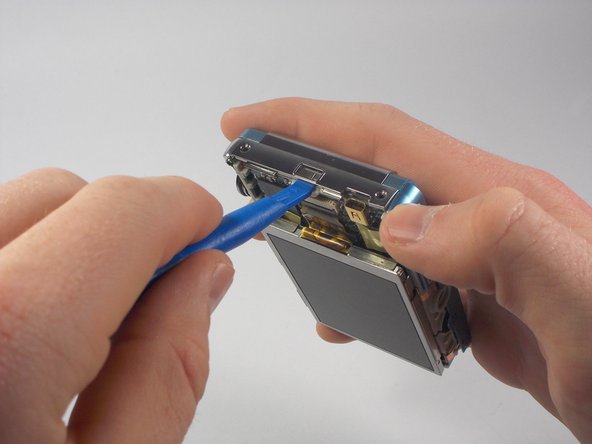
    • With a plastic opening tool, gently remove the chrome framing on the left and right sides of the camera.

    Спросите у FixBot

    Добавить комментарий

  9. Sanyo VPC-T850 Lens Replacement: шаг 9, изображение 1 из 1
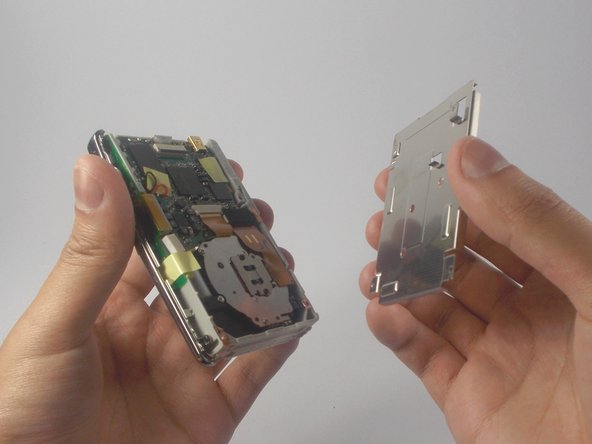
    • Flip the camera over so the lens is facing up.

    • Gently lift up the front panel to remove it from the rest of the camera.

    • Use your plastic opening tool if you have difficulties removing the panel by hand.

    Спросите у FixBot

    Добавить комментарий

  10. Sanyo VPC-T850 Lens Replacement, LCD Display: шаг 10, изображение 1 из 1
    • Flip the device over to where the display is located.

    • Using your plastic opening tool, lift the display out of its metal housing.

    Спросите у FixBot

    Добавить комментарий

  11. Sanyo VPC-T850 Lens Replacement: шаг 11, изображение 1 из 1
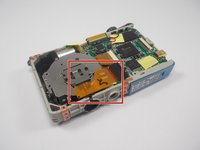
    • Locate the orange ribbon connecting the display to the camera.

    • Using your plastic opening tool, gently lift the black bar holding the orange ribbon to the camera.

    Спросите у FixBot

    Добавить комментарий

  12. Sanyo VPC-T850 Lens Replacement: шаг 12, изображение 1 из 1
    • With two fingers held firmly on the display, gently pull the orange ribbon out of the camera.

    • Pull slowly to avoid severing the orange ribbon from the display.

    Спросите у FixBot

    Добавить комментарий

  13. Sanyo VPC-T850 Lens Replacement, Lens: шаг 13, изображение 1 из 1
    • Orient the camera so the lens is facing up.

    • Locate and remove the two screws connecting the lens to the camera.

    Спросите у FixBot

    Добавить комментарий

  14. Sanyo VPC-T850 Lens Replacement: шаг 14, изображение 1 из 2 Sanyo VPC-T850 Lens Replacement: шаг 14, изображение 2 из 2
    • Flip the camera back around to the other side.

    • Remove the four black screws connecting the metal display holder to the camera.

    • You do not have to remove the three screws located near the center.

    • Gently lift the display holder to reveal the underside of the lens.

    Спросите у FixBot

    Добавить комментарий

  15. Sanyo VPC-T850 Lens Replacement: шаг 15, изображение 1 из 3 Sanyo VPC-T850 Lens Replacement: шаг 15, изображение 2 из 3 Sanyo VPC-T850 Lens Replacement: шаг 15, изображение 3 из 3
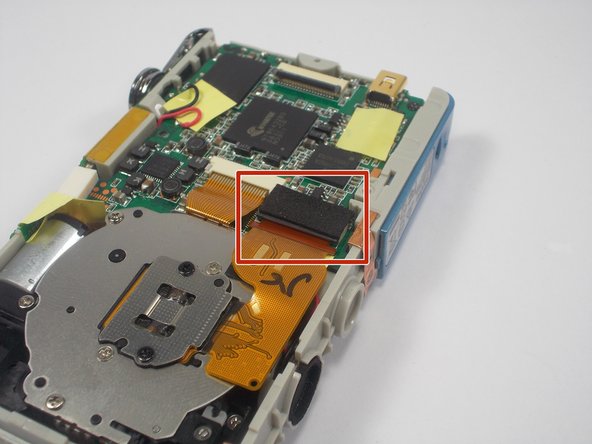
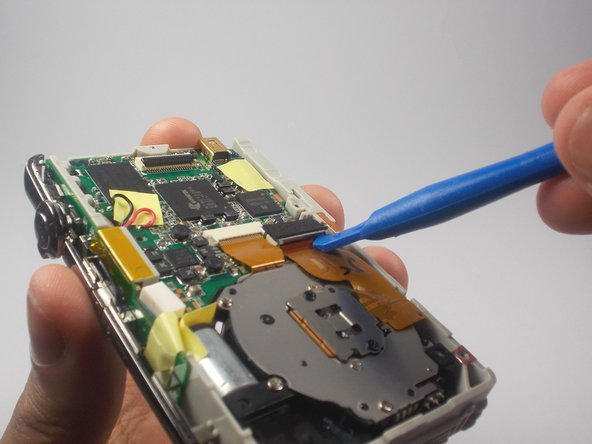
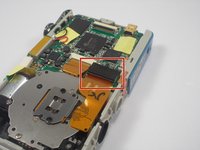
    • Locate where the larger orange ribbon is plugged into the motherboard.

    • There should be a rectangular foam piece covering the part it is plugged into.

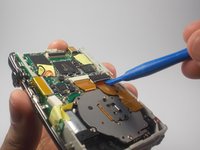
    • Using your plastic opening tool, gently lift the edge of the rectangle where the orange ribbon is connected.

    Спросите у FixBot

    Добавить комментарий

  16. Sanyo VPC-T850 Lens Replacement: шаг 16, изображение 1 из 1
    • With two fingers, slowly lift the lens out of its compartment.

    Спросите у FixBot

    Добавить комментарий

  17. Sanyo VPC-T850 Lens Replacement: шаг 17, изображение 1 из 1
    • With the lens between your thumb and index finger, pull to delicately slide the ribbons out of their connections.

    • The lens should be placed back into the compartment before attempting to reconnect the ribbons.

    Спросите у FixBot

    Добавить комментарий

Заключение

To reassemble your device, follow these instructions in reverse order.

Отменить: Я не выполнил это руководство.

Еще один человек закончил это руководство.

James Robinson

Участник с: 10/27/15

459 Репутация

Автор 4 руководств

Команда

UMass Dartmouth, Team 5-5, Gulbrandsen Fall 2015 Участник UMass Dartmouth, Team 5-5, Gulbrandsen Fall 2015

UMASSD-GULBRANDSEN-F15S5G5

3 членов

Автор 10 руководств

0 Комментарии к руководству

Добавить комментарий

Статистика просмотров:

За последние 24 часов: 4

За последние 7 дней: 13

За последние 30 дней: 48

За всё время: 794