Перейти к основному содержанию

Smart Soldering Iron Tip Replacement

Выберете то, что вам нужно

  1. Smart Soldering Iron Tip Replacement, How to read the Touch-Safe Indicator LED: шаг 1, изображение 1 из 3 Smart Soldering Iron Tip Replacement, How to read the Touch-Safe Indicator LED: шаг 1, изображение 2 из 3 Smart Soldering Iron Tip Replacement, How to read the Touch-Safe Indicator LED: шаг 1, изображение 3 из 3
    • The color of the Touch-Safe Indicator LED provides information about the status of the soldering iron tip. Note: the soldering iron grip is always safe to touch.

    • The LED only functions when the soldering iron is connected to a power source—so use caution when handling an unplugged iron if you don't know how hot it is.

    • Blue LED: The iron has cooled below 40 °C (100 °F), and the tip is safe to touch.

    • Purple LED: When pulsing, the iron is actively heating up or cooling down. When static, the iron is in Idle Mode. The iron tip is not safe to touch.

    • Orange LED: The iron has reached the set temperature and is ready to solder. The iron tip is not safe to touch.

  2. Smart Soldering Iron Tip Replacement, Turn off the iron: шаг 2, изображение 1 из 3 Smart Soldering Iron Tip Replacement, Turn off the iron: шаг 2, изображение 2 из 3 Smart Soldering Iron Tip Replacement, Turn off the iron: шаг 2, изображение 3 из 3
    • The sliding power switch has a built-in color indicator for each position:

    • Orange: ON

    • Blue: OFF

    • Slide the power switch to the blue OFF position.

    • The LED will turn purple and pulse to show the iron is powering down.

    • Leave the soldering iron connected until the indicator ring turns blue, indicating it's now safe to touch the soldering iron tip.

    • Remember: The LED only functions when the soldering iron is connected to a power source—so use caution when handling an unplugged iron if you don't know how hot it is.

  3. Smart Soldering Iron Tip Replacement, Unplug the iron: шаг 3, изображение 1 из 2 Smart Soldering Iron Tip Replacement, Unplug the iron: шаг 3, изображение 2 из 2
    • Disconnect the iron's USB-C cable from your power source.

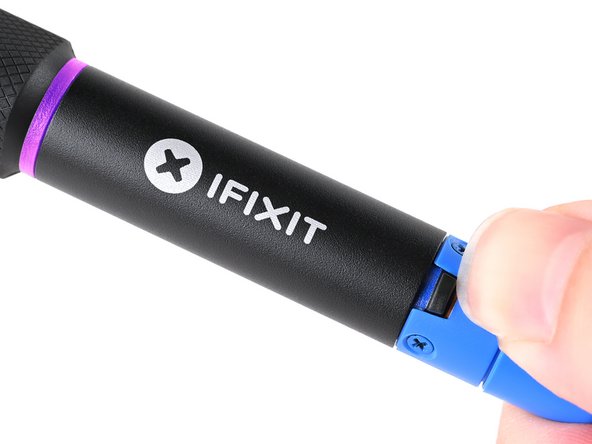
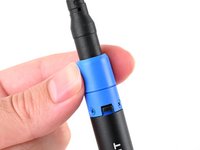
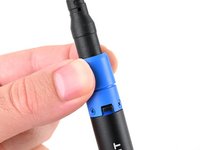
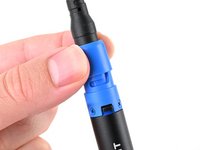
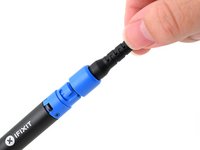
  4. Smart Soldering Iron Tip Replacement, Unlock the locking collar: шаг 4, изображение 1 из 3 Smart Soldering Iron Tip Replacement, Unlock the locking collar: шаг 4, изображение 2 из 3 Smart Soldering Iron Tip Replacement, Unlock the locking collar: шаг 4, изображение 3 из 3
    • Twist the blue cable collar counter-clockwise and pull up to release it from the iron.

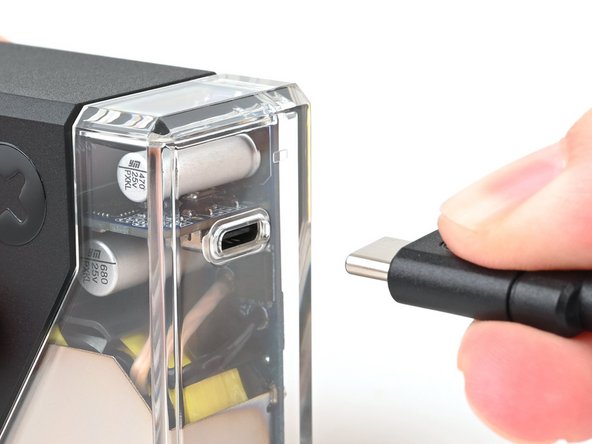
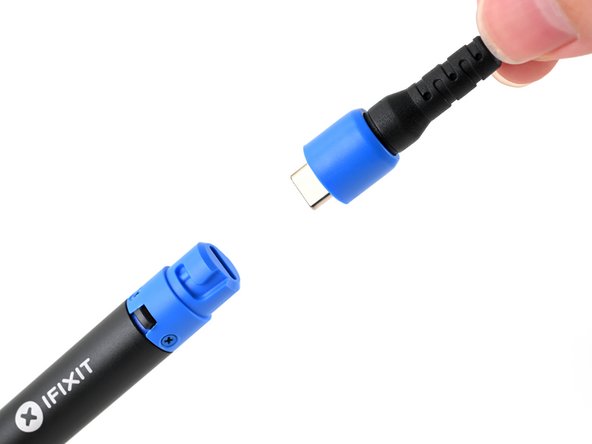
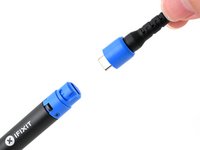
  5. Smart Soldering Iron Tip Replacement, Disconnect the cable from the iron: шаг 5, изображение 1 из 2 Smart Soldering Iron Tip Replacement, Disconnect the cable from the iron: шаг 5, изображение 2 из 2
    • Disconnect the USB-C cable from the Smart Soldering Iron.

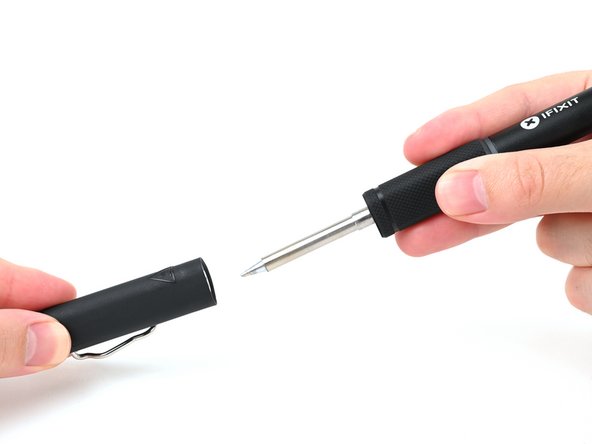
  6. Smart Soldering Iron Tip Replacement, Remove the soldering iron cap: шаг 6, изображение 1 из 2 Smart Soldering Iron Tip Replacement, Remove the soldering iron cap: шаг 6, изображение 2 из 2
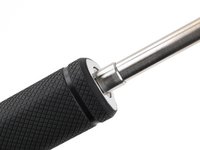
    • Hold the iron from both ends and pull to remove the cap.

  7. Smart Soldering Iron Tip Replacement, Remove the quick-swap soldering tip: шаг 7, изображение 1 из 2 Smart Soldering Iron Tip Replacement, Remove the quick-swap soldering tip: шаг 7, изображение 2 из 2
    • Make sure the tip has fully cooled before touching it.

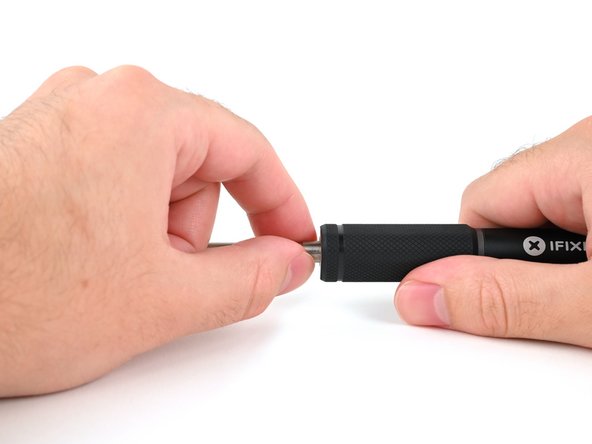
    • Firmly grasp the base of the tip and pull it away from the front of the iron handle to remove it.

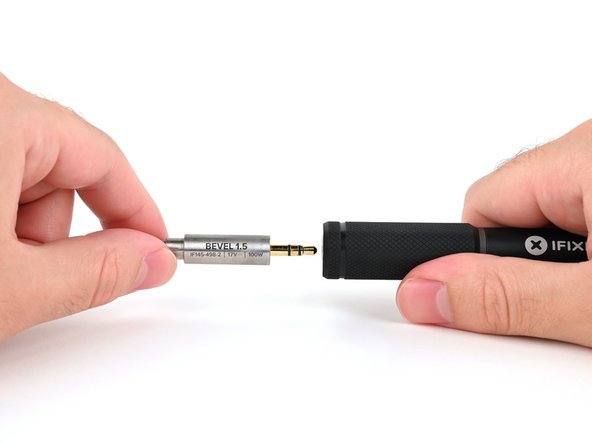
  8. Smart Soldering Iron Tip Replacement, Insert the new soldering iron tip: шаг 8, изображение 1 из 3 Smart Soldering Iron Tip Replacement, Insert the new soldering iron tip: шаг 8, изображение 2 из 3 Smart Soldering Iron Tip Replacement, Insert the new soldering iron tip: шаг 8, изображение 3 из 3
    • Make sure the new tip is rotated in the orientation you want it relative to the handle before inserting it. This is helpful for asymmetrical tips like a bevel or knife.

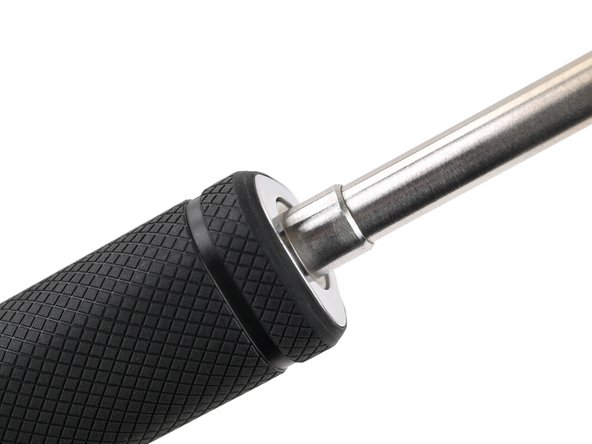
    • Push the tip into the iron enclosure in the handle until it clicks into place.

    • The base of the tip should be slightly recessed into the front of the handle. If it isn't, push it further in before powering on the iron.

Заключение

Take your e-waste to an R2 or e-Stewards certified recycler.

Repair didn't go as planned? Try some basic troubleshooting, or ask our Answers community for help.

Kara Piepenbrink

Участник с: 05/31/24

5 468 Репутация

Автор 21 руководств

Команда

iFixit Участник iFixit

Staff

123 членов

Автор 23 608 руководств

0 Комментарии к руководству

Добавить комментарий

Статистика просмотров:

За последние 24 часов: 6

За последние 7 дней: 35

За последние 30 дней: 164

За всё время: 1,848