Перейти к основному содержанию
Присоединяйся к сообществу ремонтников - Создай аккаунт

Smart Soldering Iron Safety Features and Modes

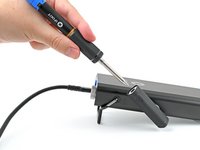
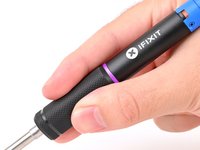
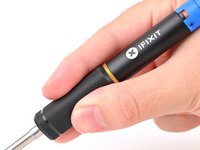
  1. Smart Soldering Iron Safety Features and Modes, How to read the Touch-Safe Indicator LED: шаг 1, изображение 1 из 3 Smart Soldering Iron Safety Features and Modes, How to read the Touch-Safe Indicator LED: шаг 1, изображение 2 из 3 Smart Soldering Iron Safety Features and Modes, How to read the Touch-Safe Indicator LED: шаг 1, изображение 3 из 3
    • The color of the Touch-Safe Indicator LED provides information about the status of the soldering iron tip. Note: the soldering iron grip is always safe to touch.

    • The LED only functions when the soldering iron is connected to a power source—so use caution when handling an unplugged iron if you don't know how hot it is.

    • Blue LED: The iron has cooled below 40 °C (100 °F), and the tip is safe to touch.

    • Purple LED: When pulsing, the iron is actively heating up or cooling down. When static, the iron is in Idle Mode. The iron tip is not safe to touch.

    • Orange LED: The iron has reached the set temperature and is ready to solder. The iron tip is not safe to touch.

    Спросите у FixBot

    Добавить комментарий

  2. Smart Soldering Iron Safety Features and Modes, Free fall detection accelerometer: шаг 2, изображение 1 из 1
    • The Smart Soldering Iron is equipped with an accelerometer-based auto safety feature.

    • If the iron detects that it's been dropped, it will automatically cut power to the soldering tip to prevent damage or injury when it lands.

    • To clear the free‑fall state and resume soldering, press the blue button on the Power Station or power cycle the iron by unplugging and replugging into a USB-C power source.

    Спросите у FixBot

    Добавить комментарий

  3. Smart Soldering Iron Safety Features and Modes, Active Mode: шаг 3, изображение 1 из 3 Smart Soldering Iron Safety Features and Modes, Active Mode: шаг 3, изображение 2 из 3 Smart Soldering Iron Safety Features and Modes, Active Mode: шаг 3, изображение 3 из 3
    • Never leave the soldering iron unattended while it's on.

    • Don't touch the heated tip of the soldering iron.

    • In Active Mode, the iron is heating to or maintaining the set working temperature. The LED will be pulsing purple or orange, respectively.

    Спросите у FixBot

    Добавить комментарий

  4. Smart Soldering Iron Safety Features and Modes, Idle Mode: шаг 4, изображение 1 из 1
    • Don't touch the heated tip of the soldering iron while in Idle Mode.

    • After 30 seconds of no movement, the soldering iron enters Idle Mode, a low-power mode that reduces the tip temperature to 200 °C.

    • The Idle Mode LED is static (not pulsing) purple.

    • Picking up a resting iron wakes it from Idle Mode, and the tip will automatically heat back up to your set temperature.

    • When powered by a Portable Power Station, warming from Idle Mode temperature to set temperature will only take a few seconds.

    • While Idle Mode can be disabled, we recommend leaving it enabled to extend tip life.

    Спросите у FixBot

    Добавить комментарий

  5. Smart Soldering Iron Safety Features and Modes, Sleep Mode: шаг 5, изображение 1 из 1
    • After Idle Mode, Sleep Mode occurs when the iron is completely motionless for a set amount of time.

    • The iron is off until it's moved again.

    • It's safe to touch the soldering iron tip in this state as long as the indicator ring is blue.

    Спросите у FixBot

    Добавить комментарий

Заключение

For more information about your Smart Soldering Iron, click here!

Отменить: Я не выполнил это руководство.

Еще один человек закончил это руководство.

Kara Piepenbrink

Участник с: 05/31/24

8 227 Репутация

Автор 21 руководств

Команда

iFixit Участник iFixit

Staff

123 членов

Автор 28 237 руководств

0 Комментарии к руководству

Добавить комментарий

Статистика просмотров:

За последние 24 часов: 0

За последние 7 дней: 16

За последние 30 дней: 65

За всё время: 1,281