Перейти к основному содержанию
Присоединяйся к сообществу ремонтников - Создай аккаунт

TomTom VIA 1605TM Battery Replacement

Выберете то, что вам нужно

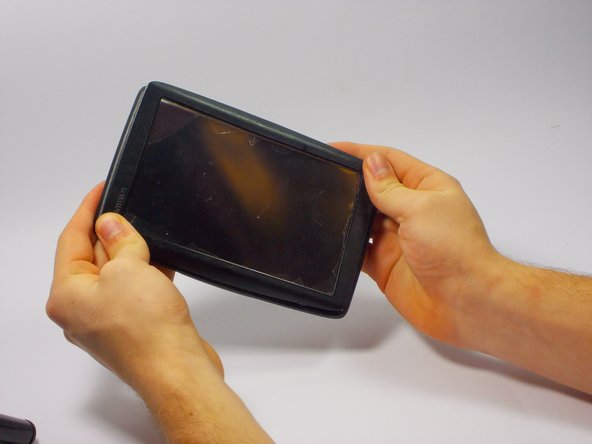
  1. TomTom VIA 1605TM Battery Replacement, Front Screen: шаг 1, изображение 1 из 3 TomTom VIA 1605TM Battery Replacement, Front Screen: шаг 1, изображение 2 из 3 TomTom VIA 1605TM Battery Replacement, Front Screen: шаг 1, изображение 3 из 3
    • Locate the round suction cup on the back of the device.

    • Twist the suction cup clockwise or counterclockwise while pulling back away from the device closer to your body until removed.

    • When reassembling twist the suction cup but, push in as oppose to pulling out.

    Спросите у FixBot
  2. TomTom VIA 1605TM Battery Replacement: шаг 2, изображение 1 из 1
    • Location of screw is where the suction cup was.

    • Insert 8mm Hex #T6 screw driver into screw.

    • Unscrew in counter clockwise direction.

    • When reassembling screw in the clockwise direction.

    Спросите у FixBot
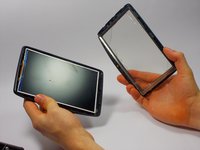
  3. TomTom VIA 1605TM Battery Replacement: шаг 3, изображение 1 из 2 TomTom VIA 1605TM Battery Replacement: шаг 3, изображение 2 из 2
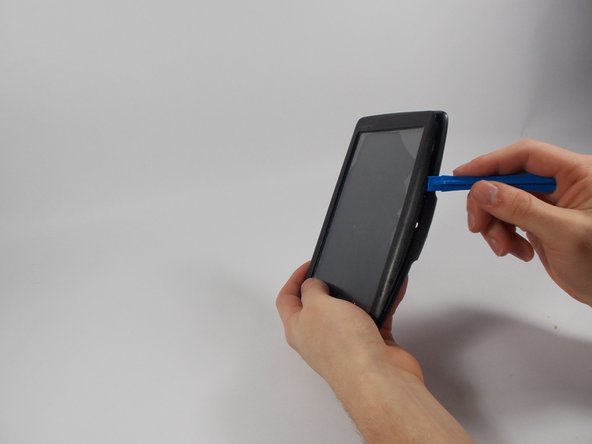
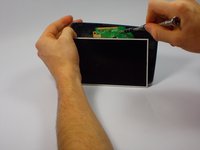
    • Pry along the edges with the plastic opening tool to separate the back and front panel.

    • Try not to tear the screen open as you may break the part. Go about this gently but with enough force to remove the screen.

    Спросите у FixBot
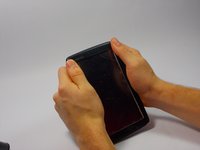
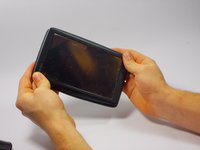
  4. TomTom VIA 1605TM Battery Replacement: шаг 4, изображение 1 из 3 TomTom VIA 1605TM Battery Replacement: шаг 4, изображение 2 из 3 TomTom VIA 1605TM Battery Replacement: шаг 4, изображение 3 из 3
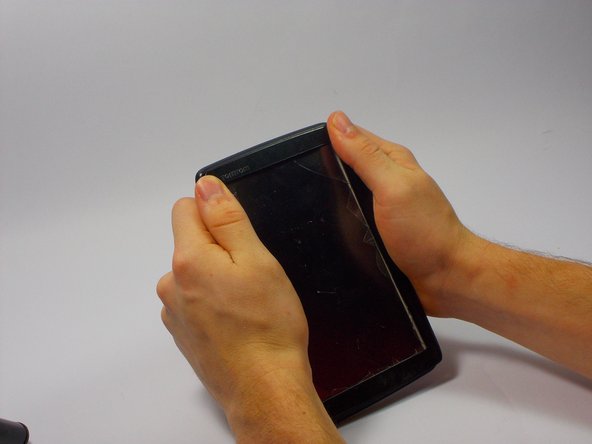
    • Place the new front panel (with new screen) on to the back panel. Press firmly along the edges to attach.

    • Only do this step of placing the front panel on if you are completed. If there are still components needed replacing postpone this step until the end.

    Спросите у FixBot
  5. TomTom VIA 1605TM Battery Replacement, Battery: шаг 5, изображение 1 из 3 TomTom VIA 1605TM Battery Replacement, Battery: шаг 5, изображение 2 из 3 TomTom VIA 1605TM Battery Replacement, Battery: шаг 5, изображение 3 из 3
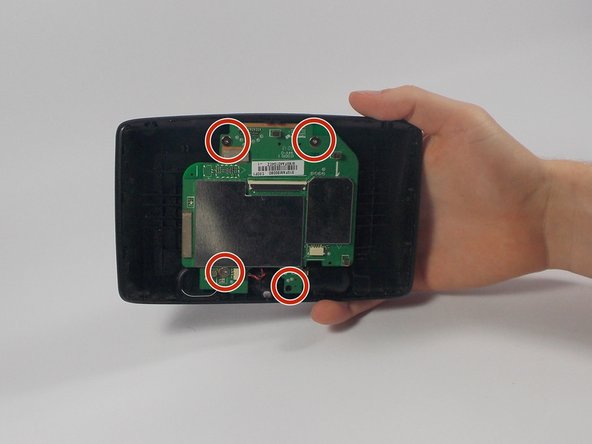
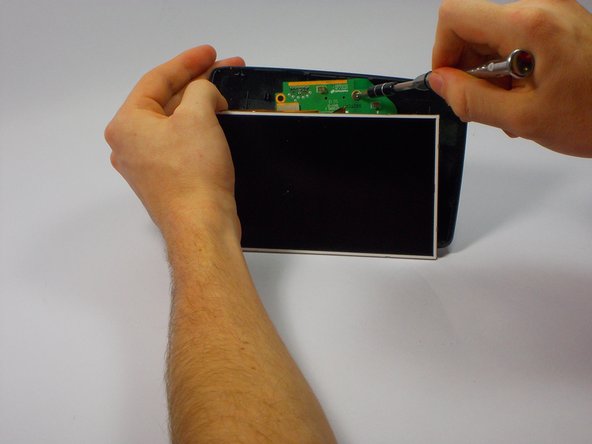
    • Keep the TOMTOM oriented so the curve is on the bottom. Locate the four 1mm Philips #J1 head screws attached to the motherboard.

    • Unscrew each of these in a counter clockwise direction.

    • When reassembling screw back in a clockwise direction.

    • The second picture is to represent where the four screws are located. The LCD screen does not disconnect from the motherboard until the next step

    Спросите у FixBot
  6. TomTom VIA 1605TM Battery Replacement: шаг 6, изображение 1 из 3 TomTom VIA 1605TM Battery Replacement: шаг 6, изображение 2 из 3 TomTom VIA 1605TM Battery Replacement: шаг 6, изображение 3 из 3
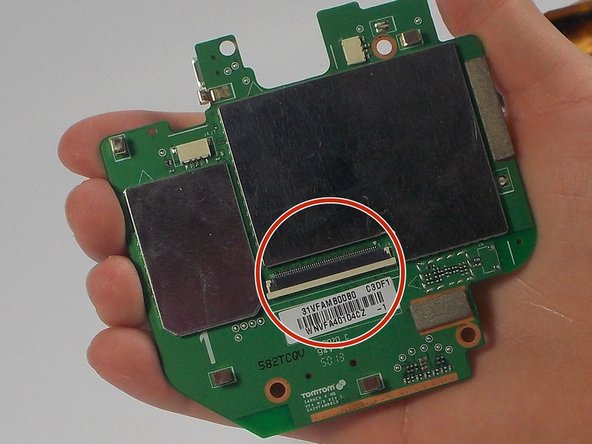
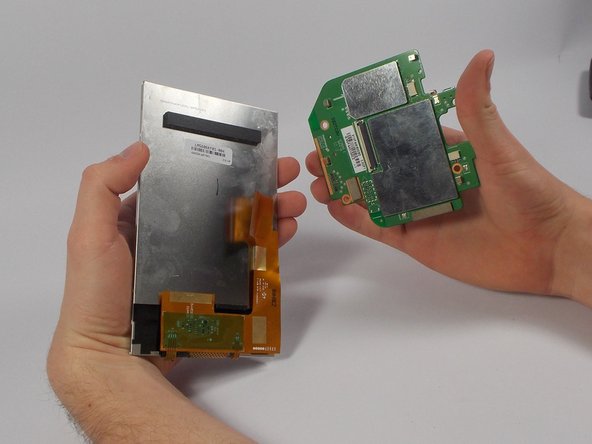
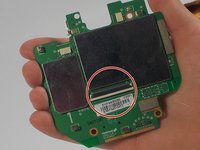
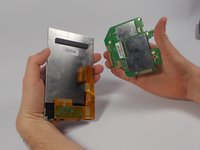
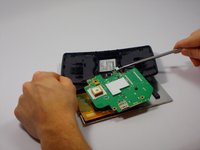
    • Remove the Blue Ribbon Cable by pushing each side of the plastic holder with the nylon spudger.

    • This will remove the LCD screen from the motherboard.

    Спросите у FixBot
  7. TomTom VIA 1605TM Battery Replacement: шаг 7, изображение 1 из 2 TomTom VIA 1605TM Battery Replacement: шаг 7, изображение 2 из 2
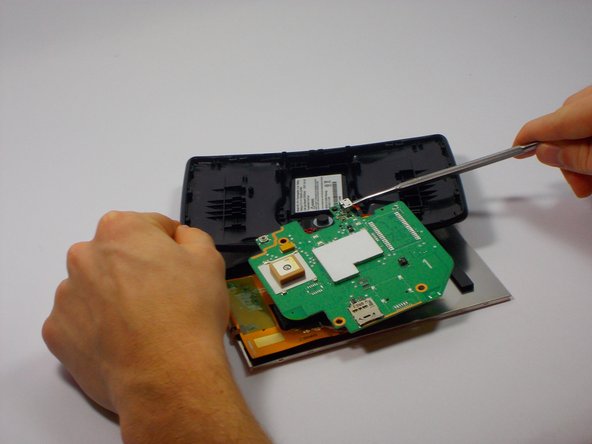
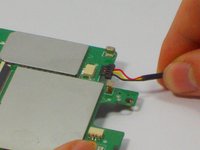
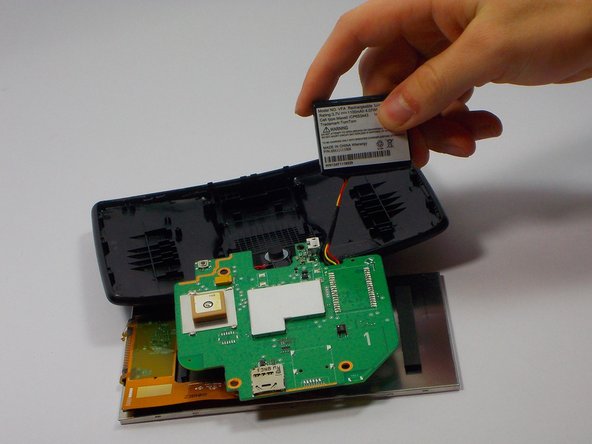
    • Unplug the wire connecting to the battery by pinching the sides connected to the front screen.

    • Pull back away (in the opposite direction) from the connector.

    • Lift the circuit board to reveal the battery beneath.

    • When reassembling push back into connector. Do not need to pinch anything. The "click" sound insures solid connection.

    Спросите у FixBot
  8. TomTom VIA 1605TM Battery Replacement: шаг 8, изображение 1 из 2 TomTom VIA 1605TM Battery Replacement: шаг 8, изображение 2 из 2
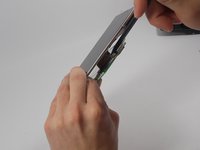
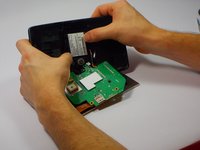
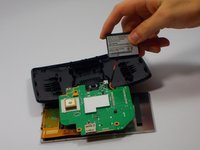
    • Carefully pry loose using the plastic opening tool and remove the original battery.

    • Place the new battery where the old battery was located.

    Спросите у FixBot
Заключение

To reassemble your device, follow these instructions in reverse order.

Mathew Fleurent

Участник с: 10/19/15

125 Репутация

1 руководство автора

Команда

UMass Dartmouth, Team 4-4, Catania Fall 2015 Участник UMass Dartmouth, Team 4-4, Catania Fall 2015

UMASSD-CATANIA-F15S4G4

4 членов

Автор 5 руководств

0 Комментарии к руководству

Добавить комментарий

Статистика просмотров:

За последние 24 часов: 0

За последние 7 дней: 4

За последние 30 дней: 32

За всё время: 1,341