Перейти к основному содержанию
Присоединяйся к сообществу ремонтников - Создай аккаунт

VTech InnoTab Max Motherboard Replacement

Выберете то, что вам нужно

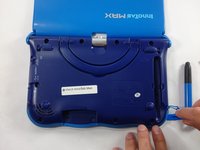
  1. VTech InnoTab Max Motherboard Replacement, Cover: шаг 1, изображение 1 из 3 VTech InnoTab Max Motherboard Replacement, Cover: шаг 1, изображение 2 из 3 VTech InnoTab Max Motherboard Replacement, Cover: шаг 1, изображение 3 из 3
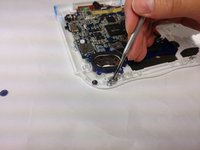
    • Remove all screw caps from the back panel using a metal spudger.

    Спросите у FixBot

    Добавить комментарий

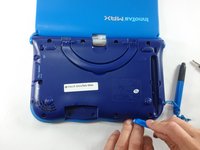
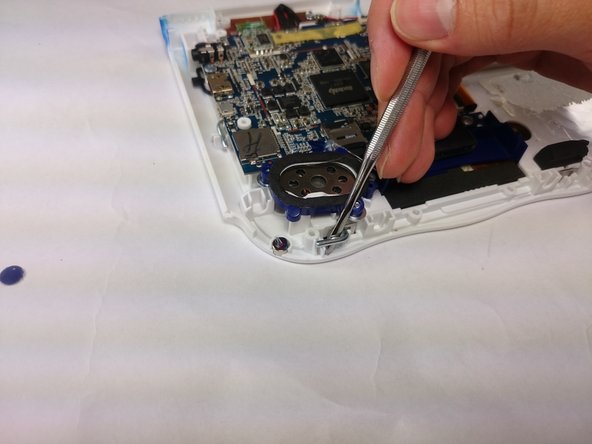
  2. VTech InnoTab Max Motherboard Replacement: шаг 2, изображение 1 из 3 VTech InnoTab Max Motherboard Replacement: шаг 2, изображение 2 из 3 VTech InnoTab Max Motherboard Replacement: шаг 2, изображение 3 из 3
    • Next remove all of the now uncovered screws.

    • If there is a cartridge in the device make sure to remove it.

    Спросите у FixBot

    Добавить комментарий

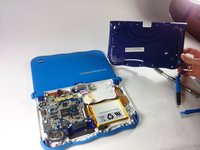
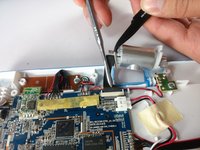
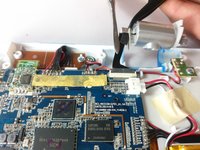
  3. VTech InnoTab Max Motherboard Replacement: шаг 3, изображение 1 из 2 VTech InnoTab Max Motherboard Replacement: шаг 3, изображение 2 из 2
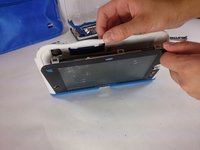
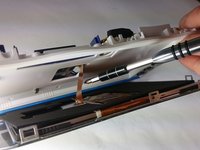
    • Now that all of the screws have been removed, pry the back cover off using a plastic opening tool.

    Спросите у FixBot

    Добавить комментарий

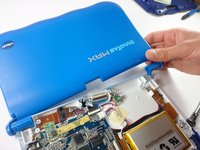
  4. VTech InnoTab Max Motherboard Replacement: шаг 4, изображение 1 из 2 VTech InnoTab Max Motherboard Replacement: шаг 4, изображение 2 из 2
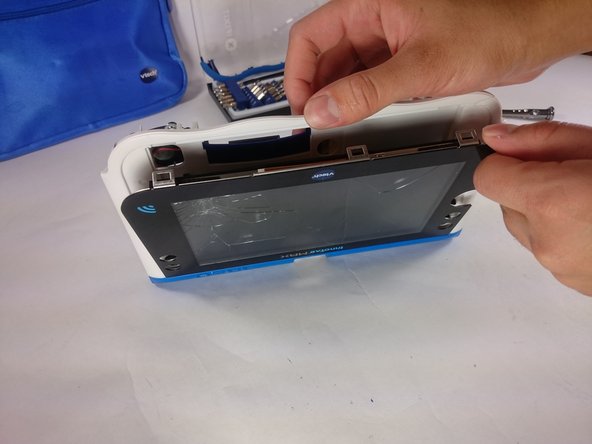
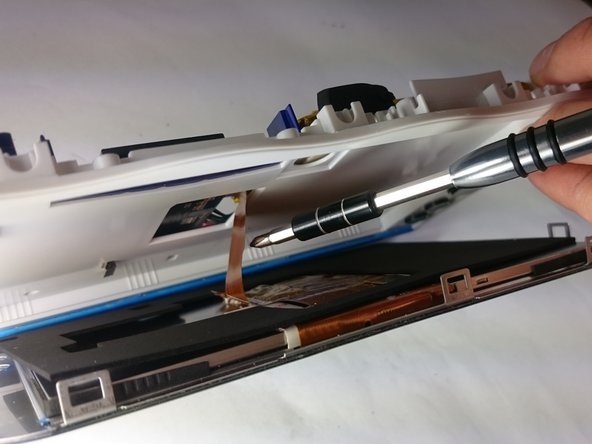
    • Here you can see the back cover has been fully removed and you can now access the front cover.

    • To remove the front cover, remove the springs holding the pictured brackets in place, then pull it away.

    Спросите у FixBot

    Добавить комментарий

  5. VTech InnoTab Max Motherboard Replacement, Battery: шаг 5, изображение 1 из 1
    • Once the back cover is removed the battery will be located in the bottom right as you can see in the image to the right.

    Спросите у FixBot

    Добавить комментарий

  6. VTech InnoTab Max Motherboard Replacement: шаг 6, изображение 1 из 3 VTech InnoTab Max Motherboard Replacement: шаг 6, изображение 2 из 3 VTech InnoTab Max Motherboard Replacement: шаг 6, изображение 3 из 3
    Инструмент, используемый на этом этапе:
    Plastic Cards
    $2.99
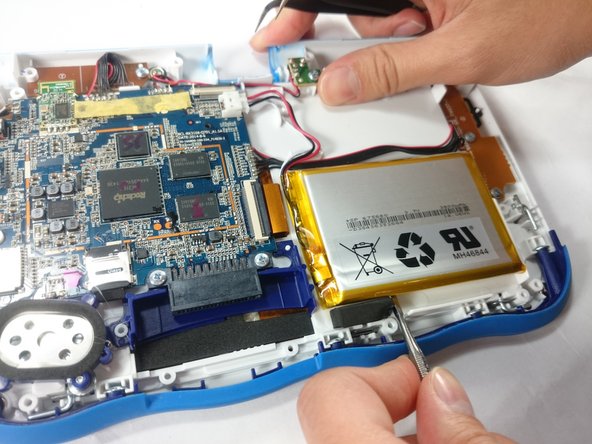
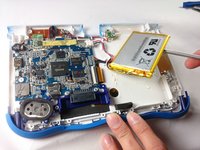
    • Remove the tape holding down the wires, and carefully pry the battery off of the base of the device.

    • Pry carefully to avoid damaging the battery. The battery may start to bend slightly, this is normal and not a cause for concern.

    • It is best to use a plastic card or nylon spudger to remove the battery. Metal tools can puncture a battery, potentially causing a fire.

    Спросите у FixBot

    Добавить комментарий

  7. VTech InnoTab Max Motherboard Replacement: шаг 7, изображение 1 из 3 VTech InnoTab Max Motherboard Replacement: шаг 7, изображение 2 из 3 VTech InnoTab Max Motherboard Replacement: шаг 7, изображение 3 из 3
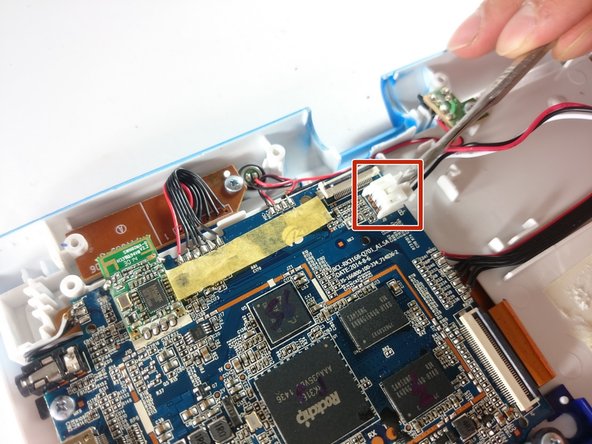
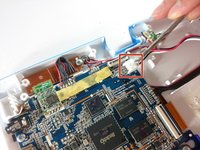
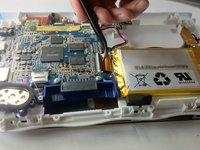
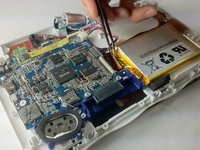
    • Now that the battery is free to be moved, unplug the wire connecting the battery to the motherboard.

    Спросите у FixBot

    Добавить комментарий

  8. VTech InnoTab Max Motherboard Replacement: шаг 8, изображение 1 из 1
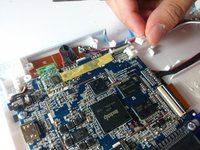
    • The battery is now fully disconnected.

    Спросите у FixBot

    Добавить комментарий

  9. VTech InnoTab Max Motherboard Replacement, Camera: шаг 9, изображение 1 из 1
    • The camera is not held down by anything, so simply remove it from it's spot to prepare for unplugging it.

    Спросите у FixBot

    Добавить комментарий

  10. VTech InnoTab Max Motherboard Replacement: шаг 10, изображение 1 из 2 VTech InnoTab Max Motherboard Replacement: шаг 10, изображение 2 из 2
    • Carefully remove the wire connecting the camera to the motherboard, using a tool to grip it if needed.

    • Be careful to only pull from the end of the connector (closest to the motherboard), as the strip is easy to tear.

    Спросите у FixBot

    Добавить комментарий

  11. VTech InnoTab Max Motherboard Replacement: шаг 11, изображение 1 из 1
    • The camera is now removed completely removed from the device.

    Спросите у FixBot

    Добавить комментарий

  12. VTech InnoTab Max Motherboard Replacement, Screen: шаг 12, изображение 1 из 2 VTech InnoTab Max Motherboard Replacement, Screen: шаг 12, изображение 2 из 2
    • In order to unlock the screen you need to remove the 4 pins that can be seen in the picture.

    • To remove simply just turn and pull them out. Use a metal or nylon spudger if they are too small to grip.

    Спросите у FixBot

    Добавить комментарий

  13. VTech InnoTab Max Motherboard Replacement: шаг 13, изображение 1 из 3 VTech InnoTab Max Motherboard Replacement: шаг 13, изображение 2 из 3 VTech InnoTab Max Motherboard Replacement: шаг 13, изображение 3 из 3
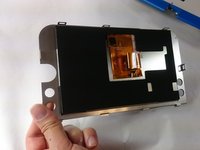
    • Once the pins are removed the screen should be loose from the frame and only connected by the brown film pictured.

    Спросите у FixBot

    Добавить комментарий

  14. VTech InnoTab Max Motherboard Replacement: шаг 14, изображение 1 из 3 VTech InnoTab Max Motherboard Replacement: шаг 14, изображение 2 из 3 VTech InnoTab Max Motherboard Replacement: шаг 14, изображение 3 из 3
    Инструмент, используемый на этом этапе:
    Tweezers
    $4.99
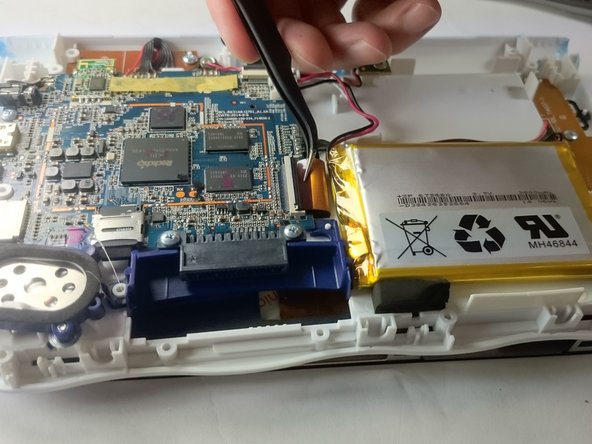
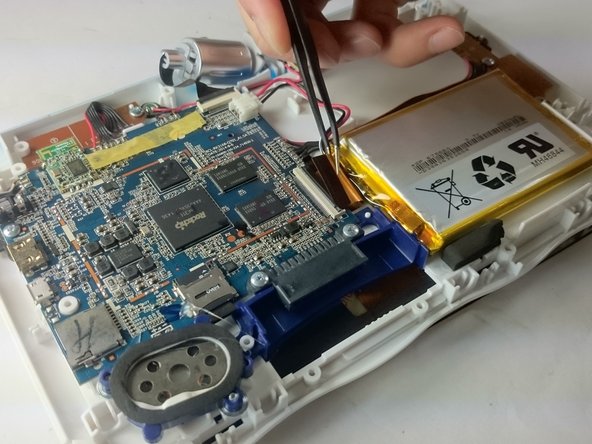
    • In order to completely remove the screen you need to unclip the film from the motherboard by simply using a pair of tweezers and gently pulling.

    • Be careful not to tear the film when pulling.

    Спросите у FixBot

    Добавить комментарий

  15. VTech InnoTab Max Motherboard Replacement: шаг 15, изображение 1 из 2 VTech InnoTab Max Motherboard Replacement: шаг 15, изображение 2 из 2
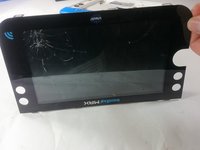
    • Once unclipped from the motherboard the screen should be entirely free from the device

    Спросите у FixBot

    Добавить комментарий

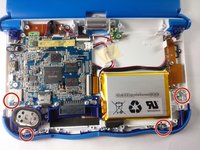
  16. VTech InnoTab Max Motherboard Replacement, Motherboard: шаг 16, изображение 1 из 1
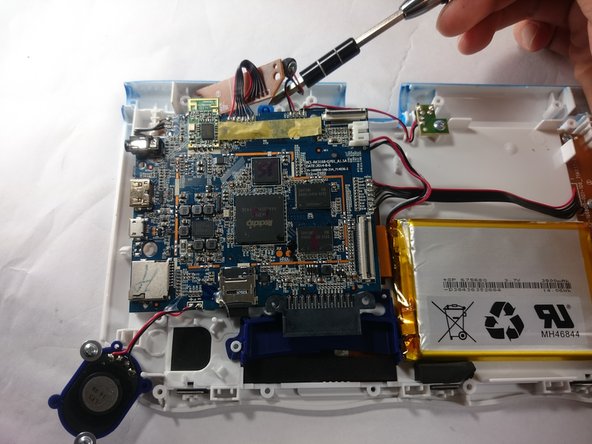
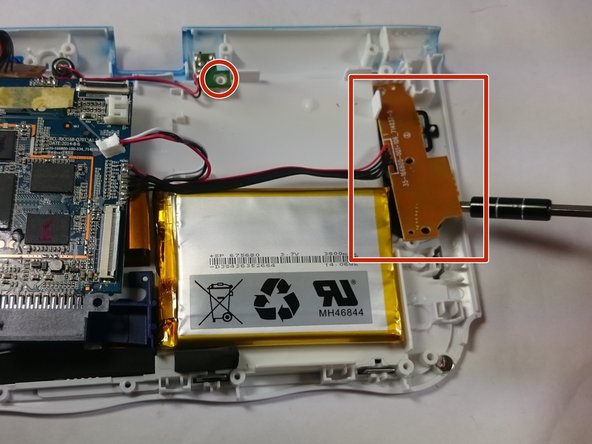
    • Remove the circled screws that are holding down the motherboard and components.

    • Every component that will need to be unscrewed will have wires running to it from the motherboard. These wires will not be disconnected.

    Спросите у FixBot

    Добавить комментарий

  17. VTech InnoTab Max Motherboard Replacement: шаг 17, изображение 1 из 3 VTech InnoTab Max Motherboard Replacement: шаг 17, изображение 2 из 3 VTech InnoTab Max Motherboard Replacement: шаг 17, изображение 3 из 3
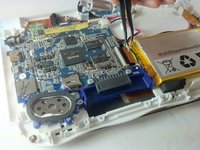
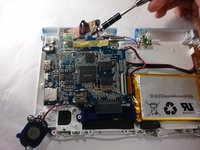
    • With all of the screws out, lift up the speaker, the two visible bronze plates, and the small green chip at the top.

    • Do not try to disconnect any of the wires running to these devices, as you will not be able to reconnect them.

    • All of these components can be located by following wires leaving the motherboard.

    Спросите у FixBot

    Добавить комментарий

  18. VTech InnoTab Max Motherboard Replacement: шаг 18, изображение 1 из 1
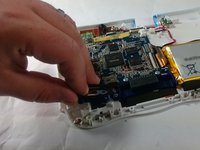
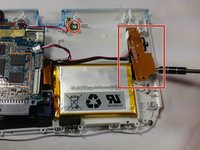
    • With all of these components out of their place, lift up the motherboard to reveal one more bronze plate.

    • Remove the screws holding down this plate, and remove it with the rest of the motherboard.

    Спросите у FixBot

    Добавить комментарий

  19. VTech InnoTab Max Motherboard Replacement: шаг 19, изображение 1 из 1
    • All components should be free from the device, and you can now completely remove the motherboard.

    Спросите у FixBot

    Добавить комментарий

Заключение

To reassemble your device, follow these instructions in reverse order.

Отменить: Я не выполнил это руководство.

3 человек успешно провели ремонт по этому руководству.

Jacob Schioppo

Участник с: 02/15/17

594 Репутация

Автор 4 руководств

Команда

USF Tampa, Team S5-G5, Lacy Spring 2017 Участник USF Tampa, Team S5-G5, Lacy Spring 2017

USFT-LACY-S17S5G5

3 членов

Автор 10 руководств

0 Комментарии к руководству

Добавить комментарий

Статистика просмотров:

За последние 24 часов: 1

За последние 7 дней: 5

За последние 30 дней: 29

За всё время: 2,468