Перейти к основному содержанию
Присоединяйся к сообществу ремонтников - Создай аккаунт
Xbox One Fan Replacement

Выберете то, что вам нужно

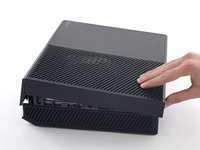
  1. Xbox One Fan Replacement, Upper Case: шаг 1, изображение 1 из 1
    Спросите у FixBot

    Добавить комментарий

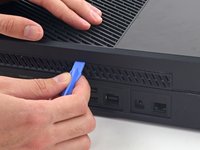
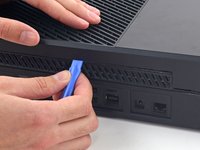
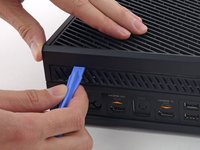
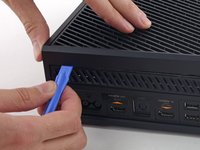
  2. Xbox One Fan Replacement: шаг 2, изображение 1 из 2 Xbox One Fan Replacement: шаг 2, изображение 2 из 2
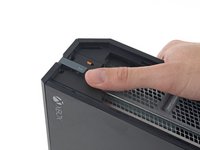
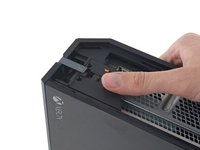
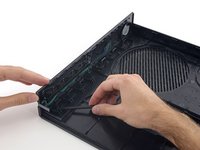
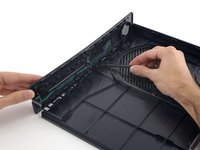
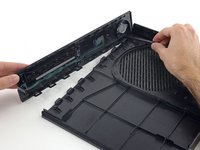
    • Use a plastic opening tool to pry up and remove the plastic vent that surrounds the side USB port.

    • The vent is fairly flexible, and held in place with weak plastic clips—start prying from the back and peel it out.

    Спросите у FixBot

    Добавить комментарий

  3. Xbox One Fan Replacement: шаг 3, изображение 1 из 2 Xbox One Fan Replacement: шаг 3, изображение 2 из 2
    • There is a small plastic tab that reinforces the front corner of the Xbox.

    • Slide the tab straight back and remove it.

    Спросите у FixBot

    Добавить комментарий

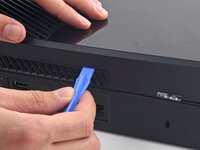
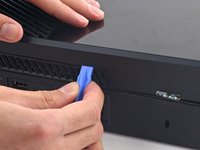
  4. Xbox One Fan Replacement: шаг 4, изображение 1 из 2 Xbox One Fan Replacement: шаг 4, изображение 2 из 2
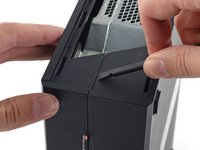
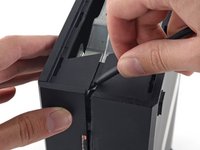
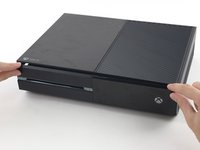
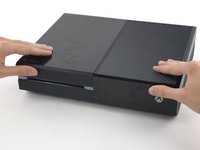
    • Insert the flat end of a spudger between the upper and lower case where they meet at the rear of the side vent opening.

    • There is a strong plastic clip connecting the two case halves (the first of many), so you'll need to use quite a bit of force.

    • Leave the spudger in place until you open the case completely. The clips are very springy and may cause the case to snap shut while you're working.

    Спросите у FixBot

    Добавить комментарий

  5. Xbox One Fan Replacement: шаг 5, изображение 1 из 2 Xbox One Fan Replacement: шаг 5, изображение 2 из 2
    • The interface between the upper and lower cases is secured by several clips along the rear and remaining side of the Xbox.

    • Insert a plastic opening tool between the upper and lower case to separate the clip over the rear vent.

    Спросите у FixBot

    Добавить комментарий

  6. Xbox One Fan Replacement: шаг 6, изображение 1 из 2 Xbox One Fan Replacement: шаг 6, изображение 2 из 2
    • Keep moving along the rear of the Xbox, prying up clips.

    • Make sure the spudger stays in its blocking position—even if the case opens up enough for the spudger to fall out, the remaining clips are springy and may pull the case completely shut. Keep the spudger in the gap to protect your progress.

    Спросите у FixBot

    Добавить комментарий

  7. Xbox One Fan Replacement: шаг 7, изображение 1 из 2 Xbox One Fan Replacement: шаг 7, изображение 2 из 2
    • Keep popping clips. It may help to slide the plastic opening tool across the clips.

    • By the time you get to the far edge of the rear case, the top case should be ready to come off. If not, run your plastic opening tool around the corner and pop the clips along the side without the USB port.

    Спросите у FixBot

    Добавить комментарий

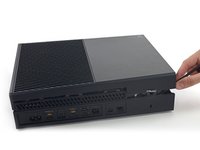
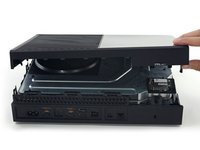
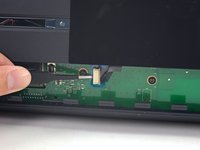
  8. Xbox One Fan Replacement: шаг 8, изображение 1 из 3 Xbox One Fan Replacement: шаг 8, изображение 2 из 3 Xbox One Fan Replacement: шаг 8, изображение 3 из 3
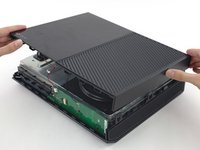
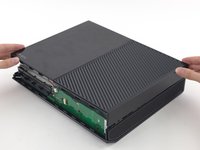
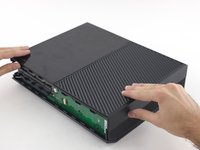
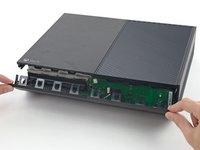
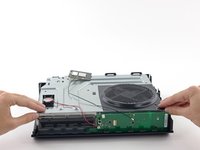
    • Starting with the spudger you left in the crack, pry the upper case up to free the last few clips.

    • Use a plastic opening tool to pop any straggler clips that weren't freed.

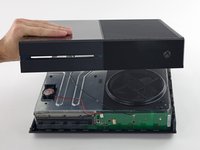
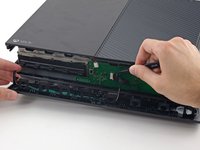
    • Do not try to remove the upper case yet, as it is still connected by the front panel button cable.

    • Lift the upper case slightly and shift it to give access to the front panel board.

    Спросите у FixBot

    Добавить комментарий

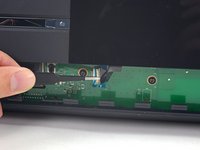
  9. Xbox One Fan Replacement: шаг 9, изображение 1 из 3 Xbox One Fan Replacement: шаг 9, изображение 2 из 3 Xbox One Fan Replacement: шаг 9, изображение 3 из 3
    Инструмент, используемый на этом этапе:
    Tweezers
    $4.99
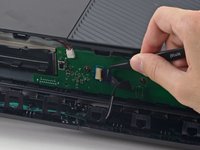
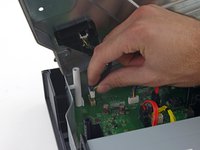
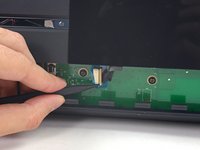
    • The front button cable has a unique ZIF connector—pay attention to the next few steps to safely disconnect it.

    • Use tweezers to lift the blue plastic retaining loop over the white connector on the board.

    • Use the tip of a spudger to push the connector's locking tab toward the cable to unlatch it.

    Спросите у FixBot

    Добавить комментарий

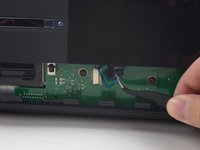
  10. Xbox One Fan Replacement: шаг 10, изображение 1 из 2 Xbox One Fan Replacement: шаг 10, изображение 2 из 2
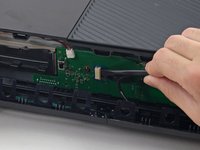
    • Use tweezers to pull the cable straight out of the connector on the board.

    • Remove the upper case.

    Спросите у FixBot

    Добавить комментарий

  11. Xbox One Fan Replacement, Reassembly Instructions: шаг 11, изображение 1 из 3 Xbox One Fan Replacement, Reassembly Instructions: шаг 11, изображение 2 из 3 Xbox One Fan Replacement, Reassembly Instructions: шаг 11, изображение 3 из 3
    • The next 4 steps are directions for reassembly. Skip them to continue with disassembly.

    • Use the flat end of a spudger to free the clips securing the front panel to the upper case.

    • Remove the front panel from the rest of the upper case.

    Спросите у FixBot

    Добавить комментарий

  12. Xbox One Fan Replacement: шаг 12, изображение 1 из 3 Xbox One Fan Replacement: шаг 12, изображение 2 из 3 Xbox One Fan Replacement: шаг 12, изображение 3 из 3
    • Replace the top part of the upper case.

    • Line up the clips and press firmly to re-seat them around the perimeter.

    Спросите у FixBot

    Добавить комментарий

  13. Xbox One Fan Replacement: шаг 13, изображение 1 из 3 Xbox One Fan Replacement: шаг 13, изображение 2 из 3 Xbox One Fan Replacement: шаг 13, изображение 3 из 3
    • Support the front panel near the front of the Xbox.

    • Use tweezers to replace the front button cable in its ZIF socket.

    • Use the flat end of a spudger to push the ZIF lock to the left to secure the cable.

    Спросите у FixBot

    Добавить комментарий

  14. Xbox One Fan Replacement: шаг 14, изображение 1 из 3 Xbox One Fan Replacement: шаг 14, изображение 2 из 3 Xbox One Fan Replacement: шаг 14, изображение 3 из 3
    • The lower edge of the front panel has plastic hooks that interlock with plastic hooks on the front edge of the lower case.

    • With the front panel at a 45 degree angle, interlock its plastic hooks with those in the lower case.

    • Push the top of the front panel into the Xbox, like closing a mailbox. Press firmly so that the clips securing the front panel to the upper case lock securely.

    Спросите у FixBot

    Добавить комментарий

  15. Xbox One Fan Replacement, Upper Metal Case: шаг 15, изображение 1 из 3 Xbox One Fan Replacement, Upper Metal Case: шаг 15, изображение 2 из 3 Xbox One Fan Replacement, Upper Metal Case: шаг 15, изображение 3 из 3
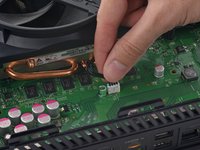
    • Gently pull up on the speaker cable connector to disconnect it from the front panel board.

    • Be careful to pull up on the cable's connector and not the connector on the board. It's pretty flimsy and you might accidentally pull it off the board entirely.

    • Use the flat end of a spudger to disconnect the antenna cable from the front panel board.

    Спросите у FixBot

    Добавить комментарий

  16. Xbox One Fan Replacement: шаг 16, изображение 1 из 3 Xbox One Fan Replacement: шаг 16, изображение 2 из 3 Xbox One Fan Replacement: шаг 16, изображение 3 из 3
    • Remove the two 9.5 mm T8 Torx screws from the WI-Fi board.

    • Lift the Wi-Fi board straight up from its socket in the upper metal case.

    • Leaving the Wi-Fi board antenna cable in place, move the Wi-Fi board aside, exposing the screw labeled "C3" that was beneath it.

    Спросите у FixBot

    Добавить комментарий

  17. Xbox One Fan Replacement: шаг 17, изображение 1 из 1
    • Remove the eight 65 mm Torx T10 screws from the top of the upper metal case.

    Спросите у FixBot

    Добавить комментарий

  18. Xbox One Fan Replacement: шаг 18, изображение 1 из 2 Xbox One Fan Replacement: шаг 18, изображение 2 из 2
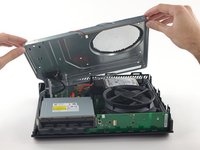
    • Lift—but do not remove—the upper metal case.

    • The Wi-Fi board interconnect cable connects the upper metal case to the motherboard.

    Спросите у FixBot

    Добавить комментарий

  19. Xbox One Fan Replacement: шаг 19, изображение 1 из 2 Xbox One Fan Replacement: шаг 19, изображение 2 из 2
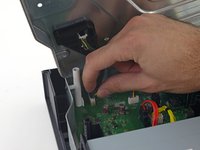
    • Disconnect the Wi-Fi board interconnect cable from the motherboard.

    • Remove the upper metal case.

    Спросите у FixBot

    Добавить комментарий

  20. Xbox One Fan Replacement, Hard Drive Assembly: шаг 20, изображение 1 из 3 Xbox One Fan Replacement, Hard Drive Assembly: шаг 20, изображение 2 из 3 Xbox One Fan Replacement, Hard Drive Assembly: шаг 20, изображение 3 из 3
    • Disconnect the hard drive SATA power and data cables from the motherboard.

    Спросите у FixBot

    Добавить комментарий

  21. Xbox One Fan Replacement: шаг 21, изображение 1 из 1
    • Lift and remove the hard drive tray from the Xbox.

    Спросите у FixBot

    Добавить комментарий

  22. Xbox One Fan Replacement, Optical Drive Assembly: шаг 22, изображение 1 из 3 Xbox One Fan Replacement, Optical Drive Assembly: шаг 22, изображение 2 из 3 Xbox One Fan Replacement, Optical Drive Assembly: шаг 22, изображение 3 из 3
    • Disconnect the optical drive power and SATA data cables from the motherboard.

    Спросите у FixBot

    Добавить комментарий

  23. Xbox One Fan Replacement: шаг 23, изображение 1 из 1
    • Remove the optical drive assembly from the Xbox.

    Спросите у FixBot

    Добавить комментарий

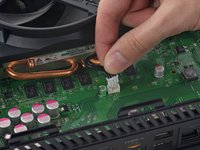
  24. Xbox One Fan Replacement, Fan: шаг 24, изображение 1 из 2 Xbox One Fan Replacement, Fan: шаг 24, изображение 2 из 2
    • Disconnect the fan cable from the motherboard.

    Спросите у FixBot

    Добавить комментарий

  25. Xbox One Fan Replacement: шаг 25, изображение 1 из 2 Xbox One Fan Replacement: шаг 25, изображение 2 из 2
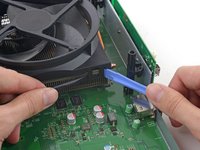
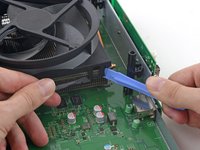
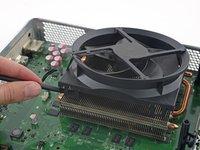
    • The fan is held onto the heat sink with four sturdy plastic clips. By prying the two exposed clips up out of their channel in the heat sink, you'll be able to tilt the fan up and off of the heat sink.

    • Use a spudger and plastic opening tool to gently and evenly pry the right clip up out of its channel in the heat sink.

    • Be careful not to put pressure downward onto the motherboard, or to pull the heat sink up against the motherboard.

    Спросите у FixBot

    Добавить комментарий

  26. Xbox One Fan Replacement: шаг 26, изображение 1 из 3 Xbox One Fan Replacement: шаг 26, изображение 2 из 3 Xbox One Fan Replacement: шаг 26, изображение 3 из 3
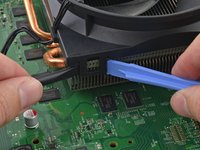
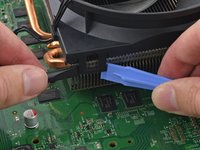
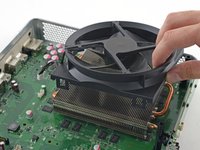
    • Repeat for the left clip. Again, using a combination of a spudger and plastic opening tool to evenly pull the plastic clip up out of its channel in the heat sink.

    • When there is enough of a gap between the fan and the heat sink, insert the spudger between the two, and pry up to remove the fan.

    Спросите у FixBot

    Добавить комментарий

  27. Xbox One Fan Replacement: шаг 27, изображение 1 из 2 Xbox One Fan Replacement: шаг 27, изображение 2 из 2
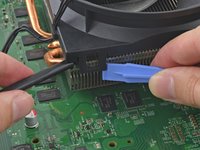
    • Use the inserted spudger to pry the fan up off the heat sink.

    • Remove the fan from the heat sink.

    Спросите у FixBot

    Добавить комментарий

Заключение

To reassemble your device, follow these instructions in reverse order.

Отменить: Я не выполнил это руководство.

93 человек успешно провели ремонт по этому руководству.

Andrew Optimus Goldheart

Участник с: 10/17/09

515 064 Репутация

Автор 407 руководств

Команда

iFixit Участник iFixit

Staff

122 членов

Автор 25 858 руководств

13 Комментарии к руководству

As a device repair tech of a 3rd party store, I have found this be quite easy and profitable for my store to make money. Thanks to these guides, I can now start working on video game consoles.

jonathon saygidia - Ответить Поделиться

My fan is making a weird clicking noise everytime I turn on my Xbox One. Does anyone know how to fix this.

Tammy Privizzino - Ответить Поделиться

I have a quick question so after I remove the fan then what I do

Serenity Turner - Ответить Поделиться

So i dropped my xbox one ans now everytime i try to play a game my xbox will make a sound with the fan to say its loading then it will shut down .. what is it i can ro fix this problem

Chelsea - Ответить Поделиться

I have this same issue. It turns on for a second then powers down. Only thing is fan wants to start spinning after it powers down.

Steven Prichnick - Ответить Поделиться

Добавить комментарий

Статистика просмотров:

За последние 24 часов: 11

За последние 7 дней: 119

За последние 30 дней: 567

За всё время: 147,025