Перейти к основному содержанию
Присоединяйся к сообществу ремонтников - Создай аккаунт

iBook G3 14" Optical Drive Replacement

Выберете то, что вам нужно

  1. iBook G3 14" Optical Drive Replacement, Battery: шаг 1, изображение 1 из 1
    • Use a coin to rotate the battery locking screw 90 degrees clockwise.

    • Lift the battery out of the computer.

    Спросите у FixBot

    Добавить комментарий

  2. iBook G3 14" Optical Drive Replacement, Keyboard: шаг 2, изображение 1 из 1
    • Pull the keyboard release tabs (highlighted in red) toward you and lift up on the keyboard until it pops free.

    • If the keyboard does not come free, use a small flathead screwdriver to turn the keyboard locking screw 180 degrees in either direction and try again.

    • Flip the keyboard over, away from the screen, and rest it face-down on the trackpad area.

    Спросите у FixBot

    Добавить комментарий

  3. iBook G3 14" Optical Drive Replacement: шаг 3, изображение 1 из 1
    • If your computer does not have an AirPort card installed, skip to the RAM shield removal step.

    • Push the wire clasp toward the AirPort card and pull it up to free it from the RAM shield.

    Спросите у FixBot

    Добавить комментарий

  4. iBook G3 14" Optical Drive Replacement: шаг 4, изображение 1 из 1
    • Grasp the clear plastic tab on the AirPort card and pull toward the right.

    Спросите у FixBot

    Добавить комментарий

  5. iBook G3 14" Optical Drive Replacement: шаг 5, изображение 1 из 1
    • Hold the AirPort card in one hand and use your other hand to remove the antenna cable.

    Спросите у FixBot

    Добавить комментарий

  6. iBook G3 14" Optical Drive Replacement: шаг 6, изображение 1 из 1
    • Remove the two Phillips screws that secure the RAM shield.

    Спросите у FixBot

    Добавить комментарий

  7. iBook G3 14" Optical Drive Replacement: шаг 7, изображение 1 из 1
    • Grasp the metal bracket on top of the RAM shield and pull upward to remove the shield.

    Спросите у FixBot

    Добавить комментарий

  8. iBook G3 14" Optical Drive Replacement: шаг 8, изображение 1 из 1
    • Pull the keyboard cable up from the logic board, holding the cable as close to the connector as possible.

    Спросите у FixBot

    Добавить комментарий

  9. iBook G3 14" Optical Drive Replacement, Lower Case: шаг 9, изображение 1 из 1
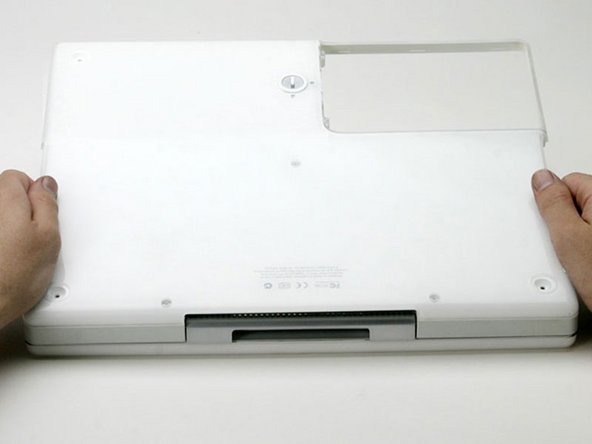
    • Use a pin to remove the three rubber feet from the lower case.

    Спросите у FixBot

    Добавить комментарий

  10. iBook G3 14" Optical Drive Replacement: шаг 10, изображение 1 из 1
    • Remove the three newly-revealed Phillips screws.

    Спросите у FixBot

    Добавить комментарий

  11. iBook G3 14" Optical Drive Replacement: шаг 11, изображение 1 из 1
    • Use a spudger or small flathead screwdriver to pry up the three metal rings that housed the rubber bumpers.

    Спросите у FixBot

    Добавить комментарий

  12. iBook G3 14" Optical Drive Replacement: шаг 12, изображение 1 из 1
    • Remove the three hex screws using a T8 Torx screwdriver.

    • The screw in the center is shorter than the other two.

    Спросите у FixBot

    Добавить комментарий

  13. iBook G3 14" Optical Drive Replacement: шаг 13, изображение 1 из 1
    • Remove the two Phillips screws on either side of the battery contacts.

    Спросите у FixBot

    Добавить комментарий

  14. iBook G3 14" Optical Drive Replacement: шаг 14, изображение 1 из 1
    • Breathe deeply. Trying times are ahead, but we promise the lower case does come off.

    • Push the thin rims of the lower case surrounding the battery compartment in, bending them past the tabs, and then lift up to free that corner of the lower case.

    Спросите у FixBot

    Добавить комментарий

  15. iBook G3 14" Optical Drive Replacement: шаг 15, изображение 1 из 1
    • There is a slot on the wall of the battery compartment that locks the lower case in place.

    • Use a small flathead screwdriver to pry out the slot's lower rim and pull up on the lower case to free the slot from the tabs holding it.

    Спросите у FixBot

    Добавить комментарий

  16. iBook G3 14" Optical Drive Replacement: шаг 16, изображение 1 из 1
    • Run a spudger along the seam between the lower case and upper case on the front of the computer to free the tabs locking the lower case.

    • Pull up on the lower case and continue to use the spudger as necessary until you hear three distinct clicks.

    Спросите у FixBot

    Добавить комментарий

  17. iBook G3 14" Optical Drive Replacement: шаг 17, изображение 1 из 1
    • Continue to run the spudger around the front, right corner.

    • There are two tabs on the port side of the computer, one near the front corner and one near the sound out port.

    Спросите у FixBot

    Добавить комментарий

  18. iBook G3 14" Optical Drive Replacement: шаг 18, изображение 1 из 1
    • Once the front and sides of the lower case are free, turn the computer so that the back is facing you.

    • Pull the lower case up and toward you until the back tabs pop free.

    • It may be helpful to jiggle the case up and down.

    Спросите у FixBot

    Добавить комментарий

  19. iBook G3 14" Optical Drive Replacement: шаг 19, изображение 1 из 1
    • Remove the small greasy springs with white plastic caps from either side of the battery contacts.

    Спросите у FixBot

    Добавить комментарий

  20. iBook G3 14" Optical Drive Replacement, Upper Case: шаг 20, изображение 1 из 1
    • All of the screws in the following step have small heads - the screws with larger heads hold the bottom shield on.

    • Remove the following 9 screws on the bottom of the computer:

    • Three 3 mm Phillips around the battery compartment.

    • Three 5 mm Phillips on the left and bottom edges.

    • Three 14.5 mm Phillips on the top and right edges (you may have to peel back the foil tape to reveal the screw near the security lock slot).

    Спросите у FixBot

    Добавить комментарий

  21. iBook G3 14" Optical Drive Replacement: шаг 21, изображение 1 из 1
    • Turn over the computer and open it.

    • Pry up the magnet covering a Phillips screw near the middle of the computer.

    • You may need to peel back the serial number sticker to access the magnet.

    Спросите у FixBot

    Добавить комментарий

  22. iBook G3 14" Optical Drive Replacement: шаг 22, изображение 1 из 1
    • Remove the following 3 screws on the edges of the keyboard area:

    • Two 6 mm Phillips underneath the keyboard area.

    • One 9 mm Phillips above the keyboard area.

    • On some models, there may also be a screw under the magnet you just removed. If so, remove the screw at this point.

    Спросите у FixBot

    Добавить комментарий

  23. iBook G3 14" Optical Drive Replacement: шаг 23, изображение 1 из 1
    • This is a diagram of the ribbon clamp connectors you will disconnect in the next step.

    • With your fingernails, grasp the locking bar on either side and pull up a small amount (about 1/16" or 2 mm).

    • After disengaging the locking bar, slide the cable out of the connector.

    Спросите у FixBot

    Добавить комментарий

  24. iBook G3 14" Optical Drive Replacement: шаг 24, изображение 1 из 1
    • Loosen the trackpad connector by pulling the top piece up slightly, freeing the trackpad ribbon.

    • Slide the orange trackpad ribbon out of the connector.

    Спросите у FixBot

    Добавить комментарий

  25. iBook G3 14" Optical Drive Replacement: шаг 25, изображение 1 из 1
    • Use a straightened paperclip to open the optical drive tray, and pull it out about halfway.

    Спросите у FixBot

    Добавить комментарий

  26. iBook G3 14" Optical Drive Replacement: шаг 26, изображение 1 из 1
    • Don't lift the upper case off the computer yet as there are still two cables left to disconnect.

    • Lift the upper case from the left side and use your other hand to pull out the right side in order to clear the power receptacle.

    Спросите у FixBot

    Добавить комментарий

  27. iBook G3 14" Optical Drive Replacement: шаг 27, изображение 1 из 1
    • The connectors at the ends of the cables are attached very firmly to the sockets on the logic board. Pulling directly on the cable will either separate the cable from its connector or the socket from the logic board.

    • Lift the upper case enough to disconnect the blue and white power cable from the logic board.

    • Using your fingernails or a dental pick, carefully pry the connector from its socket.

    • Make sure you are pulling only on the connector and not on the socket.

    Спросите у FixBot

    Добавить комментарий

  28. iBook G3 14" Optical Drive Replacement: шаг 28, изображение 1 из 1
    • Lift the upper case off completely and disconnect the red and black speaker cable from the logic board.

    • Make sure you are pulling only on the connector and not on the socket.

    Спросите у FixBot

    Добавить комментарий

    • Peel back the yellow tape and foil shielding.

    Спросите у FixBot

    Добавить комментарий

  29. iBook G3 14" Optical Drive Replacement: шаг 30, изображение 1 из 1
    • Remove the following 10 screws:

    • One 5 mm Phillips at the upper, right corner of the battery compartment.

    • Nine 6 mm Phillips scattered around the shield.

    • Lift the bottom shield off.

    Спросите у FixBot

    Добавить комментарий

  30. iBook G3 14" Optical Drive Replacement, Top Shield: шаг 31, изображение 1 из 1
    • Remove the following 16 screws:

    • Five 3 mm Phillips (these have smaller heads than the others).

    • Three 5 mm Phillips.

    • Eight 6 mm Phillips.

    Спросите у FixBot

    Добавить комментарий

    • If you have already removed the yellow tape, skip this step.

    • Peel back three strips of yellow tape in the bottom, left corner.

    • Peel back one strip of foil tape near the audio-out port, one near where the trackpad connects to the logic board, and one near where the screen latch used to be.

    Спросите у FixBot

    Добавить комментарий

  31. iBook G3 14" Optical Drive Replacement: шаг 33, изображение 1 из 1
    • Lift the top shield up from the right side, minding the upper left corner, which may catch on the metal framework.

    Спросите у FixBot

    Добавить комментарий

  32. iBook G3 14" Optical Drive Replacement, Optical Drive: шаг 34, изображение 1 из 1
    • On the bottom of the computer, remove the two Phillips screws securing the optical drive to the metal framework.

    • Open the optical drive using a straightened paperclip (if it's not already opened).

    Спросите у FixBot

    Добавить комментарий

  33. iBook G3 14" Optical Drive Replacement: шаг 35, изображение 1 из 1
    • The next step will probably be incredibly difficult and frustrating - get comfortable.

    • Using a small flathead screwdriver, pry up the small tab securing the faceplate to the optical drive.

    Спросите у FixBot

    Добавить комментарий

  34. iBook G3 14" Optical Drive Replacement: шаг 36, изображение 1 из 1
    • Pry up the white plastic tab on the other end of the drive. Pull the optical drive faceplate off, rotating it up and down slightly to get over the remaining two tabs.

    Спросите у FixBot

    Добавить комментарий

  35. iBook G3 14" Optical Drive Replacement: шаг 37, изображение 1 из 1
    • Turn the computer over and open the display.

    • Remove the three pieces of yellow tape securing the optical drive and inverter cable to the metal framework.

    Спросите у FixBot

    Добавить комментарий

  36. iBook G3 14" Optical Drive Replacement: шаг 38, изображение 1 из 1
    • Pull out on the right edge of the metal casing and lift the edge of the optical drive up.

    Спросите у FixBot

    Добавить комментарий

  37. iBook G3 14" Optical Drive Replacement: шаг 39, изображение 1 из 1
    • Free the inverter cable and Airport antenna cable from the corner of the optical drive and lift the drive up so that it stands vertical.

    Спросите у FixBot

    Добавить комментарий

  38. iBook G3 14" Optical Drive Replacement: шаг 40, изображение 1 из 1
    • Remove the two Phillips screws and faceplate securing the large orange ribbon cable to the optical drive.

    Спросите у FixBot

    Добавить комментарий

  39. iBook G3 14" Optical Drive Replacement: шаг 41, изображение 1 из 1
    • Disconnect the orange ribbon cable from the optical drive.

    • If you have a CD or any other object jammed in your optical drive, we have an optical drive repair guide.

    Спросите у FixBot

    Добавить комментарий

Заключение

To reassemble your device, follow these instructions in reverse order.

Отменить: Я не выполнил это руководство.

3 человек успешно провели ремонт по этому руководству.

Прикрепленные документы

iRobot

Участник с: 09/24/09

1 Репутация

Автор 636 руководств

0 Комментарии к руководству

Добавить комментарий

Статистика просмотров:

За последние 24 часов: 2

За последние 7 дней: 12

За последние 30 дней: 53

За всё время: 7,904