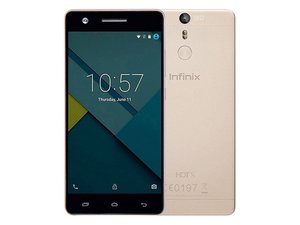

How to replace infinix lcd
tutorial on how to replace the lcd screen
Это хороший вопрос?
Счет
0
Репутация: 102,2к
 161
161
 89
89
 157
157
@addyssetyoputra, it took a little research, but I did find a YouTube video tutorial showing you how to replace the screen on your phone. View the entire video before starting, as the author misses unplugging one connector before starting to separate the LCD from the frame, so you don't want to repeat their mistake.
Infinix Hot S X521 Disassembly / display replacement lcd - YouTube
I might also suggest that heating the screen with a hair dryer or heat gun will soften the adhesive and make it easier to remove the display. Once the old screen is off, be sure to clean off the old glue with some 90% or higher concentration isopropyl (rubbing) alcohol to ensure a good seal on the new screen.
Once you have the original screen off, as you saw in the video, he test fit it but I would go one step further and go ahead and plug it in, then set the battery in place and verify that the phone powers up and the screen works before you glue everything down and reassemble it. That way if there's an issue with the new display you'll know it immediately, before you glue it down and put the phone back together.
Other than my comments here, the video will show you how to make that repair from beginning to end. Good luck, and let us know how it all turns out!
Был ли этот ответ полезен?
Disassembly & Screen Removal
New LCD Installation
Key Tips
Был ли этот ответ полезен?
@jamesbleu, although I have no problem with the advice you're giving, I do have a couple of comments. First, this is a pretty generic set of instructions and doesn't appear to be specific to the phone the poster has. Also, you're missing a couple of steps; the battery has to be removed in order to access the LCD connector, and there's a second connector on the lower right that also has to be unplugged.
Second, having seen more than a few AI-generated answers, yours looks an awful lot like one of them. Although there's nothing inherently wrong with using AI as a help, we do request that you verify the information you're presenting is valid and relevant and indicate within your answer that it was generated with the assistance of AI.
In this case a couple of missing steps can easily confuse someone not familiar with phone repairs, so it doesn't look to me like you confirmed the information your AI query generated.
За последние 24 часов: 0
За последние 7 дней: 6
За последние 30 дней: 28
За все время: 256


