Перейти к основному содержанию
Присоединяйся к сообществу ремонтников - Создай аккаунт

Alienware AW610M Mouse Feet Replacement

Выберете то, что вам нужно

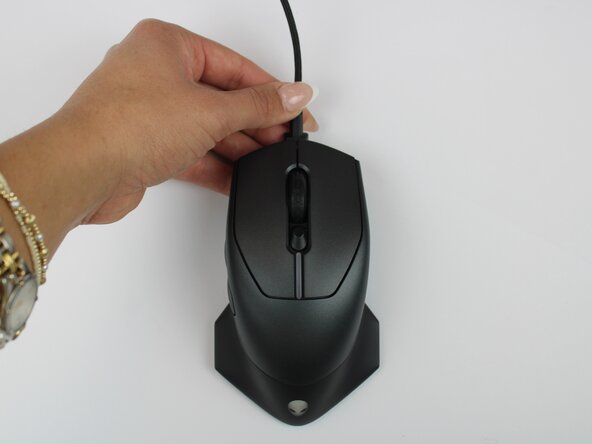
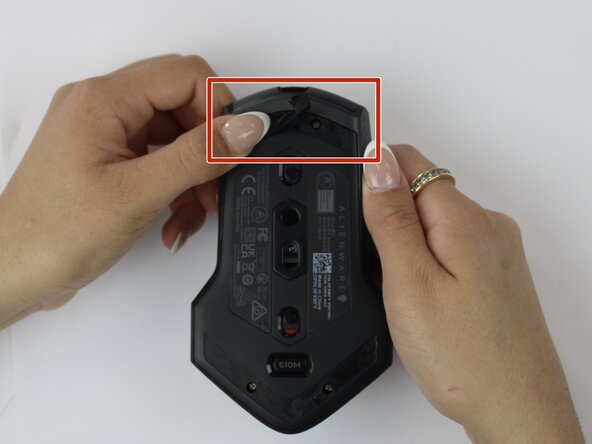
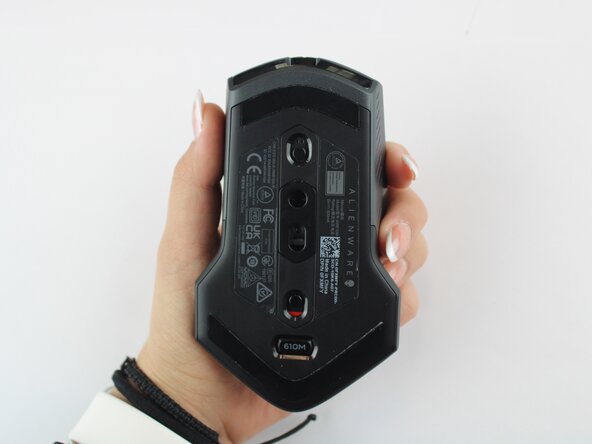
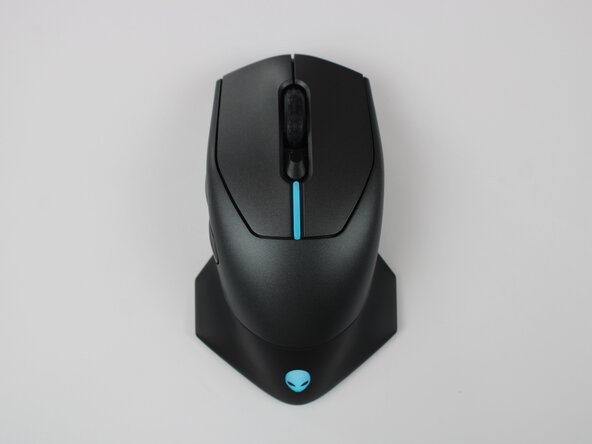
  1. Alienware AW610M Mouse Feet Replacement, Mouse Feet: шаг 1, изображение 1 из 3 Alienware AW610M Mouse Feet Replacement, Mouse Feet: шаг 1, изображение 2 из 3 Alienware AW610M Mouse Feet Replacement, Mouse Feet: шаг 1, изображение 3 из 3
    • Power off the mouse and disconnect any wired connections.

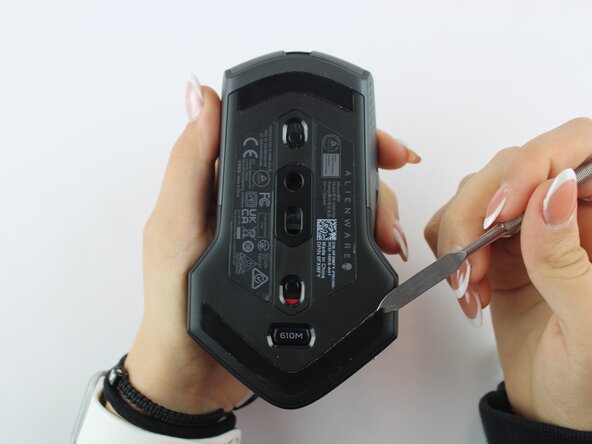
  2. Alienware AW610M Mouse Feet Replacement: шаг 2, изображение 1 из 2 Alienware AW610M Mouse Feet Replacement: шаг 2, изображение 2 из 2
    • Use a spudger to gently lift and remove the old mouse feet.

    • If the feet are sticky, try lifting slowly from one corner to avoid tearing them.

    • Be careful not to scratch the mouse surface or damage the plastic housing.

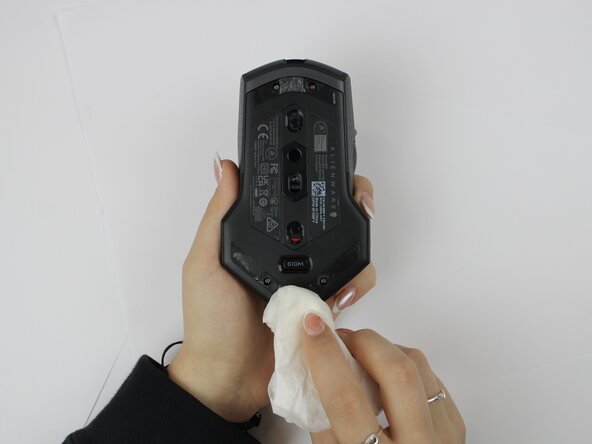
  3. Alienware AW610M Mouse Feet Replacement: шаг 3, изображение 1 из 2 Alienware AW610M Mouse Feet Replacement: шаг 3, изображение 2 из 2
    • Take a lint free cloth lightly dampened and clean away any remaining adhesive residue.

    • Allow the surface to dry completely before applying new feet to ensure proper adhesion.

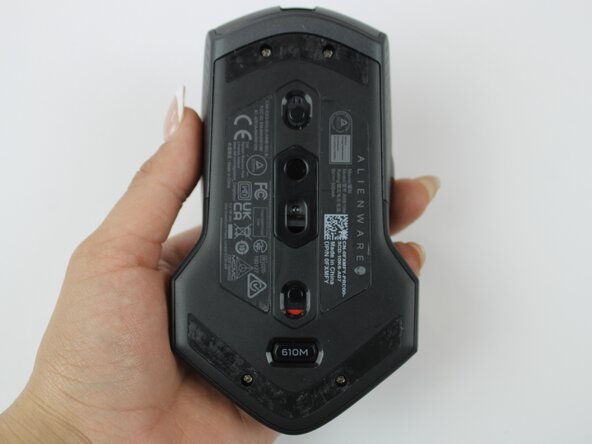
  4. Alienware AW610M Mouse Feet Replacement: шаг 4, изображение 1 из 3 Alienware AW610M Mouse Feet Replacement: шаг 4, изображение 2 из 3 Alienware AW610M Mouse Feet Replacement: шаг 4, изображение 3 из 3
    • Peel the adhesive backing off the new mouse feet. Align the mouse foot with its designated area on the mouse. Press firmly to secure it in place. Repeat steps for bottom mouse foot.

    • Make sure the feet are properly aligned before pressing, as misalignment can affect mouse performance.

  5. Alienware AW610M Mouse Feet Replacement: шаг 5, изображение 1 из 3 Alienware AW610M Mouse Feet Replacement: шаг 5, изображение 2 из 3 Alienware AW610M Mouse Feet Replacement: шаг 5, изображение 3 из 3
    • Power the mouse back on via wired or wireless connection and test the glide and tracking on a smooth surface.

    • If the mouse still tracks poorly, check the surface or sensor for dust or debris.

Заключение

To reassemble your device, follow these instructions in reverse order.

Ashley S.

Участник с: 09/24/25

171 Репутация

1 руководство автора

Команда

Texas Tech, Team 46-4, Johansen Fall 2025 Участник Texas Tech, Team 46-4, Johansen Fall 2025

TTU-JOHANSEN-F25S46G4

4 членов

Автор 5 руководств

0 Комментарии к руководству

Добавить комментарий

Статистика просмотров:

За последние 24 часов: 1

За последние 7 дней: 7

За последние 30 дней: 22

За всё время: 76