Перейти к основному содержанию
Присоединяйся к сообществу ремонтников - Создай аккаунт

Dell Inspiron B130 Keyboard Replacement

Выберете то, что вам нужно

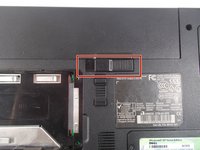
  1. Dell Inspiron B130 Keyboard Replacement, Battery: шаг 1, изображение 1 из 3 Dell Inspiron B130 Keyboard Replacement, Battery: шаг 1, изображение 2 из 3 Dell Inspiron B130 Keyboard Replacement, Battery: шаг 1, изображение 3 из 3
    • First, make sure your computer is turned off.

    • Remove the battery by flipping the two switches under the battery and pulling it out

    Спросите у FixBot

    Добавить комментарий

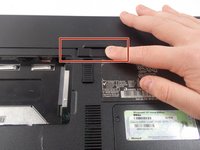
  2. Dell Inspiron B130 Keyboard Replacement: шаг 2, изображение 1 из 3 Dell Inspiron B130 Keyboard Replacement: шаг 2, изображение 2 из 3 Dell Inspiron B130 Keyboard Replacement: шаг 2, изображение 3 из 3
    • Push the tab from the battery, downwards to unlock the battery.

    • The tab should be in the position next to the unlocked indicator.

    Спросите у FixBot

    Добавить комментарий

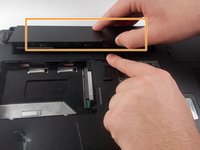
  3. Dell Inspiron B130 Keyboard Replacement: шаг 3, изображение 1 из 3 Dell Inspiron B130 Keyboard Replacement: шаг 3, изображение 2 из 3 Dell Inspiron B130 Keyboard Replacement: шаг 3, изображение 3 из 3
    • Now, push the other tab (the one right under the battery) from right to left.

    • Now the battery will be loose; lift the battery up and out of the computer.

    Спросите у FixBot

    Добавить комментарий

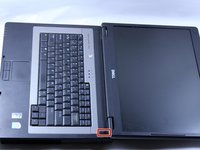
  4. Dell Inspiron B130 Keyboard Replacement, Keyboard: шаг 4, изображение 1 из 1
    • Put down the computer and open up the screen.

    • There is a long piece of plastic underneath the screen that you will have to remove.

    Спросите у FixBot

    Добавить комментарий

  5. Dell Inspiron B130 Keyboard Replacement: шаг 5, изображение 1 из 3 Dell Inspiron B130 Keyboard Replacement: шаг 5, изображение 2 из 3 Dell Inspiron B130 Keyboard Replacement: шаг 5, изображение 3 из 3
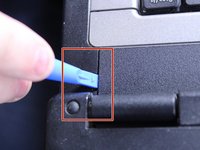
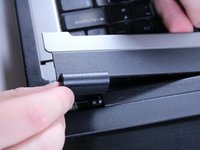
    • When you pry the plastic plate off, be careful and pry gently so you do not crack the plastic.

    • Insert the plastic opening tool into the little slot.

    • Lift up gently and remove the plastic cover.

    Спросите у FixBot

    Добавить комментарий

  6. Dell Inspiron B130 Keyboard Replacement: шаг 6, изображение 1 из 1
    • Remove the two 4mm screws at the top of the keyboard.

    • The keyboard is now loose but don't pull it out just yet. It is still connected underneath. Be gentle when lifting keyboard so you do not damage this connection.

    Спросите у FixBot

    Добавить комментарий

  7. Dell Inspiron B130 Keyboard Replacement: шаг 7, изображение 1 из 2 Dell Inspiron B130 Keyboard Replacement: шаг 7, изображение 2 из 2
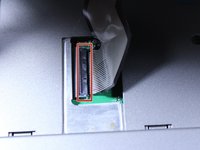
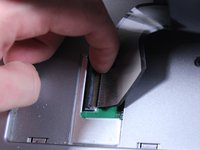
    • Lift keyboard up slightly and you will see the keyboard connection.

    • This black tab has to be lifted up to remove the keyboard.

    • Put your finger underneath the tab and pull back gently as indicated.

    • You can now remove the keyboard.

    Спросите у FixBot

    Добавить комментарий

Заключение

To reassemble your device, follow these instructions in reverse order.

Отменить: Я не выполнил это руководство.

Еще один человек закончил это руководство.

Patrick McNeil

Участник с: 10/19/16

955 Репутация

Автор 8 руководств

Команда

UMass Dartmouth, Team 1-8, Catania Fall 2016 Участник UMass Dartmouth, Team 1-8, Catania Fall 2016

UMASSD-CATANIA-F16S1G8

3 членов

Автор 9 руководств

0 Комментарии к руководству

Добавить комментарий

Статистика просмотров:

За последние 24 часов: 2

За последние 7 дней: 5

За последние 30 дней: 27

За всё время: 469