Перейти к основному содержанию

Framework Desktop CPU Fan Replacement

Выберете то, что вам нужно

  1. Framework Desktop CPU Fan Replacement, Power down your Desktop: шаг 1, изображение 1 из 3 Framework Desktop CPU Fan Replacement, Power down your Desktop: шаг 1, изображение 2 из 3 Framework Desktop CPU Fan Replacement, Power down your Desktop: шаг 1, изображение 3 из 3
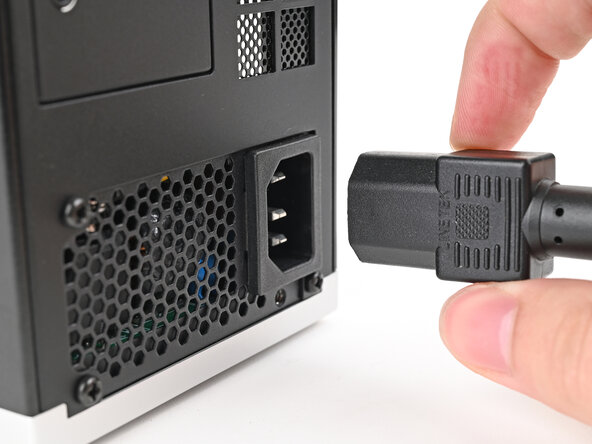
    • Before you begin repairs, shut down your desktop from the operating system and unplug it.

    • Wait one minute before continuing to allow your Desktop to fully power down.

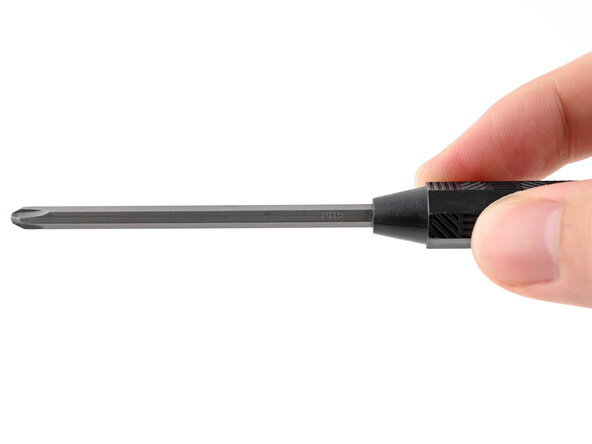
    • Make sure your Framework Desktop Screwdriver has the Phillips #2 bit (labeled as PH2) facing outwards. If it's not, pull the bit out and flip it.

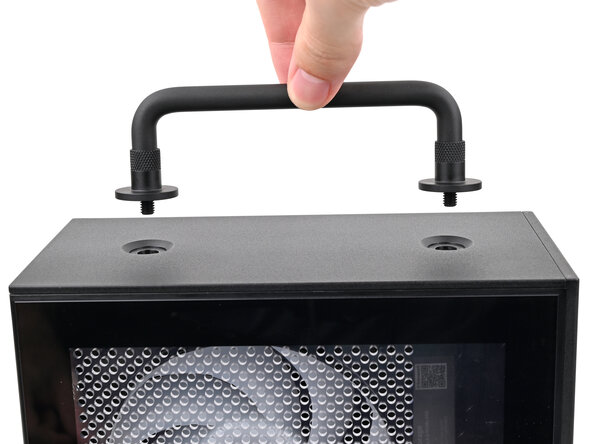
  2. Framework Desktop CPU Fan Replacement, Remove the Handle: шаг 2, изображение 1 из 3 Framework Desktop CPU Fan Replacement, Remove the Handle: шаг 2, изображение 2 из 3 Framework Desktop CPU Fan Replacement, Remove the Handle: шаг 2, изображение 3 из 3
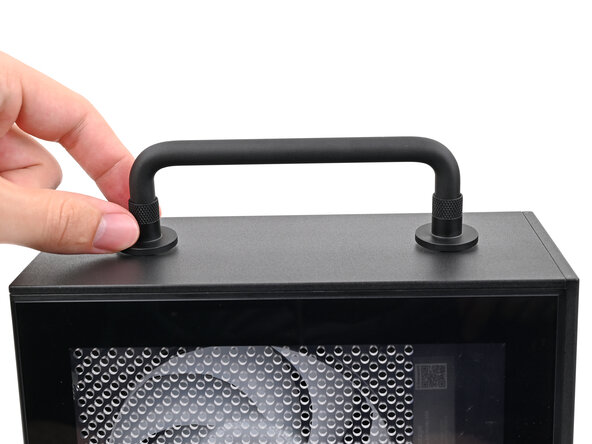
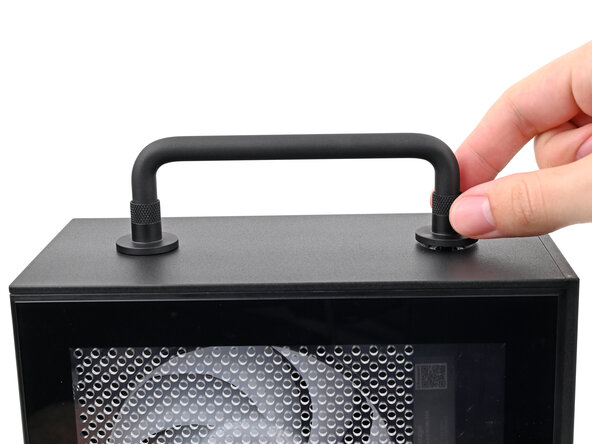
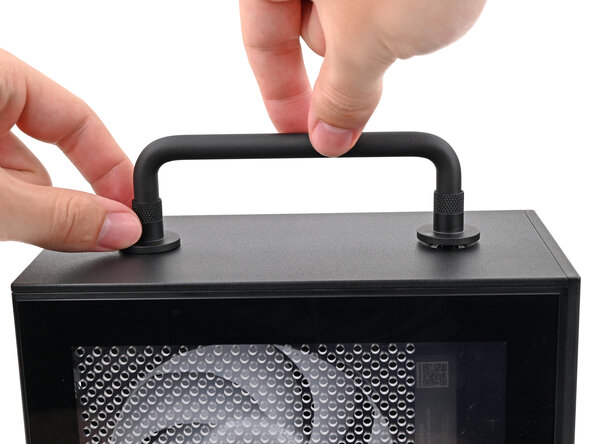
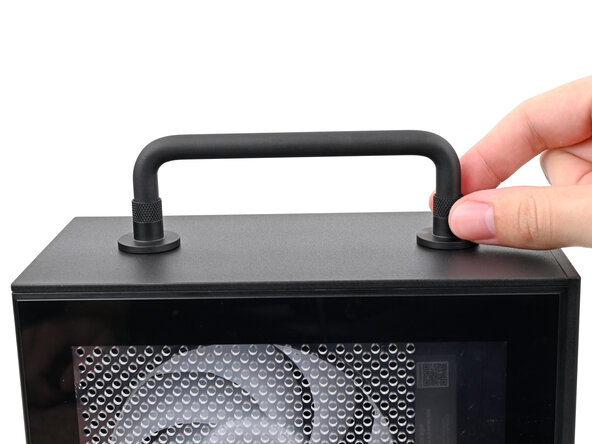
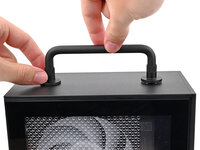
    • If you installed the Handle on your Desktop, follow this step. Otherwise, skip it.

    • Rotate the Handle's screw threads counterclockwise on both sides until it comes free.

    • Remove the Handle.

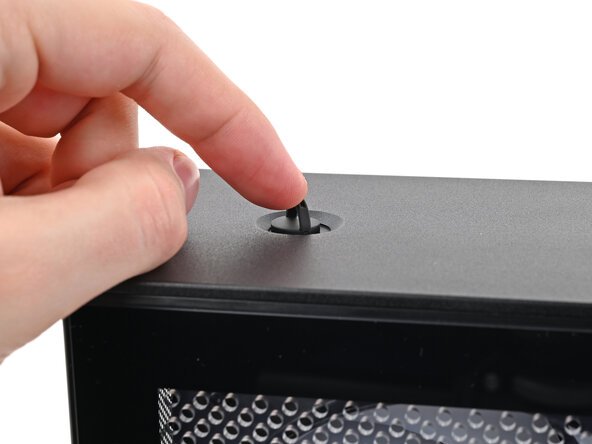
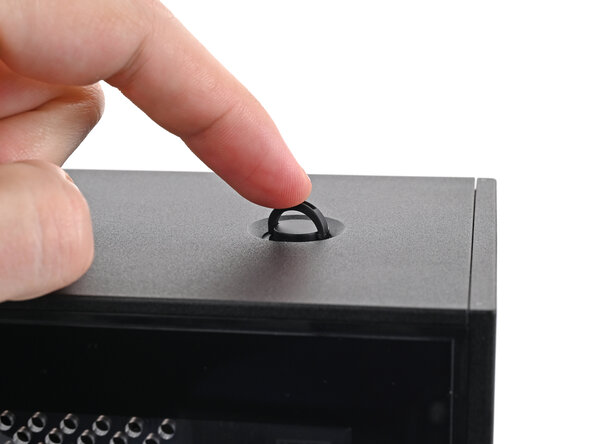
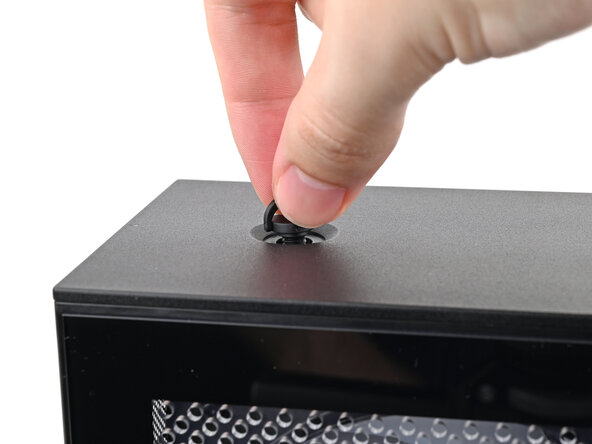
  3. Framework Desktop CPU Fan Replacement, Remove the Top Panel screws: шаг 3, изображение 1 из 3 Framework Desktop CPU Fan Replacement, Remove the Top Panel screws: шаг 3, изображение 2 из 3 Framework Desktop CPU Fan Replacement, Remove the Top Panel screws: шаг 3, изображение 3 из 3
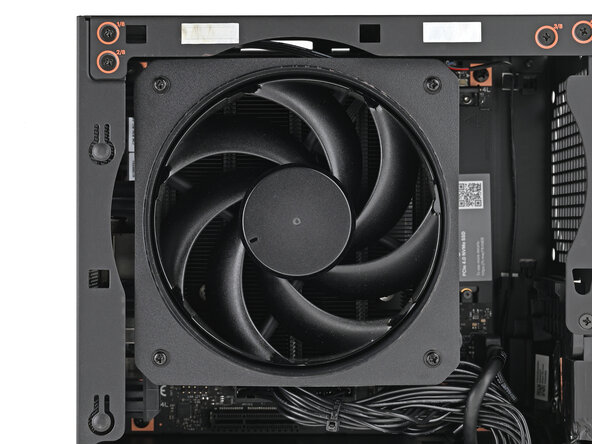
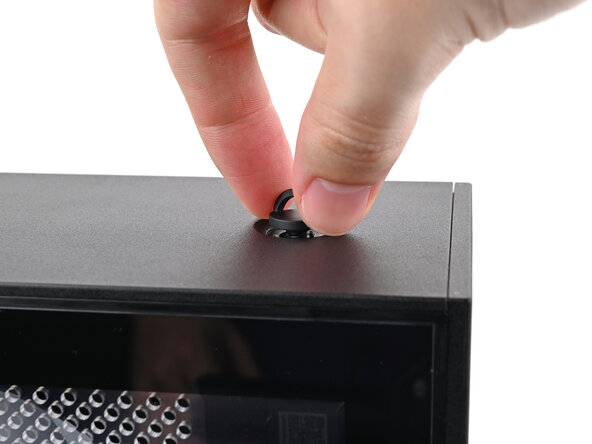
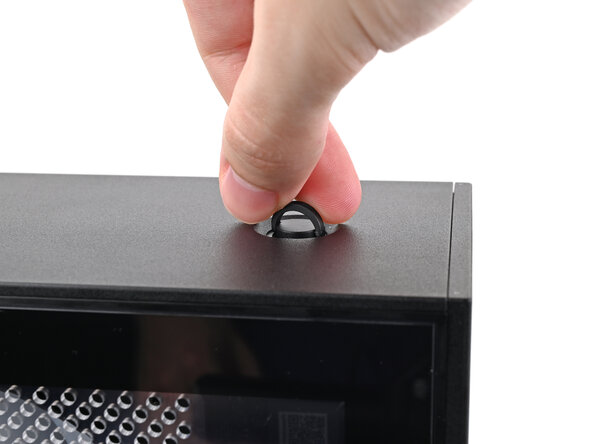
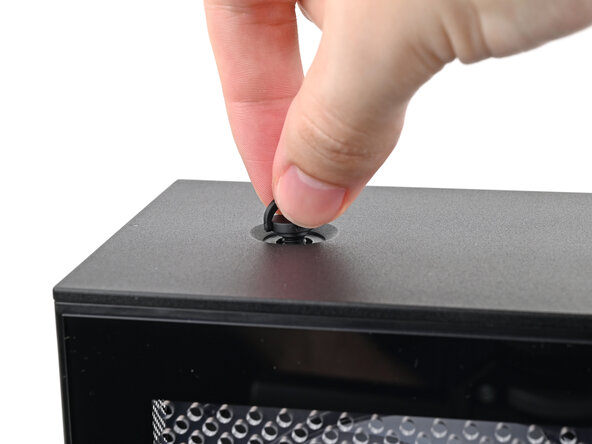
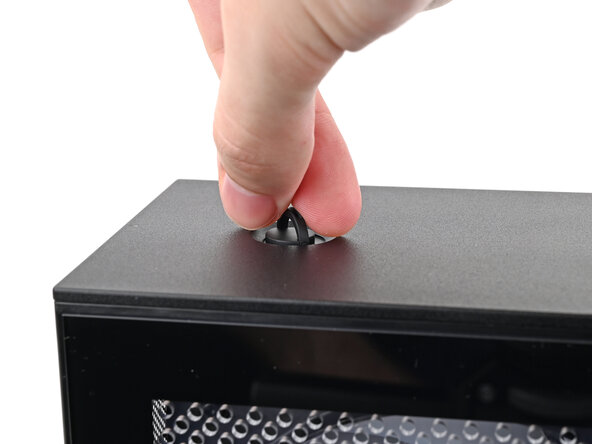
    • Use your finger to lift up the two D-rings on the Top Panel screws.

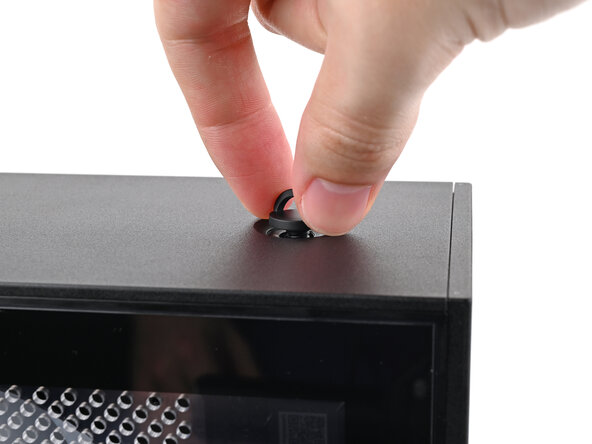
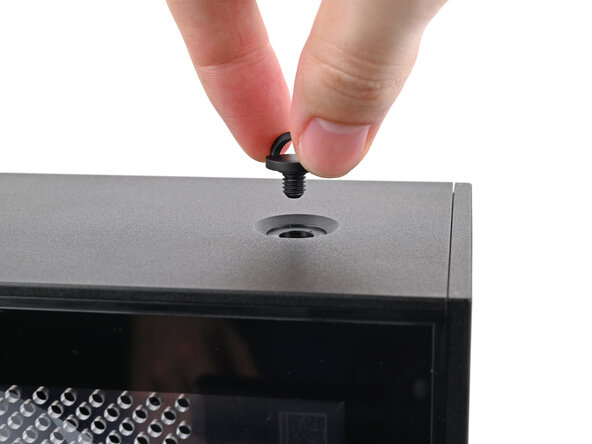
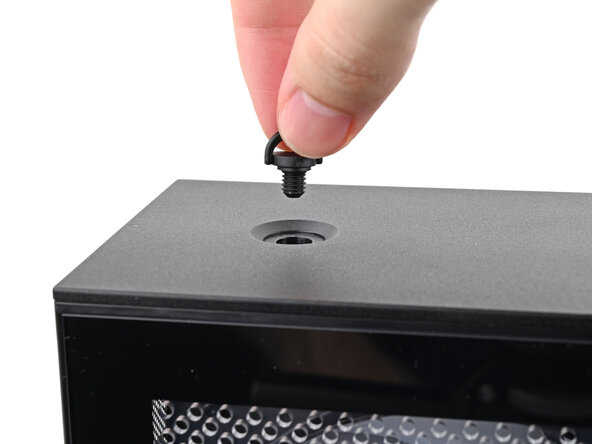
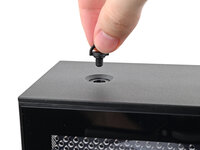
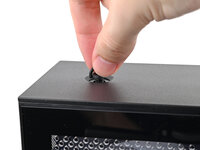
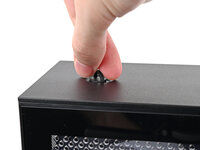
  4. Framework Desktop CPU Fan Replacement: шаг 4, изображение 1 из 3 Framework Desktop CPU Fan Replacement: шаг 4, изображение 2 из 3 Framework Desktop CPU Fan Replacement: шаг 4, изображение 3 из 3
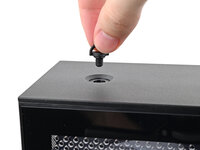
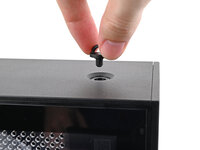
    • Use your fingers to twist the screw counter-clockwise and loosen it.

    • Remove the Top Panel screw.

  5. Framework Desktop CPU Fan Replacement: шаг 5, изображение 1 из 3 Framework Desktop CPU Fan Replacement: шаг 5, изображение 2 из 3 Framework Desktop CPU Fan Replacement: шаг 5, изображение 3 из 3
    • Repeat the same procedure for the other Top Panel screw.

  6. Framework Desktop CPU Fan Replacement, Remove the Top Panel: шаг 6, изображение 1 из 3 Framework Desktop CPU Fan Replacement, Remove the Top Panel: шаг 6, изображение 2 из 3 Framework Desktop CPU Fan Replacement, Remove the Top Panel: шаг 6, изображение 3 из 3
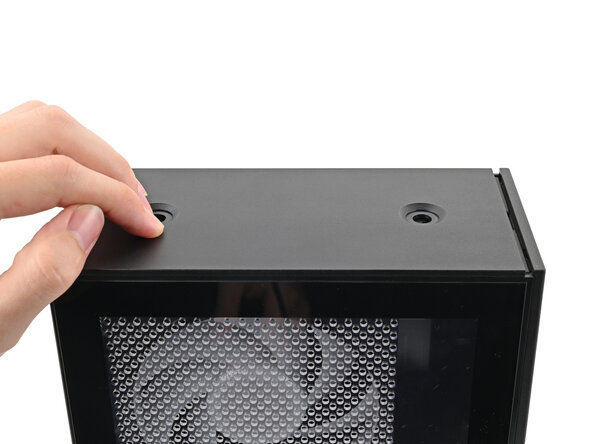
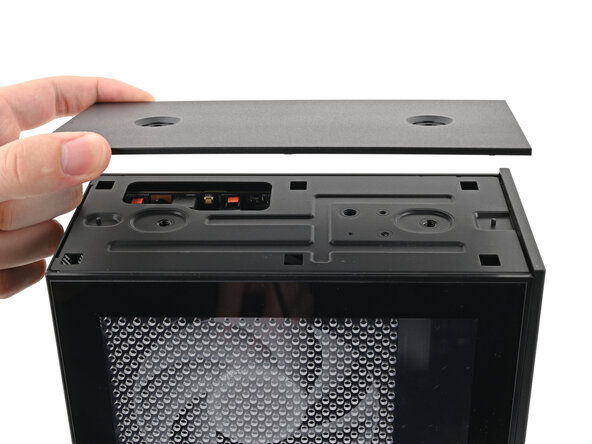
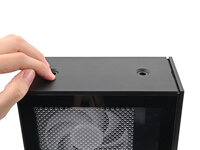
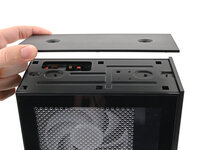
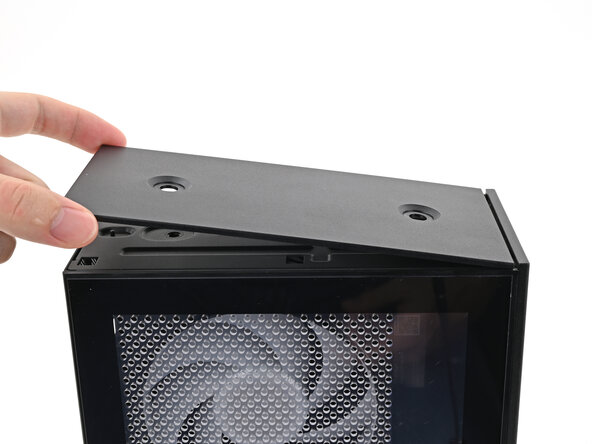
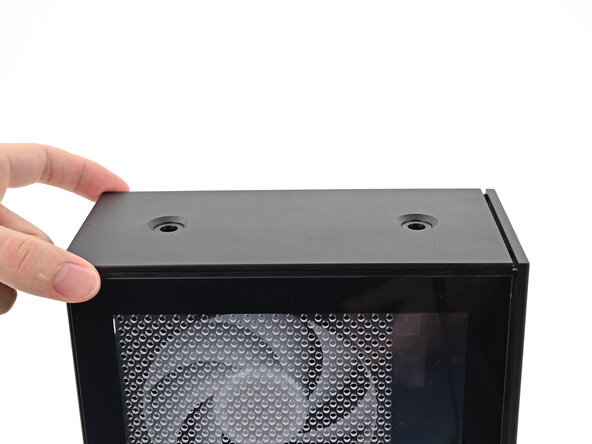
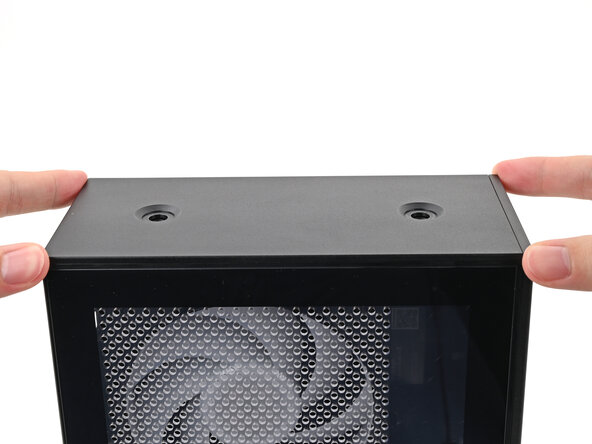
    • Slide the Top Panel towards the rear of the computer to release the clips securing it to the chassis.

    • If you're having a hard time gripping the Top Panel, use the screw holes to get a better handhold.

    • Lift the Top Panel off the chassis and remove it.

  7. Framework Desktop CPU Fan Replacement, Remove the Left Panel: шаг 7, изображение 1 из 3 Framework Desktop CPU Fan Replacement, Remove the Left Panel: шаг 7, изображение 2 из 3 Framework Desktop CPU Fan Replacement, Remove the Left Panel: шаг 7, изображение 3 из 3
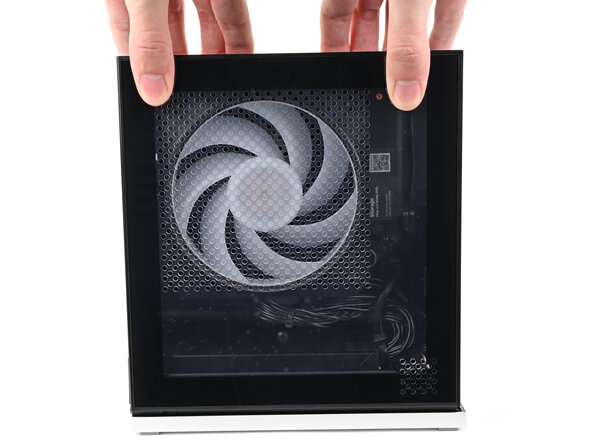
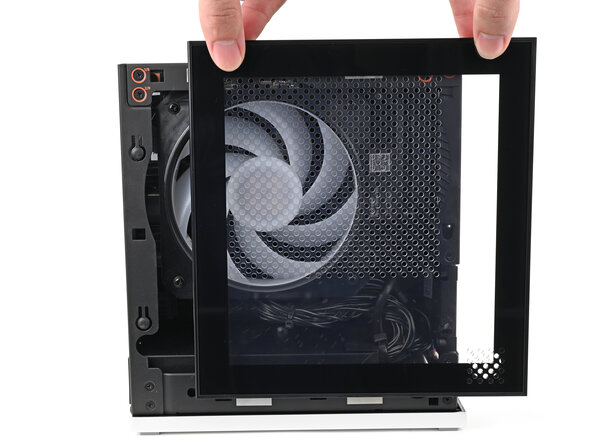
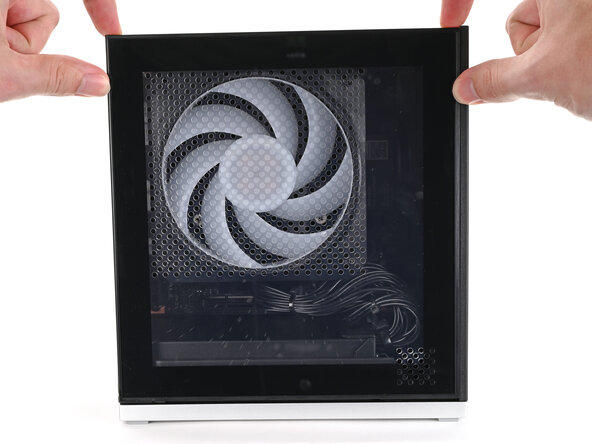
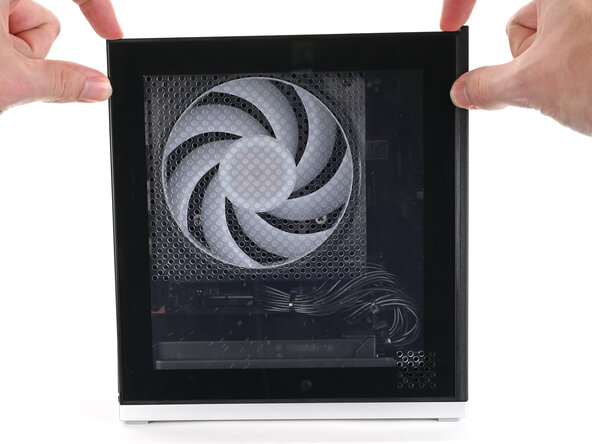
    • Use your fingers to grip the top of the Left Panel and slide it upward to release its clips.

    • Remove the Left Panel.

  8. Framework Desktop CPU Fan Replacement, Lay down the Desktop: шаг 8, изображение 1 из 2 Framework Desktop CPU Fan Replacement, Lay down the Desktop: шаг 8, изображение 2 из 2
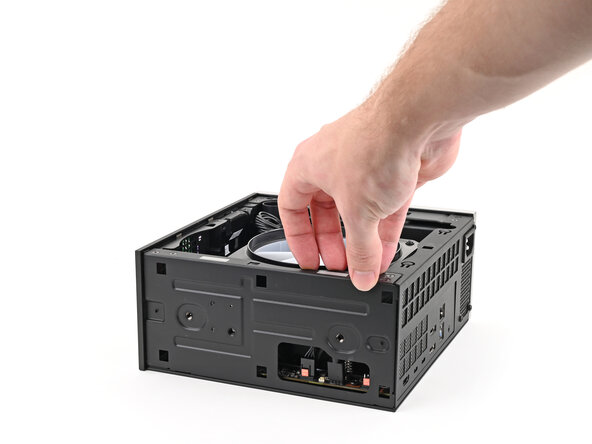
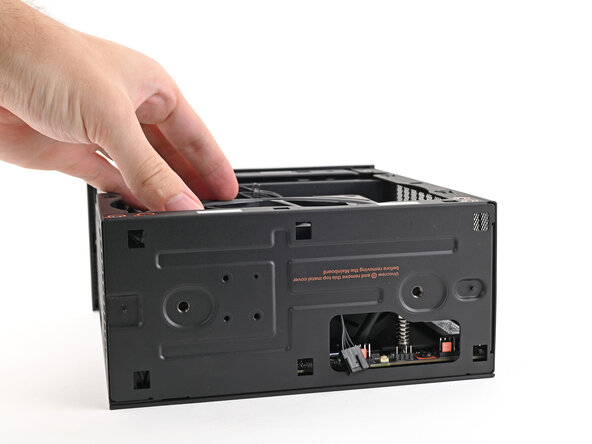
    • Lay down the Desktop on its side so the fan is facing upward.

  9. Framework Desktop CPU Fan Replacement, Disconnect the fan: шаг 9, изображение 1 из 2 Framework Desktop CPU Fan Replacement, Disconnect the fan: шаг 9, изображение 2 из 2
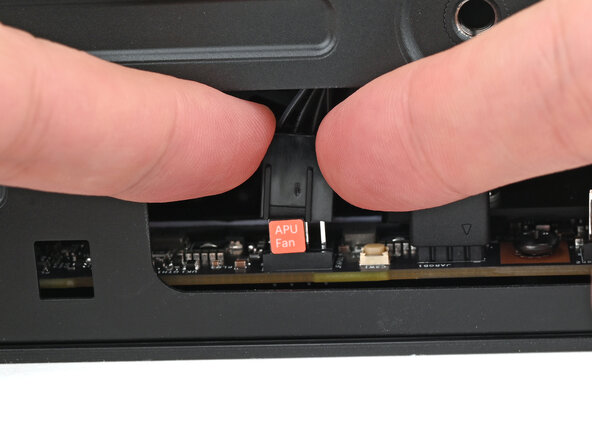
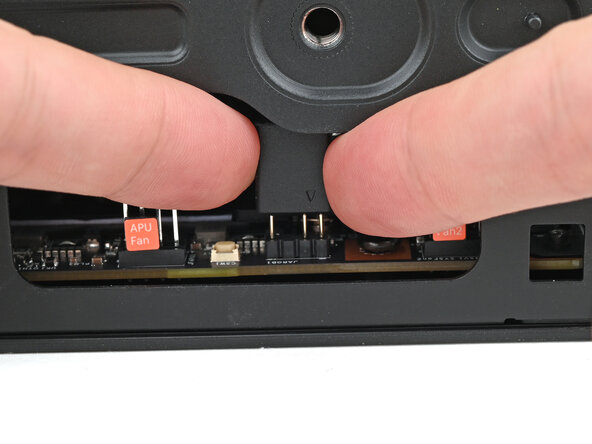
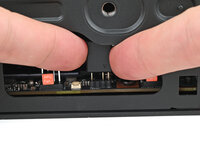
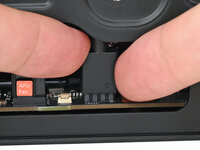
    • Use your fingers to lift the APU fan cable connector off its four‑pronged socket on the Mainboard.

  10. Framework Desktop CPU Fan Replacement: шаг 10, изображение 1 из 2 Framework Desktop CPU Fan Replacement: шаг 10, изображение 2 из 2
    • If you aren't using an RGB fan, then skip this step.

    • Use your fingers to lift the fan RGB cable connector off its three‑pronged socket on the Mainboard.

  11. Framework Desktop CPU Fan Replacement, Remove the CPU fan screws: шаг 11, изображение 1 из 2 Framework Desktop CPU Fan Replacement, Remove the CPU fan screws: шаг 11, изображение 2 из 2
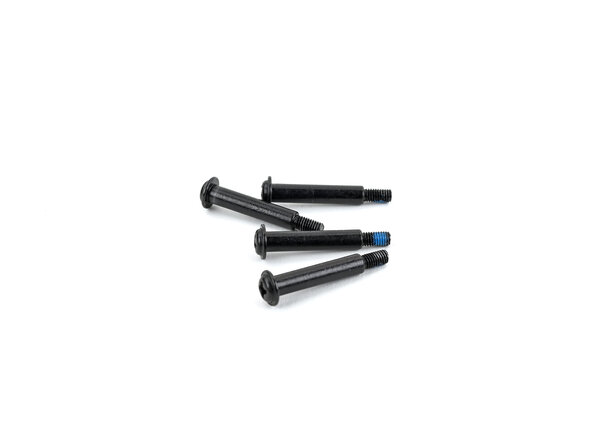
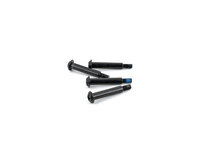
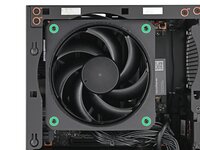
    • Use your Framework Desktop Screwdriver to remove the four 27.3 mm‑long Phillips screws securing the CPU fan and fan duct.

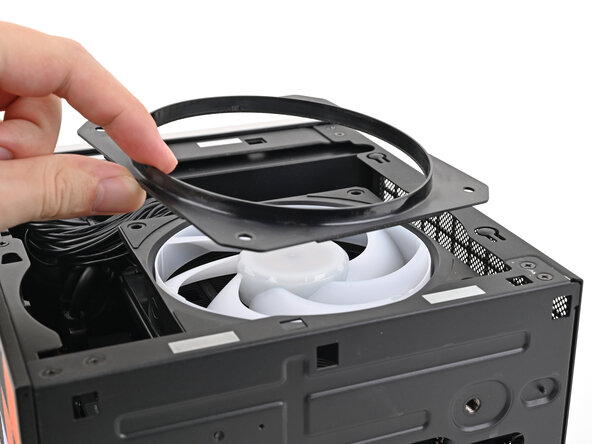
  12. Framework Desktop CPU Fan Replacement, Remove the fan duct: шаг 12, изображение 1 из 2 Framework Desktop CPU Fan Replacement, Remove the fan duct: шаг 12, изображение 2 из 2
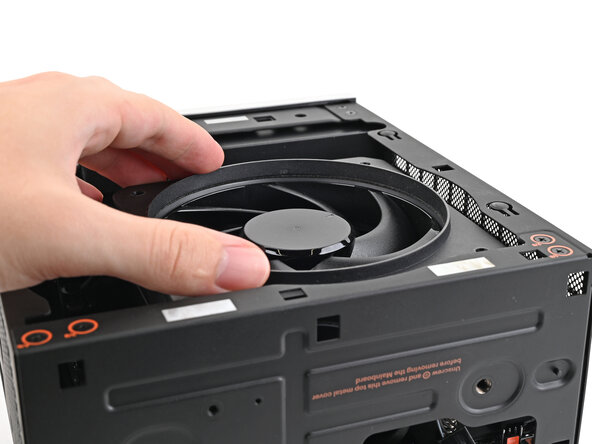
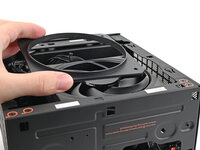
    • Lift the fan duct off the fan and remove it.

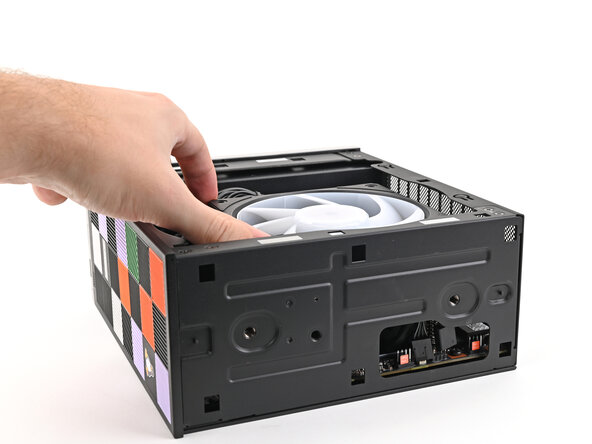
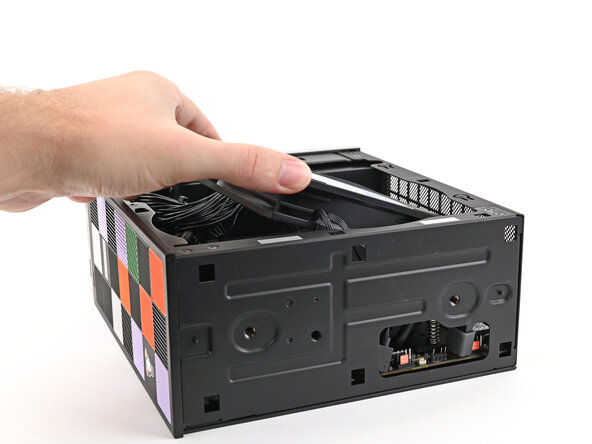
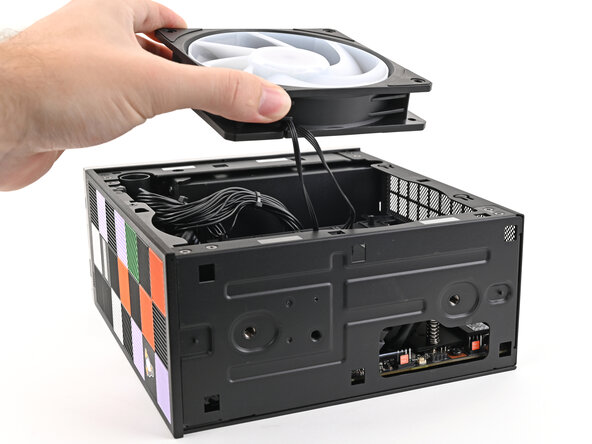
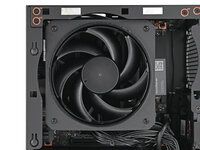
  13. Framework Desktop CPU Fan Replacement, Remove the fan: шаг 13, изображение 1 из 3 Framework Desktop CPU Fan Replacement, Remove the fan: шаг 13, изображение 2 из 3 Framework Desktop CPU Fan Replacement, Remove the fan: шаг 13, изображение 3 из 3
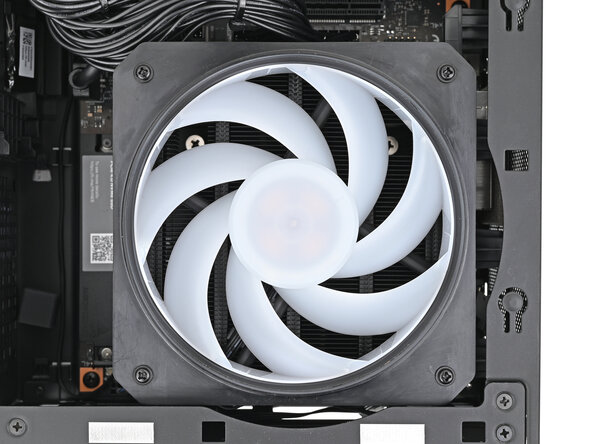
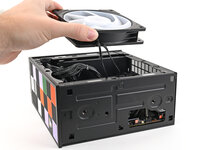
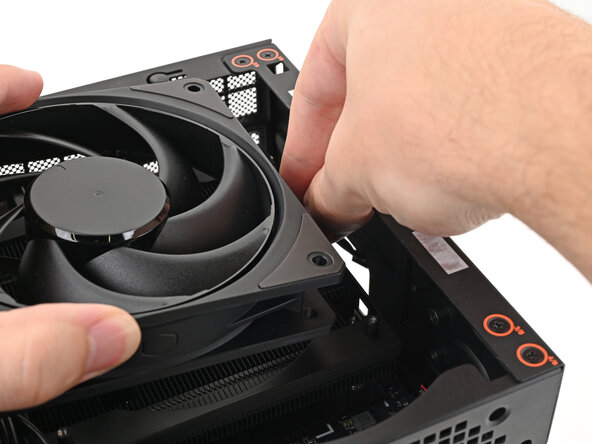
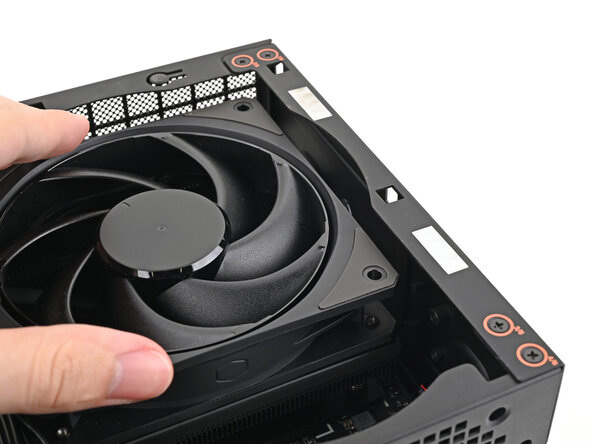
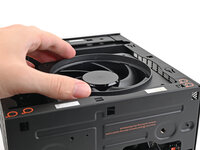
    • Lift the fan out of the chassis, making sure the cables thread through the side of the heatsink.

  14. Framework Desktop CPU Fan Replacement, Disassembly complete: шаг 14, изображение 1 из 1
    • Congratulations on completing disassembly! The remaining steps will show how to reassemble your Framework Desktop.

  15. Framework Desktop CPU Fan Replacement, Insert the CPU fan: шаг 15, изображение 1 из 2 Framework Desktop CPU Fan Replacement, Insert the CPU fan: шаг 15, изображение 2 из 2
    • Orient the fan so its label is facing downward and the cable(s) is pointing towards the top of the computer.

    • If your fan has an arrow indicating airflow direction, make sure it's pointed towards the heatsink.

    • If you're using a different fan, orient it such that the fan is blowing towards the heatsink, not away.

    • Lay the fan on top of the heatsink, making sure the cables are routed so they poke out of the hole on the top of the computer.

  16. Framework Desktop CPU Fan Replacement: шаг 16, изображение 1 из 3 Framework Desktop CPU Fan Replacement: шаг 16, изображение 2 из 3 Framework Desktop CPU Fan Replacement: шаг 16, изображение 3 из 3
    • If the cables aren't routed properly, lift the fan up slightly and use your fingers to reposition the cables over the side of the heatsink.

    • If you're installing an RGB fan, make sure the "male" end of the RGB cable is covered and set aside in the corner of the chassis.

  17. Framework Desktop CPU Fan Replacement, Insert the fan duct: шаг 17, изображение 1 из 2 Framework Desktop CPU Fan Replacement, Insert the fan duct: шаг 17, изображение 2 из 2
    • Lay the fan duct on top of the fan with the lip facing upward.

    • Align the screw holes on the fan duct with the ones on the fan.

  18. Framework Desktop CPU Fan Replacement, Install the fan screws: шаг 18, изображение 1 из 2 Framework Desktop CPU Fan Replacement, Install the fan screws: шаг 18, изображение 2 из 2
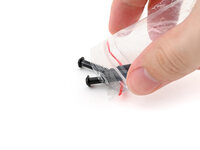
    • Remove the fan screws from their packaging and make sure there are four screws total.

  19. Framework Desktop CPU Fan Replacement: шаг 19, изображение 1 из 2 Framework Desktop CPU Fan Replacement: шаг 19, изображение 2 из 2
    • Use your Framework Desktop Screwdriver to install the four 27.3 mm‑long Phillips screws securing the CPU fan and fan duct.

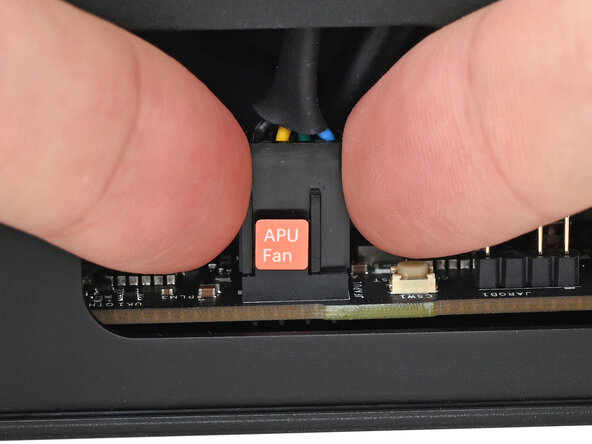
  20. Framework Desktop CPU Fan Replacement, Connect the fan: шаг 20, изображение 1 из 2 Framework Desktop CPU Fan Replacement, Connect the fan: шаг 20, изображение 2 из 2
    • Orient the main fan cable so its two vertical lines are facing you.

    • Slide the main fan cable over the four-pronged connector labeled "APU Fan," making sure the orange label slots between the vertical lines.

  21. Framework Desktop CPU Fan Replacement, Connect the RGB cable: шаг 21, изображение 1 из 3 Framework Desktop CPU Fan Replacement, Connect the RGB cable: шаг 21, изображение 2 из 3 Framework Desktop CPU Fan Replacement, Connect the RGB cable: шаг 21, изображение 3 из 3
    • If you aren't using an RGB fan, then skip this step.

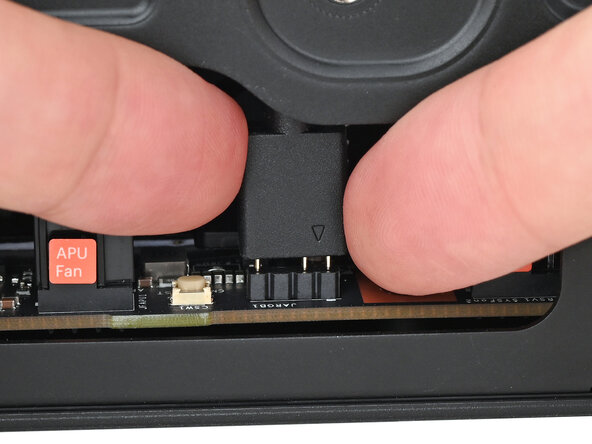
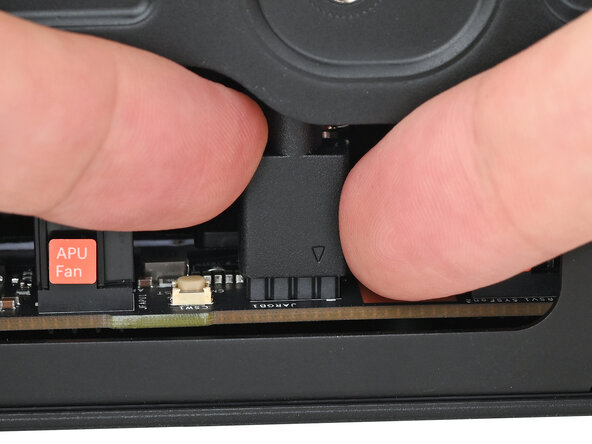
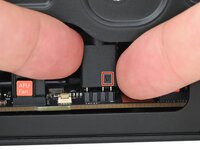
    • Orient the RGB cable so the arrow is on the right side of the connector.

    • Use your fingers to slide the RGB cable over the three pronged connector located to the right of the "APU Fan" connector.

  22. Framework Desktop CPU Fan Replacement, Install the Left Panel: шаг 22, изображение 1 из 3 Framework Desktop CPU Fan Replacement, Install the Left Panel: шаг 22, изображение 2 из 3 Framework Desktop CPU Fan Replacement, Install the Left Panel: шаг 22, изображение 3 из 3
    • Slide the Left Panel onto the left edge of the chassis and press it flat to ensure its clips are slotted into place.

    • There should be a small gap between the bottom of the Left Panel and the silver base.

    • Push the Left Panel towards the base of the computer to close the gap and engage the clips.

  23. Framework Desktop CPU Fan Replacement, Install the Top Panel: шаг 23, изображение 1 из 3 Framework Desktop CPU Fan Replacement, Install the Top Panel: шаг 23, изображение 2 из 3 Framework Desktop CPU Fan Replacement, Install the Top Panel: шаг 23, изображение 3 из 3
    • Orient the Top Panel so its arrow is pointing towards the rear of the computer.

    • While holding the Top Panel at a slight downward angle, slide it across the top of the chassis (from rear to front) until you feel its clips catch.

    • There should be a small gap between the Top Panel and the front of the Desktop.

    • Lay the Top Panel flat on the chassis to align the remaining clips.

  24. Framework Desktop CPU Fan Replacement: шаг 24, изображение 1 из 2 Framework Desktop CPU Fan Replacement: шаг 24, изображение 2 из 2
    • While securing the computer with one hand, use the other hand to slide the Top Panel towards the front of the computer to close the gap and engage the clips.

  25. Framework Desktop CPU Fan Replacement, Install the Handle: шаг 25, изображение 1 из 2 Framework Desktop CPU Fan Replacement, Install the Handle: шаг 25, изображение 2 из 2
    • If you're installing the Handle on your Desktop, follow this step. Otherwise, skip it.

    • Place the Handle over the Top Panel screw holes.

    • While holding the Handle in place, twist the screw threads on both sides clockwise until they're snug on the Top Panel.

  26. Framework Desktop CPU Fan Replacement, Install the top panel screws: шаг 26, изображение 1 из 3 Framework Desktop CPU Fan Replacement, Install the top panel screws: шаг 26, изображение 2 из 3 Framework Desktop CPU Fan Replacement, Install the top panel screws: шаг 26, изображение 3 из 3
    • Insert the top panel screw into its hole and twist clockwise until it feels snug.

  27. Framework Desktop CPU Fan Replacement: шаг 27, изображение 1 из 3 Framework Desktop CPU Fan Replacement: шаг 27, изображение 2 из 3 Framework Desktop CPU Fan Replacement: шаг 27, изображение 3 из 3
    • Repeat the same procedure for the other top panel screw.

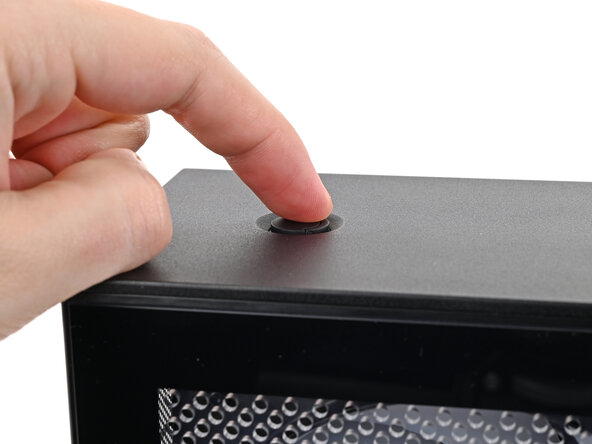
  28. Framework Desktop CPU Fan Replacement: шаг 28, изображение 1 из 3 Framework Desktop CPU Fan Replacement: шаг 28, изображение 2 из 3 Framework Desktop CPU Fan Replacement: шаг 28, изображение 3 из 3
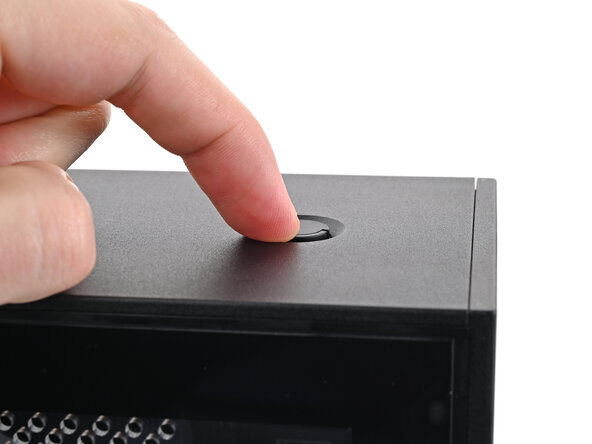
    • Use your finger to close the two D-rings on the top panel screws.

Заключение

You finished fixing your Framework Desktop!

Take your e-waste to an R2 or e-Stewards certified recycler.

If you need help, contact Framework support.

Alex Diaz-Kokaisl

Участник с: 01/16/22

213 316 Репутация

Автор 1 040 руководств

0 Комментарии к руководству

Добавить комментарий

Статистика просмотров:

За последние 24 часов: 3

За последние 7 дней: 30

За последние 30 дней: 177

За всё время: 1,153