Введение
Note: If you’re trying to install the latest MacOS on a 2009 and later Apple computer, follow the MacOS internet recovery guide instead.
If you have recently upgraded or replaced the hard drive for your MacBook or iMac, you will need to reinstall macOS onto it. This guide will show you how to install macOS High Sierra onto a blank hard drive by using a bootable flash drive.
Before you begin, you will need to create a bootable flash drive. This requires having access to a Mac currently running High Sierra, in order to download the 7.7 GB High Sierra file in the App Store. You will also need an empty flash drive that can fit 5.4 GB.
Follow this guide to create a bootable macOS High Sierra flash drive before proceeding with the guide.
Выберете то, что вам нужно
-
-
-
With the device powered off, disconnect any external hard drives and flash drives.
-
Plug in your macOS High Sierra bootable flash drive.
-
Hold down the [option] or [alt] (⌥) key on the keyboard and power on the device.
-
When you see the boot selection screen as shown, release the [option] key.
-
Use either the keyboard's arrow keys or the mouse to select "Install MacOS High Sierra." Press [enter] or click your selection with the mouse.
 Спросите у FixBot
-
-
-
Your Mac will begin copying the installation files from the flash drive. This may take up to 30 minutes.
-
When prompted, select your language and press [enter], or click the arrow button.
-
-
-
-
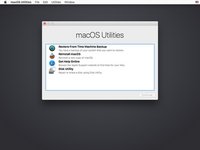
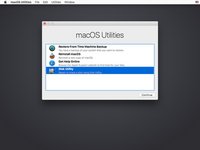
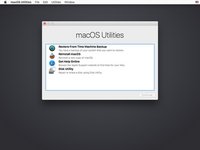
Select "Disk Utility" from the menu and press [enter] or click the continue button.
-
-
-
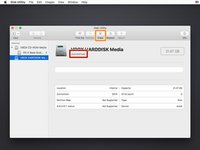
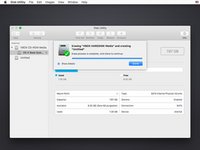
Select your hard drive from the left column in Disk Utility.
-
Click the "Erase" button at the top of the window.
-
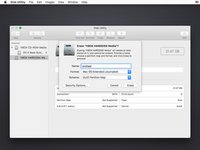
Choose a name for your drive (you can rename it later). Leave the scheme as GUID Partition Map.
-
If you are installing an SSD, choose the APFS format. If you are installing a mechanical drive or if your device doesn't officially support the newer OS, leave the format as Mac OS Extended (journaled)
-
Click "Erase." When the process completes, click "Done."
-
Exit the Disk Utility by clicking on the red X button on the top left corner of the window.
-
-
-
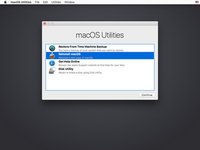
Select "Reinstall macOS" from the menu and press [enter] or click "Continue."
-
-
-
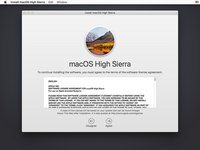
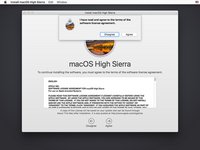
Read through the license agreement.
-
Click "Agree" to accept the license agreement.
-
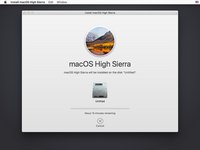
Your Mac will now install macOS High Sierra. Be patient and wait for it to complete.
-
Once the install is complete, the device will restart itself.
-
-








High Sierra should now be freshly installed! Enjoy!
Отменить: Я не выполнил это руководство.
639 человек успешно провели ремонт по этому руководству.


76 Комментарии к руководству
I replace Toshiba MK1231Gal dard disk based on instruction on yutube http://www.youtube.com/watch?feature=pla...!
the problem is that when I try to install osx, I cant format the disk
I got notice input, output error, when try to make a partition or try anything with disk utility
I own MacBook air 1237
I replace Toshiba MK1231Gal dard disk based on instruction on yutube http://www.youtube.com/watch?feature=pla...!
the problem is that when I try to install osx, I cant format the disk
I got notice input, output error, when try to make a partition or try anything with disk utility
I own MacBook air 1237
yes, me too...did you get it fix? please share how.
Use disk utilities from the Mac OS installer to format the new drive in a Mac format. Then install the Mac OS. New drive won’t show up in the installer until it’s Mac format.
DDD in this case
dard disk
