Перейти к основному содержанию
Присоединяйся к сообществу ремонтников - Создай аккаунт

LeapFrog LeapPad2 Explorer Front Camera Replacement

Выберете то, что вам нужно

  1. LeapFrog LeapPad2 Explorer Front Camera Replacement, Battery: шаг 1, изображение 1 из 2 LeapFrog LeapPad2 Explorer Front Camera Replacement, Battery: шаг 1, изображение 2 из 2
    • Before disassembling your LeapPad, ensure your device is shut off.

    • Push outward on the plastic side panels to remove and reveal battery.

    • The panels should detach fully from the main device.

    Спросите у FixBot

    Добавить комментарий

  2. LeapFrog LeapPad2 Explorer Front Camera Replacement: шаг 2, изображение 1 из 3 LeapFrog LeapPad2 Explorer Front Camera Replacement: шаг 2, изображение 2 из 3 LeapFrog LeapPad2 Explorer Front Camera Replacement: шаг 2, изображение 3 из 3
    • Push down from the positive end of the battery towards the negative end to pry the battery up out of its dispenser.

    • Remove all four AA alkaline batteries from the device.

    Спросите у FixBot

    Добавить комментарий

  3. LeapFrog LeapPad2 Explorer Front Camera Replacement, Back Cover: шаг 3, изображение 1 из 2 LeapFrog LeapPad2 Explorer Front Camera Replacement, Back Cover: шаг 3, изображение 2 из 2
    • This step will void your device warranty.

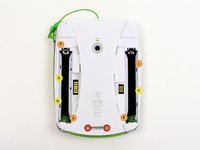
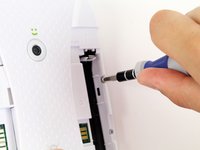
    • Remove the following screws securing the back cover to the main device:

    • Two 10.0 mm Phillips screws

    • Four 4.0 mm Phillips screws

    • Three 3.0 mm Phillips screws

    Спросите у FixBot

    Добавить комментарий

  4. LeapFrog LeapPad2 Explorer Front Camera Replacement: шаг 4, изображение 1 из 3 LeapFrog LeapPad2 Explorer Front Camera Replacement: шаг 4, изображение 2 из 3 LeapFrog LeapPad2 Explorer Front Camera Replacement: шаг 4, изображение 3 из 3
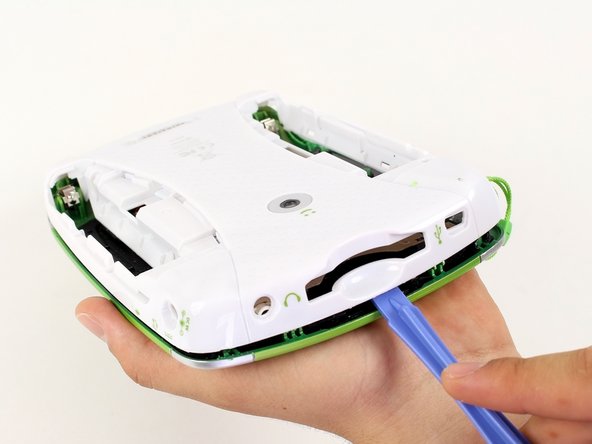
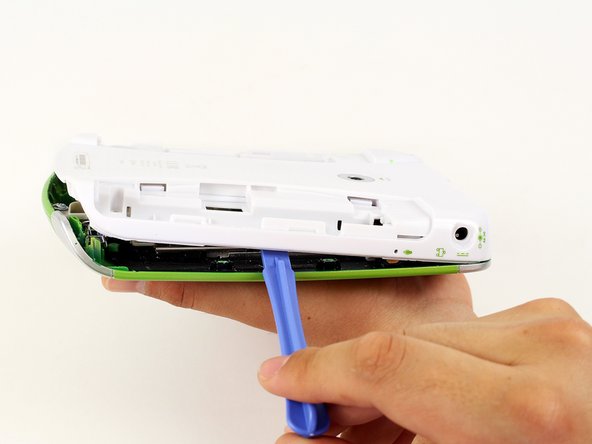
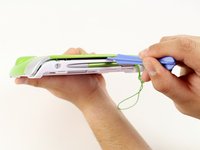
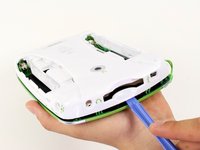
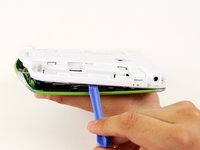
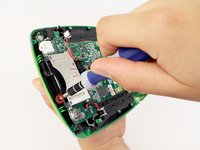
    • Insert a plastic opening tool into the seam between the front and rear covers to detach the back cover from the rest of the device.

    • Move the plastic opening tool around the perimeter of the LeapPad2.

    • Lift up and remove the rear case from the tablet.

    • A butter knife can help when prying the device.

    Спросите у FixBot

    Добавить комментарий

  5. LeapFrog LeapPad2 Explorer Front Camera Replacement, Front Cover: шаг 5, изображение 1 из 2 LeapFrog LeapPad2 Explorer Front Camera Replacement, Front Cover: шаг 5, изображение 2 из 2
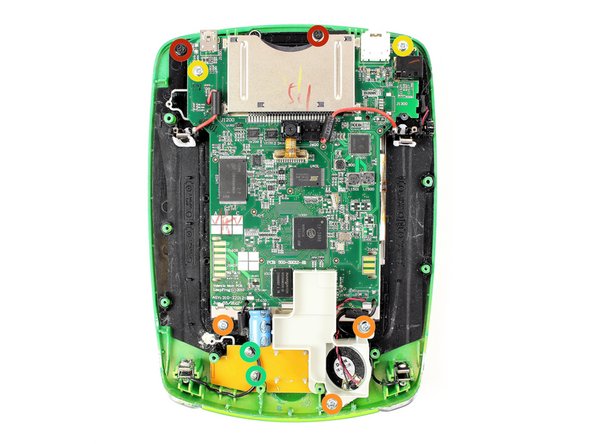
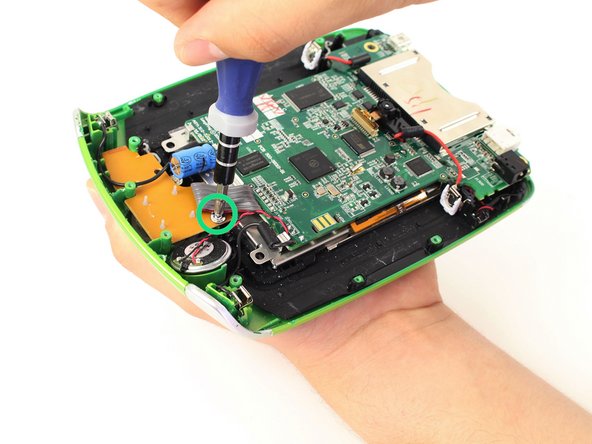
    • Remove the following screws securing the front cover to the main device:

    • Three 6.0 mm Phillips screws

    • Three 7.0 mm Phillips screws

    • Two 10.0 mm Phillips screws

    • Three 7.0 mm Phillips screws (bulkier screw head than other 7.0 mm Phillips screws)

    • The white plastic component holding the speaker must be removed to reach the third 7.0 mm Phillips screw. Refer to Step 2.

    Спросите у FixBot

    Добавить комментарий

  6. LeapFrog LeapPad2 Explorer Front Camera Replacement: шаг 6, изображение 1 из 2 LeapFrog LeapPad2 Explorer Front Camera Replacement: шаг 6, изображение 2 из 2
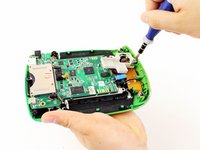
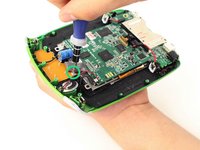
    • Unscrew the white plastic piece to expose the third 7.0 mm Phillips screw mentioned.

    Спросите у FixBot

    Добавить комментарий

  7. LeapFrog LeapPad2 Explorer Front Camera Replacement: шаг 7, изображение 1 из 2 LeapFrog LeapPad2 Explorer Front Camera Replacement: шаг 7, изображение 2 из 2
    Инструмент, используемый на этом этапе:
    Tweezers
    $4.99
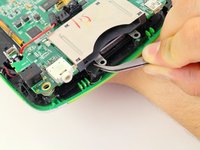
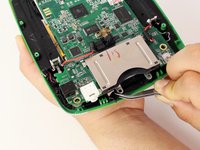
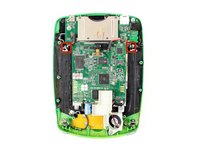
    • When unscrewing the game cartridge screws, you will find a loose black plastic component underneath the game cartridge.

    • Use tweezers to remove the piece.

    • In case the piece falls out unexpectedly, refer to this step to make sure you put this piece back in place during the reassembly of your device.

    Спросите у FixBot

    Добавить комментарий

  8. LeapFrog LeapPad2 Explorer Front Camera Replacement: шаг 8, изображение 1 из 2 LeapFrog LeapPad2 Explorer Front Camera Replacement: шаг 8, изображение 2 из 2
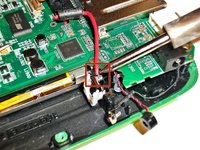
    • Desolder the through hole-components in power plugs on both sides of the device where the batteries were once connected.

    • Do not refer to the pictures in this step for correct soldering and de-soldering techniques. They are solely for illustration purposes.

    • For proper soldering and desoldering techniques reference Как паять и выпаивать соединения.

    • Soldering requires the iron to be at hot temperatures and can cause burns. Wear safety glasses as needed.

    • Be extremely careful with the cables in this step as they could melt, burn, or break.

    Спросите у FixBot

    Добавить комментарий

  9. LeapFrog LeapPad2 Explorer Front Camera Replacement: шаг 9, изображение 1 из 2 LeapFrog LeapPad2 Explorer Front Camera Replacement: шаг 9, изображение 2 из 2
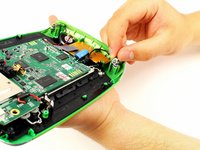
    • Pry the power cables from the device using your fingers or tweezers.

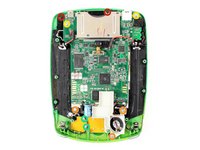
    • Now you should be able to lift up the front cover, leaving you with the motherboard and screen.

    Спросите у FixBot

    Добавить комментарий

  10. LeapFrog LeapPad2 Explorer Front Camera Replacement, Front Camera: шаг 10, изображение 1 из 3 LeapFrog LeapPad2 Explorer Front Camera Replacement, Front Camera: шаг 10, изображение 2 из 3 LeapFrog LeapPad2 Explorer Front Camera Replacement, Front Camera: шаг 10, изображение 3 из 3
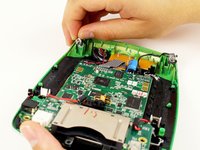
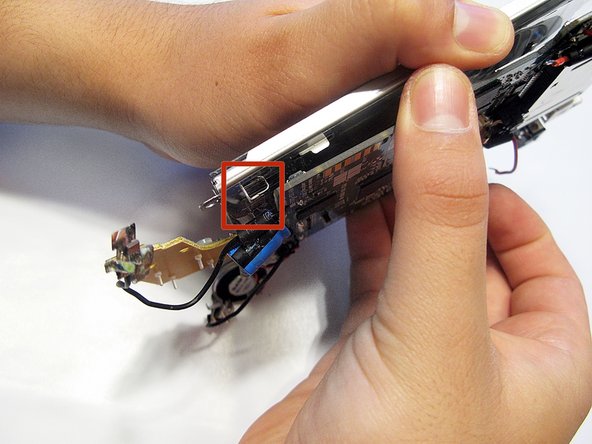
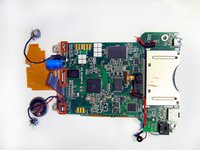
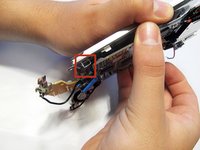
    • Lift the screen from the motherboard by pulling the board out from the three metal tabs.

    • Do not be too aggressive when separating the components, as the parts are still connected.

    Спросите у FixBot

    Добавить комментарий

  11. LeapFrog LeapPad2 Explorer Front Camera Replacement: шаг 11, изображение 1 из 1
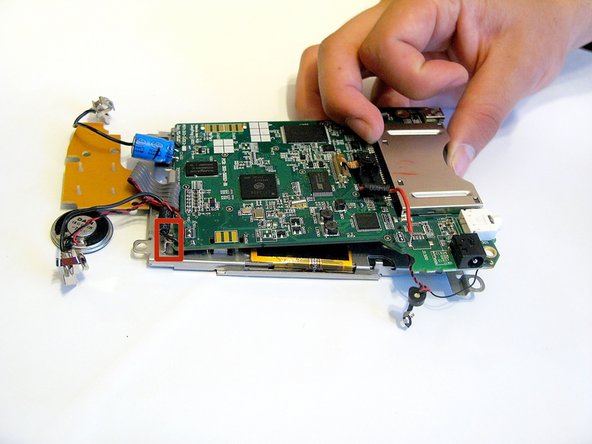
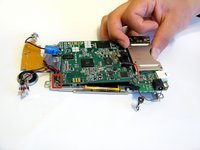
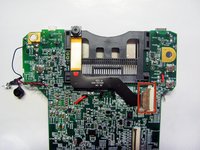
    • Separate the screen from the motherboard and lay the device's components flat open like a book.

    • Do not be too aggressive when separating the components, as the parts are still connected.

    Спросите у FixBot

    Добавить комментарий

  12. LeapFrog LeapPad2 Explorer Front Camera Replacement: шаг 12, изображение 1 из 2 LeapFrog LeapPad2 Explorer Front Camera Replacement: шаг 12, изображение 2 из 2
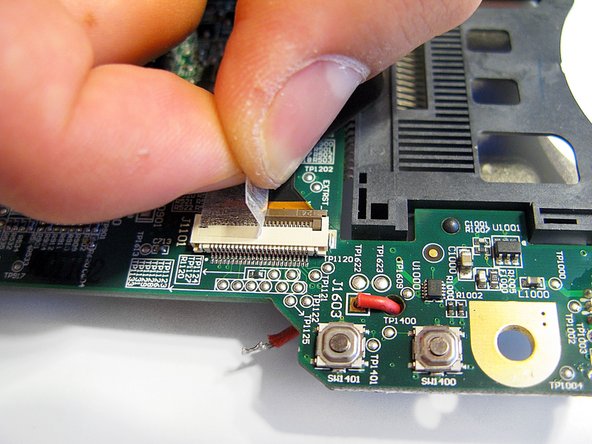
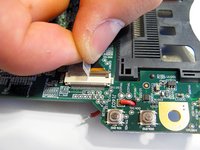
    • Peel off tape covering the camera's connection ribbon to the circuit.

    Спросите у FixBot

    Добавить комментарий

  13. LeapFrog LeapPad2 Explorer Front Camera Replacement: шаг 13, изображение 1 из 1
    • To safely remove the ribbon cable, you must first pull up the retaining flap.

    • Failing to do this step could result in damage to the cable and/or connector.

    Спросите у FixBot

    Добавить комментарий

  14. LeapFrog LeapPad2 Explorer Front Camera Replacement: шаг 14, изображение 1 из 1
    • Gently pull outward, to remove the ribbon from the socket on the circuit board.

    • If the flap is up as shown in the picture, no force should be required to remove the ribbon cable.

    Спросите у FixBot

    Добавить комментарий

Заключение

To reassemble your device, follow these instructions in reverse order.

Отменить: Я не выполнил это руководство.

Nupur Garg

Участник с: 04/12/14

867 Репутация

Автор 7 руководств

Команда

Cal Poly, Team 8-10, Regan Spring 2014 Участник Cal Poly, Team 8-10, Regan Spring 2014

CPSU-REGAN-S14S8G10

4 членов

Автор 16 руководств

0 Комментарии к руководству

Добавить комментарий

Статистика просмотров:

За последние 24 часов: 3

За последние 7 дней: 8

За последние 30 дней: 38

За всё время: 825