Перейти к основному содержанию
Присоединяйся к сообществу ремонтников - Создай аккаунт

Lenovo V14-IIL Camera Replacement

Выберете то, что вам нужно

    1. Lenovo V14-IIL Camera Replacement, Back Panel: шаг 1, изображение 1 из 2 Lenovo V14-IIL Camera Replacement, Back Panel: шаг 1, изображение 2 из 2
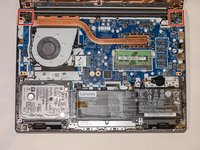
      • Make sure the laptop is powered off and unplug all cables before beginning any repair.

      • Flip your laptop over and place on a flat surface so you can access the screws on the base cover.

      • Remove the six 7 mm screws from the back panel of the laptop using a Phillips #0 screwdriver.

      • Remove the four 4 mm screws from the bottom edge of the laptop using a Phillips #0 screwdriver.

      Спросите у FixBot

      Добавить комментарий

    2. Lenovo V14-IIL Camera Replacement: шаг 2, изображение 1 из 1
      • Use an iFixit opening tool to pry apart the case by sliding it along each side of the laptop.

      • You may need to move the tool to different locations to fully release the back cover.

      Спросите у FixBot

      Добавить комментарий

    3. Lenovo V14-IIL Camera Replacement: шаг 3, изображение 1 из 1
      • Lift away the back panel and set it aside.

      Спросите у FixBot

      Добавить комментарий

    1. Lenovo V14-IIL Camera Replacement, Display Assembly: шаг 4, изображение 1 из 2 Lenovo V14-IIL Camera Replacement, Display Assembly: шаг 4, изображение 2 из 2
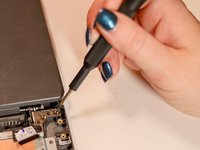
      • Using a Phillips #0 screwdriver, remove the four 5 mm screws from the hinges of the laptop.

      Спросите у FixBot

      Добавить комментарий

    2. Lenovo V14-IIL Camera Replacement: шаг 5, изображение 1 из 1
      • Lift up the latch and gently pull the display cable free.

      Спросите у FixBot

      Добавить комментарий

    3. Lenovo V14-IIL Camera Replacement: шаг 6, изображение 1 из 2 Lenovo V14-IIL Camera Replacement: шаг 6, изображение 2 из 2
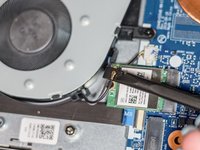
      • Using the spudger, disconnect the two wireless LAN cables (black and gray) from the wireless LAN card.

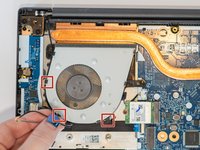
      • Remove the LAN cables from the three brackets on the fan.

      Спросите у FixBot

      Добавить комментарий

    4. Lenovo V14-IIL Camera Replacement: шаг 7, изображение 1 из 1
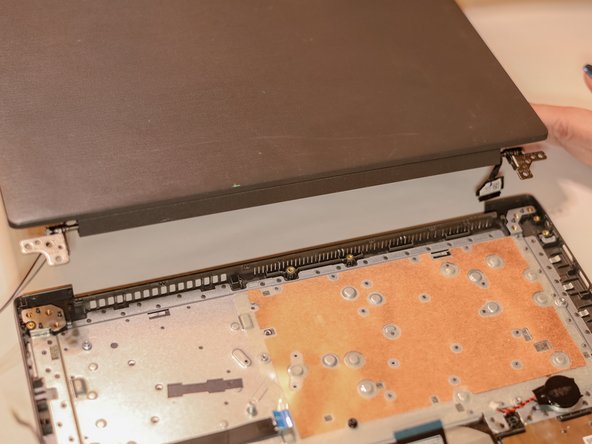
      • Ensure that all cables and hinges are detached.

      • Lift the display assembly away from the base.

      Спросите у FixBot

      Добавить комментарий

    1. Lenovo V14-IIL Camera Replacement, Screen Bezel: шаг 8, изображение 1 из 2 Lenovo V14-IIL Camera Replacement, Screen Bezel: шаг 8, изображение 2 из 2
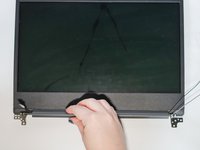
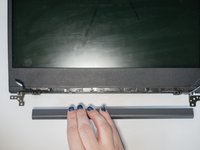
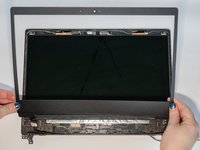
      • Slide the cable hinge cover to the right.

      • Pull the part away from the screen.

      Спросите у FixBot

      Добавить комментарий

    2. Lenovo V14-IIL Camera Replacement: шаг 9, изображение 1 из 2 Lenovo V14-IIL Camera Replacement: шаг 9, изображение 2 из 2
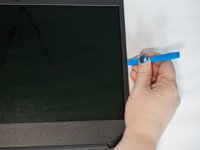
      • Use the iFixit opening tool to separate the bezel panel.

      • Slide the opening tool all the way around to loosen the bezels on all sides.

      • You may need to use the tool to gently loosen the adhesive tape.

      • Lift away the bezel panel.

      Спросите у FixBot

      Добавить комментарий

    1. Lenovo V14-IIL Camera Replacement, Camera: шаг 10, изображение 1 из 1
      • Gently pull out the stretch adhesive tape.

      • Make sure to pull from hinges to the top of the LCD panel.

      • You may need to use the metal spudger to help loosen the adhesive.

      Спросите у FixBot

      Добавить комментарий

    2. Lenovo V14-IIL Camera Replacement: шаг 11, изображение 1 из 1
      • Disconnect the wire from the back of the integrated camera and lift the camera away.

      Спросите у FixBot

      Добавить комментарий

Заключение

To reassemble your device, follow these instructions in reverse order.

Отменить: Я не выполнил это руководство.

Еще один человек закончил это руководство.

Sydney Askins

Участник с: 01/16/24

402 Репутация

Автор 2 руководств

Команда

Tennessee Tech University, Team 1-2, Pickering Spring 2024 Участник Tennessee Tech University, Team 1-2, Pickering Spring 2024

TNTECH-PICKERING-S24S1G2

3 членов

Автор 36 руководств

0 Комментарии к руководству

Добавить комментарий

Статистика просмотров:

За последние 24 часов: 0

За последние 7 дней: 4

За последние 30 дней: 26

За всё время: 488