Перейти к основному содержанию
Присоединяйся к сообществу ремонтников - Создай аккаунт

Logitech M185 Wireless Mouse Motherboard Replacement

Выберете то, что вам нужно

  1. Logitech M185 Wireless Mouse Motherboard Replacement, Motherboard: шаг 1, изображение 1 из 3 Logitech M185 Wireless Mouse Motherboard Replacement, Motherboard: шаг 1, изображение 2 из 3 Logitech M185 Wireless Mouse Motherboard Replacement, Motherboard: шаг 1, изображение 3 из 3
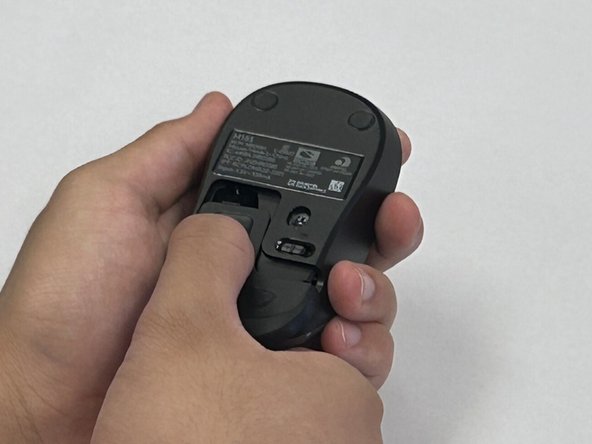
    • Flip the mouse over so the bottom is facing up and you can see the power switch.

    • Before you begin, flip the power switch on the bottom to the "Off" position.

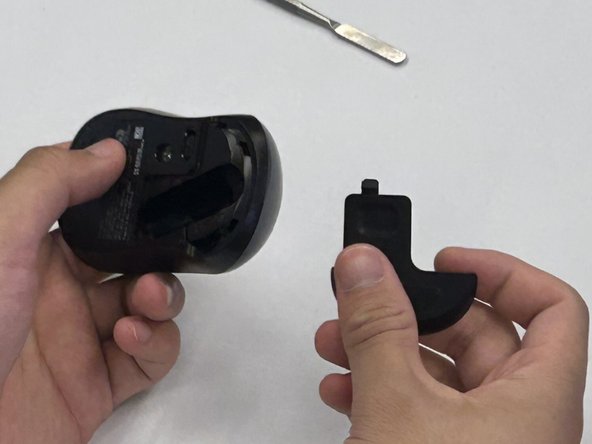
    • Press down on the battery cover.

    • Slide the battery cover off.

  2. Logitech M185 Wireless Mouse Motherboard Replacement: шаг 2, изображение 1 из 2 Logitech M185 Wireless Mouse Motherboard Replacement: шаг 2, изображение 2 из 2
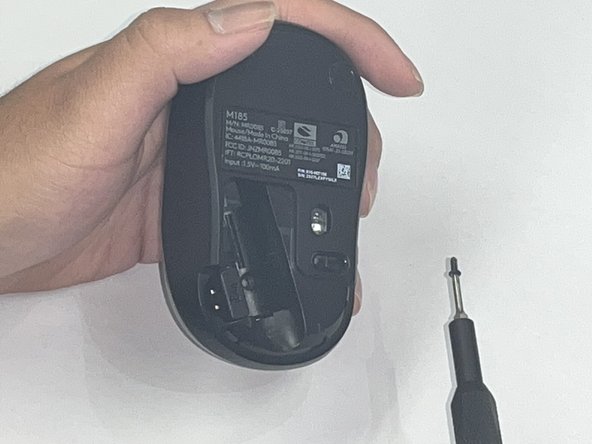
    • There is not a battery in our mouse. However, it is necessary to remove the battery to access the screw beneath.

    • Use a Phillips #00 screwdriver and remove the single screw from the battery compartment.

  3. Logitech M185 Wireless Mouse Motherboard Replacement: шаг 3, изображение 1 из 1
    • Use a black nylon spudger to pry off the shell.

    • Work your way along the seam to release the tabs connecting the top and bottom of the mouse.

    • Do not use a metal spudger for prying, as it may damage internal components, such as the main circuit board, that are not visible.

    • Gently squeeze the sides of the mouse while using the spudger to pry the top case away from the bottom. The pressure will cause the mouse to open.

  4. Logitech M185 Wireless Mouse Motherboard Replacement: шаг 4, изображение 1 из 1
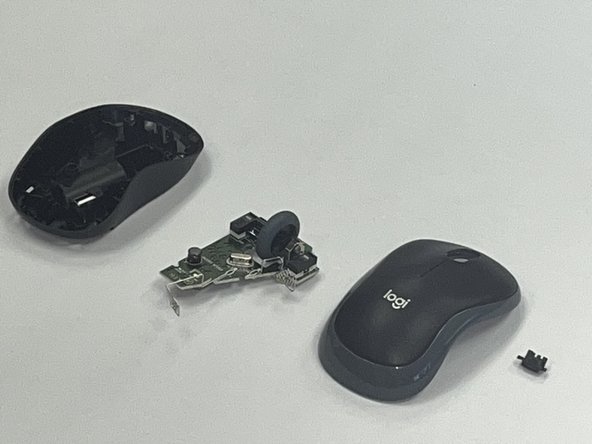
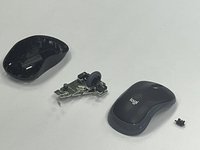
    • Use a black nylon spudger to pry out the motherboard and remove it from the bottom case.

    • Don't use a metal spudger on the internals of your device as displayed in the photo, it can cause damage.

    • Be careful when handling the motherboard. If you don't have any gloves, do not touch the motherboard with your hands. Only hold it by the edges.

  5. Logitech M185 Wireless Mouse Motherboard Replacement: шаг 5, изображение 1 из 2 Logitech M185 Wireless Mouse Motherboard Replacement: шаг 5, изображение 2 из 2
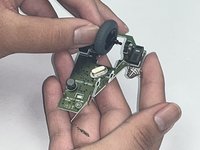
    • Remove the scroll wheel from the motherboard.

    • Before you insert your new motherboard, remember to attach the scroll wheel to it.

Заключение

To reassemble your device, follow these instructions in reverse order. Take your e-waste to an R2 or e-Stewards certified recycler.

2 человек успешно провели ремонт по этому руководству.

Robert

Участник с: 09/09/24

201 Репутация

1 руководство автора

Команда

CSU Los Angeles, Team 2-5, Kershman Fall 2024 Участник CSU Los Angeles, Team 2-5, Kershman Fall 2024

CSULA-KERSHMAN-F24S2G5

4 членов

Автор 1 руководств

0 Комментарии к руководству

Добавить комментарий

Статистика просмотров:

За последние 24 часов: 1

За последние 7 дней: 13

За последние 30 дней: 73

За всё время: 1,276