Перейти к основному содержанию
Присоединяйся к сообществу ремонтников - Создай аккаунт

MSI MS-1782 GPU Replacement

Выберете то, что вам нужно

  1. MSI MS-1782 GPU Replacement, Back Cover: шаг 1, изображение 1 из 1
    • Remove five 6.6 mm screws from the edges of the bottom cover using a JIS #1 screwdriver.

    • Remove one 5.6 mm screw from the center of the bottom cover using a JIS #1 screwdriver.

  2. MSI MS-1782 GPU Replacement: шаг 2, изображение 1 из 3 MSI MS-1782 GPU Replacement: шаг 2, изображение 2 из 3 MSI MS-1782 GPU Replacement: шаг 2, изображение 3 из 3
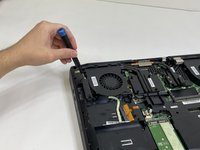
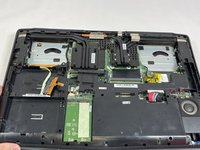
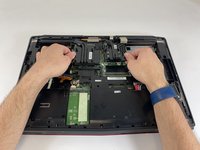
    • Use an iFixit opening pick to unclip the bottom cover.

    • It is ok to run the picks along the edges since there is nothing connected to the bottom cover. It is easier to start from the sides and then work your way forward.

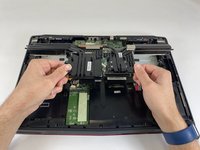
    • After unclipping the bottom case, pull from the back of the laptop upwards using the lip of the bottom case as a handle.

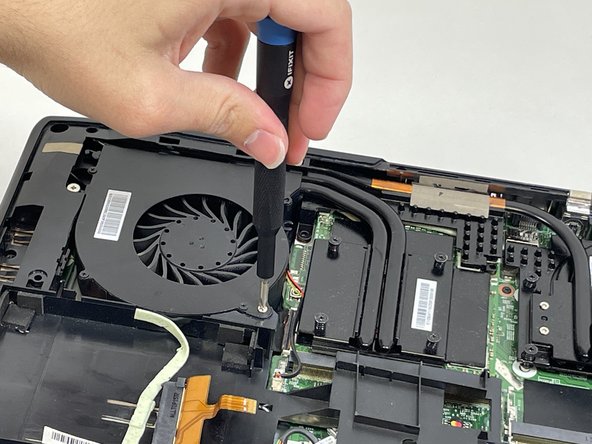
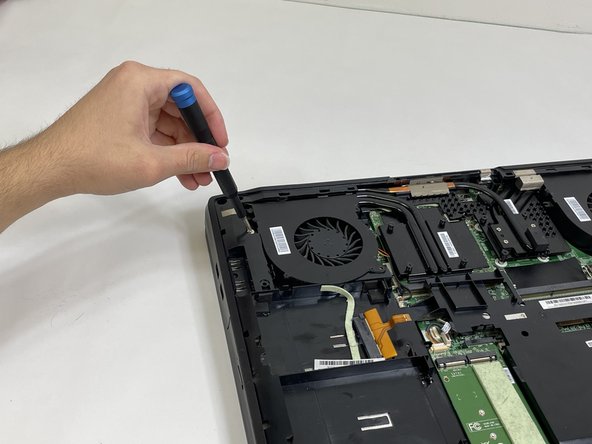
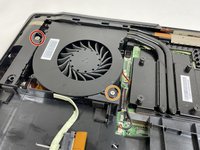
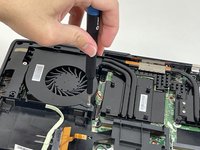
  3. MSI MS-1782 GPU Replacement, Cooling Assembly: шаг 3, изображение 1 из 3 MSI MS-1782 GPU Replacement, Cooling Assembly: шаг 3, изображение 2 из 3 MSI MS-1782 GPU Replacement, Cooling Assembly: шаг 3, изображение 3 из 3
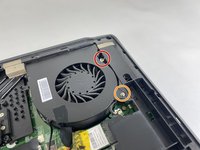
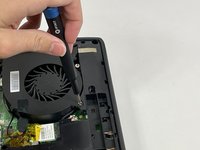
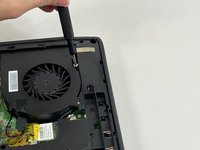
    • Loosen the captive screw on the left side of the left fan using a JIS #2 screwdriver.

    • Remove the 5.1 mm screw on the right side of the left fan using a JIS #2 screwdriver.

  4. MSI MS-1782 GPU Replacement: шаг 4, изображение 1 из 3 MSI MS-1782 GPU Replacement: шаг 4, изображение 2 из 3 MSI MS-1782 GPU Replacement: шаг 4, изображение 3 из 3
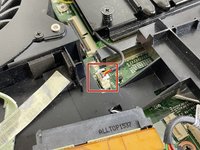
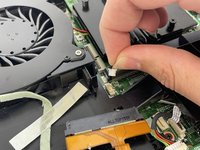
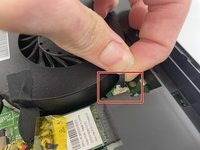
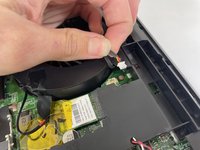
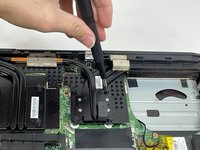
    • Gently detach the fan connector.

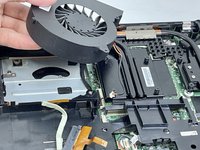
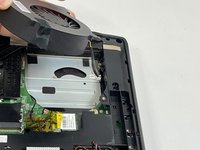
    • Remove the fan by lifting it out of its housing.

    • Be sure to handle the wire delicately; if not it will break.

  5. MSI MS-1782 GPU Replacement: шаг 5, изображение 1 из 3 MSI MS-1782 GPU Replacement: шаг 5, изображение 2 из 3 MSI MS-1782 GPU Replacement: шаг 5, изображение 3 из 3
    • Loosen the captive screw on the top of the right fan using a JIS #2 screwdriver.

    • Remove the 3.6 mm screw on the bottom of the right fan using a JIS #2 screwdriver.

  6. MSI MS-1782 GPU Replacement: шаг 6, изображение 1 из 3 MSI MS-1782 GPU Replacement: шаг 6, изображение 2 из 3 MSI MS-1782 GPU Replacement: шаг 6, изображение 3 из 3
    • Gently detach the fan connector.

    • Remove the fan by lifting it out of its housing.

    • Be sure to handle the wire delicately; if not it will break.

  7. MSI MS-1782 GPU Replacement: шаг 7, изображение 1 из 3 MSI MS-1782 GPU Replacement: шаг 7, изображение 2 из 3 MSI MS-1782 GPU Replacement: шаг 7, изображение 3 из 3
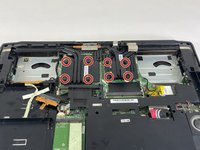
    • Loosen the eight captive screws holding the heat sink in place using a JIS #2 screwdriver.

    • Be sure to follow the numbers that are next to the screws on the heatsink. This evenly removes pressure on the components when removing the heatsink.

  8. MSI MS-1782 GPU Replacement: шаг 8, изображение 1 из 3 MSI MS-1782 GPU Replacement: шаг 8, изображение 2 из 3 MSI MS-1782 GPU Replacement: шаг 8, изображение 3 из 3
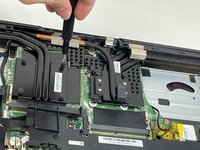
    • Gently lift the heat sink and then pull forwards towards you.

  9. MSI MS-1782 GPU Replacement, GPU: шаг 9, изображение 1 из 3 MSI MS-1782 GPU Replacement, GPU: шаг 9, изображение 2 из 3 MSI MS-1782 GPU Replacement, GPU: шаг 9, изображение 3 из 3
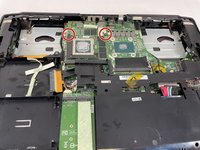
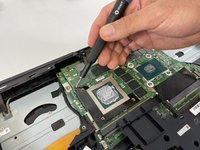
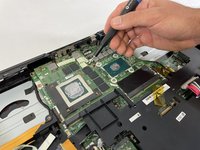
    • Remove the two 5.0 mm screws holding the GPU by using a JIS #1 screwdriver.

  10. MSI MS-1782 GPU Replacement: шаг 10, изображение 1 из 3 MSI MS-1782 GPU Replacement: шаг 10, изображение 2 из 3 MSI MS-1782 GPU Replacement: шаг 10, изображение 3 из 3
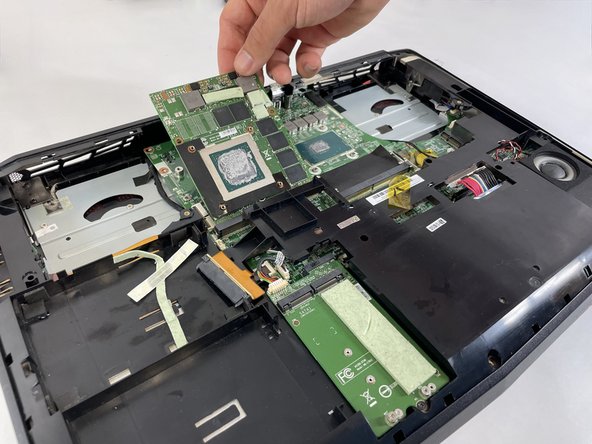
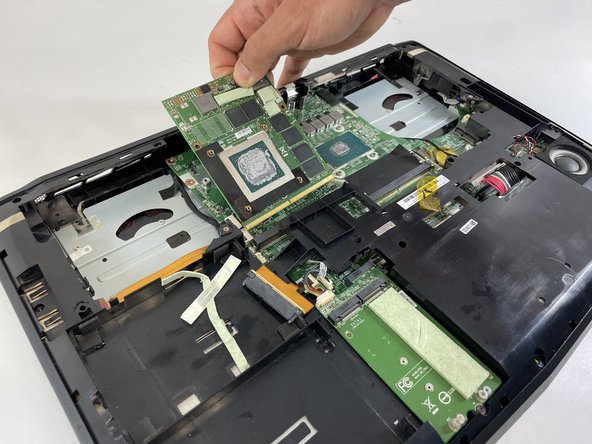
    • Gently lift the GPU and pull to remove it from the laptop.

Заключение

To reassemble your device, follow these instructions in reverse order.

Enmanuel Mota

Участник с: 03/08/23

229 Репутация

Автор 2 руководств

Команда

University of New Orleans, Team 4-4, McDonald Spring 2023 Участник University of New Orleans, Team 4-4, McDonald Spring 2023

UNO-MCDONALD-S23S4G4

3 членов

Автор 7 руководств

0 Комментарии к руководству

Добавить комментарий

Статистика просмотров:

За последние 24 часов: 1

За последние 7 дней: 3

За последние 30 дней: 30

За всё время: 684