Введение
Minimum flash drive size bump (as of 6/28/2026): I have increased the recommended minimum to 64GB. This is primarily due to Ubuntu's increasing ISO sizes and desire for the ISO size champion (e.g., 6.07GB for 26.04 LTS) and the fact that major retailers like Walmart have replaced 32GB name-brand stock with 64GB+ units. Furthermore, 32GB drives are now frequent targets for counterfeits and low-quality B-stock NAND that often fails during boot media creation. While 16-32GB drives remain technically viable for most other distros, 64GB+ is now the safest floor for new purchases.
If you need to write an ISO to a USB flash drive, this guide covers using Rufus. Because most modern computers lack optical drives, USB booting is the fastest way to install or run an operating system.
TL;DR: Buy a 64GB+ drive (USB 5Gbps, often listed as USB 3.0/3.1 or 3.2 Gen 1) preferred; USB 2.0 is slower but serviceable). IF BUDGET IS AN ISSUE, ERASE AND REUSE A PROVEN 16-32GB BRANDED DRIVE RATHER THAN BUYING NO-NAME JUNK!
Note on 8GB/16GB Drives: For mainstream OS installs, 8GB drives are effectively obsolete. While they remain viable for "minimalist" use—such as Arch Linux, Puppy Linux, or Debian NetInst images—they lack the capacity for the "standard" desktop installers most people need as they do not have the margins for formatting, drivers, packages and Linux firmware. Unless you are specifically building a lightweight tool, consider them too small for modern use. 16GB drives will still be viable for a few more years, but will eventually hit the same limits. 32GB drives are fine for now, but verify your source and test any "grey market" purchases.
AMAZON/eBay WARNING: If you buy the drive for this on Amazon or eBay and it has issues out of the box, it is probably counterfeit - get rid of it and buy another one in person. Test these with a tool like ValiDrive (GRC) or h2testw before you rely on these drives.
Guide notes
- Important: OSes without explicit USB boot support are not guaranteed to work. While the risk is low with the right tools, I cannot guarantee anything. You are on your own if there are unforeseen issues with ancient operating systems.
- Used drives should ideally be erased before formatting in Rufus.
- This guide is at Revision 3. If you are using Rufus 2.x, refer to the archive for the previous version.
Выберете то, что вам нужно
-
-
I bought some cheap USB drives for a copy of PM 2020 for 32-bit PCs from walmart, even adjusting the clusters from 16>32, I still had issues.
 Спросите у FixBot
-
-
-
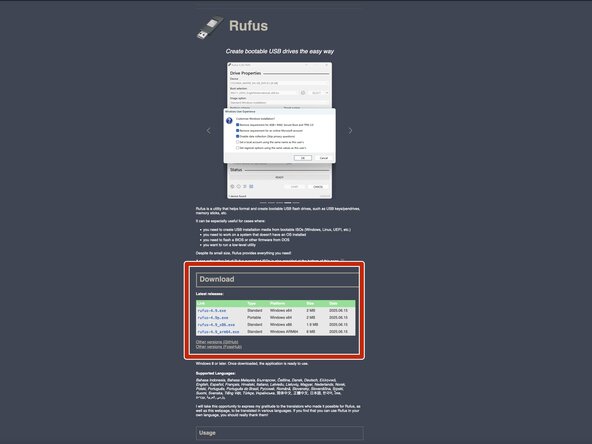
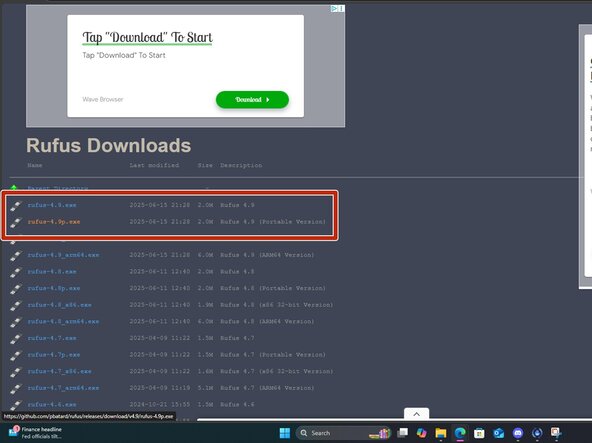
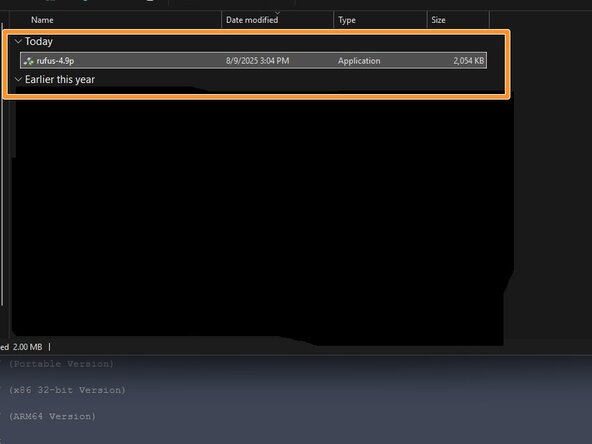
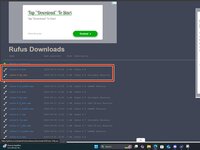
To write the ISO, download Rufus. Place this somewhere it is easily found.
-
-
-
-
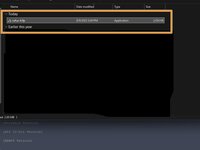
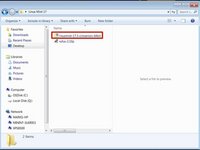
After downloading Rufus, download the ISO you want to write to the USB drive. The file will be in the default download location you picked but is typically in the the Downloads folder.
-
-
-
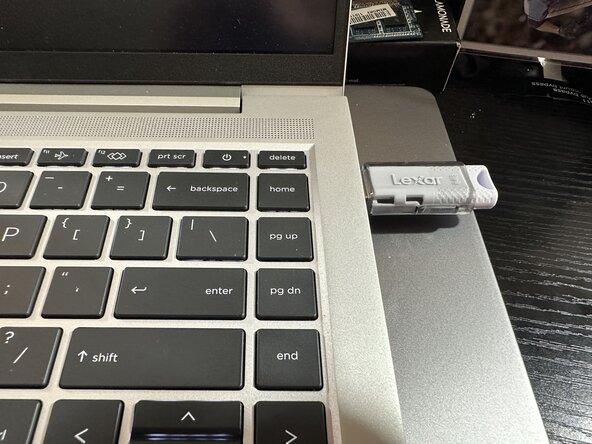
Plug the USB drive in and select the ISO you want to use.
-
-
-
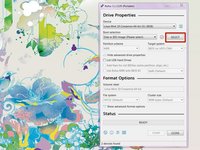
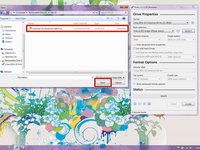
Open Rufus and click SELECT. Find the ISO and click Open.
-
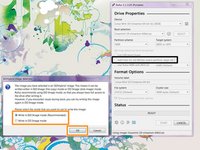
Rufus will ask you to choose ISO or DD mode. If unsure, choose ISO mode.
-
After configuring the writing process, click start. Click OK on the formatting warning.
-








Отменить: Я не выполнил это руководство.
15 человек успешно провели ремонт по этому руководству.

2 Комментарии к руководству
Unetbootin does not work anymore and is considered unstable to use when installing any Linux OS, also 4GB USB drives are more than big enough to get the job done
My reasoning for saying 8GB is because 4GB sticks are all but nonexistent (8GB is more popular now), but if you already own the 4GB stick then it'll work. I even use one from 2006 in the guide, to show that reuse is possible.
Oh really? I always thought it was still a usable option - thanks for letting me know that I was wrong.
