Перейти к основному содержанию
Присоединяйся к сообществу ремонтников - Создай аккаунт

Google Pixel 5a Screen Adhesive Installation

Выберете то, что вам нужно

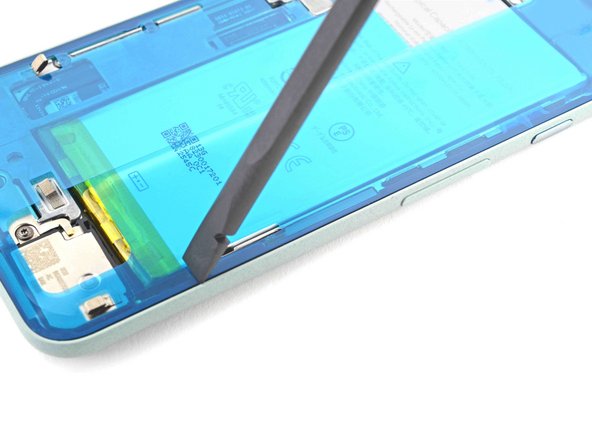
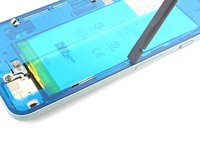
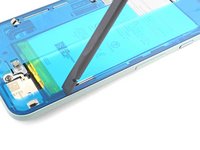
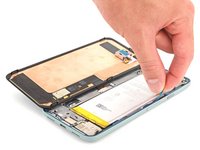
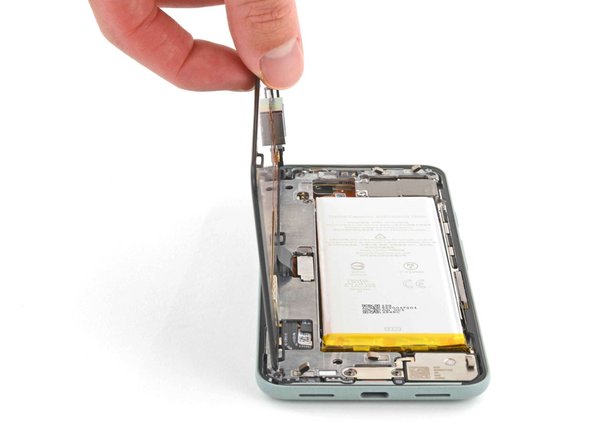
  1. Google Pixel 5a Screen Adhesive Installation, Remove adhesive residue from the frame: шаг 1, изображение 1 из 3 Google Pixel 5a Screen Adhesive Installation, Remove adhesive residue from the frame: шаг 1, изображение 2 из 3 Google Pixel 5a Screen Adhesive Installation, Remove adhesive residue from the frame: шаг 1, изображение 3 из 3
    Инструмент, используемый на этом этапе:
    Tweezers
    $4.99
    • Peel off as much adhesive as you can with a pair of tweezers.

    • Use a spudger to scrape away any lingering adhesive.

    • Don't use metal tools to scrape away adhesive as this will damage the frame.

    • For best results, clean the area underneath the removed adhesive with 90% or greater isopropyl alcohol to prep the surface for the new adhesive.

  2. Google Pixel 5a Screen Adhesive Installation, Remove adhesive residue from the screen: шаг 2, изображение 1 из 3 Google Pixel 5a Screen Adhesive Installation, Remove adhesive residue from the screen: шаг 2, изображение 2 из 3 Google Pixel 5a Screen Adhesive Installation, Remove adhesive residue from the screen: шаг 2, изображение 3 из 3
    • Repeat the previous step for the screen adhesive.

    • Don't use metal tools to scrape away adhesive as this will damage the screen.

    • Don't use isopropyl alcohol near the front camera bracket as it will loosen its adhesive.

  3. Google Pixel 5a Screen Adhesive Installation, Align the adhesive: шаг 3, изображение 1 из 1
    • Use the front camera and corners of the frame to correctly align the adhesive.

  4. Google Pixel 5a Screen Adhesive Installation, Prepare the adhesive: шаг 4, изображение 1 из 1
    • Peel away the clear plastic lining to expose the frame side of the adhesive.

  5. Google Pixel 5a Screen Adhesive Installation, Apply the adhesive: шаг 5, изображение 1 из 2 Google Pixel 5a Screen Adhesive Installation, Apply the adhesive: шаг 5, изображение 2 из 2
    • Be very careful during this step! The adhesive is very sticky and can't be repositioned once it sticks. Misaligned adhesive can lead to an improper seal.

    • Lower the adhesive onto the frame.

    • Use the front camera and corners to help align the adhesive during installation.

  6. Google Pixel 5a Screen Adhesive Installation, Secure the adhesive to the frame: шаг 6, изображение 1 из 2 Google Pixel 5a Screen Adhesive Installation, Secure the adhesive to the frame: шаг 6, изображение 2 из 2
    • Use the flat end of a spudger or your fingernail to press down on the adhesive.

    • Slide along the perimeter to secure the adhesive to the frame.

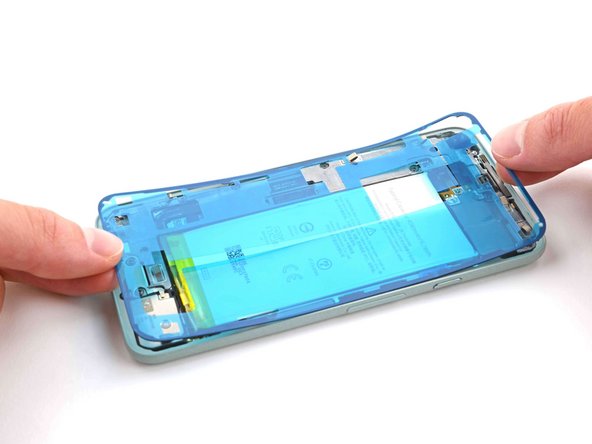
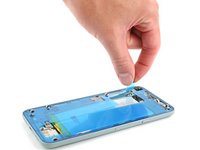
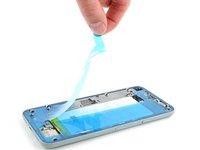
  7. Google Pixel 5a Screen Adhesive Installation, Peel away the outer plastic lining: шаг 7, изображение 1 из 2 Google Pixel 5a Screen Adhesive Installation, Peel away the outer plastic lining: шаг 7, изображение 2 из 2
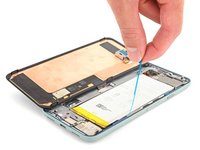
    • Use your fingers to grasp the blue plastic lining near the center and peel it away from the phone.

    • This should leave a thin perimeter of adhesive still covered by blue plastic lining.

  8. Google Pixel 5a Screen Adhesive Installation, Connect the screen: шаг 8, изображение 1 из 2 Google Pixel 5a Screen Adhesive Installation, Connect the screen: шаг 8, изображение 2 из 2
    • Follow the screen replacement guide in reverse order and connect the screen to your pixel.

    • Remember to reinstall the screen connector bracket.

    • If you replaced the screen, check the screen's front-facing camera hole and remove any protective liners covering it.

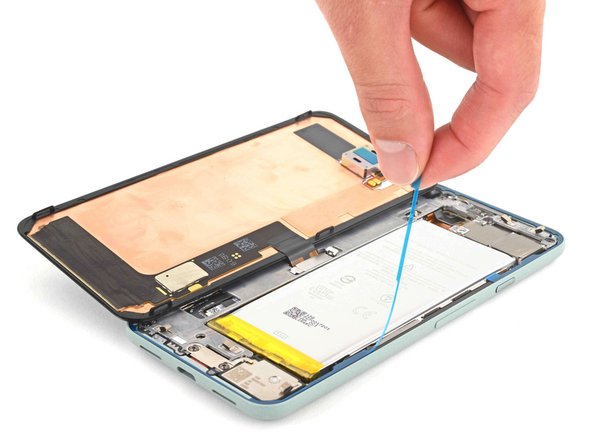
  9. Google Pixel 5a Screen Adhesive Installation, Peel away the remaining plastic lining: шаг 9, изображение 1 из 2 Google Pixel 5a Screen Adhesive Installation, Peel away the remaining plastic lining: шаг 9, изображение 2 из 2
    • Peel away the blue plastic lining to expose the perimeter adhesive.

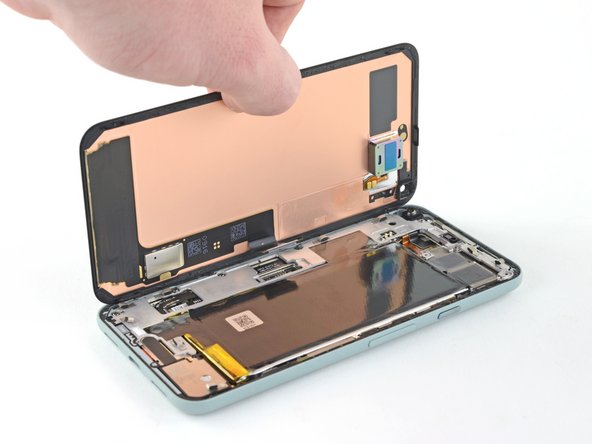
  10. Google Pixel 5a Screen Adhesive Installation, Position the screen: шаг 10, изображение 1 из 3 Google Pixel 5a Screen Adhesive Installation, Position the screen: шаг 10, изображение 2 из 3 Google Pixel 5a Screen Adhesive Installation, Position the screen: шаг 10, изображение 3 из 3
    • Position the screen so it lays on the frame.

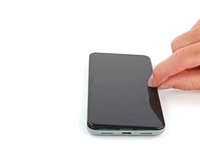
  11. Google Pixel 5a Screen Adhesive Installation, Press down the screen corners: шаг 11, изображение 1 из 2 Google Pixel 5a Screen Adhesive Installation, Press down the screen corners: шаг 11, изображение 2 из 2
    • Press down the corners of the screen to secure them to the frame.

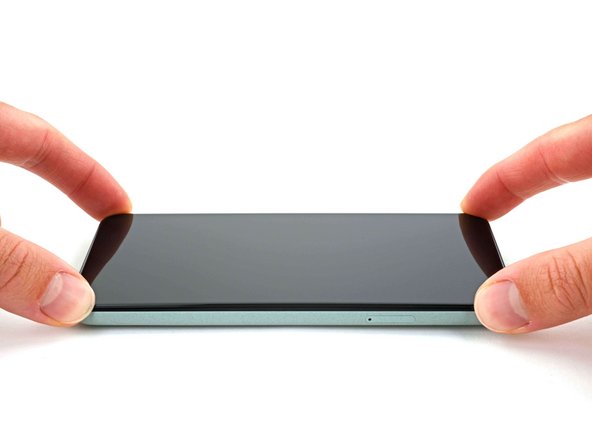
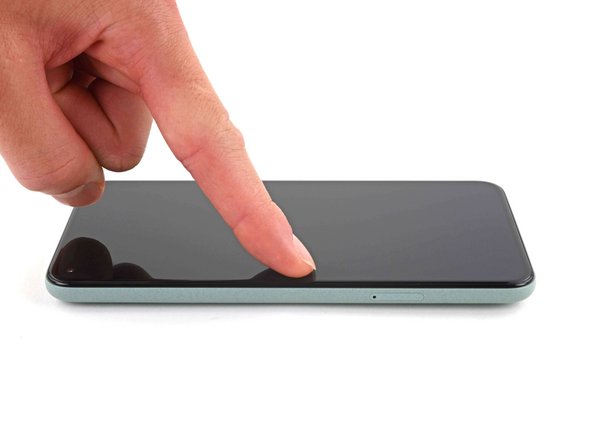
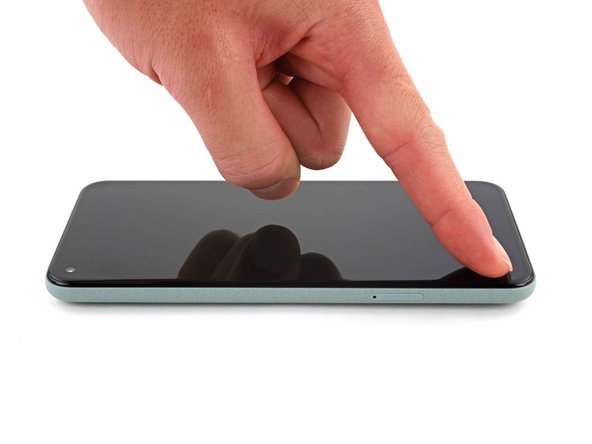
  12. Google Pixel 5a Screen Adhesive Installation, Secure the screen to the frame: шаг 12, изображение 1 из 3 Google Pixel 5a Screen Adhesive Installation, Secure the screen to the frame: шаг 12, изображение 2 из 3 Google Pixel 5a Screen Adhesive Installation, Secure the screen to the frame: шаг 12, изображение 3 из 3
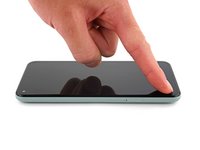
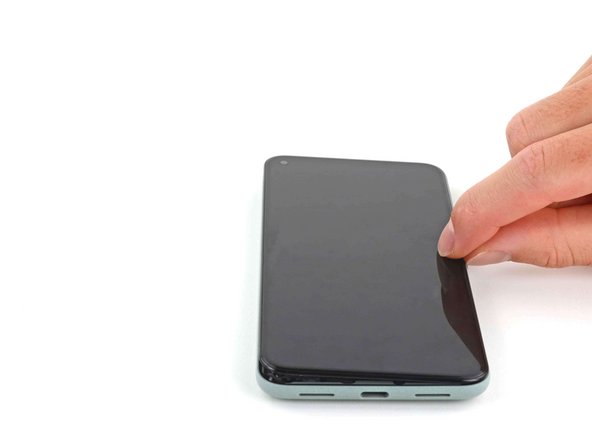
    • Press down on the edges of the screen.

    • Slide along the perimeter to secure it to the frame.

    • You can heat the perimeter of the screen to soften the adhesive and help it bond more securely.

Заключение

Repair didn’t go as planned? Try some basic troubleshooting, or ask our Pixel 5a Answers community for help.

19 человек успешно провели ремонт по этому руководству.

Chayton Ritter

Участник с: 08/21/20

25 773 Репутация

Автор 105 руководств

Команда

Guide Team Участник Guide Team

Staff

10 членов

Автор 16 269 руководств

5 Комментарии к руководству

Pretty easy. Maybe 20 mins job. Nice guide.

Toby Phillippe - Ответить
What is the stack of books for?

ccc - Ответить
Hey there!

Usually you would place a stack of books or 2L+ bottle of water on top of the device to apply extra force to the adhesive and leave it for some time, like 30-60 minutes. That would ensure better adhesion for the replacement screen. It is not necessary nowadays, but it's an old-school style way of gluing things together and seasoned repair techs still place something heavy on top of the device when replacing glued-in components

Nastya Grifon -

Excellent instructions. I was able to get through this no problem.

Chrystian - Ответить

Bought the kit and followed this guide, worked perfectly. Thanks Ifixit for helping me fix my phone.

David Helton - Ответить

Добавить комментарий

Статистика просмотров:

За последние 24 часов: 5

За последние 7 дней: 12

За последние 30 дней: 104

За всё время: 8,092