Перейти к основному содержанию

HMD Fusion Screen Replacement

Выберете то, что вам нужно

  1. HMD Fusion Screen Replacement, Prepare your phone for disassembly: шаг 1, изображение 1 из 1
    • Let your phone's battery drain below 25% before starting this repair. A charged lithium‑ion battery may catch fire if damaged.

    • Unplug all cables from your phone and completely power it down.

  2. HMD Fusion Screen Replacement, Remove the SIM card tray: шаг 2, изображение 1 из 3 HMD Fusion Screen Replacement, Remove the SIM card tray: шаг 2, изображение 2 из 3 HMD Fusion Screen Replacement, Remove the SIM card tray: шаг 2, изображение 3 из 3
    • Firmly press a SIM eject tool, bit, or straightened paper clip into the SIM card tray hole on the left edge of your phone until the tray ejects.

    • Remove the SIM card tray.

  3. HMD Fusion Screen Replacement, Remove the back cover screws: шаг 3, изображение 1 из 3 HMD Fusion Screen Replacement, Remove the back cover screws: шаг 3, изображение 2 из 3 HMD Fusion Screen Replacement, Remove the back cover screws: шаг 3, изображение 3 из 3
    • Use a T3 Torx screwdriver to remove the sixteen 5.0 mm‑long screws securing the back cover.

    • Use your fingernails, or angled tweezers, to remove any stuck screws.

    • The screws are secured tightly in the back cover, so you might not be able to remove all of them. If you can't remove a few screws, don't worry! Move to the next step and follow the guide normally.

  4. HMD Fusion Screen Replacement: шаг 4, изображение 1 из 1
    Инструмент, используемый на этом этапе:
    Magnetic Project Mat
    $19.95
    • During the next four steps, the remaining back cover screws might fall out unexpectedly.

    • To avoid losing screws, you can place a tray, bowl, or Magnetic Project Mat under the phone while you work.

  5. HMD Fusion Screen Replacement, Unclip the back cover: шаг 5, изображение 1 из 2 HMD Fusion Screen Replacement, Unclip the back cover: шаг 5, изображение 2 из 2
    • Flip your phone over so the screen is facing up.

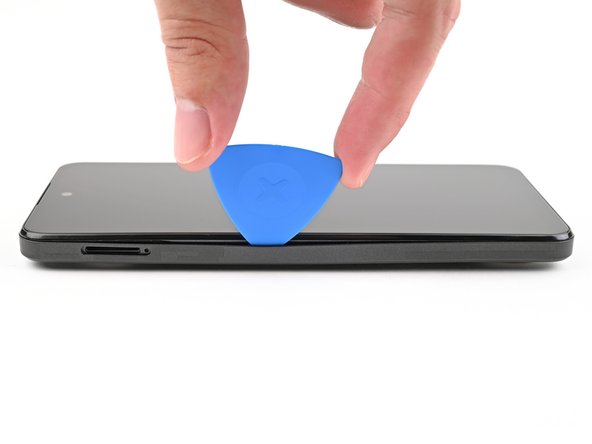
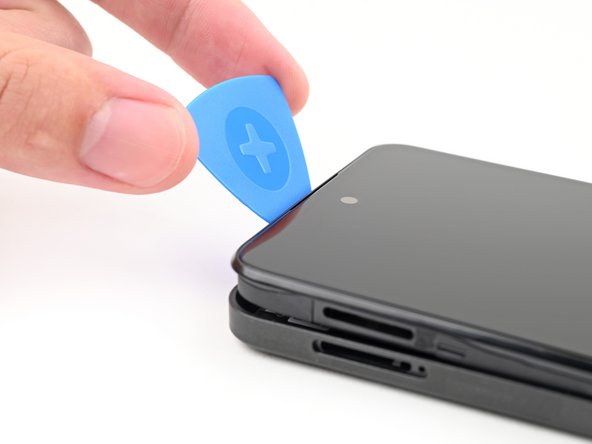
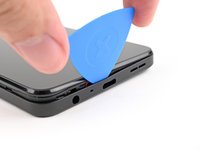
    • Insert the tip of an opening pick between the back cover and frame at the SIM card tray cutout.

  6. HMD Fusion Screen Replacement: шаг 6, изображение 1 из 3 HMD Fusion Screen Replacement: шаг 6, изображение 2 из 3 HMD Fusion Screen Replacement: шаг 6, изображение 3 из 3
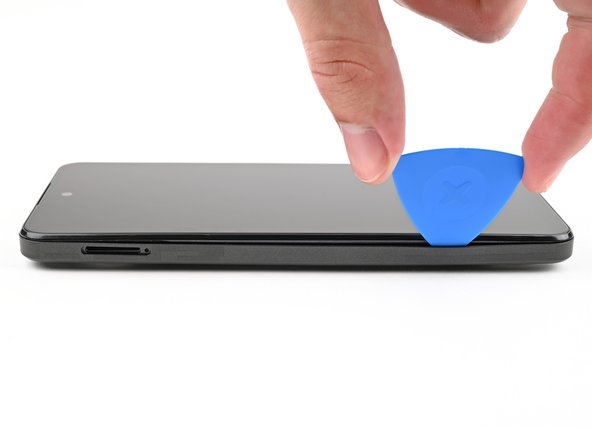
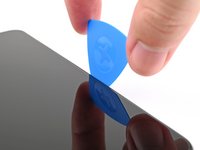
    • Slide the opening pick along the left edge to begin unclipping the back cover.

  7. HMD Fusion Screen Replacement: шаг 7, изображение 1 из 3 HMD Fusion Screen Replacement: шаг 7, изображение 2 из 3 HMD Fusion Screen Replacement: шаг 7, изображение 3 из 3
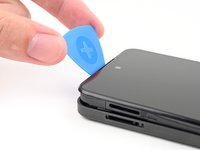
    • Continue sliding the pick around the perimeter of your phone until the back cover is fully unclipped.

    • The corners can be tricky to unclip and may take some force. If you're having trouble, try prying up with the pick.

    • Don't try to fully remove the cover yet, as it's still connected by a delicate cable.

  8. HMD Fusion Screen Replacement: шаг 8, изображение 1 из 3 HMD Fusion Screen Replacement: шаг 8, изображение 2 из 3 HMD Fusion Screen Replacement: шаг 8, изображение 3 из 3
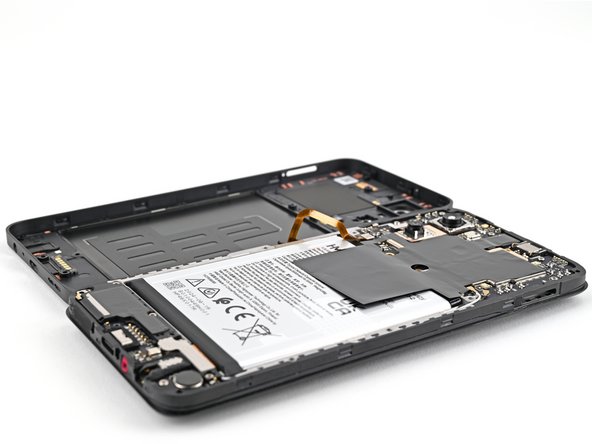
    • Carefully flip your phone over so the back cover is facing up.

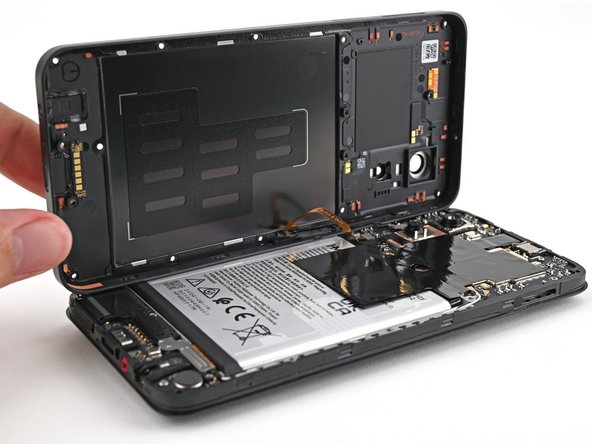
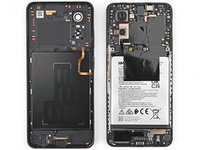
    • Lift the back cover off the frame and flip it over the left edge of your phone, laying the cover flat on your work surface.

    • Be very careful not to strain the back cover's delicate cable.

    • During reassembly, place the back cover onto the frame and firmly press around the perimeter to reengage all the clips.

  9. HMD Fusion Screen Replacement, Disconnect the battery: шаг 9, изображение 1 из 3 HMD Fusion Screen Replacement, Disconnect the battery: шаг 9, изображение 2 из 3 HMD Fusion Screen Replacement, Disconnect the battery: шаг 9, изображение 3 из 3
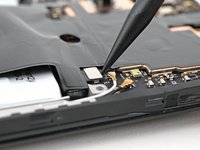
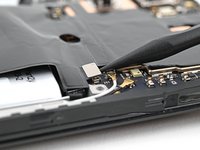
  10. HMD Fusion Screen Replacement, Disconnect the power button: шаг 10, изображение 1 из 3 HMD Fusion Screen Replacement, Disconnect the power button: шаг 10, изображение 2 из 3 HMD Fusion Screen Replacement, Disconnect the power button: шаг 10, изображение 3 из 3
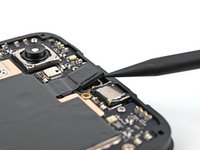
    • Use a spudger to pry up and disconnect the power button press connector.

    • Remove the back cover.

  11. HMD Fusion Screen Replacement, Screen: шаг 11, изображение 1 из 3 HMD Fusion Screen Replacement, Screen: шаг 11, изображение 2 из 3 HMD Fusion Screen Replacement, Screen: шаг 11, изображение 3 из 3
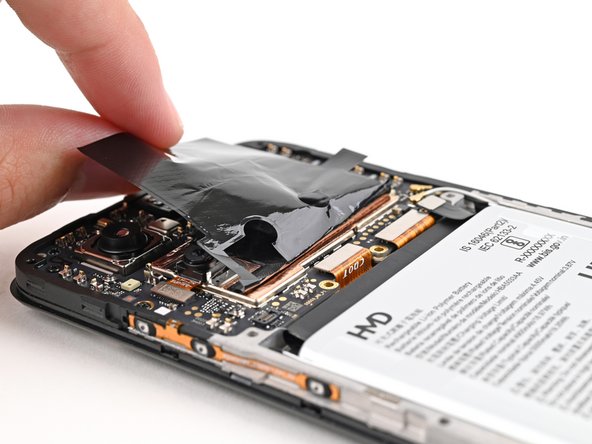
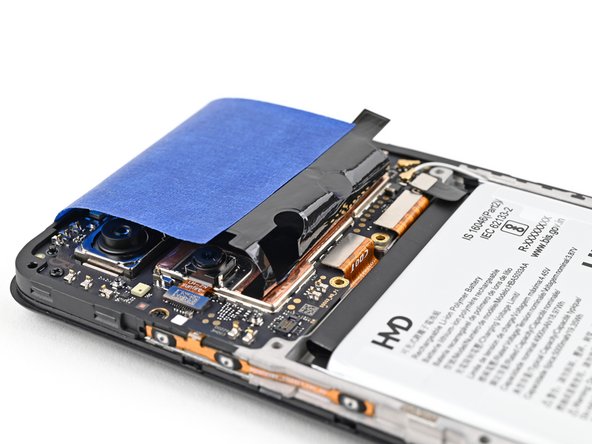
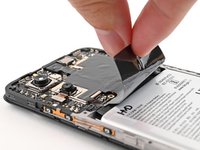
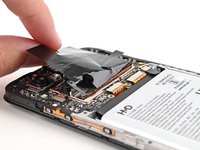
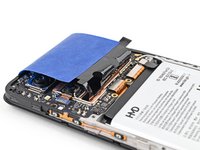
    • For the next step, you'll need to hold the graphite sheet out of the way of the display connector along the bottom of the motherboard.

    • Alternatively, you can use tape with light adhesive (such as painter's tape) to keep the graphite sheet out of the way.

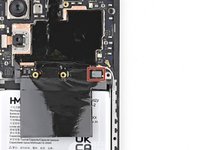
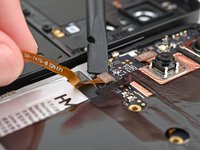
  12. HMD Fusion Screen Replacement, Disconnect the display: шаг 12, изображение 1 из 2 HMD Fusion Screen Replacement, Disconnect the display: шаг 12, изображение 2 из 2
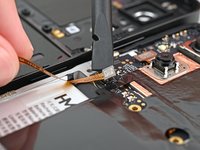
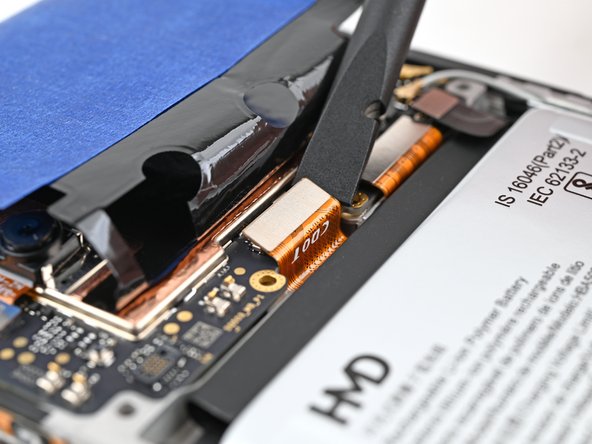
    • Use a spudger to pry up and disconnect the display press connector.

    • Pry under the right edge of the connector, as there are delicate surface‑mounted components to the left of it.

  13. HMD Fusion Screen Replacement, Separate the front camera: шаг 13, изображение 1 из 2 HMD Fusion Screen Replacement, Separate the front camera: шаг 13, изображение 2 из 2
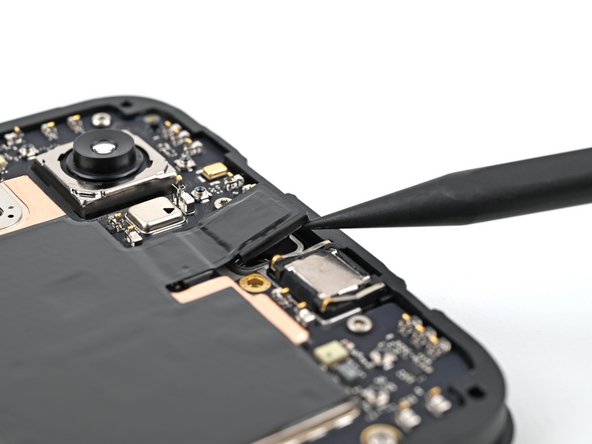
    • Use the tip of a spudger to pry up the front camera from the frame and separate its adhesive.

  14. HMD Fusion Screen Replacement, Remove the screen screws: шаг 14, изображение 1 из 2 HMD Fusion Screen Replacement, Remove the screen screws: шаг 14, изображение 2 из 2
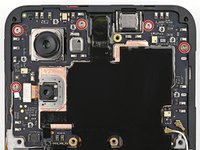
    • Use a T3 Torx screwdriver to remove the seven 3.3 mm‑long screws securing the screen:

    • Five screws on the motherboard

    • Two screws on the loudspeaker

    • One of the screws on the loudspeaker may be covered by a sticker. Pierce through it with your screwdriver, or use tweezers to remove it.

  15. HMD Fusion Screen Replacement, Remove the screen: шаг 15, изображение 1 из 2 HMD Fusion Screen Replacement, Remove the screen: шаг 15, изображение 2 из 2
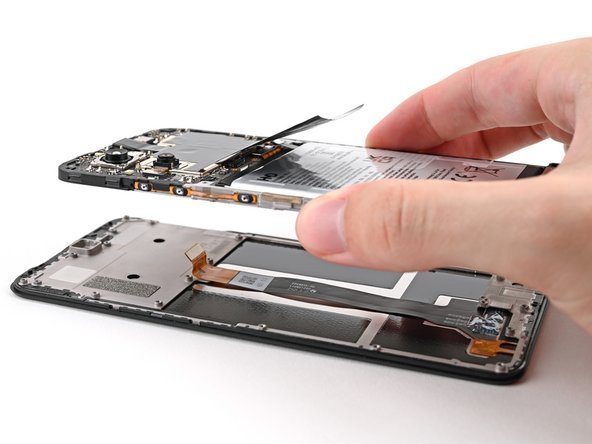
    • Lift the screen off the frame, making sure to thread the display cable through its slot.

    • Remove the screen.

Заключение

To reassemble your device, follow these instructions in reverse order.

Take your e-waste to an R2 or e-Stewards certified recycler.

Repair didn’t go as planned? Try some basic troubleshooting, or ask our Answers community for help.

6 человек успешно провели ремонт по этому руководству.

Alex Diaz-Kokaisl

Участник с: 01/16/22

213 374 Репутация

Автор 1 040 руководств

Команда

iFixit Участник iFixit

Staff

123 членов

Автор 23 640 руководств

3 Комментарии к руководству

Wo kann ich ein Ersatzdisplay bestellen? (Bin aus der Schweiz)

Ivan Haedo - Ответить

Will the parts ever be in stock in Europe? Pointless to buy a repairable phone when you can't buy the parts

Ejrj - Ответить

In teh description you remove the screen, but Ifix send a sreen with a frame fixed to it. no way this is gona fit.

L Verheul - Ответить

Добавить комментарий

Статистика просмотров:

За последние 24 часов: 12

За последние 7 дней: 48

За последние 30 дней: 303

За всё время: 5,434