Перейти к основному содержанию
Присоединяйся к сообществу ремонтников - Создай аккаунт

Smart Soldering Iron Main Board Replacement

Выберете то, что вам нужно

  1. Smart Soldering Iron Main Board Replacement, How to read the Touch-Safe Indicator LED: шаг 1, изображение 1 из 3 Smart Soldering Iron Main Board Replacement, How to read the Touch-Safe Indicator LED: шаг 1, изображение 2 из 3 Smart Soldering Iron Main Board Replacement, How to read the Touch-Safe Indicator LED: шаг 1, изображение 3 из 3
    • The color of the Touch-Safe Indicator LED provides information about the status of the soldering iron tip. Note: the soldering iron grip is always safe to touch.

    • The LED only functions when the soldering iron is connected to a power source—so use caution when handling an unplugged iron if you don't know how hot it is.

    • Blue LED: The iron has cooled below 40 °C (100 °F), and the tip is safe to touch.

    • Purple LED: When pulsing, the iron is actively heating up or cooling down. When static, the iron is in Idle Mode. The iron tip is not safe to touch.

    • Orange LED: The iron has reached the set temperature and is ready to solder. The iron tip is not safe to touch.

    Спросите у FixBot
  2. Smart Soldering Iron Main Board Replacement, Turn off the iron: шаг 2, изображение 1 из 3 Smart Soldering Iron Main Board Replacement, Turn off the iron: шаг 2, изображение 2 из 3 Smart Soldering Iron Main Board Replacement, Turn off the iron: шаг 2, изображение 3 из 3
    • The sliding power switch has a built-in color indicator for each position:

    • Orange: ON

    • Blue: OFF

    • Slide the power switch to the blue OFF position.

    • The LED will turn purple and pulse to show the iron is powering down.

    • Leave the soldering iron connected until the indicator ring turns blue, indicating it's now safe to touch the soldering iron tip.

    • Remember: The LED only functions when the soldering iron is connected to a power source—so use caution when handling an unplugged iron if you don't know how hot it is.

    Спросите у FixBot
  3. Smart Soldering Iron Main Board Replacement, Unplug the iron: шаг 3, изображение 1 из 2 Smart Soldering Iron Main Board Replacement, Unplug the iron: шаг 3, изображение 2 из 2
    • Disconnect the iron's USB-C cable from your power source.

    Спросите у FixBot
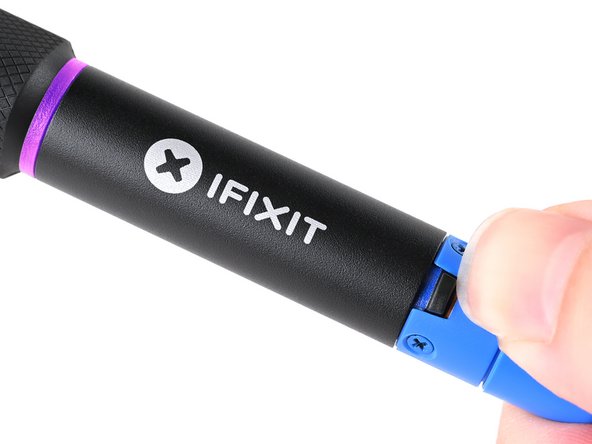
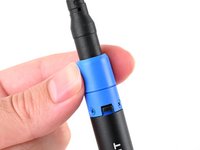
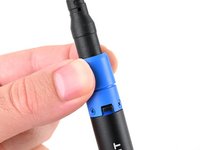
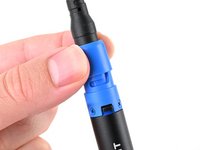
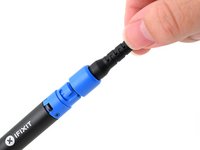
  4. Smart Soldering Iron Main Board Replacement, Unlock the locking collar: шаг 4, изображение 1 из 3 Smart Soldering Iron Main Board Replacement, Unlock the locking collar: шаг 4, изображение 2 из 3 Smart Soldering Iron Main Board Replacement, Unlock the locking collar: шаг 4, изображение 3 из 3
    • Twist the blue cable collar counter-clockwise and pull up to release it from the iron.

    Спросите у FixBot
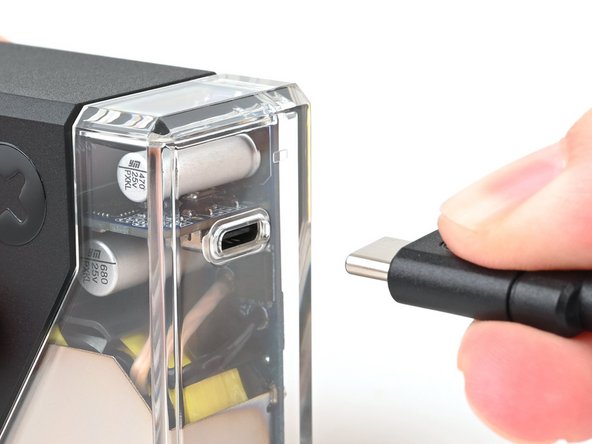
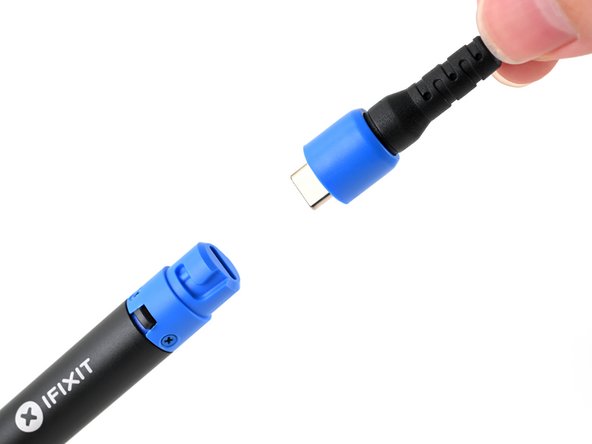
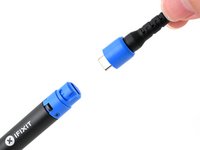
  5. Smart Soldering Iron Main Board Replacement, Disconnect the cable from the iron: шаг 5, изображение 1 из 2 Smart Soldering Iron Main Board Replacement, Disconnect the cable from the iron: шаг 5, изображение 2 из 2
    • Disconnect the USB-C cable from the Smart Soldering Iron.

    Спросите у FixBot
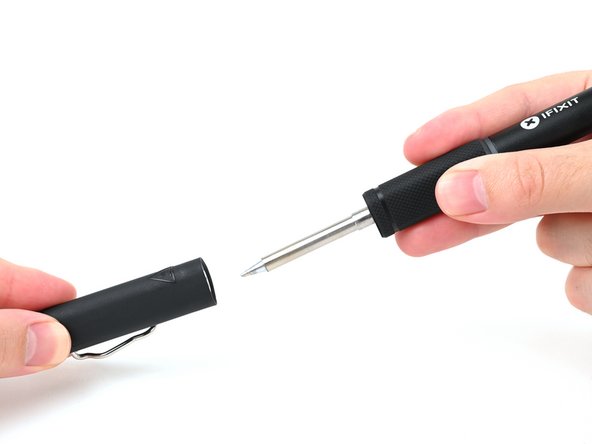
  6. Smart Soldering Iron Main Board Replacement, Remove the soldering iron cap: шаг 6, изображение 1 из 2 Smart Soldering Iron Main Board Replacement, Remove the soldering iron cap: шаг 6, изображение 2 из 2
    • Hold the iron from both ends and pull to remove the cap.

    Спросите у FixBot
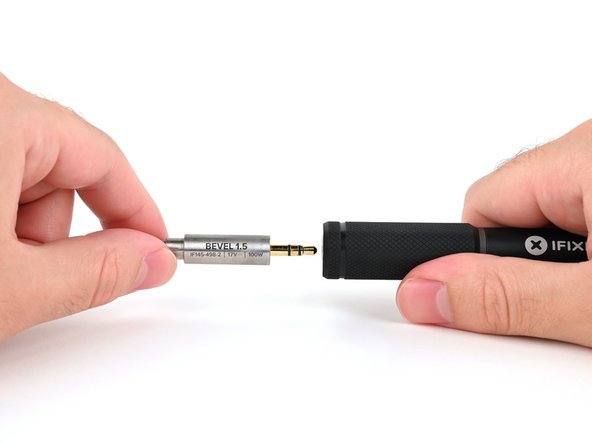
  7. Smart Soldering Iron Main Board Replacement, Remove the quick-swap soldering tip: шаг 7, изображение 1 из 2 Smart Soldering Iron Main Board Replacement, Remove the quick-swap soldering tip: шаг 7, изображение 2 из 2
    • Make sure the tip has fully cooled before touching it.

    • Firmly grasp the base of the tip and pull it away from the front of the iron handle to remove it.

    Спросите у FixBot
  8. Smart Soldering Iron Main Board Replacement, Remove the handle screws: шаг 8, изображение 1 из 2 Smart Soldering Iron Main Board Replacement, Remove the handle screws: шаг 8, изображение 2 из 2
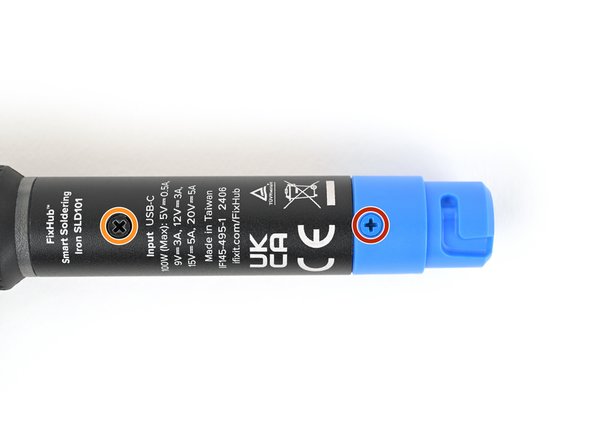
    • Use a Phillips screwdriver to remove the three blue 3.4 mm‑long screws securing the blue end cap.

    • Use a Phillips screwdriver to remove the one black 3.4 mm‑long screw at the base of the enclosure.

    Спросите у FixBot
  9. Smart Soldering Iron Main Board Replacement, Remove the blue end cap: шаг 9, изображение 1 из 2 Smart Soldering Iron Main Board Replacement, Remove the blue end cap: шаг 9, изображение 2 из 2
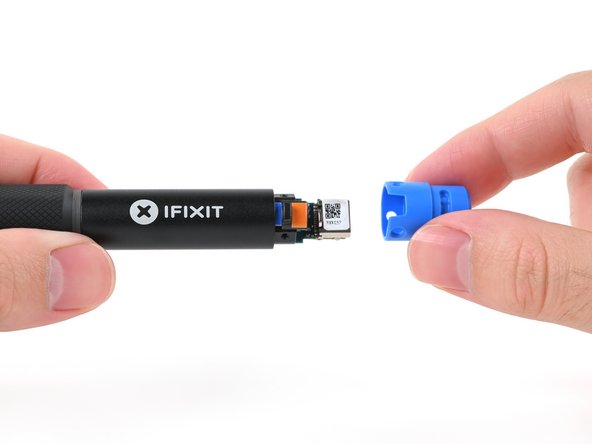
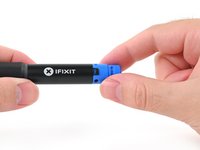
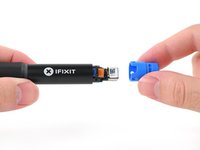
    • Pull to remove the blue end cap from the rest of the iron handle.

    Спросите у FixBot
  10. Smart Soldering Iron Main Board Replacement, Remove the power switch: шаг 10, изображение 1 из 2 Smart Soldering Iron Main Board Replacement, Remove the power switch: шаг 10, изображение 2 из 2
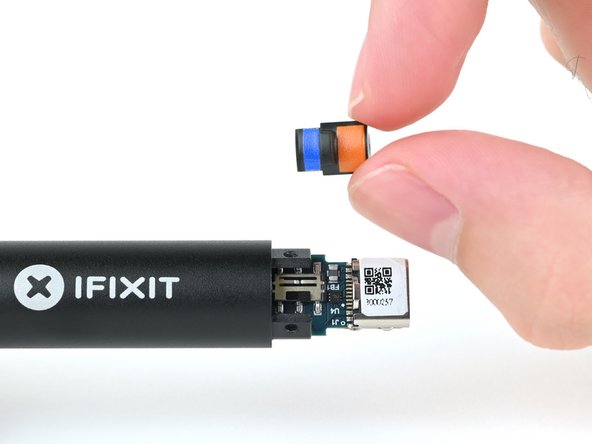
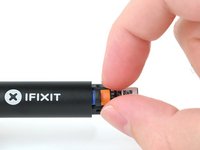
    • Remove the blue and orange power switch.

    Спросите у FixBot
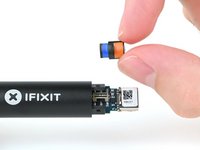
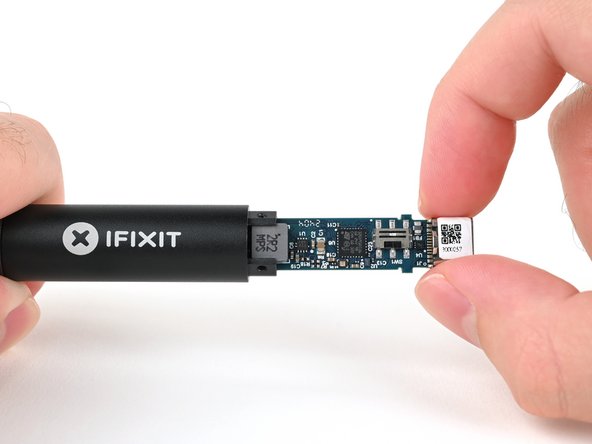
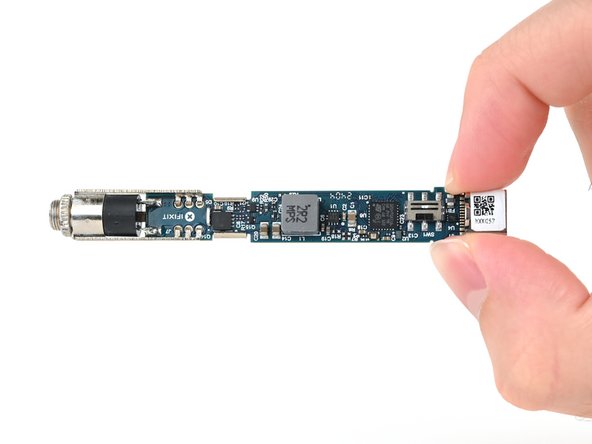
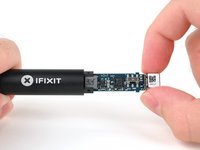
  11. Smart Soldering Iron Main Board Replacement, Remove the main board: шаг 11, изображение 1 из 3 Smart Soldering Iron Main Board Replacement, Remove the main board: шаг 11, изображение 2 из 3 Smart Soldering Iron Main Board Replacement, Remove the main board: шаг 11, изображение 3 из 3
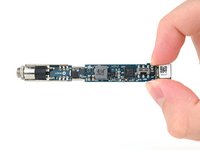
    • Grasp the end of the main board that sticks out from inside of the soldering iron handle.

    • Pull to slide the main board out of the handle.

    • When reassembling your iron, make sure to insert the main board with the shiny iron auxiliary port end first.

    Спросите у FixBot
Заключение

To reassemble your Smart Soldering Iron, follow these instructions in reverse order.

Take your e-waste to an R2 or e-Stewards certified recycler.

Repair didn’t go as planned? Try some basic troubleshooting, or ask our Answers community for help.

Еще один человек закончил это руководство.

Kara Piepenbrink

Участник с: 05/31/24

7 840 Репутация

Автор 21 руководств

Команда

iFixit Участник iFixit

Staff

123 членов

Автор 25 802 руководств

0 Комментарии к руководству

Добавить комментарий

Статистика просмотров:

За последние 24 часов: 1

За последние 7 дней: 18

За последние 30 дней: 109

За всё время: 1,474