Перейти к основному содержанию
Присоединяйся к сообществу ремонтников - Создай аккаунт

iPad 6 Wi-Fi LCD Replacement

Выберете то, что вам нужно

  1. iPad 6 Wi-Fi LCD Replacement, Heat the left edge: шаг 1, изображение 1 из 1
    • Heat an iOpener and apply it to the left edge of the device for two minutes.

    Спросите у FixBot

    Добавить комментарий

  2. iPad 6 Wi-Fi LCD Replacement, Screen removal information: шаг 2, изображение 1 из 3 iPad 6 Wi-Fi LCD Replacement, Screen removal information: шаг 2, изображение 2 из 3 iPad 6 Wi-Fi LCD Replacement, Screen removal information: шаг 2, изображение 3 из 3
    • While you're waiting for the adhesive to loosen, note the following areas that are sensitive to prying:

    • Front camera

    • Antennas

    • Display cables

    Спросите у FixBot

    Добавить комментарий

  3. iPad 6 Wi-Fi LCD Replacement, Anti-Clamp instructions: шаг 3, изображение 1 из 3 iPad 6 Wi-Fi LCD Replacement, Anti-Clamp instructions: шаг 3, изображение 2 из 3 iPad 6 Wi-Fi LCD Replacement, Anti-Clamp instructions: шаг 3, изображение 3 из 3
    Инструмент, используемый на этом этапе:
    Clampy - Anti-Clamp
    $24.95
    • The next three steps demonstrate the Anti-Clamp, a tool we designed to make the opening procedure easier. If you aren't using the Anti-Clamp, skip down three steps for an alternate method.

    • For complete instructions on how to use the Anti-Clamp, check out this guide.

    • Pull the blue handle backwards to unlock the Anti-Clamp's arms.

    • Place an object under your iPad so it rests level between the suction cups.

    • Position the suction cups near the middle of the left edge—one on the top, and one on the bottom.

    • Hold the bottom of the Anti-Clamp steady and firmly press down on the top cup to apply suction.

    • If you find that the surface of your iPad is too slippery for the Anti-Clamp to hold onto, use tape to create a grippier surface.

    Спросите у FixBot

    Добавить комментарий

  4. iPad 6 Wi-Fi LCD Replacement: шаг 4, изображение 1 из 3 iPad 6 Wi-Fi LCD Replacement: шаг 4, изображение 2 из 3 iPad 6 Wi-Fi LCD Replacement: шаг 4, изображение 3 из 3
    • Pull the blue handle forward to lock the arms.

    • Turn the handle clockwise 360 degrees or until the cups start to stretch.

    • Make sure the suction cups remain aligned with each other. If they begin to slip out of alignment, loosen the suction cups slightly and realign the arms.

    Спросите у FixBot

    Добавить комментарий

  5. iPad 6 Wi-Fi LCD Replacement: шаг 5, изображение 1 из 2 iPad 6 Wi-Fi LCD Replacement: шаг 5, изображение 2 из 2
    • Wait one minute to give the adhesive a chance to release and present an opening gap.

    • If your screen isn't getting hot enough, you can use a hair dryer to heat along the left edge of the iPad.

    • For complete instructions on how to use a hair dryer, check out this guide.

    • Insert an opening pick under the digitizer when the Anti-Clamp creates a large enough gap.

    • If the Anti-Clamp doesn't create a sufficient gap, apply more heat to the area and rotate the handle clockwise half a turn.

    • Don't crank more than a half a turn at a time, and wait one minute between turns. Let the Anti-Clamp and time do the work for you.

    • Skip the next step.

    Спросите у FixBot

    Добавить комментарий

  6. iPad 6 Wi-Fi LCD Replacement, Insert an opening pick: шаг 6, изображение 1 из 3 iPad 6 Wi-Fi LCD Replacement, Insert an opening pick: шаг 6, изображение 2 из 3 iPad 6 Wi-Fi LCD Replacement, Insert an opening pick: шаг 6, изображение 3 из 3
    • If your display is badly cracked, covering it with a layer of clear packing tape may allow the suction cup to adhere. Alternatively, very strong tape may be used instead of the suction cup. If all else fails, you can superglue the suction cup to the broken screen.

    • Once the screen is warm to touch, apply a suction handle to the left edge of the screen and as close to the edge as possible.

    • Lift the screen with the suction handle to create a small gap between the digitizer and the frame.

    • Insert an opening pick into the gap between the digitizer and the frame.

    Спросите у FixBot

    Добавить комментарий

  7. iPad 6 Wi-Fi LCD Replacement, Separate the left adhesive: шаг 7, изображение 1 из 3 iPad 6 Wi-Fi LCD Replacement, Separate the left adhesive: шаг 7, изображение 2 из 3 iPad 6 Wi-Fi LCD Replacement, Separate the left adhesive: шаг 7, изображение 3 из 3
    • Insert a second opening pick into the gap you just created.

    • Slide the pick toward the bottom-left corner of the device to separate the adhesive.

    • Leave the pick in the bottom-left corner to prevent the adhesive from re-sealing.

    • Don't worry if you can see the opening pick through the digitizer—just pull the pick out. The LCD screen shouldn't be damaged, but you risk leaving behind hard-to-clean adhesive.

    Спросите у FixBot

    Добавить комментарий

  8. iPad 6 Wi-Fi LCD Replacement: шаг 8, изображение 1 из 3 iPad 6 Wi-Fi LCD Replacement: шаг 8, изображение 2 из 3 iPad 6 Wi-Fi LCD Replacement: шаг 8, изображение 3 из 3
    • If the opening pick gets stuck in the adhesive, "roll" the pick along the side of the iPad to continue separating the adhesive.

    Спросите у FixBot

    Добавить комментарий

  9. iPad 6 Wi-Fi LCD Replacement: шаг 9, изображение 1 из 3 iPad 6 Wi-Fi LCD Replacement: шаг 9, изображение 2 из 3 iPad 6 Wi-Fi LCD Replacement: шаг 9, изображение 3 из 3
    • Slide the first opening pick towards the top-left corner of the device to separate the adhesive.

    • Leave the pick in the top-left corner to prevent the adhesive from re-sealing.

    Спросите у FixBot

    Добавить комментарий

  10. iPad 6 Wi-Fi LCD Replacement, Heat the top edge: шаг 10, изображение 1 из 1
    • Heat an iOpener and apply it to the top edge of the device for two minutes.

    Спросите у FixBot

    Добавить комментарий

  11. iPad 6 Wi-Fi LCD Replacement, Separate the top left adhesive: шаг 11, изображение 1 из 3 iPad 6 Wi-Fi LCD Replacement, Separate the top left adhesive: шаг 11, изображение 2 из 3 iPad 6 Wi-Fi LCD Replacement, Separate the top left adhesive: шаг 11, изображение 3 из 3
    • Rotate the pick around the top-left corner of the device to separate the adhesive.

    Спросите у FixBot

    Добавить комментарий

  12. iPad 6 Wi-Fi LCD Replacement, Separate the top adhesive: шаг 12, изображение 1 из 3 iPad 6 Wi-Fi LCD Replacement, Separate the top adhesive: шаг 12, изображение 2 из 3 iPad 6 Wi-Fi LCD Replacement, Separate the top adhesive: шаг 12, изображение 3 из 3
    • Slide the opening pick along the top edge of the device, stopping just before you reach the front camera.

    • Avoid sliding the pick over the front camera, as you may damage the lens. The following steps will show how to prevent this.

    Спросите у FixBot

    Добавить комментарий

  13. iPad 6 Wi-Fi LCD Replacement: шаг 13, изображение 1 из 3 iPad 6 Wi-Fi LCD Replacement: шаг 13, изображение 2 из 3 iPad 6 Wi-Fi LCD Replacement: шаг 13, изображение 3 из 3
    • Pull the pick out until only the tip is between the digitizer and the frame.

    • Slide the pick above the front camera to separate the adhesive.

    • Leave the pick near the right side of the front camera before continuing.

    Спросите у FixBot

    Добавить комментарий

  14. iPad 6 Wi-Fi LCD Replacement: шаг 14, изображение 1 из 3 iPad 6 Wi-Fi LCD Replacement: шаг 14, изображение 2 из 3 iPad 6 Wi-Fi LCD Replacement: шаг 14, изображение 3 из 3
    • Re-insert the pick and slide it towards the top-right corner of the device to completely separate the top adhesive.

    • Leave the pick in the top-right corner to prevent the adhesive from re-sealing.

    Спросите у FixBot

    Добавить комментарий

  15. iPad 6 Wi-Fi LCD Replacement, Heat the right edge: шаг 15, изображение 1 из 1
    • Heat an iOpener and apply it to the right edge of the device for two minutes.

    Спросите у FixBot

    Добавить комментарий

  16. iPad 6 Wi-Fi LCD Replacement, Separate the top right adhesive: шаг 16, изображение 1 из 3 iPad 6 Wi-Fi LCD Replacement, Separate the top right adhesive: шаг 16, изображение 2 из 3 iPad 6 Wi-Fi LCD Replacement, Separate the top right adhesive: шаг 16, изображение 3 из 3
    • Rotate the pick around the top-right corner of the device to separate the adhesive.

    Спросите у FixBot

    Добавить комментарий

  17. iPad 6 Wi-Fi LCD Replacement, Separate the right adhesive: шаг 17, изображение 1 из 3 iPad 6 Wi-Fi LCD Replacement, Separate the right adhesive: шаг 17, изображение 2 из 3 iPad 6 Wi-Fi LCD Replacement, Separate the right adhesive: шаг 17, изображение 3 из 3
    • Insert a new opening pick and slide it to the middle of the iPad's right edge.

    • Stop sliding once you reach five inches from the bottom of the iPad to avoid damaging the display cables.

    Спросите у FixBot

    Добавить комментарий

  18. iPad 6 Wi-Fi LCD Replacement, Heat the bottom edge: шаг 18, изображение 1 из 1
    • Heat an iOpener and apply it to the bottom edge of the device for two minutes.

    Спросите у FixBot

    Добавить комментарий

  19. iPad 6 Wi-Fi LCD Replacement, Separate the bottom left adhesive: шаг 19, изображение 1 из 3 iPad 6 Wi-Fi LCD Replacement, Separate the bottom left adhesive: шаг 19, изображение 2 из 3 iPad 6 Wi-Fi LCD Replacement, Separate the bottom left adhesive: шаг 19, изображение 3 из 3
    • Slide the bottom-left pick to the bottom-left corner to separate the adhesive.

    • Don't fully rotate the pick around the corner, as you may damage the antenna.

    • Leave the pick in the bottom-left corner before moving to the next step.

    Спросите у FixBot

    Добавить комментарий

  20. iPad 6 Wi-Fi LCD Replacement, Separate the bottom adhesive: шаг 20, изображение 1 из 3 iPad 6 Wi-Fi LCD Replacement, Separate the bottom adhesive: шаг 20, изображение 2 из 3 iPad 6 Wi-Fi LCD Replacement, Separate the bottom adhesive: шаг 20, изображение 3 из 3
    • Insert a new opening pick into the gap you just created on the bottom edge of the iPad.

    • Slide the pick over the antenna, stopping just before the home button.

    • Only slide the pick towards the home button and not away from it, as you may damage the antenna.

    • If you need to slide the pick over this section again, remove and re-insert it at the bottom-left corner.

    • Leave the pick to the left of the home button before continuing.

    Спросите у FixBot

    Добавить комментарий

  21. iPad 6 Wi-Fi LCD Replacement: шаг 21, изображение 1 из 3 iPad 6 Wi-Fi LCD Replacement: шаг 21, изображение 2 из 3 iPad 6 Wi-Fi LCD Replacement: шаг 21, изображение 3 из 3
    • Insert an opening pick into the gap you just created.

    • Slide the pick underneath the home button and towards the bottom-right corner, making sure only the tip is between the digitizer and the frame.

    • Only insert the pick up to 1 mm to avoid damaging the right antenna.

    Спросите у FixBot

    Добавить комментарий

  22. iPad 6 Wi-Fi LCD Replacement: шаг 22, изображение 1 из 3 iPad 6 Wi-Fi LCD Replacement: шаг 22, изображение 2 из 3 iPad 6 Wi-Fi LCD Replacement: шаг 22, изображение 3 из 3
    • Re-insert the pick and slide it towards the home button to completely separate the bottom adhesive.

    • Only slide the pick towards the home button and not away from it, as you may damage the antenna.

    • If you need to slide the pick over this section again, remove and re-insert it at the bottom-right corner.

    • Leave the pick to the right of the home button before continuing.

    Спросите у FixBot

    Добавить комментарий

  23. iPad 6 Wi-Fi LCD Replacement, Heat the right edge: шаг 23, изображение 1 из 1
    • Heat an iOpener and apply it to the right edge of the device for two minutes.

    Спросите у FixBot

    Добавить комментарий

  24. iPad 6 Wi-Fi LCD Replacement: шаг 24, изображение 1 из 2 iPad 6 Wi-Fi LCD Replacement: шаг 24, изображение 2 из 2
    • Be very careful with this step. Take your time, ensure the adhesive is hot and soft, and make sure you separated all of the adhesive with a pick. Don't be afraid to stop and reheat.

    • Twist the two opening picks on the left corners of the iPad to lift the digitizer slightly, separating the the last of the adhesive in the process.

    • If there's a significant amount of resistance, reheat the edges and work along them with an opening pick.

    Спросите у FixBot

    Добавить комментарий

  25. iPad 6 Wi-Fi LCD Replacement: шаг 25, изображение 1 из 2 iPad 6 Wi-Fi LCD Replacement: шаг 25, изображение 2 из 2
    • Lift the left edge of the digitizer upwards to further separate the adhesive along the right edge of the iPad.

    Спросите у FixBot

    Добавить комментарий

  26. iPad 6 Wi-Fi LCD Replacement, Separate the right adhesive: шаг 26, изображение 1 из 3 iPad 6 Wi-Fi LCD Replacement, Separate the right adhesive: шаг 26, изображение 2 из 3 iPad 6 Wi-Fi LCD Replacement, Separate the right adhesive: шаг 26, изображение 3 из 3
    • While supporting the digitizer, slide an opening pick between the two display cables to separate the last of the adhesive.

    Спросите у FixBot

    Добавить комментарий

  27. iPad 6 Wi-Fi LCD Replacement: шаг 27, изображение 1 из 2 iPad 6 Wi-Fi LCD Replacement: шаг 27, изображение 2 из 2
    • Once all of the adhesive has been separated, open the digitizer like a book and rest it parallel to the iPad.

    • During reassembly, clean the remaining adhesive from the frame—and the digitizer if you're re-using it—with isopropyl alcohol. Replace the adhesive with our adhesive strips or pre-cut adhesive cards.

    • Be mindful of the display cables when reassembling the device. Make sure they are folded properly underneath the LCD screen to prevent any damage.

    Спросите у FixBot

    Добавить комментарий

  28. iPad 6 Wi-Fi LCD Replacement, LCD: шаг 28, изображение 1 из 3 iPad 6 Wi-Fi LCD Replacement, LCD: шаг 28, изображение 2 из 3 iPad 6 Wi-Fi LCD Replacement, LCD: шаг 28, изображение 3 из 3
    • Remove any tape obscuring the LCD screws.

    Спросите у FixBot

    Добавить комментарий

  29. iPad 6 Wi-Fi LCD Replacement: шаг 29, изображение 1 из 1
    • Remove the four Phillips #00 4.3 mm screws securing the LCD.

    Спросите у FixBot

    Добавить комментарий

  30. iPad 6 Wi-Fi LCD Replacement: шаг 30, изображение 1 из 3 iPad 6 Wi-Fi LCD Replacement: шаг 30, изображение 2 из 3 iPad 6 Wi-Fi LCD Replacement: шаг 30, изображение 3 из 3
    • Do not attempt to fully remove the LCD. It is still connected to the iPad by several cables at the home button end. Lift only from the front-facing camera end.

    • Use the flat end of a spudger to pry the LCD out of its recess just enough to grab it with your fingers. There may be glue around the screw holes that needs to be cut with a knife.

    • Flip the iPad LCD like a page in a book, lifting near the camera and turning it over the home button end of the rear case.

    • Be gentle and keep an eye on the LCD cables as you flip the display over.

    • Lay the LCD on its face to allow access to the display cables.

    • Set the LCD down on a soft, clean, lint-free surface.

    Спросите у FixBot

    Добавить комментарий

  31. iPad 6 Wi-Fi LCD Replacement, Battery connector information: шаг 31, изображение 1 из 3 iPad 6 Wi-Fi LCD Replacement, Battery connector information: шаг 31, изображение 2 из 3 iPad 6 Wi-Fi LCD Replacement, Battery connector information: шаг 31, изображение 3 из 3
    • These photos show what the battery connector looks like underneath the logic board. Use these photos as a reference while you safely disconnect the battery.

    • Notice that the battery connector has cantilever springs on the logic board that press against the battery contact pads. Since both the logic board and battery are glued down, you'll need to slide something thin and flexible between the contact points to disconnect the battery.

    Спросите у FixBot

    Добавить комментарий

  32. iPad 6 Wi-Fi LCD Replacement: шаг 32, изображение 1 из 3 iPad 6 Wi-Fi LCD Replacement: шаг 32, изображение 2 из 3 iPad 6 Wi-Fi LCD Replacement: шаг 32, изображение 3 из 3
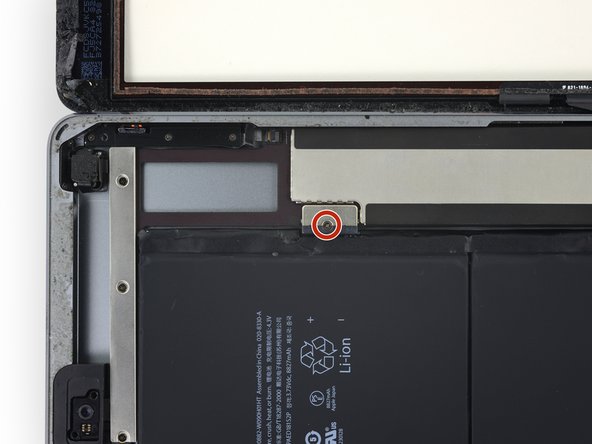
    • Remove the single 2.3 mm Phillips #000 screw securing the battery connector to the logic board.

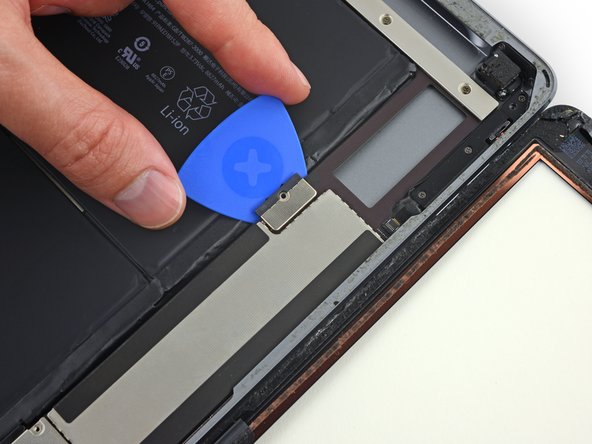
    • To reduce the risk of a short, you can use a battery isolation pick to disconnect the battery.

    • Slide the battery blocker underneath the logic board's battery connector at a 35 degree angle.

    • Don't push the battery blocker underneath the connector with excessive force. If you're having trouble fitting the battery blocker underneath the logic board, you can try using a playing card to disconnect the battery instead.

    • The battery blocker or playing card ideally should slide under the logic board without encountering any blockages. After insertion, it should rest at a 15 degree angle.

    • Leave the battery blocker in place as you work.

    Спросите у FixBot

    Добавить комментарий

  33. iPad 6 Wi-Fi LCD Replacement: шаг 33, изображение 1 из 1
    • Remove the three 1.4 mm Phillips #000 screws from the display cable bracket.

    Спросите у FixBot

    Добавить комментарий

  34. iPad 6 Wi-Fi LCD Replacement: шаг 34, изображение 1 из 2 iPad 6 Wi-Fi LCD Replacement: шаг 34, изображение 2 из 2
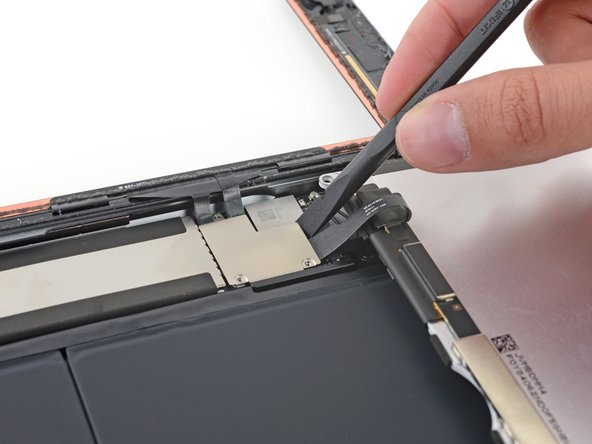
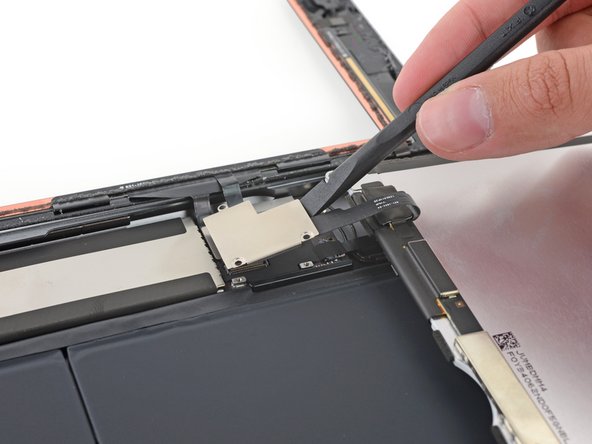
    • Use the flat end of a spudger to gently pry the display cable bracket straight up from the logic board.

    • The display cable connector is adhered to the underside of the bracket, so don’t push the spudger too far under the bracket, or you may damage the connector.

    Спросите у FixBot

    Добавить комментарий

  35. iPad 6 Wi-Fi LCD Replacement: шаг 35, изображение 1 из 1
    • Remove the LCD.

    Спросите у FixBot

    Добавить комментарий

Заключение

To reassemble your device, follow these instructions in reverse order.

Отменить: Я не выполнил это руководство.

28 человек успешно провели ремонт по этому руководству.

Sam Goldheart

Участник с: 10/18/12

477 361 Репутация

Автор 538 руководств

Команда

iFixit Участник iFixit

Staff

122 членов

Автор 25 808 руководств

12 Комментарии к руководству

No comments…. No one is brave enough to attempt this :)

Tal Glazer - Ответить Поделиться

I tried to replace the LCD with the iPad AIR 1 LCD and is NOT compatible. It fits and the connector is the same but shows just like tv static noise.

nazareno valentini - Ответить Поделиться

I have same issue, but with LCD iPad 5, some idea to make it compatible.

Luis Prieto - Ответить Поделиться

I replaced the front screen and now the number 9 on the passcode keypad isn’t working. I don’t get it.

Richard Lombardo - Ответить Поделиться

I’m having the same issue! Different numbers, but same issue. Just certain sections of the screen won’t respond to touch.

Adriane Zaic - Ответить Поделиться

Добавить комментарий

Статистика просмотров:

За последние 24 часов: 13

За последние 7 дней: 54

За последние 30 дней: 267

За всё время: 40,781