Перейти к основному содержанию
Присоединяйся к сообществу ремонтников - Создай аккаунт

Portable Soldering Station Quick Start Guide

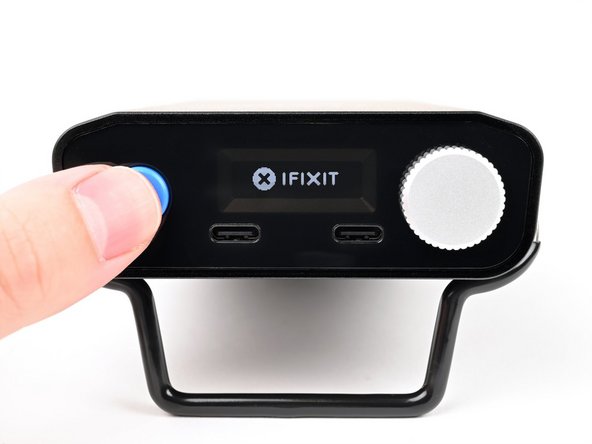
  1. Portable Soldering Station Quick Start Guide, Portable Power Station component overview: шаг 1, изображение 1 из 3 Portable Soldering Station Quick Start Guide, Portable Power Station component overview: шаг 1, изображение 2 из 3 Portable Soldering Station Quick Start Guide, Portable Power Station component overview: шаг 1, изображение 3 из 3
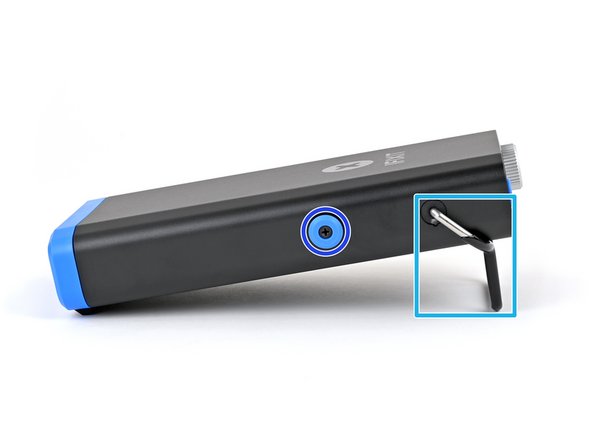
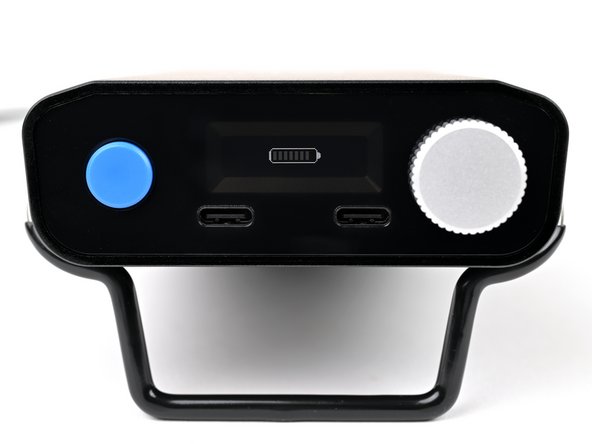
    • Familiarize yourself with the parts, buttons, knobs, and ports of the Portable Power Station:

    • Action button—typically used for power and back commands

    • Selector knob—rotate to scroll, or push (click) to select

    • Display

    • 2x USB-C "Smart Ports" with 100W combined output

    • Kickstand

    • Tool mount (one on each side)

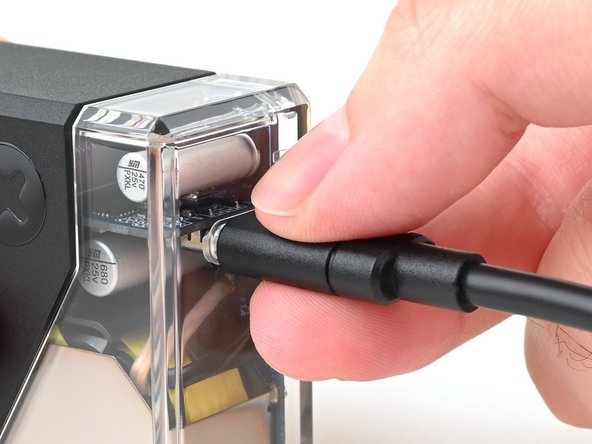
    • Rear USB-C port for 45W input and computer interface

    Спросите у FixBot
  2. Portable Soldering Station Quick Start Guide, Soldering iron component overview: шаг 2, изображение 1 из 1
    • Here's an overview of all the parts that make up the Smart Soldering Iron:

    • Quick-Swap soldering tip

    • Soldering iron grip

    • Touch-Safe Indicator LED ring

    • Power switch

    • Soldering iron cap

    • Soldering iron USB-C cable

    • For a more in‑depth look at the different components of the soldering iron, click here for an exploded diagram.

    Спросите у FixBot
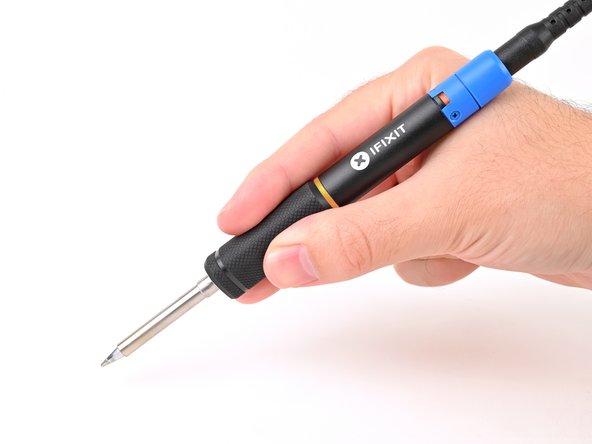
  3. Portable Soldering Station Quick Start Guide, Charge the power station: шаг 3, изображение 1 из 2 Portable Soldering Station Quick Start Guide, Charge the power station: шаг 3, изображение 2 из 2
    Инструмент, используемый на этом этапе:
    65W USB-C GaN iFixit Fast Charger
    $64.99
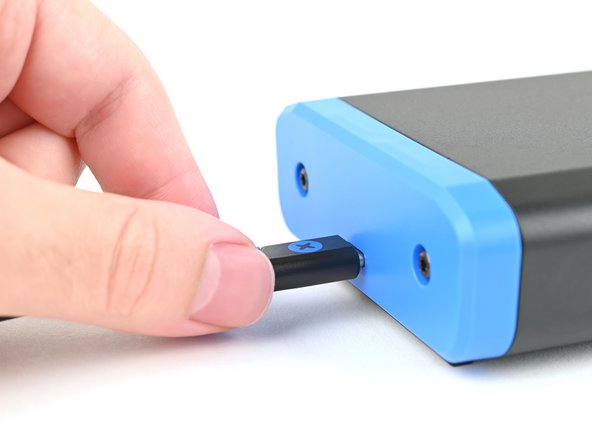
    • Connect a USB-C power cable to a USB-C charger. We recommend at least 45W for optimal performance.

    • iFixit's 65W GaN Fast Charger recharges a fully depleted power station in about two hours.

    Спросите у FixBot
  4. Portable Soldering Station Quick Start Guide: шаг 4, изображение 1 из 3 Portable Soldering Station Quick Start Guide: шаг 4, изображение 2 из 3 Portable Soldering Station Quick Start Guide: шаг 4, изображение 3 из 3
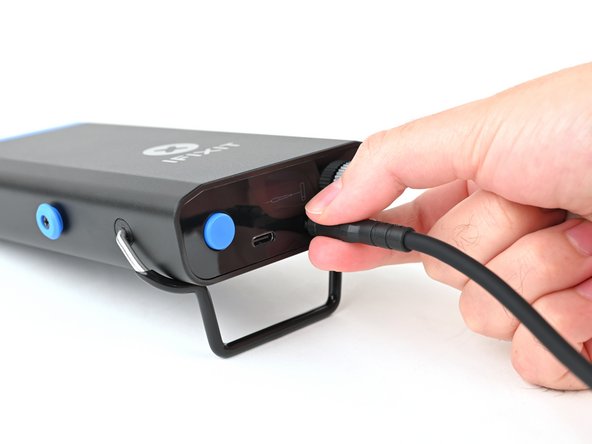
    • Connect the other end of your cable to the rear USB-C port on the power station (the side without the screen).

    • A charging indicator animation will appear on the display.

    • Keep the USB-C charger plugged in until the battery indicator shows full.

    • It's safe to leave it connected continually to keep the power station batteries topped up.

    Спросите у FixBot
  5. Portable Soldering Station Quick Start Guide, Turn on the power station: шаг 5, изображение 1 из 2 Portable Soldering Station Quick Start Guide, Turn on the power station: шаг 5, изображение 2 из 2
    • Press and hold the blue action button for three seconds to turn on the power station.

    • The iFixit logo will appear while the power station is turning on.

    Спросите у FixBot
  6. Portable Soldering Station Quick Start Guide, Soldering iron safety precautions: шаг 6, изображение 1 из 2 Portable Soldering Station Quick Start Guide, Soldering iron safety precautions: шаг 6, изображение 2 из 2
    • Never hold the soldering iron past the grip. Touching the metal soldering tip while the Touch-Safe Indicator LED is orange or purple can cause severe burns. Always assume the tip is hot.

    • Never leave the soldering iron unattended while the power switch is in the orange ON position.

    • To be safe, keep the cap on your iron when not in use. The inside of the cap is heat-resistant and can be used to cover your iron, even when hot.

    Спросите у FixBot
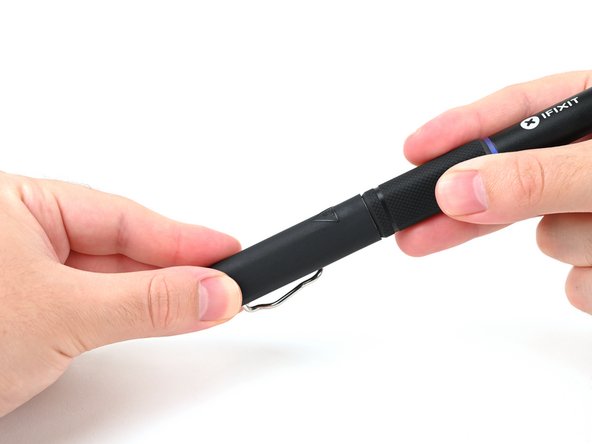
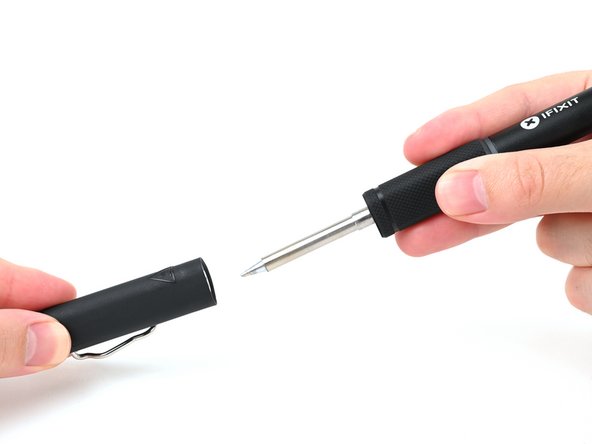
  7. Portable Soldering Station Quick Start Guide, Remove the soldering iron cap: шаг 7, изображение 1 из 2 Portable Soldering Station Quick Start Guide, Remove the soldering iron cap: шаг 7, изображение 2 из 2
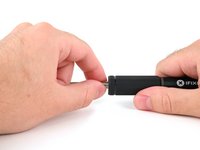
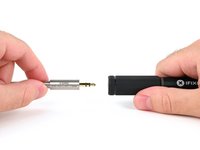
    • Hold the iron from both ends and pull to remove the cap.

    Спросите у FixBot
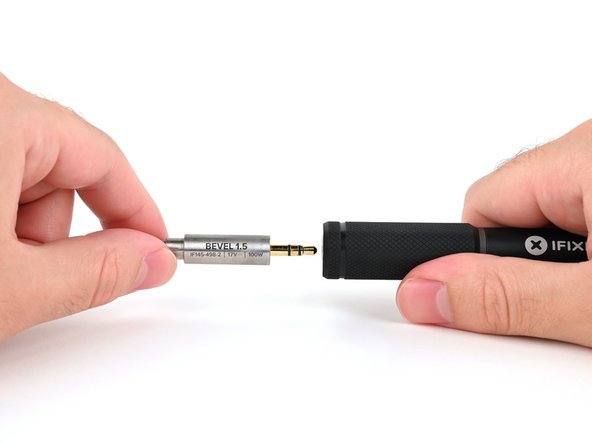
  8. Portable Soldering Station Quick Start Guide, Remove the quick-swap soldering tip: шаг 8, изображение 1 из 2 Portable Soldering Station Quick Start Guide, Remove the quick-swap soldering tip: шаг 8, изображение 2 из 2
    • Make sure the tip has fully cooled before touching it.

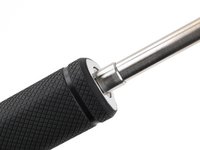
    • Firmly grasp the base of the tip and pull it away from the front of the iron handle to remove it.

    Спросите у FixBot
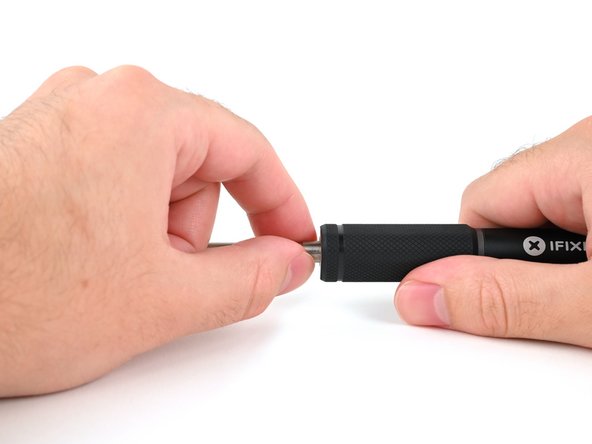
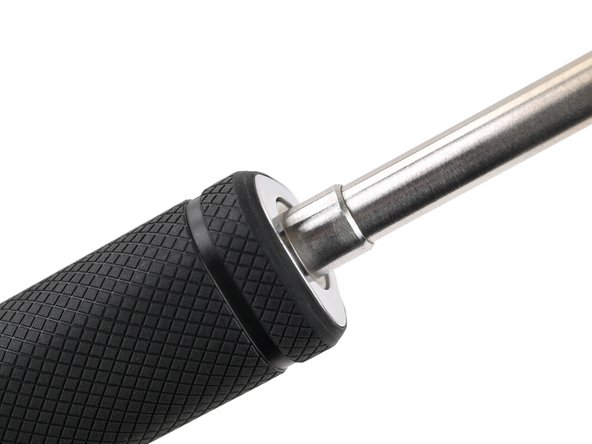
  9. Portable Soldering Station Quick Start Guide, Insert the new soldering iron tip: шаг 9, изображение 1 из 3 Portable Soldering Station Quick Start Guide, Insert the new soldering iron tip: шаг 9, изображение 2 из 3 Portable Soldering Station Quick Start Guide, Insert the new soldering iron tip: шаг 9, изображение 3 из 3
    • Make sure the new tip is rotated in the orientation you want it relative to the handle before inserting it. This is helpful for asymmetrical tips like a bevel or knife.

    • Push the tip into the iron enclosure in the handle until it clicks into place.

    • The base of the tip should be slightly recessed into the front of the handle. If it isn't, push it further in before powering on the iron.

    Спросите у FixBot
  10. Portable Soldering Station Quick Start Guide, Connect the USB-C cable: шаг 10, изображение 1 из 2 Portable Soldering Station Quick Start Guide, Connect the USB-C cable: шаг 10, изображение 2 из 2
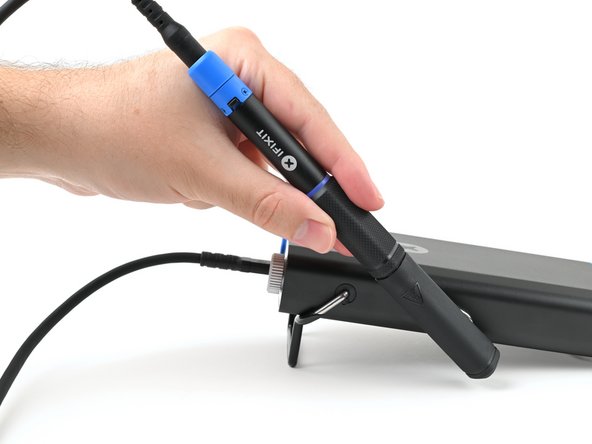
    • Make sure the soldering iron's power switch is in the blue OFF position.

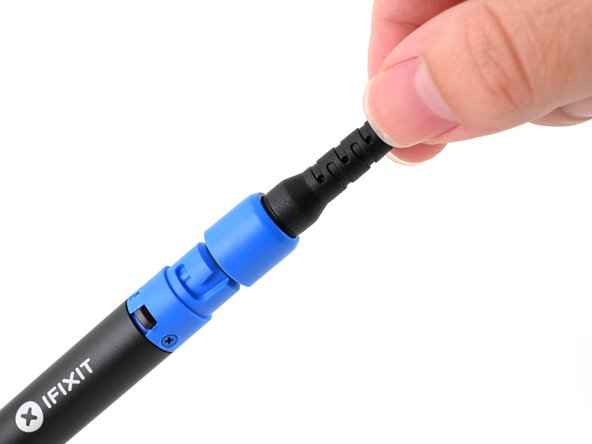
    • Match the end of the USB-C cable with the blue locking collar to the blue USB-C port on the soldering iron, and push to connect.

    Спросите у FixBot
  11. Portable Soldering Station Quick Start Guide, Secure the locking collar: шаг 11, изображение 1 из 3 Portable Soldering Station Quick Start Guide, Secure the locking collar: шаг 11, изображение 2 из 3 Portable Soldering Station Quick Start Guide, Secure the locking collar: шаг 11, изображение 3 из 3
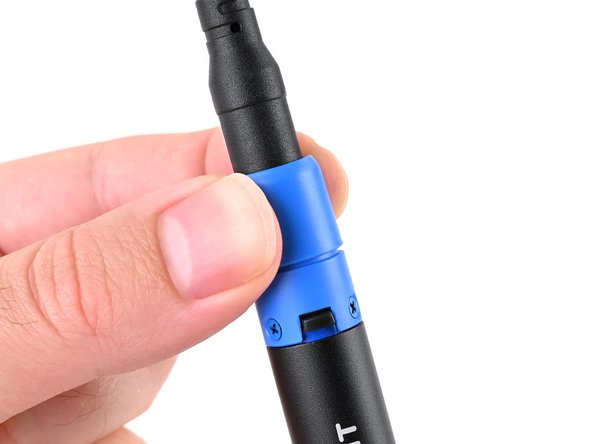
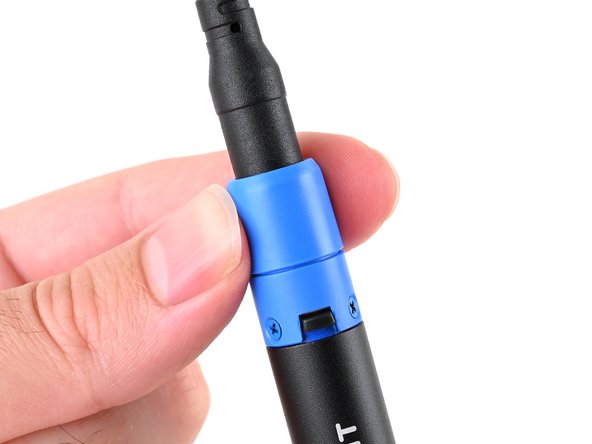
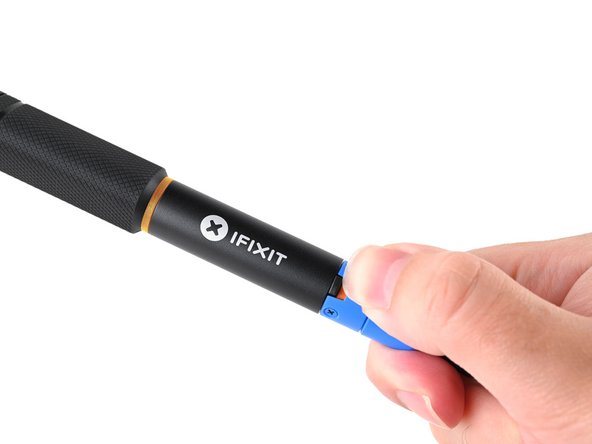
    • Align the nubs in the collar with the slots on the soldering iron.

    • Push the collar snug against the soldering iron, then twist clockwise to lock it in place.

    Спросите у FixBot
  12. Portable Soldering Station Quick Start Guide, Connect the Smart Soldering Iron: шаг 12, изображение 1 из 3 Portable Soldering Station Quick Start Guide, Connect the Smart Soldering Iron: шаг 12, изображение 2 из 3 Portable Soldering Station Quick Start Guide, Connect the Smart Soldering Iron: шаг 12, изображение 3 из 3
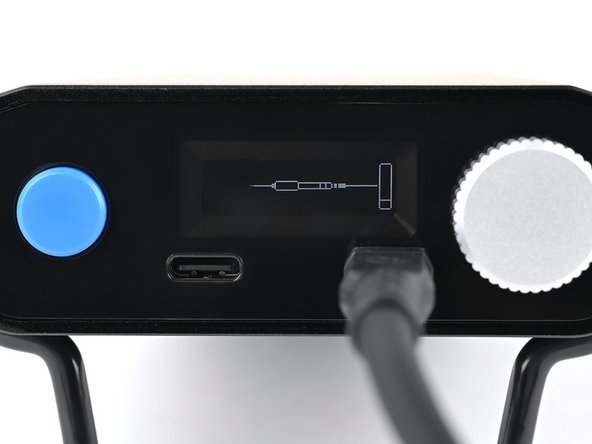
    • Connect the other end of the soldering iron USB-C cable to either of the USB-C ports on the front of the power station.

    • The display will show an animation indicating the soldering iron has been connected.

    Спросите у FixBot
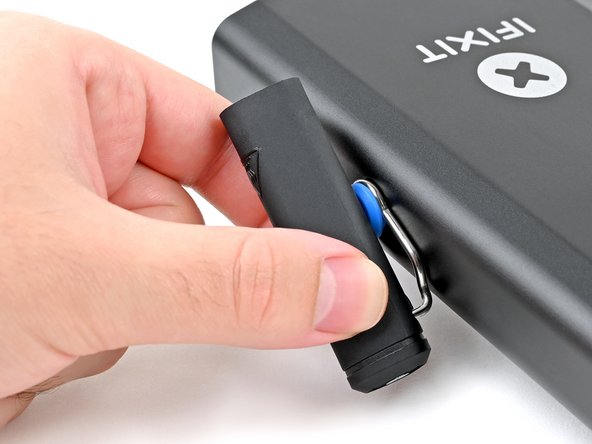
  13. Portable Soldering Station Quick Start Guide, Mount the iron cap: шаг 13, изображение 1 из 3 Portable Soldering Station Quick Start Guide, Mount the iron cap: шаг 13, изображение 2 из 3 Portable Soldering Station Quick Start Guide, Mount the iron cap: шаг 13, изображение 3 из 3
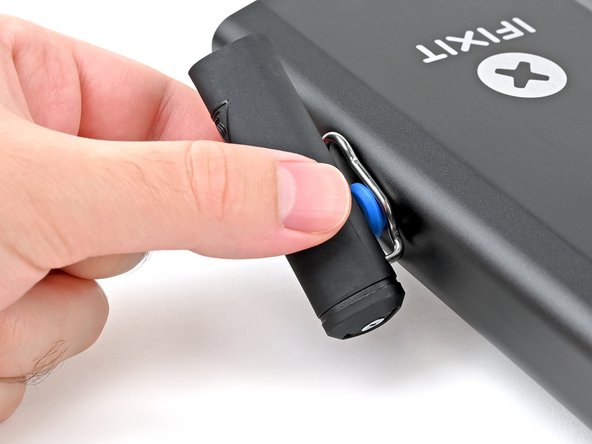
    • Align the widest opening of the cap's spring clip with the circular, blue tool mount on either side of the Portable Power Station.

    • Place the spring clip over the mount and slide the cap down to secure it in place.

    • Alternatively, you can leave the cap on the iron while you clip it in place.

    Спросите у FixBot
  14. Portable Soldering Station Quick Start Guide, Place the iron in its cap: шаг 14, изображение 1 из 2 Portable Soldering Station Quick Start Guide, Place the iron in its cap: шаг 14, изображение 2 из 2
    • Remember: Never leave the soldering iron unattended while the power switch is in the orange ON position.

    • Place your iron in its cap.

    • While powered on, the iron will enter Idle Mode after remaining stationary for 30 seconds. It'll reheat to the set temperature immediately upon movement.

    Спросите у FixBot
  15. Portable Soldering Station Quick Start Guide, How to read the Touch-Safe Indicator LED: шаг 15, изображение 1 из 3 Portable Soldering Station Quick Start Guide, How to read the Touch-Safe Indicator LED: шаг 15, изображение 2 из 3 Portable Soldering Station Quick Start Guide, How to read the Touch-Safe Indicator LED: шаг 15, изображение 3 из 3
    • The color of the Touch-Safe Indicator LED provides information about the status of the soldering iron tip. Note: the soldering iron grip is always safe to touch.

    • The LED only functions when the soldering iron is connected to a power source—so use caution when handling an unplugged iron if you don't know how hot it is.

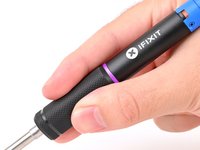
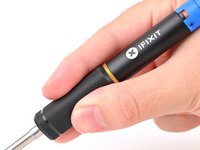
    • Blue LED: The iron has cooled below 40 °C (100 °F), and the tip is safe to touch.

    • Purple LED: When pulsing, the iron is actively heating up or cooling down. When static, the iron is in Idle Mode. The iron tip is not safe to touch.

    • Orange LED: The iron has reached the set temperature and is ready to solder. The iron tip is not safe to touch.

    Спросите у FixBot
  16. Portable Soldering Station Quick Start Guide, Free fall detection accelerometer: шаг 16, изображение 1 из 1
    • The Smart Soldering Iron is equipped with an accelerometer-based auto safety feature.

    • If the iron detects that it's been dropped, it will automatically cut power to the soldering tip to prevent damage or injury when it lands.

    • To clear the free‑fall state and resume soldering, press the blue button on the Power Station or power cycle the iron by unplugging and replugging into a USB-C power source.

    Спросите у FixBot
  17. Portable Soldering Station Quick Start Guide, Active Mode: шаг 17, изображение 1 из 3 Portable Soldering Station Quick Start Guide, Active Mode: шаг 17, изображение 2 из 3 Portable Soldering Station Quick Start Guide, Active Mode: шаг 17, изображение 3 из 3
    • Never leave the soldering iron unattended while it's on.

    • Don't touch the heated tip of the soldering iron.

    • In Active Mode, the iron is heating to or maintaining the set working temperature. The LED will be pulsing purple or orange, respectively.

    Спросите у FixBot
  18. Portable Soldering Station Quick Start Guide, Idle Mode: шаг 18, изображение 1 из 1
    • Don't touch the heated tip of the soldering iron while in Idle Mode.

    • After 30 seconds of no movement, the soldering iron enters Idle Mode, a low-power mode that reduces the tip temperature to 200 °C.

    • The Idle Mode LED is static (not pulsing) purple.

    • Picking up a resting iron wakes it from Idle Mode, and the tip will automatically heat back up to your set temperature.

    • When powered by a Portable Power Station, warming from Idle Mode temperature to set temperature will only take a few seconds.

    • While Idle Mode can be disabled, we recommend leaving it enabled to extend tip life.

    Спросите у FixBot
  19. Portable Soldering Station Quick Start Guide, Sleep Mode: шаг 19, изображение 1 из 1
    • After Idle Mode, Sleep Mode occurs when the iron is completely motionless for a set amount of time.

    • The iron is off until it's moved again.

    • It's safe to touch the soldering iron tip in this state as long as the indicator ring is blue.

    Спросите у FixBot
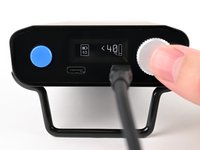
  20. Portable Soldering Station Quick Start Guide, Layout of the Ready Screen: шаг 20, изображение 1 из 3 Portable Soldering Station Quick Start Guide, Layout of the Ready Screen: шаг 20, изображение 2 из 3 Portable Soldering Station Quick Start Guide, Layout of the Ready Screen: шаг 20, изображение 3 из 3
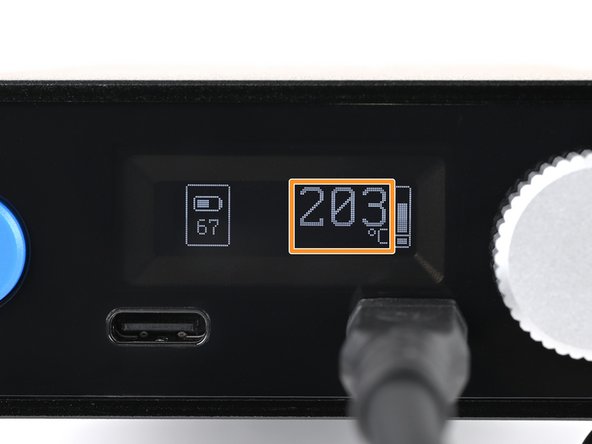
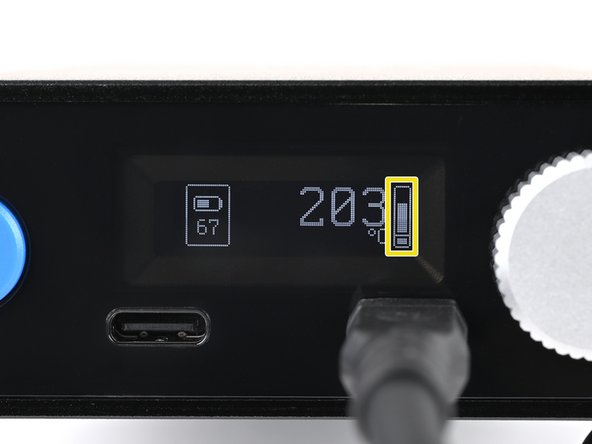
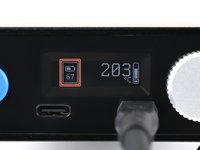
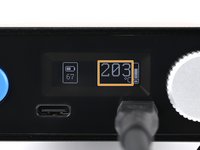
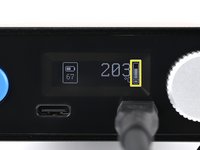
    • The power station's default screen is also known as the Ready Screen. It displays:

    • Battery charge level

    • Unit display, for the current measured value of a connected tool or device—in this case, the temperature of your soldering iron

    • Power indicator, showing how much power is currently being delivered (on a scale of 0–100W). The smaller square at the bottom shows if the heater is on.

    Спросите у FixBot
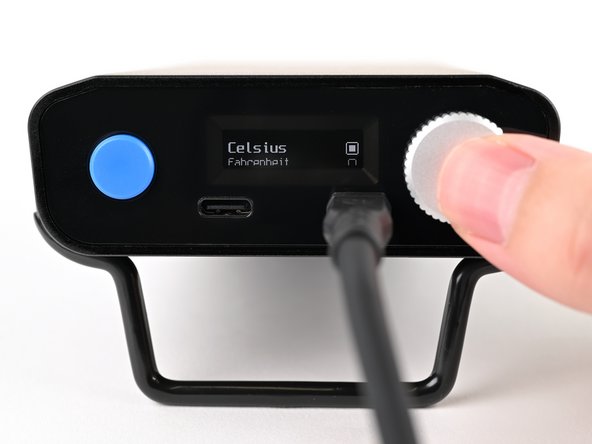
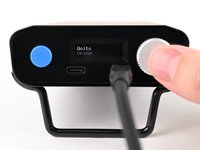
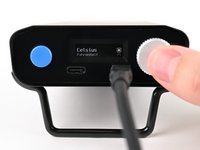
  21. Portable Soldering Station Quick Start Guide, Setting the units: шаг 21, изображение 1 из 3 Portable Soldering Station Quick Start Guide, Setting the units: шаг 21, изображение 2 из 3 Portable Soldering Station Quick Start Guide, Setting the units: шаг 21, изображение 3 из 3
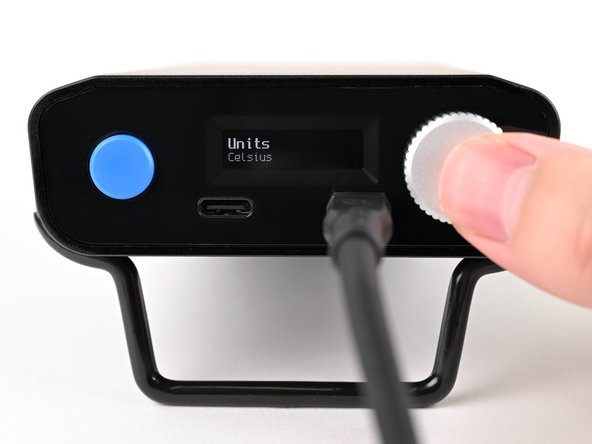
    • From the Ready Screen, press the selector knob to open the configuration menu.

    • Press again to open the Units sub-menu.

    • Rotate the selector knob to your desired temperature scale (ºC or ºF), and press again to set.

    • Press the blue action button to exit the Units sub-menu, and press again to exit the configuration menu. This returns you to the Ready Screen.

    Спросите у FixBot
  22. Portable Soldering Station Quick Start Guide, Selecting a temperature: шаг 22, изображение 1 из 2 Portable Soldering Station Quick Start Guide, Selecting a temperature: шаг 22, изображение 2 из 2
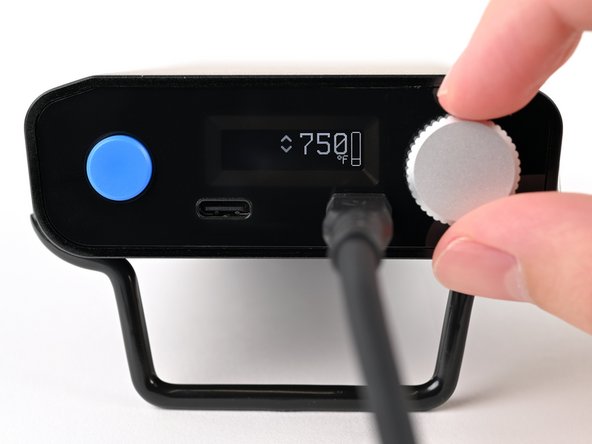
    • From the Ready Screen, rotating the selector knob sets the temperature.

    • Rotate the selector knob clockwise to increase the temperature and counter-clockwise to decrease.

    • The Portable Power Station can be set from 200–420 °C or 395–790 °F in 5-degree increments.

    • After setting the desired temperature, wait one second or press the selector knob to return to the Ready Screen.

    Спросите у FixBot
  23. Portable Soldering Station Quick Start Guide, Begin soldering: шаг 23, изображение 1 из 3 Portable Soldering Station Quick Start Guide, Begin soldering: шаг 23, изображение 2 из 3 Portable Soldering Station Quick Start Guide, Begin soldering: шаг 23, изображение 3 из 3
    • Never leave the soldering iron unattended while the power switch is in the orange ON position.

    • The sliding power switch has a built-in color indicator for each position:

    • Orange: ON

    • Blue: OFF

    • Slide the power switch to the orange ON position. You're ready to start soldering!

    • The LED will initially light up blue, then turn purple and pulse to show that the iron is warming up.

    • Never hold the soldering iron past the grip. Touching the metal soldering tip while the Touch-Safe Indicator LED is orange or purple can cause severe burns. Always assume the tip is hot.

    • Hold the soldering iron by the base of the handle with your fingers on the knurled grip.

    Спросите у FixBot
Заключение

New to soldering? Follow this guide to get started.

Repair didn't go as planned? Try some basic troubleshooting, or ask our Answers community for help.

9 человек успешно провели ремонт по этому руководству.

Nick Schultz

Участник с: 03/24/24

54 304 Репутация

Автор 305 руководств

Команда

iFixit Участник iFixit

Staff

123 членов

Автор 25 802 руководств

1 Комментарий к руководству

Can the station be used with the battery disconnected but while still connected to a power outlet?

Mark - Ответить Поделиться
Добавить комментарий

Статистика просмотров:

За последние 24 часов: 6

За последние 7 дней: 21

За последние 30 дней: 148

За всё время: 2,798