Перейти к основному содержанию
Присоединяйся к сообществу ремонтников - Создай аккаунт

Smart Soldering Iron Quick Start Guide

Выберете то, что вам нужно

  1. Smart Soldering Iron Quick Start Guide, Soldering iron component overview: шаг 1, изображение 1 из 1
    • Here's an overview of all the parts that make up the Smart Soldering Iron:

    • Quick-Swap soldering tip

    • Soldering iron grip

    • Touch-Safe Indicator LED ring

    • Power switch

    • Soldering iron cap

    • Soldering iron USB-C cable

    • For a more in‑depth look at the different components of the soldering iron, click here for an exploded diagram.

    Спросите у FixBot
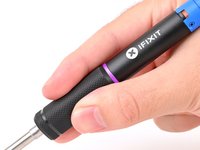
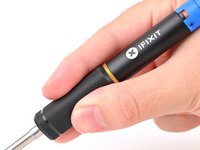
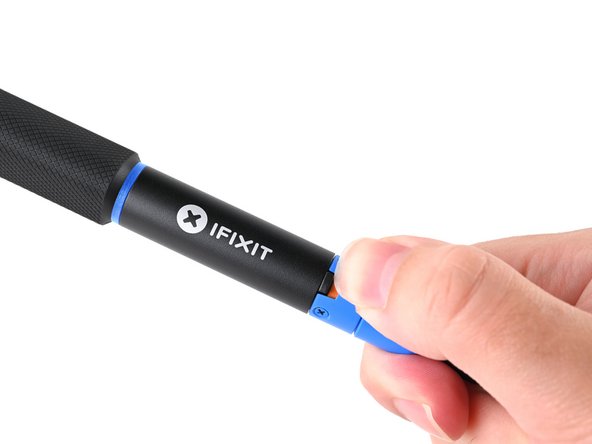
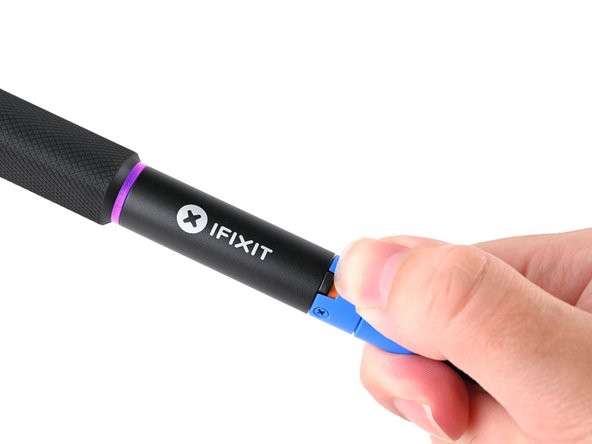
  2. Smart Soldering Iron Quick Start Guide, How to read the Touch-Safe Indicator LED: шаг 2, изображение 1 из 3 Smart Soldering Iron Quick Start Guide, How to read the Touch-Safe Indicator LED: шаг 2, изображение 2 из 3 Smart Soldering Iron Quick Start Guide, How to read the Touch-Safe Indicator LED: шаг 2, изображение 3 из 3
    • The color of the Touch-Safe Indicator LED provides information about the status of the soldering iron tip. Note: the soldering iron grip is always safe to touch.

    • The LED only functions when the soldering iron is connected to a power source—so use caution when handling an unplugged iron if you don't know how hot it is.

    • Blue LED: The iron has cooled below 40 °C (100 °F), and the tip is safe to touch.

    • Purple LED: When pulsing, the iron is actively heating up or cooling down. When static, the iron is in Idle Mode. The iron tip is not safe to touch.

    • Orange LED: The iron has reached the set temperature and is ready to solder. The iron tip is not safe to touch.

    Спросите у FixBot
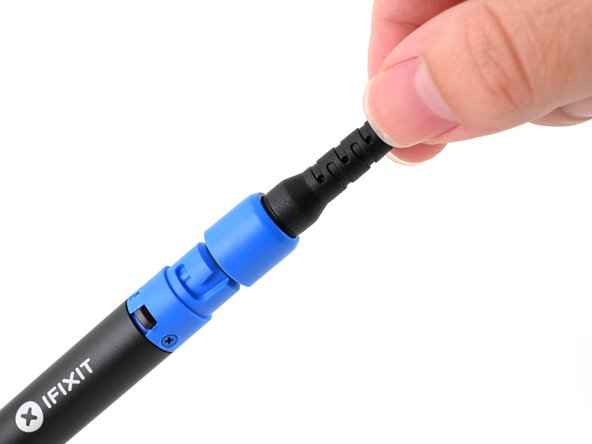
  3. Smart Soldering Iron Quick Start Guide, Connect the USB-C cable: шаг 3, изображение 1 из 2 Smart Soldering Iron Quick Start Guide, Connect the USB-C cable: шаг 3, изображение 2 из 2
    • Make sure the soldering iron's power switch is in the blue OFF position.

    • Match the end of the USB-C cable with the blue locking collar to the blue USB-C port on the soldering iron, and push to connect.

    Спросите у FixBot
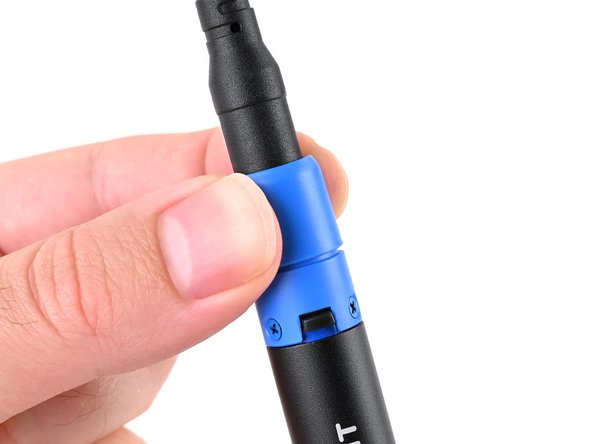
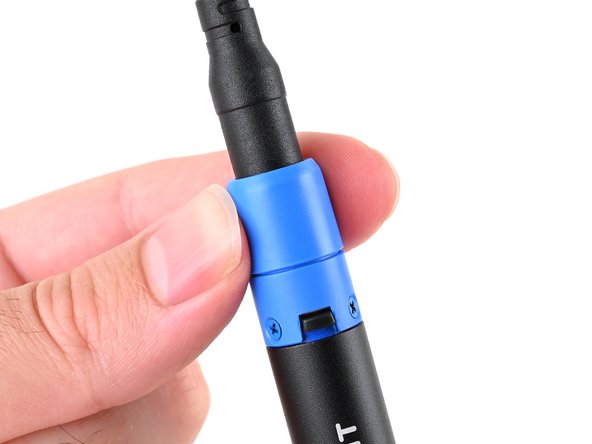
  4. Smart Soldering Iron Quick Start Guide, Secure the locking collar: шаг 4, изображение 1 из 3 Smart Soldering Iron Quick Start Guide, Secure the locking collar: шаг 4, изображение 2 из 3 Smart Soldering Iron Quick Start Guide, Secure the locking collar: шаг 4, изображение 3 из 3
    • Align the nubs in the collar with the slots on the soldering iron.

    • Push the collar snug against the soldering iron, then twist clockwise to lock it in place.

    Спросите у FixBot
  5. Smart Soldering Iron Quick Start Guide, Connect to a power source: шаг 5, изображение 1 из 2 Smart Soldering Iron Quick Start Guide, Connect to a power source: шаг 5, изображение 2 из 2
    Инструмент, используемый на этом этапе:
    FixHub Portable Soldering Station
    $249.95
    • The Smart Soldering Iron works best when paired with a Portable Power Station, which allows fine control of the soldering iron's temperature and other settings.

    • For detailed setup instructions for the Portable Power Station, check out this guide.

    • However, it also works just fine with any power source capable of delivering at least 20W via USB-C PD.

    • Connect the end of the USB-C cable without the blue locking collar to a compatible USB-C power source.

    Спросите у FixBot
  6. Smart Soldering Iron Quick Start Guide, Free fall detection accelerometer: шаг 6, изображение 1 из 1
    • The Smart Soldering Iron is equipped with an accelerometer-based auto safety feature.

    • If the iron detects that it's been dropped, it will automatically cut power to the soldering tip to prevent damage or injury when it lands.

    • To clear the free‑fall state and resume soldering, press the blue button on the Power Station or power cycle the iron by unplugging and replugging into a USB-C power source.

    Спросите у FixBot
  7. Smart Soldering Iron Quick Start Guide, Active Mode: шаг 7, изображение 1 из 3 Smart Soldering Iron Quick Start Guide, Active Mode: шаг 7, изображение 2 из 3 Smart Soldering Iron Quick Start Guide, Active Mode: шаг 7, изображение 3 из 3
    • Never leave the soldering iron unattended while it's on.

    • Don't touch the heated tip of the soldering iron.

    • In Active Mode, the iron is heating to or maintaining the set working temperature. The LED will be pulsing purple or orange, respectively.

    Спросите у FixBot
  8. Smart Soldering Iron Quick Start Guide, Idle Mode: шаг 8, изображение 1 из 1
    • Don't touch the heated tip of the soldering iron while in Idle Mode.

    • After 30 seconds of no movement, the soldering iron enters Idle Mode, a low-power mode that reduces the tip temperature to 200 °C.

    • The Idle Mode LED is static (not pulsing) purple.

    • Picking up a resting iron wakes it from Idle Mode, and the tip will automatically heat back up to your set temperature.

    • When powered by a Portable Power Station, warming from Idle Mode temperature to set temperature will only take a few seconds.

    • While Idle Mode can be disabled, we recommend leaving it enabled to extend tip life.

    Спросите у FixBot
  9. Smart Soldering Iron Quick Start Guide, Sleep Mode: шаг 9, изображение 1 из 1
    • After Idle Mode, Sleep Mode occurs when the iron is completely motionless for a set amount of time.

    • The iron is off until it's moved again.

    • It's safe to touch the soldering iron tip in this state as long as the indicator ring is blue.

    Спросите у FixBot
  10. Smart Soldering Iron Quick Start Guide, Hold the iron properly: шаг 10, изображение 1 из 1
    • Never hold the soldering iron past the grip. Touching the metal soldering tip while the Touch-Safe Indicator LED is orange or purple can cause severe burns. Always assume the tip is hot.

    • Hold the soldering iron by the base of the handle with your fingers on the knurled grip.

    Спросите у FixBot
  11. Smart Soldering Iron Quick Start Guide, Turn on the iron: шаг 11, изображение 1 из 3 Smart Soldering Iron Quick Start Guide, Turn on the iron: шаг 11, изображение 2 из 3 Smart Soldering Iron Quick Start Guide, Turn on the iron: шаг 11, изображение 3 из 3
    • Never leave the soldering iron unattended while the power switch is in the orange ON position.

    • The sliding power switch has a built-in color indicator for each position:

    • Orange: ON

    • Blue: OFF

    • Slide the power switch to the orange ON position.

    • The LED will initially light up blue, then turn purple and pulse to show that the iron is warming up.

    Спросите у FixBot
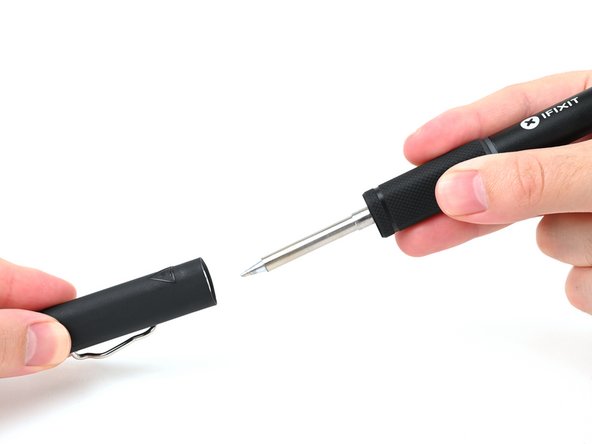
  12. Smart Soldering Iron Quick Start Guide, Remove the soldering iron cap: шаг 12, изображение 1 из 2 Smart Soldering Iron Quick Start Guide, Remove the soldering iron cap: шаг 12, изображение 2 из 2
    • To be safe, keep the cap on your iron when not in use. The inside of the cap is heat-resistant and can be used to cover your iron, even when hot.

    • Hold the iron from both ends and pull to remove the cap.

    Спросите у FixBot
  13. Smart Soldering Iron Quick Start Guide, Begin soldering: шаг 13, изображение 1 из 1
    • When the Touch-Safe Indicator LED turns orange, your iron has reached its set temperature for soldering.

    • The iron comes set to 350 °C (660 °F) out of the box, but it'll remain at whatever temperature was last set using the Portable Power Station or other USB device.

    • Your iron is now ready for soldering!

    Спросите у FixBot
Заключение

New to soldering? Follow this guide to get started.

Repair didn't go as planned? Try some basic troubleshooting, or ask our Answers community for help.

2 человек успешно провели ремонт по этому руководству.

Kara Piepenbrink

Участник с: 05/31/24

7 840 Репутация

Автор 21 руководств

Команда

iFixit Участник iFixit

Staff

123 членов

Автор 25 802 руководств

0 Комментарии к руководству

Добавить комментарий

Статистика просмотров:

За последние 24 часов: 1

За последние 7 дней: 29

За последние 30 дней: 165

За всё время: 3,472